Connect Profile via Shared Link
If you work with clients or external partners, you don't need their account credentials to connect social profiles in Statusbrew. You can generate a secure shared link that lets them authorize and connect profiles on their own, without sharing passwords or being invited to your workspace.
Admins and higher-level roles can create, edit, and manage these links. External users connect profiles without sharing passwords, and you stay in full control of which profiles and networks they can connect.
Who Can Do This?
Admin-level users or higher can create and manage shared links.
External users need the right permissions on the social network to authorize a profile. This is typically Admin-level or Owner access for Facebook Pages, Instagram accounts, YouTube channels or LinkedIn Pages.
What Is A Shared Link?
A shared link is a URL that lets someone outside your organization connect or re-authenticate social profiles. You choose which networks they can connect, add their email address, and set an expiry date for the link if you need one. Once they receive the invitation, they connect directly with the social network, and the connected profiles appear instantly in your Statusbrew Space.
How Do I Generate A Shared Link?
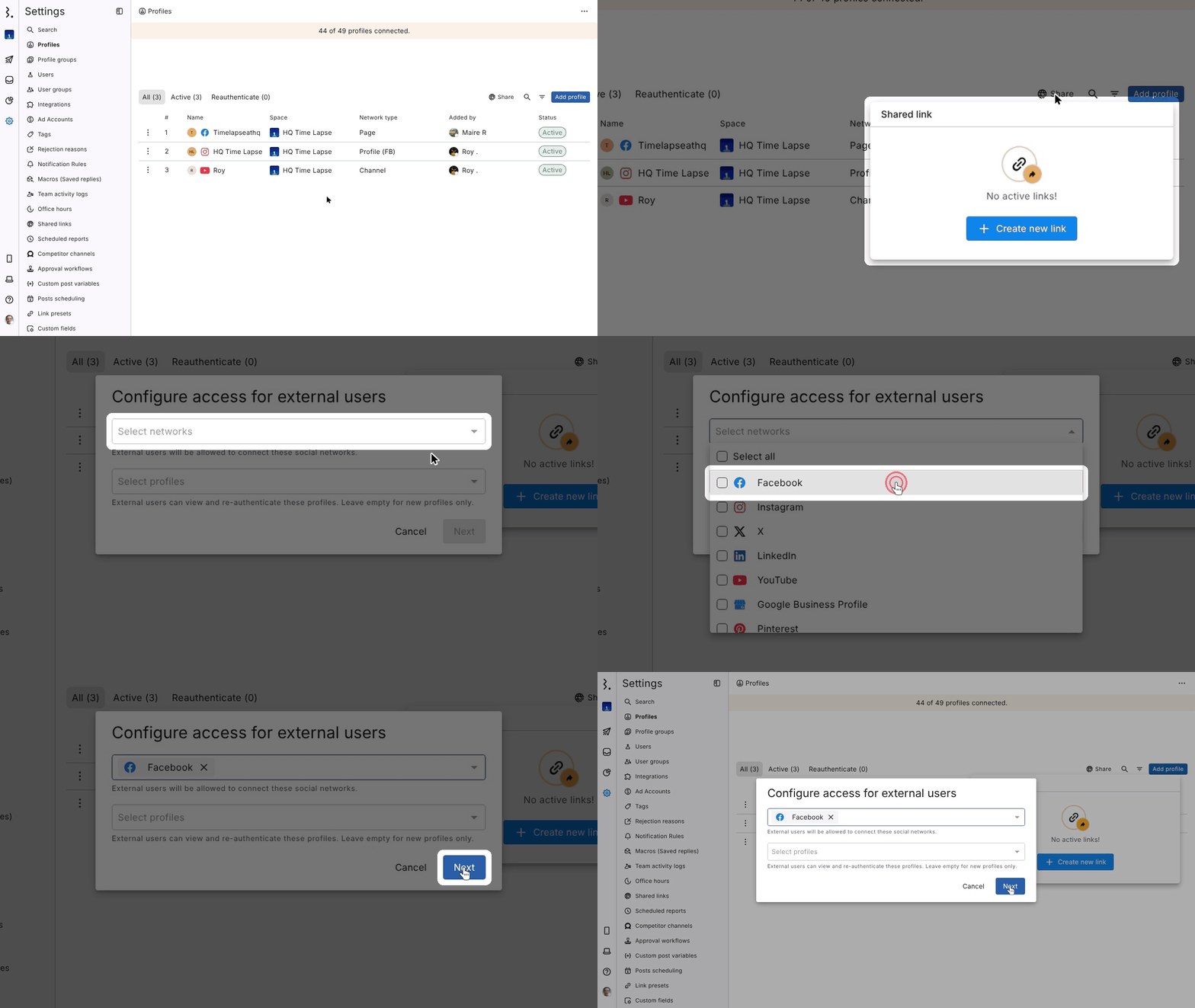
Go to Settings → Profiles.
Click Share beside the Add profile button. The Shared link panel opens with your existing links.
Click Create new link (plus icon) at the top of the panel.
Choose the networks you want the external user to connect.
Click Next.
Enter the email address of the external user.
Add an optional message.
Set an expiry date if needed.
Click Send Invites.
The external user receives an email with a button to open the link and start the connection process.
What Do External Users See?
External users receive an email containing your invitation. When they click View Link, they land on a page showing the networks you requested. They connect directly with each social network. Once the authorization is complete, the connected profiles appear in your Profiles list immediately.
No credentials are shared with you at any point, and you never gain access to their login information.
How Do I Re-Authenticate Profiles Using A Shared Link?
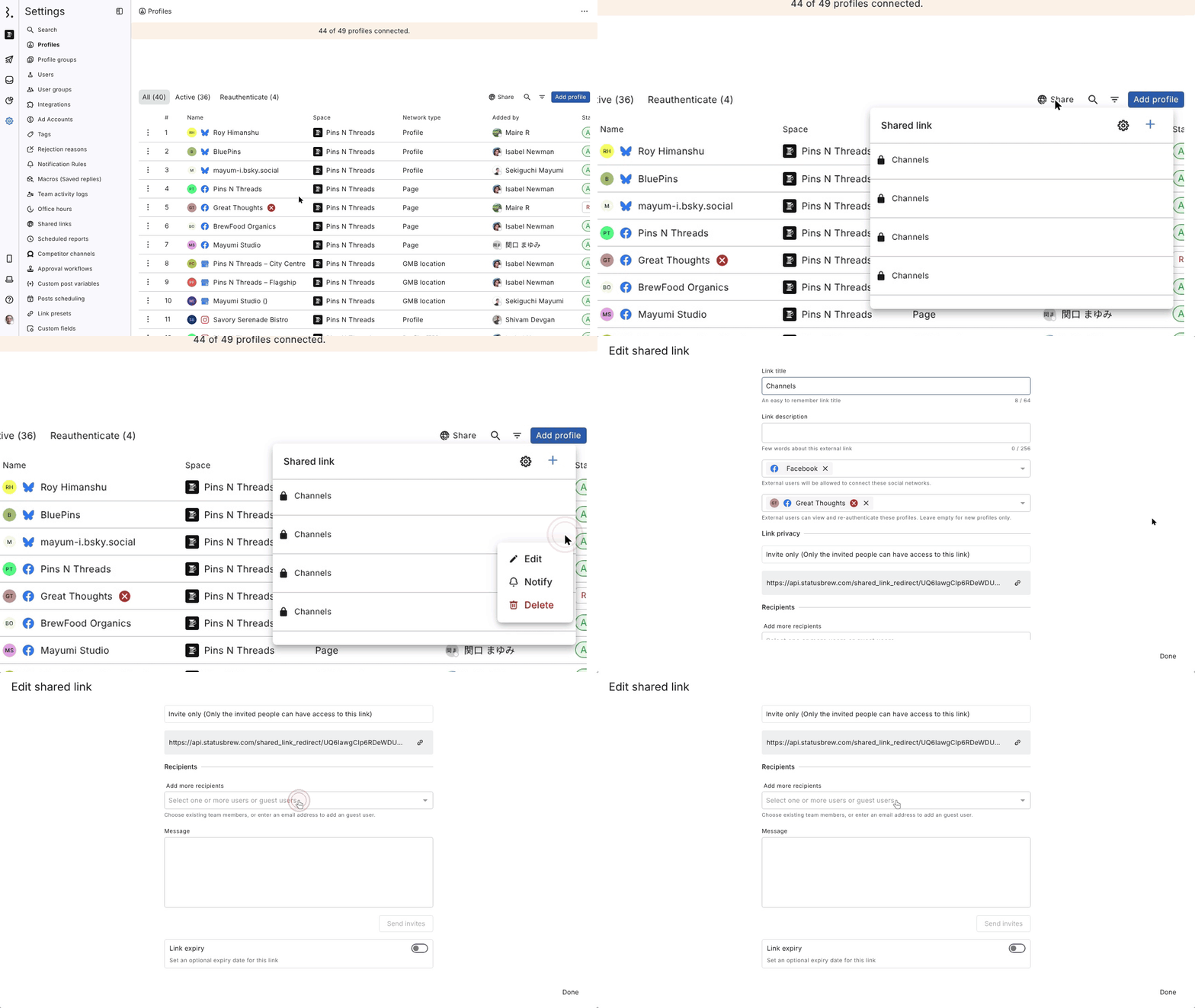
You can reuse an existing link when a profile needs re-authentication, or generate a new one.
Go to Settings → Profiles.
Click Share.
Find the link you want to reuse and hover over it.
Click the three dots (…) and select Edit.
Under External users can view and re-authenticate these profiles, select the profile that needs re-authentication.
Under Recipients, add the email address of the person who will re-authenticate it.
Click Send invites.
The external user receives a new email and can authenticate the profile again.
How Do I Manage Existing Shared Links?
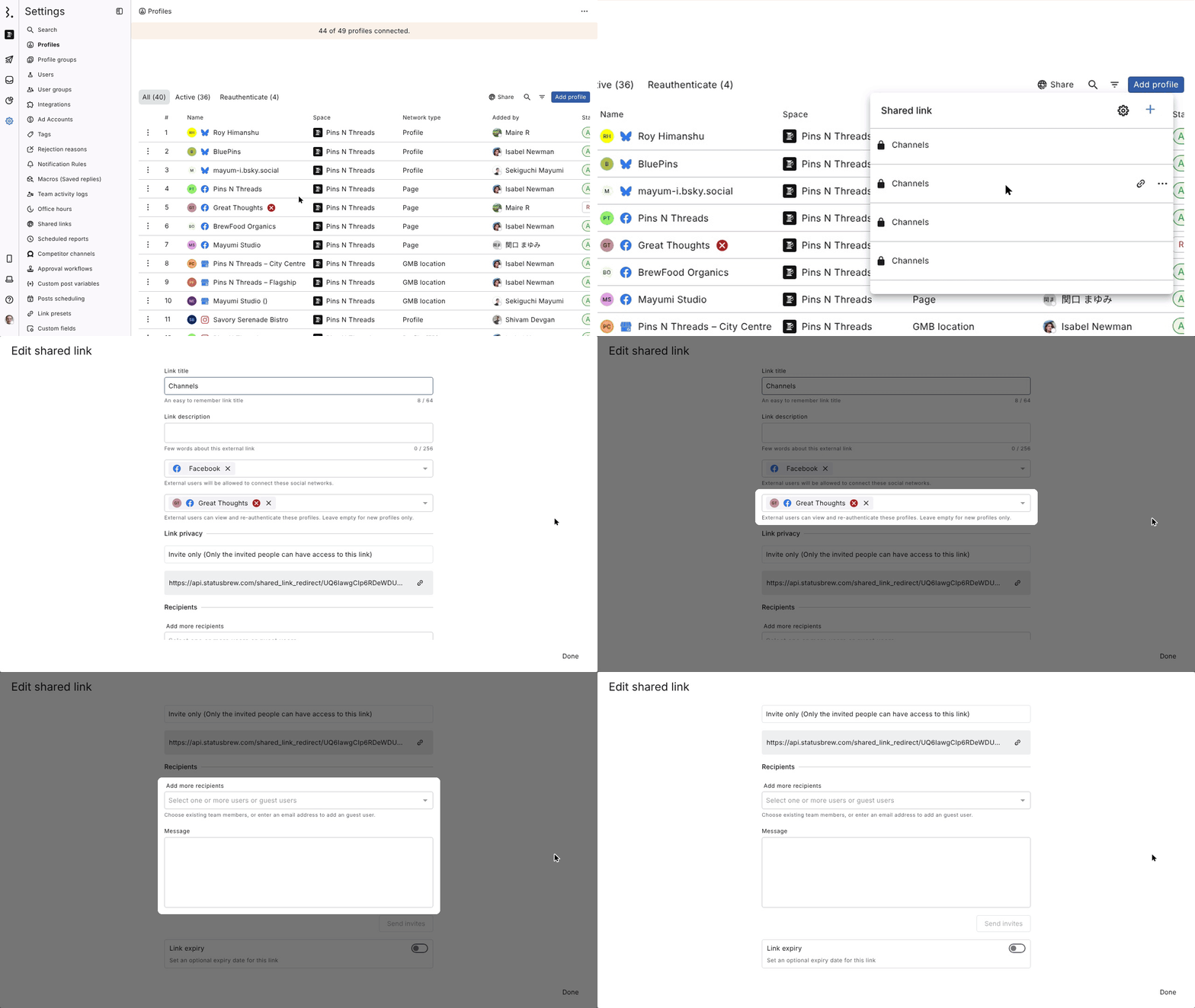
Hover over a link and click the three dots (…). The menu shows Edit, Notify and Delete. Select Notify to tell the recipients about a change you made to their shared link. Select Edit to open the Edit shared link window, where you can:
Rename the link and change its description
Change the network and the profiles external users can view and re-authenticate
Change the link privacy
Add or remove recipients and edit the message
Set or change the link expiry date
Click Send invites to resend the invitation
Select Delete when you no longer need the link.
What Happens After
The connected profiles appear in your Profiles list as soon as the external user finishes authorizing.
A link stays active until it reaches its expiry date or you delete it.
If a link expires, external users can no longer open it unless you re-enable it.
FAQs
Where Is The Globe Icon In Profiles?
It now shows as Share with a globe icon, next to the search and filter icons beside Add profile in Settings → Profiles. Click it to open the Shared link panel.
Why Isn't The External User Receiving The Email?
Click the three dots on the link and select Edit, copy the link, and share it manually. Also confirm that their email address is listed as a recipient.
Can Shared Links Expire?
Yes. You can set an optional expiry date in the Edit shared link window. Once expired, the link can no longer be used unless you re-enable it.
Can I Resend The Invitation?
Yes. Click the three dots on the link, select Edit, make sure the recipient is listed, and click Send invites.
Can External Users Add Multiple Profiles Using The Same Link?
Yes, as long as the networks you selected support connecting multiple profiles.
Can I Edit The Networks Or Recipients On An Existing Link?
Yes. Both can be changed at any time from Edit.
Why Does The External User See An Error From The Social Network?
Common reasons are:
They aren't an admin of the account they're trying to connect
Their social login expired
Pop-ups are blocked by a browser extension
They're logged into the wrong social account
What Should I Do If The Wrong Profile Was Connected?
Remove the incorrect profile from Settings → Profiles, update the link if needed, and resend the invitation.
How Do I Revoke Access Completely?
Remove the recipient's email, delete the link, and remove any profiles they previously added if required.