What Are The Different Post States In Statusbrew?
A post state tells you where a post is in the publishing process, from draft to approval to published or failed.
Every post you create in Statusbrew has a state. For example, a post is In Draft while you work on it, moves to Waiting for Approval when you send it to an approval workflow, becomes Scheduled once it's approved, and shows Published after it goes live on the social network.
How To Find Posts By State
The Publish sidebar shows All Posts, Drafts, Needs Approval and Projects. Its More section also has Rejected, Failed, Recalled and Past Reminders views.
Go to Publish → Drafts to see posts that are In Draft.
Go to Publish → Needs Approval to see posts that are Waiting for Approval.
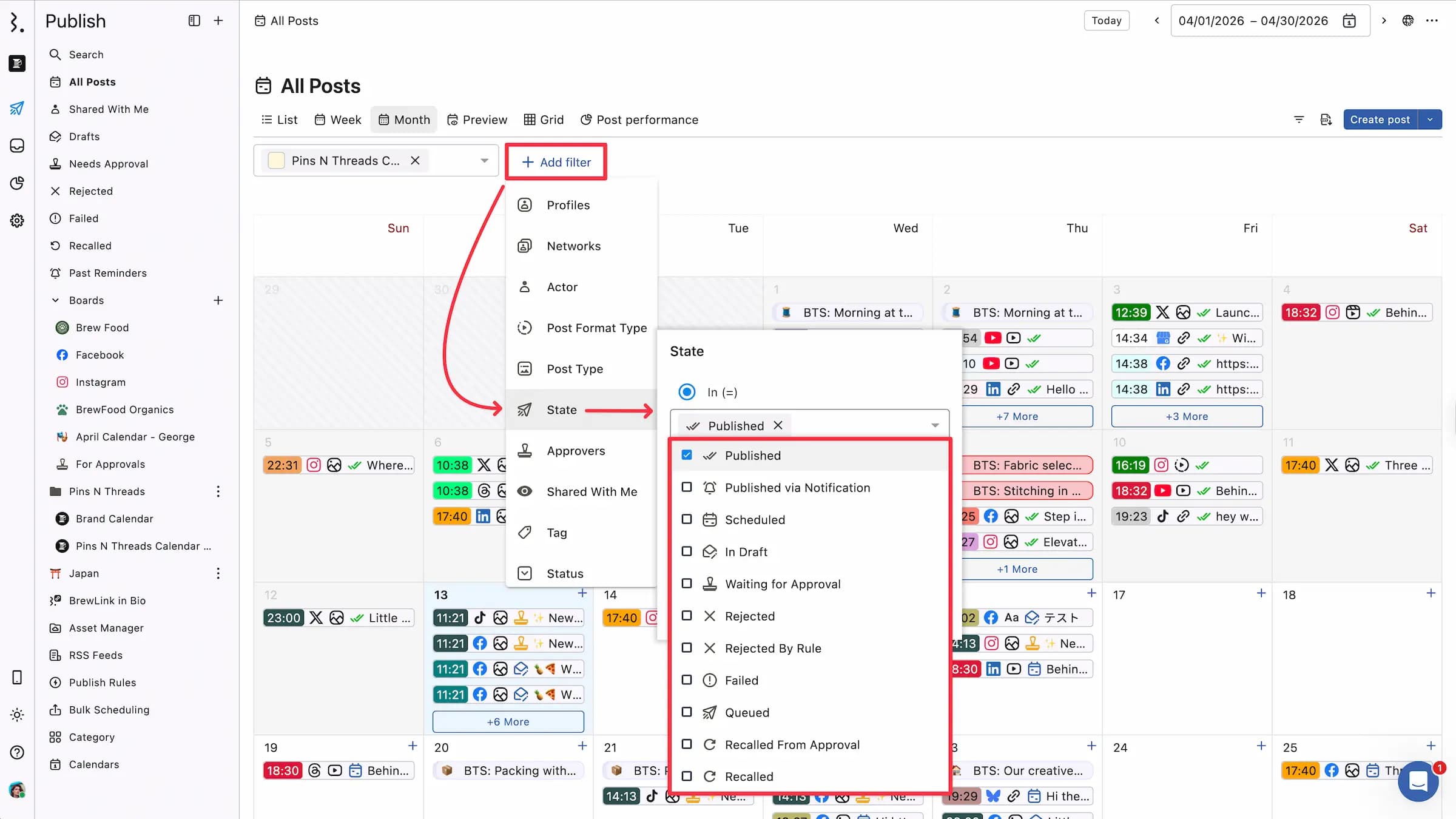
For any state, go to Publish → All Posts, click Add filter and pick State. Choose one or more states, such as Scheduled, Failed or Recalled.
Expired posts don't have their own option in the State filter.
Draft And Approval States
In Draft
The post is still being worked on. It isn't scheduled and hasn't been sent for approval.
In Compose, turn on the Mark as draft switch at the top. The header shows a DRAFT badge.
Click Save as draft. A draft doesn't need a date and time.
Your draft appears in Publish → Drafts. To take a post out of draft, turn the Mark as draft switch off. The main button changes to Post now, Schedule or Send for approval. Learn more in Drafts in Statusbrew.
If you set a date and time on a draft, it moves to the Expired state once that time passes. Edit the draft anytime to pick a new time.
Waiting for Approval
The post is waiting for approval in an approval workflow before it can be scheduled.
In Compose, click Approval in the bottom bar.
Select Use Workflow, pick a workflow from the Workflow name dropdown and click Save.
The main button changes to Send for approval. Click it.
The post shows a Needs approval badge. Approvers find it in Publish → Needs Approval, where they can Approve or Reject it. Once approved, the post moves to Scheduled. Learn more about approval workflows.
Rejected
An approver reviewed the post and didn't approve it. A rejected post won't publish unless you edit it and it's approved.
When an approver rejects a post that is Waiting for Approval, they pick a Rejection reason (required) and can add an Additional comment for the creator. The post then moves to Rejected.
Rejected By Rule
The post was rejected automatically by one of your Publish Rules.
Recalled From Approval
The post was sent for approval, then taken back by its creator before anyone approved it.
Expired
The post's scheduled time passed before it could go out.
Drafts: a draft with a date and time moves to Expired once that time passes.
Posts waiting for approval: if the time passes before approval, the post shows "The scheduled time for this post has passed." Approvers can only Reject it until it's rescheduled.
Edit the post and pick a time at least 15 minutes from now to bring it back.
Publishing States
Scheduled
The post is set to publish at a date and time in the future. Learn more in How Can I Schedule Social Network Posts With Statusbrew?
Queued
The post is ready to publish and waiting in line. This happens when its scheduled time arrives or when you click Post now. It publishes right after.
Published
The post went live on the social network.
Published via Notification
The post was sent as a mobile reminder for Instagram. Instagram posts and stories that publish via mobile reminders show Published via Notification in Publish once the notification is sent. You still need to open the notification on your phone to publish the content on Instagram.
Instagram profiles that publish via mobile reminders are saved as separate posts, not in a Post Group.
Failed
The post couldn't be published, for example because of an expired token, a permission issue or a platform error.
Open the post to see the reason in the post detail side panel. Click Retry now to publish it right away, or reschedule it. You only need to change the post if the error asks for it.
For common errors, see Facebook Publishing Errors, Instagram Publishing Errors and Google My Business Publishing Errors.
Recalled
The post was scheduled, with or without approval, and its creator took it back before it published. A recalled post won't publish.
Open the scheduled post and click the Recall post icon in the post detail header, next to Edit.
To publish it later, edit the post and schedule it or send it for approval again.
The post moves to Recalled straight away, with no confirmation, and its Activity logs "recalled this post".
Post Group States
A post you create in Compose for two or more profiles is saved as a Post Group, with one post per profile, unless you pick Separate posts in the Post Group dropdown at the top of Compose. A post for one profile is a normal post. Stories and X Threads aren't saved as Post Groups. The posts in a Group move through states together:
Approval: approvers approve or reject the whole Group in one action. You can't approve some posts in a Group and reject others.
Rejected: rejecting a Group opens the Reject Group dialog. The Rejection reason applies to all of its posts, and every post moves to Rejected. To add or edit reasons, click Manage rejection reasons.
Editing one post: editing one post's caption, media or network options keeps it in the Group. Changing its scheduled time asks Remove from "Group name"? before saving.
Recalled: recalling a single post takes it out of its Group.
Back from Recalled or Rejected: saving the Group again (not as a draft) sends it back to Scheduled, or to Waiting for Approval if it has a workflow.
Published: once every post in the Group is published, the Group shows Published and becomes read-only.
Learn more about how Post Groups work.
FAQs
Where Did My Rejected, Recalled And Past Reminders Tabs Go?
They're under More in the Publish sidebar: Rejected, Failed, Recalled and Past Reminders. You can also go to Publish → All Posts, click Add filter and pick State.
Does Recalling A Scheduled Post Cancel It?
Yes. A recalled post won't publish. It stays in Statusbrew in the Recalled state, so you can edit it and schedule it or send it for approval again whenever you're ready.
Where Can I See My Drafts?
Go to Publish → Drafts. A draft without a date and time only shows there, not on your calendar.
Why Did My Post Fail To Publish?
Open the failed post. The post detail side panel shows the reason, such as a profile that needs reauthentication, a permission issue or a platform error. Fix what the error points to, then click Retry now or reschedule the post.
Why Was My Post Rejected?
Rejected: an approver in your approval workflow rejected it. They pick a rejection reason and can add a comment for you.
Rejected By Rule: one of your space's Publish Rules rejected it automatically.
In both cases, edit the post and save it again to schedule it or send it back for approval.
Why Does My Post Show As Expired?
Its scheduled time passed before it was published or approved. Edit the post and pick a new time at least 15 minutes from now. A post waiting for approval needs a new time before an approver can approve it.