How to Add Trending Audio to TikTok & Instagram Videos
You can now add trending audio to your Instagram & TikTok videos directly in Statusbrew, without leaving Compose.
Choose a track while you build your post, balance it against your video's original sound, and publish.
Both TikTok and Instagram support this in Compose, so adding audio is now part of the same scheduling flow you already use. The steps differ slightly by network, and Instagram has one connection requirement to note before you start.
Who Can Do This
Anyone with publishing access to the selected profile can add audio while creating a post in Compose. On Instagram, the profile must be connected via Facebook Login for the option to appear (see below).
How To Add Audio On TikTok
On TikTok, you can search TikTok's trending music library inside Statusbrew, mix it with your video's sound, trim it, and attach it before publishing.
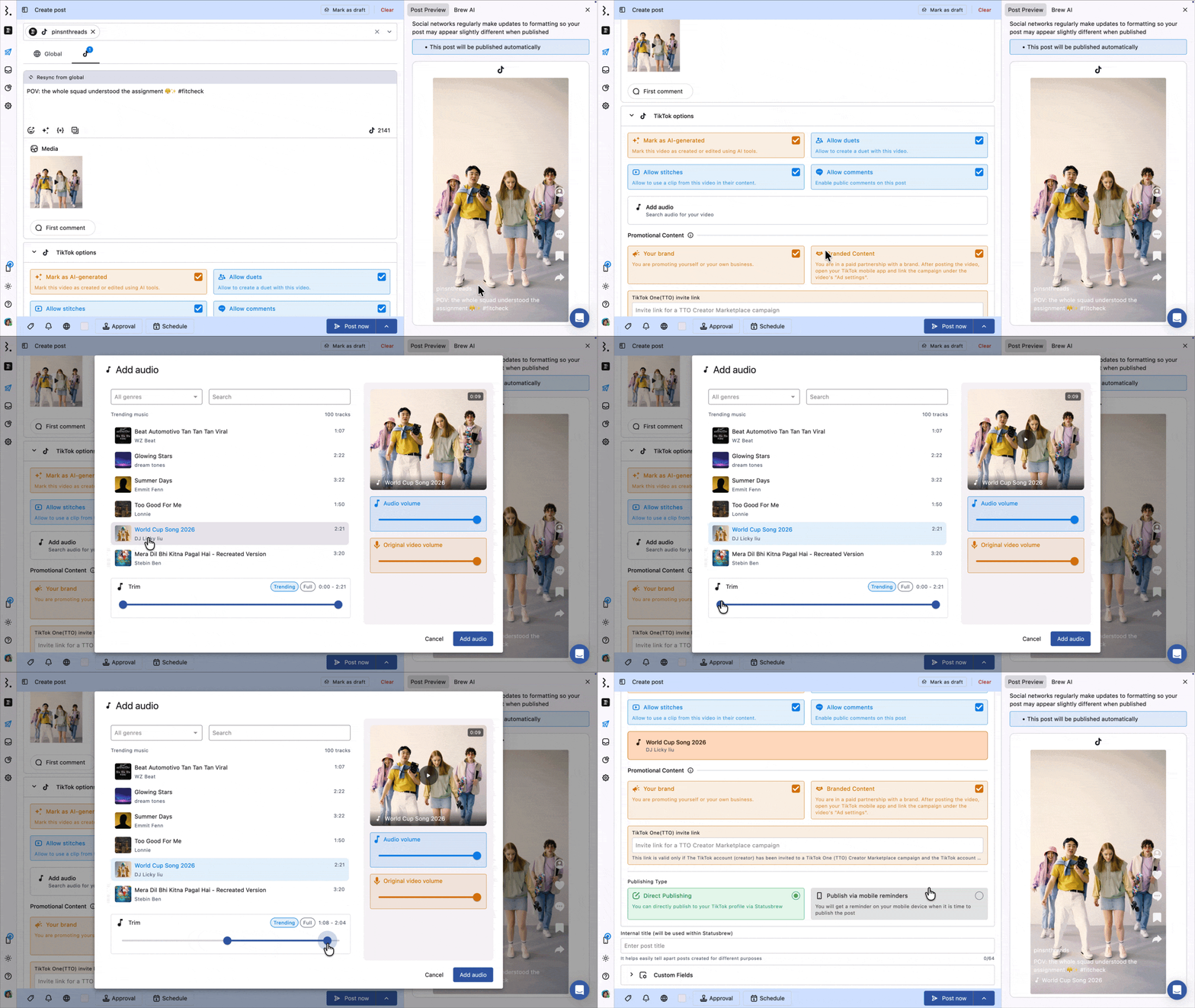
Go to Compose and select your TikTok profile.
Upload your video.
Statusbrew also supports adding trending audio to Images and Carousels content type. And you need to add a media to be able to see "Add audio" option.
Under TikTok options, click Add audio ("Search audio for your video").
Find a track in the Add audio window: browse Trending music (up to 100 tracks), filter by genre with the All genres dropdown. For TikTok, audio cannot be searched by song title. Only tracks from TikTok's Commercial Music Library are available, so some songs you can use inside the TikTok app will not appear here. Browse by genre to find a track.
Click a track to load it in the preview player, and press play to hear it against your video.
Set the mix with Audio volume (the added track) and Original video volume (your video's original sound).
Use Trim to choose which part of the track plays. Toggle Trending (the most-used segment) or Full (the whole track), then drag the handles to set the start and end. If your trimmed clip is shorter than your video, a warning appears: "The selected audio is shorter than your video, so it won't cover the full length."
Click Add audio to attach the track. To change or clear it, reopen the window and pick a different track or click Remove audio.
Finish scheduling or publishing as usual. The audio is applied when the video is published to TikTok.
Trending sounds change fast. Attach your track close to your publish time so it's still trending when the video goes live.
How To Add Audio On Instagram
On Instagram, you can attach a track to a Reel directly in Compose. The audio comes from Meta's Sound Collection through Instagram's Audio API.
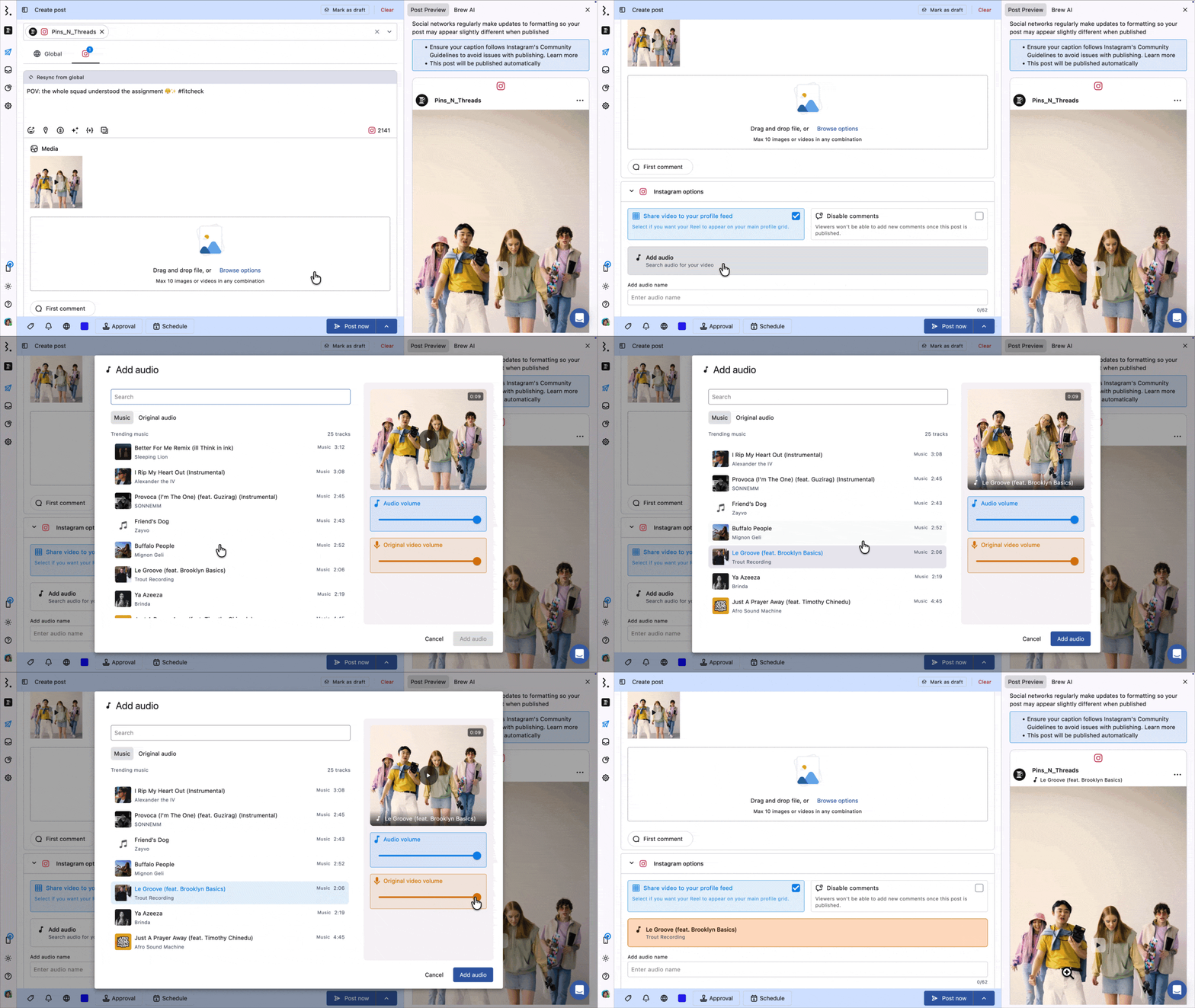
Go to Compose and select your Instagram profile.
Upload your video (Note: Without uploading a video, the Add audio option won't appear.)
Click Add audio to open the audio picker.
Choose a track. The Music tab contains royalty-free tracks from Meta's Sound Collection; the Original audio tab contains audio taken from existing Instagram Reels. Each track shows its title, artist, and length, and you can preview it against your video.
Balance the sound with the Music volume and Original video volume sliders. Instagram doesn't include a trim control, so the track attaches as-is.
Click Add audio to attach the track. To change or clear it, reopen the picker and pick a different track or click Remove audio.
Finish scheduling or publishing as usual.
Add audio is available for Reels only, and only when your Instagram profile is connected via Facebook Login. If your profile is connected through direct Instagram Login, the option won't appear. Reconnect via Facebook Login to enable it.
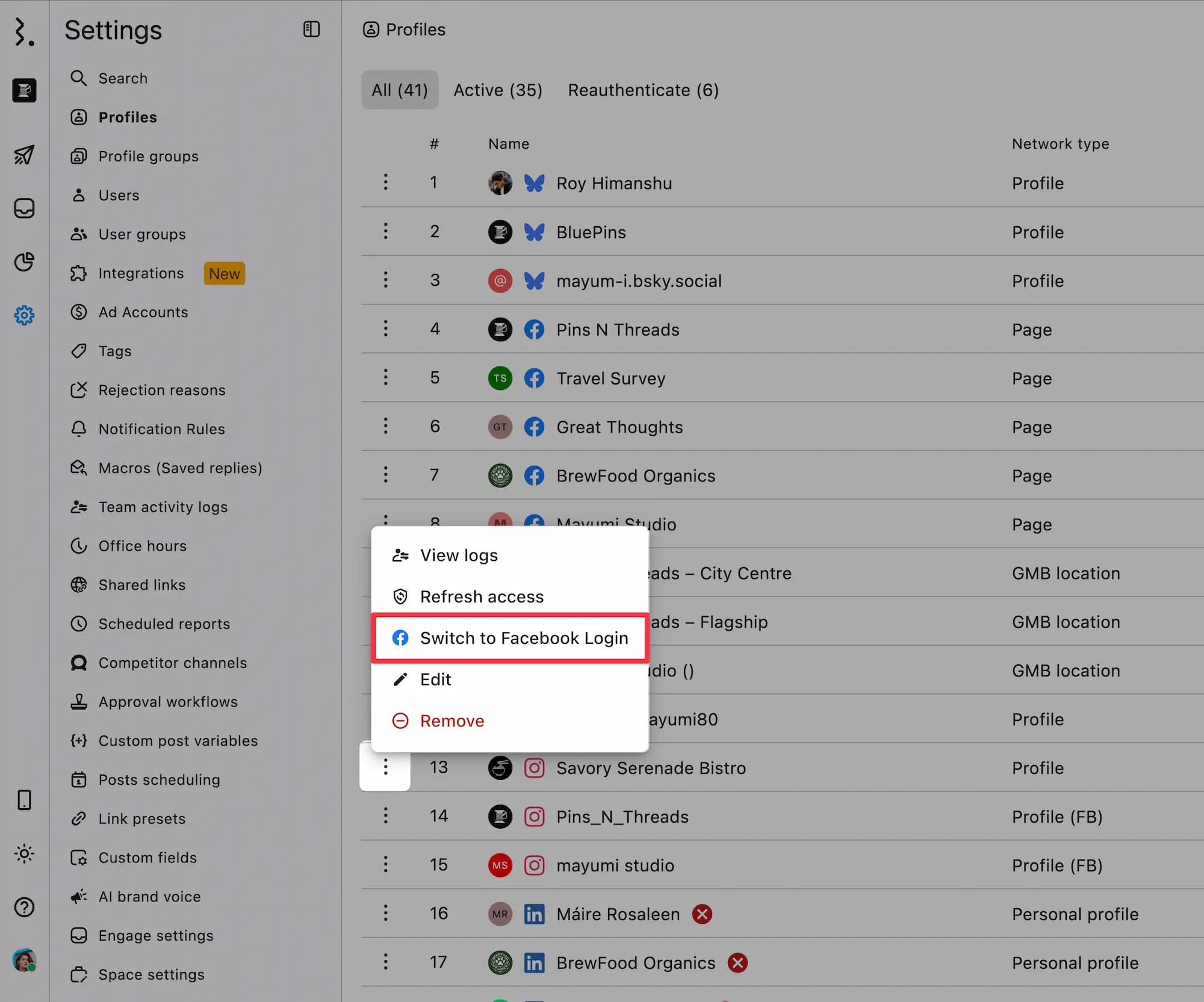
How to switch: Settings → Profiles → Click the three-dot menu next to the relevant Instagram profile → Click Switch to Facebook Login.
Meta's Audio API only returns tracks Meta has authorized for third-party use, so the selection can differ from what you see in the native Instagram app. If the exact audio you want isn't in the picker, schedule the Reel with Publish via mobile reminders and add the sound from the Instagram app when the reminder arrives.
FAQs
Can I Add Trending Audio to a TikTok Video From Statusbrew?
Yes. In Compose, select your TikTok profile, upload your video, open Add audio under TikTok options, search TikTok's trending music library, set the volume mix and trim, then click Add audio. The track applies when the video is published.
Can I Add Audio to an Instagram Reel From Statusbrew?
Yes. Click Add audio in the Instagram options, choose a track from the Music or Original audio tab, balance the volume, and click Add audio. This works for Reels only, and only when your Instagram profile is connected via Facebook Login.
Why Can’t I See the Add Audio Option Even After Connecting Instagram Through Facebook Login?
Adding audio requires your Instagram profile to be connected via Facebook Login, since Meta's Audio API is only available with that connection. If you connected through direct Instagram Login, the option won't appear.
Also, the Add Audio option only appears after you add a video to the post.
Reconnect the profile via Facebook Login to enable it, or use Publish via mobile reminders to add audio natively in the Instagram app.
What's the Difference Between the Music and Original Audio Tabs on Instagram?
Music is royalty-free tracks from Meta's Sound Collection. Original audio is sound taken from existing Instagram Reels. Both are served through Instagram's Audio API and attach to your Reel the same way.
Why Isn't the Audio I Want in the Instagram Picker?
Instagram's Audio API only returns tracks Meta has authorized for third-party use, so the selection can differ from the native app. If your audio isn't there, schedule the Reel with Publish via mobile reminders and add the sound from the Instagram app.
Can I Change or Remove the Audio After Publishing?
No. On both TikTok and Instagram, audio is set while scheduling. Before publishing, you can reopen the Add audio window (TikTok) or the Add audio picker (Instagram) to swap tracks or click Remove audio. Once the post is published, the track can't be changed from Statusbrew.
Can I Control the Music Volume Versus My Video's Original Sound?
Yes, on both networks. TikTok's window has Audio volume and Original video volume sliders. Instagram's picker has Music volume and Original video volume sliders.
Can I Use Only Part of an Audio?
On TikTok, yes. Use the Trim control. Toggle Trending to use the track's most-used segment or Full for the complete track, then drag the handles to set the start and end. Instagram has no trim control, so the track attaches as-is.
Why Does TikTok Warn That My Audio Won't Cover the Full Video?
If the track (or your trimmed segment) is shorter than your video, TikTok shows: "The selected audio is shorter than your video, so it won't cover the full length." The audio still attaches; it just stops before the video ends. Pick a longer track or extend the trim to cover the whole video.
Can I Add Audio to Facebook Reels?
No. Facebook Reels does not support adding audio through Statusbrew.
Can I Add Audio to a TikTok Image or Carousel Post?
Yes. On TikTok, you can add audio to image and carousel posts, not just videos. Open Add audio, pick a track, and set the same options as you would for a video. This applies to TikTok only.
Can I Search for Music by Song Title In TikTok Posts?
No. Due to API limitations, TikTok doesn't support searching by song title — please narrow your search by genre instead. Also, only songs in TikTok's Commercial Music Library appear in search results, so some songs available in the TikTok app may not show up here. If that's the case, schedule the post with Publish via mobile reminders and add the sound from the TikTok app.
How Do I Switch to Facebook Login to Add Trending Music to Instagram?
To add trending music to Instagram Reels, you will need to switch to Facebook Login.
To switch from Instagram Direct Login to Facebook Login, follow these steps: Settings → Profiles → Click the three-dot menu next to the relevant Instagram profile → Click Switch to Facebook Login. You will then be able to add trending music to your Instagram Reel posts.