How to Flag and View Comments Containing Specific Keywords
Use Statusbrew's Rule Engine to automatically flag comments containing specific keywords from any connected network and surface them in a dedicated view or team inbox.
Who Can Do This?
Create tags: Primary Owner, Owner, Admin only.
Apply tags: Primary Owner, Owner, Admin. Also, Regular Users with View Conversations, Moderate Conversations, or Engage Full Access permissions.
Create rules: Primary Owner, Owner, Admin only. Available on all plans.
Create team inboxes: Primary Owner, Owner, Admin only. Available on Premium and above plans.
Method 1: Flag Comments Using a Tag and a View
This is the simpler path. A rule automatically tags every matching comment, and a view filters by that tag so your team can find them instantly. Available on all plans.
Part A: Create the Tag
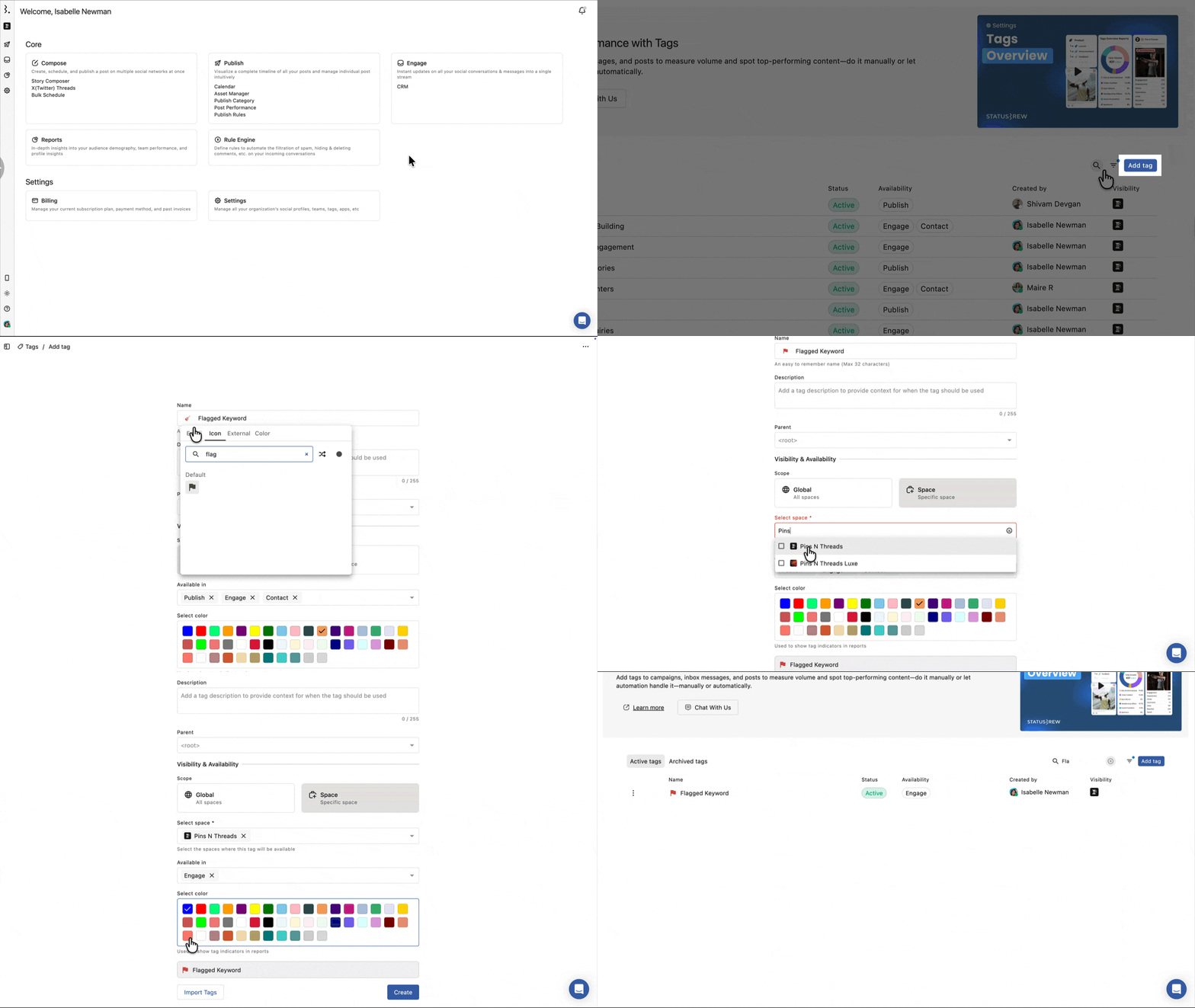
Go to Settings > Tags
Click Add tag
Give it a clear name (e.g., Flagged Keywords, Review)
Select a Parent if this is a child tag. Otherwise, leave the field empty
Under Visibility & Availability, select your scope of tag, Global (All spaces) or Space (Specific space)
Under Available in, make sure Engage is selected
Optionally pick a color to make it visually distinct
Click Create
You can also create the tag on the fly from inside the Rule setup. Click Add tags in the Actions section, then select Create tag from the dialog.
Part B: Create the Rule
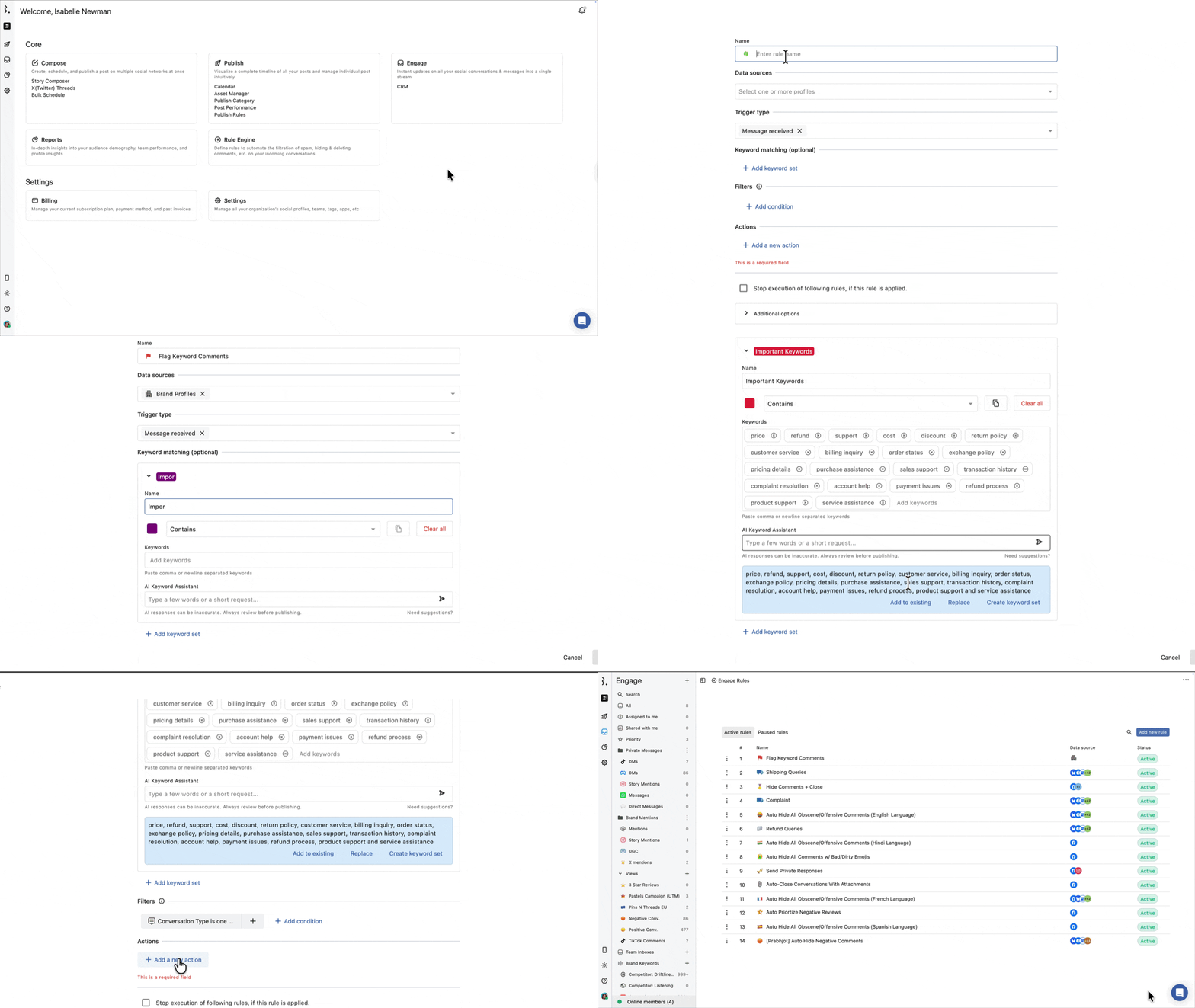
Go to Rule Engine > Add new rule > Create Manually
Name the rule (e.g., Flag Keyword Comments)
Under Data sources, select the social profiles or profile groups you want to monitor
Toggle on Keyword matching to visually highlight matched words inside conversations. Add a keyword set, name it (e.g., Important Keywords), choose a highlight color, and enter your keywords (e.g., price, refund, support). You can also use the AI Keyword Assistant to generate related keywords
Under Filters, Click Add condition > Conversation Type > In (=) > select your desired comment conversation types (e.g., Facebook or Instagram comment) > Done
Click Add a new action > Add tags > select your tag > Update
Click Submit to save and activate the rule
Part C: Create the View
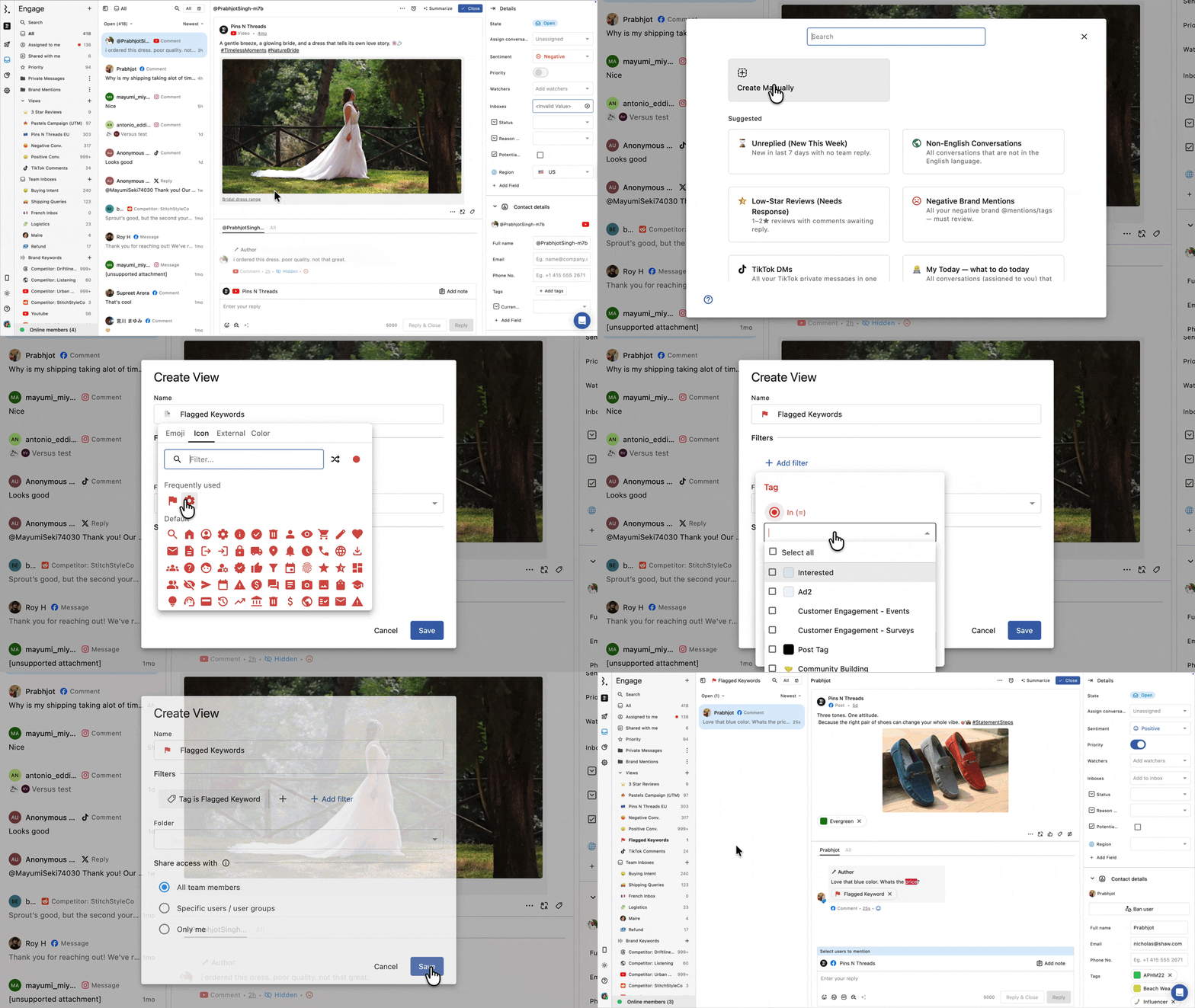
Go to Engage
In the sidebar, click Create view next to the Views option > Create Manually
Name the view (e.g., Flagged Keywords)
Click Add filter > Tag > In (=) > select your tag > Done
Under Share access with, choose All team members, specific users/groups, or Only me
Click Save
The view appears in the sidebar and automatically shows every comment the rule has tagged.
Once your rule has been tagging comments for a while, use the Tag Inbound Report template in Statusbrew to analyze trends, spot which networks drive the most flagged comments, and track volume changes over time.
Method 2: Flag Comments Using a Team Inbox
Use this method when you need a team inbox where specific team members can work through flagged comments together, with access controls and notifications. Available on Premium and above plans.
Part A: Create the Team Inbox
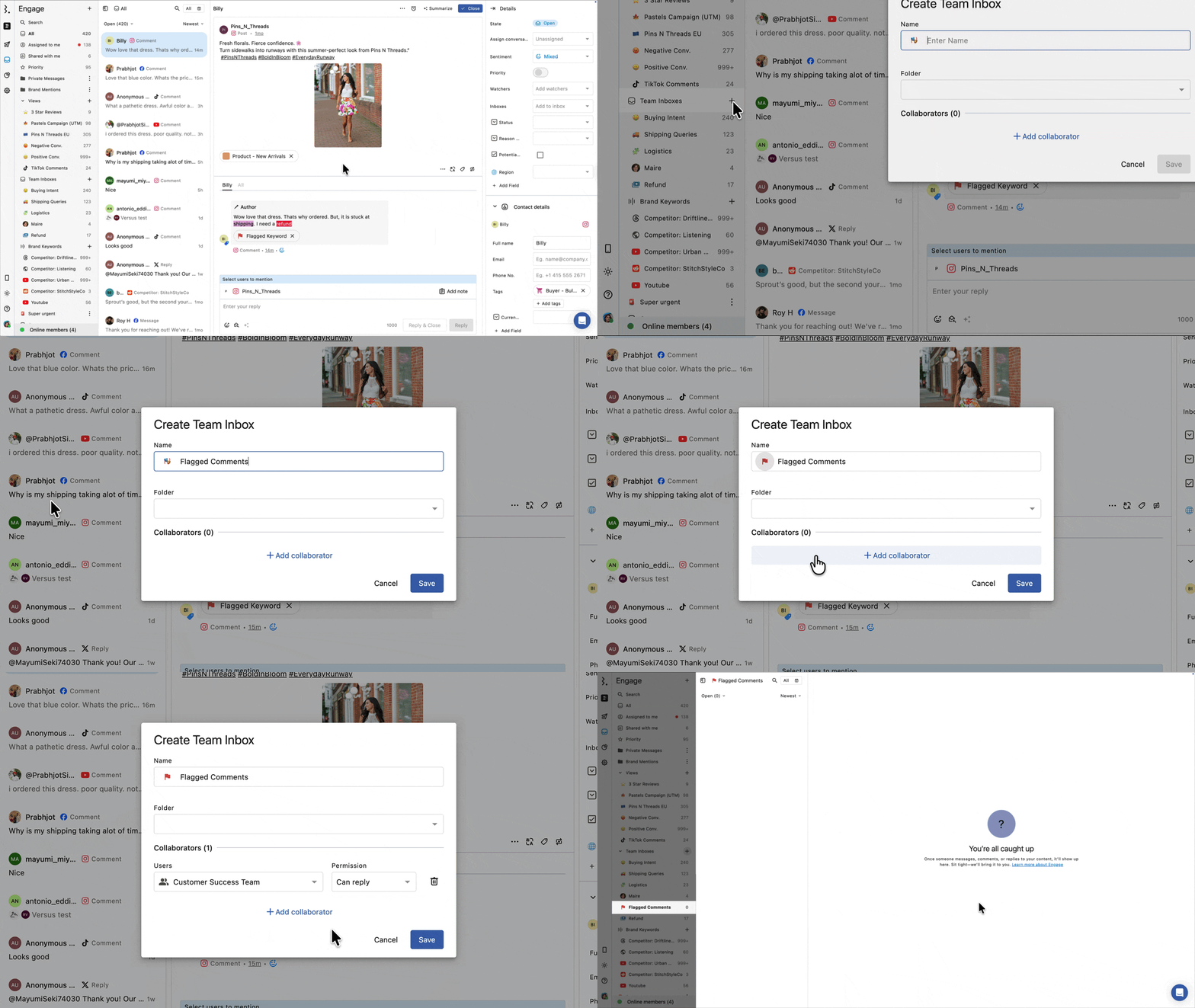
Go to Engage
In the sidebar, click Create Team Inbox next to Team Inboxes
Name the inbox (e.g., Flagged Comments)
Click Add collaborator and select the team members or user groups who should have access. Set each to Can reply or Can view
Click Save
Part B: Create the Rule
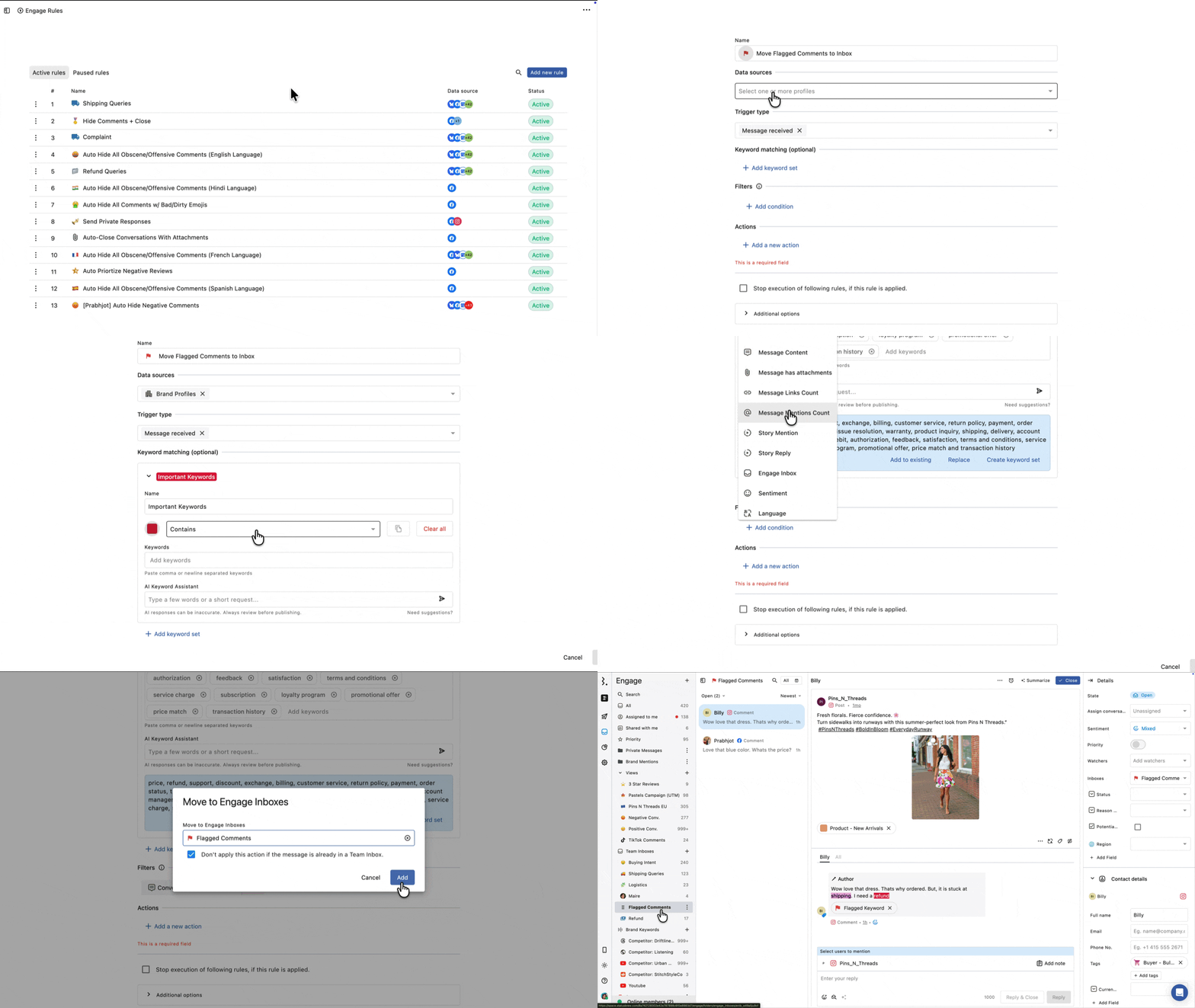
Go to Rule Engine > Add new rule > Create Manually
Name the rule (e.g., Move Flagged Comments to Inbox)
Under Data sources, select the social profiles or profile groups you want to monitor
Optionally, toggle on Keyword matching to visually highlight matched words inside conversations
Click Add condition > Conversation Type > In (=) > select your desired conversation types (e.g., Facebook or Instagram comment) > Done
Click Add a new action > Move to Engage Inboxes > select your team inbox (e.g., Flagged Comments)
Click Submit to save and activate the rule
Matching comments will now route directly to the team inbox as they arrive.
Rules only apply to new incoming messages from the moment the rule is activated. Comments already in your inbox are not retroactively moved or tagged.
What Happens After?
Once the rule is active, every incoming comment that matches your conditions is automatically tagged or routed to the inbox. Your team can open the view or inbox at any time and see all flagged comments in one place.
FAQs
Which method should I use?
Use Method 1 (Tags + View) if your team does not need strict access controls. Anyone you share the view with can see flagged comments.
Use Method 2 (Team Inbox) if you need a dedicated collaborative inbox for specific collaborators, with notifications and access permissions tied to the flagged comments.
Can I use both methods at the same time?
Yes. In a single rule, you can add both an Add tags action and a Move to Engage Inboxes action. This tags the conversation for the view and routes it to the inbox simultaneously.
Does this work specifically for Facebook and Instagram comments?
Yes. When setting up the Conversation Type filter in your rule, select Facebook Comment and Instagram Comment for organic posts. To include paid content, also add Facebook Ad Comment and Instagram Ad Comment.
Can I track multiple keyword groups separately?
Yes. Create a separate tag for each keyword group (e.g., Spam Keywords, Competitor Mentions, Escalation Words), then create a separate rule for each. Build one view per tag, or a combined view that includes all tags.
What's the difference between keyword matching and the Message Content filter?
The Message Content filter triggers the rule's actions. It determines which comments get tagged or moved. Keyword matching is visual only. It highlights matched words in color inside the conversation so your team can spot them quickly. Both can be configured in the same rule.
Will comments that were manually tagged also appear in the view?
Yes. The view filters by tag regardless of how it was applied. If a team member manually adds the same tag to a conversation, it will appear in the view.
Can I also auto-hide or delete comments that match my keywords?
Yes. Add an additional action in the rule: Hide comment or Delete comment.
What happens if I archive the tag that the view is filtering by?
The view will still show all conversations that were tagged before the tag was archived. Archiving a tag removes it from the active tag list, so it will no longer be applied to new conversations. Your historical data stays intact.
Can I pause a rule without deleting it?
Yes. In Rule Engine, you can pause any active rule without deleting it. The rule stays saved and can be reactivated at any time.
What happens if a comment matches two overlapping rules?
Both rules fire. Rules execute in priority order, top to bottom, as listed in the Rule Engine. Every matching rule runs and applies its actions, so a single comment can be tagged, moved to an inbox, and hidden all at once if separate rules cover each action.
To change rule priority, drag rules up or down in the Rule Engine list.
What if I want only one rule to run on a comment, not all matching rules?
Check Stop execution of following rules, if this rule is applied., if this rule is applied at the bottom of the rule editor before saving. When enabled, if the rule matches a conversation, no lower-priority rules will run on it.
This is useful when you have a specific rule (e.g., Shipping Queries) that should take full ownership of a conversation and prevent a broader catch-all rule from also firing.
This option is off by default. If left unchecked, all matching rules execute in priority order, top to bottom as listed in Rule Engine.