Why Can't a Team Member See Anything in Their Engage Inbox?
When a new team member logs in and sees an empty Engage inbox, it means they have not yet been granted the necessary access.
Access in Statusbrew is explicit. Nothing is visible by default until a Primary Owner, Owner, or Admin sets it up.
Who can fix this?
Primary Owners, Owners, and Admins can grant profile access and manage Engage Inbox and collaborators.
Reasons for an empty Engage inbox & how to fix?
There are three independent reasons a team member may see nothing in Engage. Work through each one.
Reason 1: No access to social profiles
This is the most common cause.
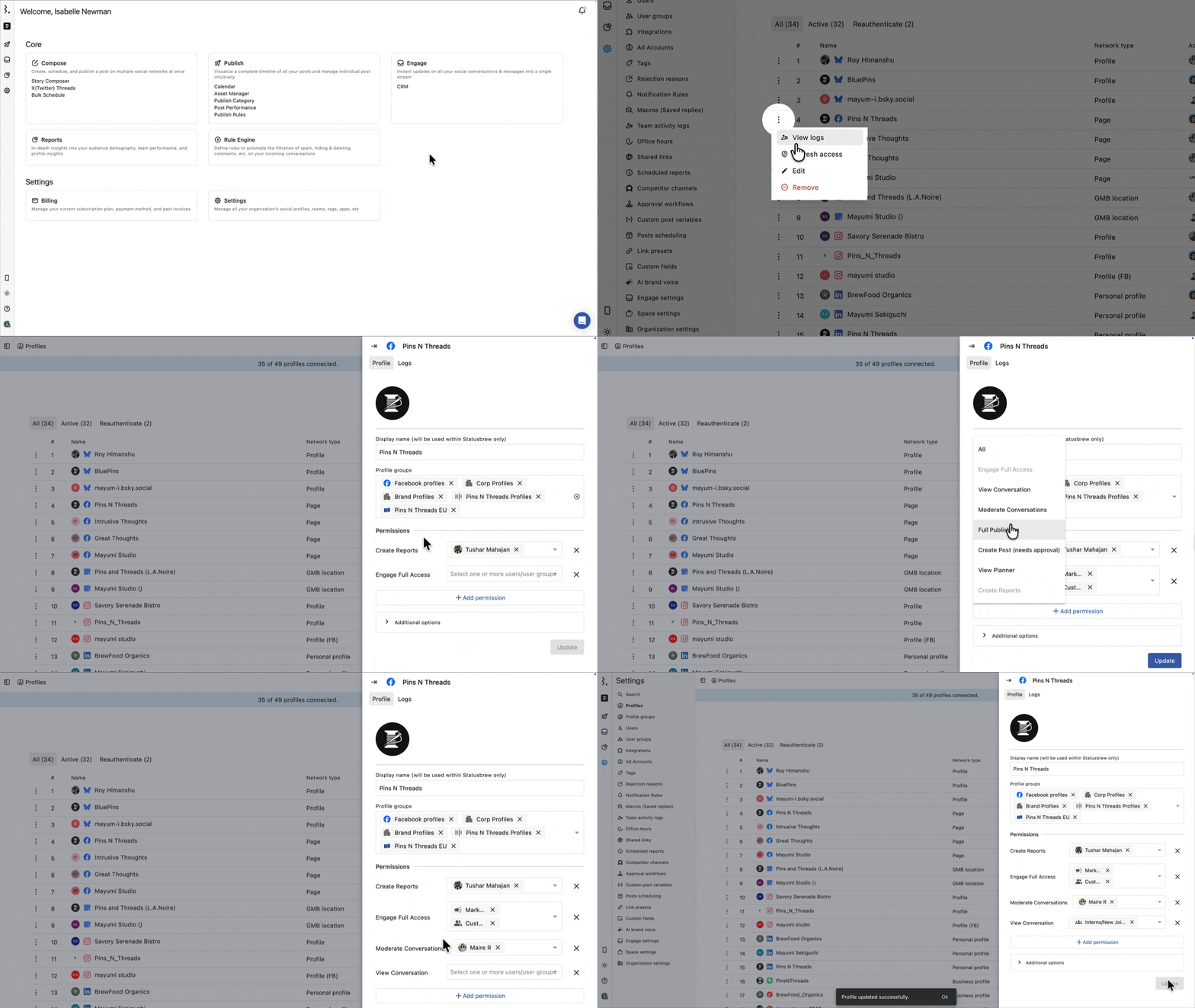
Regular Users only see conversations from profiles to which they have been explicitly granted access.
If no profiles are assigned, their Engage inbox will be empty.
Go to Settings > Profiles (or Profile groups).
Click (three-dots) beside the profile or profile group and select Edit.
Click Add permission.
Select the appropriate Engage permission for the user:
Engage Full Access: View, reply, assign, close conversations, and leave internal notes
Moderate Conversations: Close, snooze, hide, or delete messages, apply macros. Cannot reply publicly
View Conversations: Read-only. Cannot reply or take action
Add the user or user group to the selected permission.
Click Save.
For a full breakdown of all available permissions, see Access Permissions.
To onboard multiple team members at once, add them to a User Group and assign permissions at the group level. Any new user added to the group inherits the same access automatically.
Reason 2: Status filter is hiding conversations
If access is set up correctly but the inbox still looks empty, check the active Status filters.
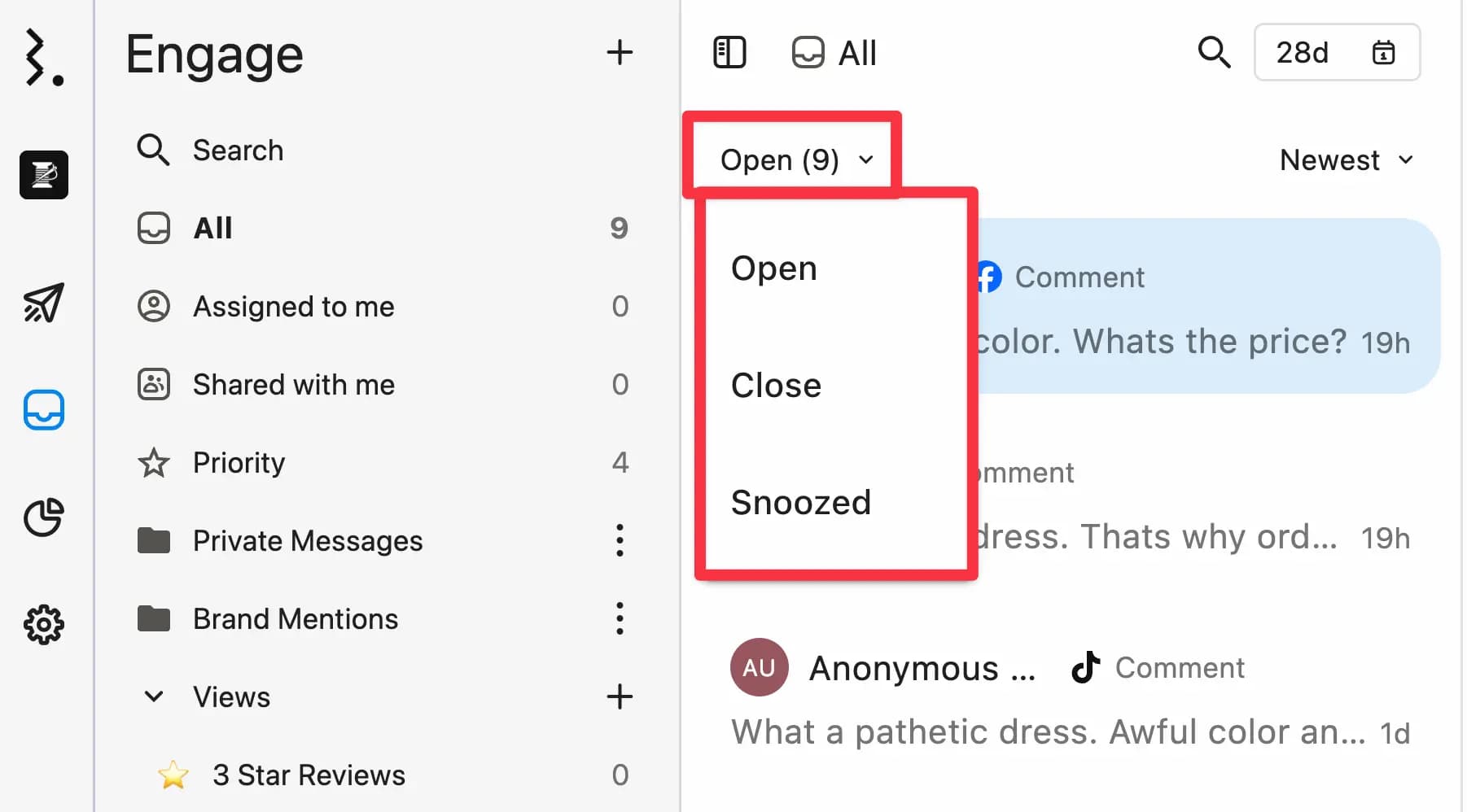
The conversation list shows only one status at a time. If the status filter is set to Open, Close, or Snoozed and there are no conversations in that state, the inbox will appear empty.
Click the status filter at the top of the conversation list.
Switch between Open, Close, and Snoozed to check if conversations exist in another state.
Reason 3: Date range filter is hiding conversations
The date range filter limits which conversations are shown.
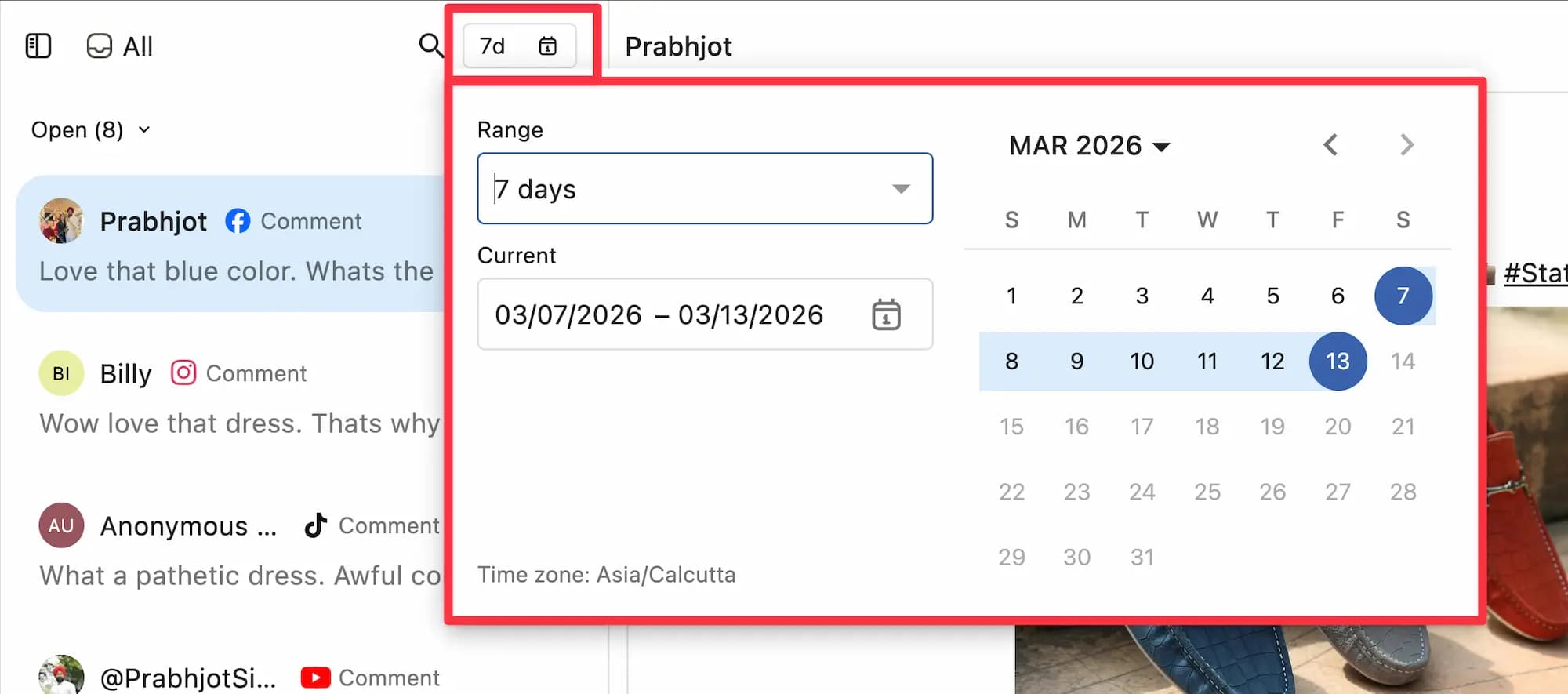
If it is set to a short or specific period with no activity, the inbox will look empty even if conversations exist outside that range.
Click the date range filter at the top of the conversation list.
Widen the range or reset it to the default to see all conversations.
Quick checklist for onboarding a new team member in Engage
Use this every time you add someone new:
Assign an Engage permission (Engage Full Access, Moderate Conversations, or View Conversations) on at least one profile or profile group
Check that the status filter is not set to a state with no conversations
Check that the date range filter is not hiding conversations
FAQs
Does a Regular User automatically see all conversations when invited?
No. Inviting a user gives them a login. It does not give them access to any profiles or conversations. See Access Permissions for instructions on setting profile-level access.
Can I give a team member access to a Team Inbox without giving them profile access?
Yes. Team Inbox access is independent of profile access. A user added to a Team Inbox can manage all conversations within it, even without direct access to the underlying social profiles.
What is the fastest way to set up access for multiple new team members?
Create or use an existing User Group, set the required permissions on the relevant profiles or profile groups for that group, and add the new users to the group. Access is applied immediately.
What if they can see some conversations but not others?
They likely have profile access for some profiles but not all. Go to Settings > Profiles and verify that every profile they need is covered.
Do Views shared with all team members appear automatically for new users?
Yes. Any View set to All team members is visible to all current and future users in the Space. Learn more about Engage Views.
Why can't a team member see a View?
Views have their own sharing settings. A new user will not see any Views that were not shared with them.
Hover over the View in the sidebar, click (three-dots), select Edit, and add the user in the Share access with section.
If you are a collaborator on a View (not the creator), removing yourself from the Share access with list will remove your access to it. You will need the creator or another collaborator to re-add you.
Why can't a team member see a Team Inbox?
Team Inboxes are only visible to users who have been added as collaborators.
Go to Engage, hover over the Team Inbox in the sidebar, click (three-dots), select Edit, and add the team member as a collaborator with Can Reply or Can View access.
Admins automatically see all Team Inboxes in their workspace without needing to be added.
What is the difference between a View and a Team Inbox?
A View is a filtered display of conversations. It does not route or organize conversations; it just shows a specific subset. A Team Inbox is a dedicated shared workspace where specific users manage a defined set of conversations collaboratively.
Why are LinkedIn comments not showing in Engage even after setting a 7-day date range?
Check these in order:
Status filter: Make sure status filter is not set to Closed or Snoozed when comments are Open.
Profile access: Confirm the LinkedIn profile is assigned to the user under Settings > Profiles, and that the correct Engage permission (Engage Full Access, Moderate Conversations, or View Conversations) has been granted.
Conversation sync: If comments are still missing after the above steps, contact Statusbrew support. The support team can run a resync for your account.
Why are Facebook DMs not showing in Engage?
Check these in order:
Status and date filters: Make sure the status filter is not set to Closed or Snoozed when messages are Open, and that the date range filter covers the period you expect.
Profile access: Confirm the Facebook Page is assigned to the user under Settings > Profiles, and that the correct Engage permission (Engage Full Access, Moderate Conversations, or View Conversations) has been granted.
Facebook permissions: Statusbrew needs full permissions on your Facebook Page to sync DMs. Go to Facebook Business Integrations, find Statusbrew, click View and edit, enable all permissions, and save. Then reauthenticate the Facebook Page in Statusbrew: go to Settings > Profiles and click Reauthenticate next to the affected Page.
Conversation sync: If DMs are still missing after the above steps, contact Statusbrew support. The support team can run a resync for your account.
Why am I not seeing comments or mentions from my LinkedIn post in Engage?
This usually happens when the post was published from a personal LinkedIn profile. LinkedIn does not provide APIs to sync comments or mentions for personal profiles, so those interactions will not appear in Engage.
There is full support for LinkedIn business/company profiles, with comment and mention sync enabled via LinkedIn’s supported APIs.