How to Search for Conversations Containing a Specific Word in Engage
Find and surface conversations in Engage that contain a specific keyword, phrase, or term using conversation search or keyword matching.
Who Can Do This?
Available on all plans. All roles can use the conversation search bar. Setting up keyword matching requires creating a Rule, which is available only to Primary Owners, Owners, and Admins.
Search for Conversations Containing a Word
Use the search bar to instantly find conversations containing a specific word across all statuses and conversation types.
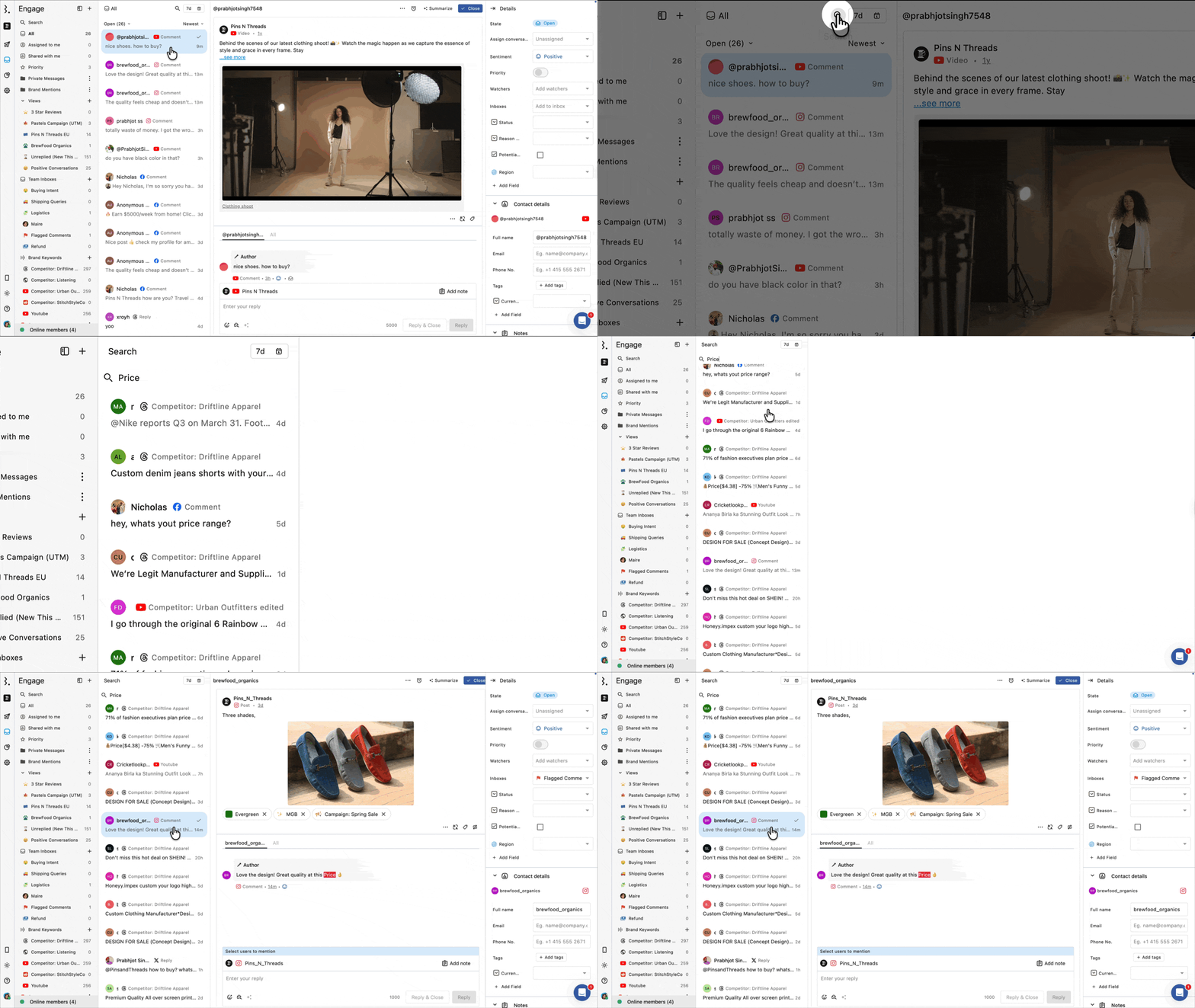
Go to Engage.
Open the inbox you want to search in. For the broadest results, use All.
Click beside the date picker at the top of the conversation list.
Type your keyword. All conversations containing that word will appear in the list.
The search works across all conversation statuses (open, closed, snoozed) and all conversation types (comments, DMs, mentions, reviews), regardless of what filters are currently applied.
Use Keyword Matching to Flag and Organize Conversations
Keyword matching lets you set up a rule that automatically highlights a specific word in conversations and routes or tags them for your team.
You can use keyword matching to:
Highlight the matched word in a color of your choice so your team can spot it instantly when opening a conversation.
Automatically move matching conversations to a Team Inbox.
Automatically tag matching conversations and create a View filtered by that tag, so they're always accessible from the sidebar.
How to Set Up Keyword Matching?
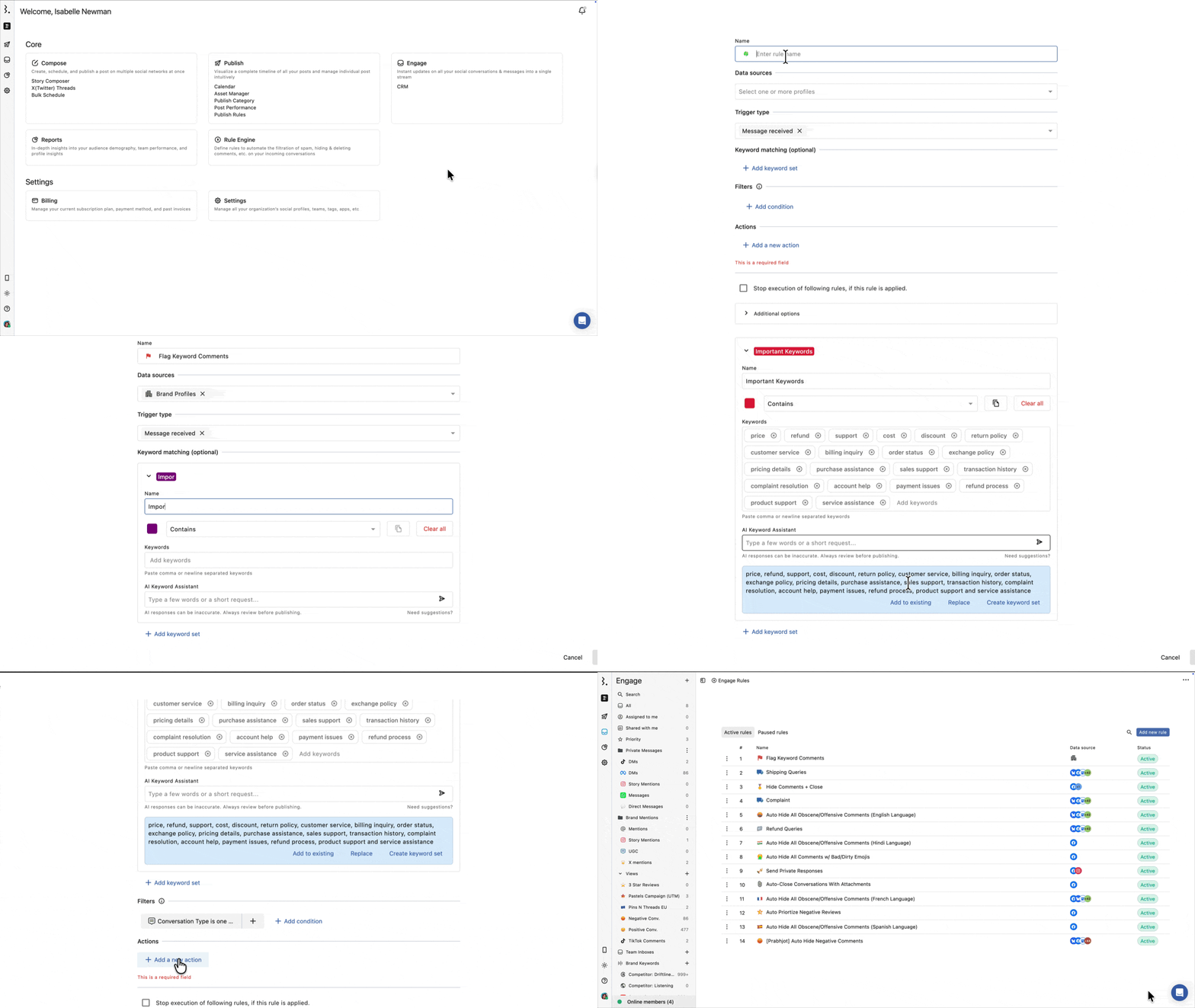
Go to Rule Engine from Engage
Click Add new rule > Create Manually
Name the rule and select your Data sources
Set Trigger type to Message received
In the Keyword matching section, click Add keyword set
Give the set a name and choose a highlight color, enter your keyword(s), separated by commas or line breaks.
Choose the match type:
Contains: matches the keyword anywhere in the text, including variations (e.g., "refund" matches "refunding" and "refunds").
Exact Match: matches only if the exact word appears
To organize matching conversations, use one of the following:
To route to an inbox: click Add a new action > Move to Engage Inboxes > select your Team Inbox
To tag: click Add a new action > Add tags > select or create a tag.
Click Submit.
You can create a View in Engage filtered by that tag to see the conversations that contain the keywords you added.
Keyword matching applies to new incoming conversations only. It does not retroactively process conversations that arrived before the rule was created.
Not sure which keywords to add? Use the AI Keyword Assistant. Type a short prompt (e.g., "customer complaint keywords") and it will suggest a ready-to-use list you can add directly to your keyword set.
FAQs
Can I Search Across All Inboxes at Once?
Switch to the All inbox first, then run your search. The search bar works within the currently open inbox.
Does the Keyword Search Look at Closed Conversations Too?
Yes. The search works across all conversation statuses (open, closed, and snoozed), regardless of the status filter setting.
Does Keyword Search Work on DMs and Private Messages, or Only Comments?
It works across all conversation types, including DMs, comments, mentions, and reviews.
Can I Highlight Different Keywords in Different Colors?
Yes. You can create multiple keyword sets within the same rule, each with its own highlight color.
Does Keyword Matching Work on Past Conversations?
No. Keyword matching only applies to new incoming conversations after the rule is activated. Existing conversations are not affected.
Can Regular Users Set Up Keyword Matching?
No. Creating rules is available only to Primary Owners, Owners, and Admins. If you're a Regular User, ask your Admin or Owner to set up keyword matching for you.
How Can I Find Conversations From a Specific User?
To look up conversations from a specific user, go to Engage → Contacts.
Add the Contact Name filter, then enter the user’s name or username.
Open the matching contact and check Latest conversations to see their recent comments, messages, reviews, or other conversations.
The search inside All Comments is not meant for looking up users by name or username. Use Contacts for this instead.
How Can I Get Conversations or DMs Based on Conversation State?
You cannot create a saved Engage View based on Conversation State right now.
Conversation State, such as Open, Closed, or Snoozed, is available as a selector in the conversation list, but it is not available as a filter while creating an Engage View.
To view conversations or DMs by state, go to Engage, open the inbox or view you want to check, and use the conversation state selector to switch between Open, Closed, or Snoozed.
If you need to report on or export conversations by state, use the Inbound Analysis reporting template. This is the most relevant place because it already covers inbound conversation data, and you can add a custom widget there for the exact data you need.
How Can I Open Conversations From a Particular User Separately?
Go to Engage → Contacts and search for the user by name or username.
Open the matching contact. In the right sidebar, go to Latest conversations and open the conversation you want to review.
The conversation will open in the side panel. Click the three dots next to Actions, then select Copy conversation link.
Open the copied link in a new browser tab to view that conversation separately.
Use Contacts to find a user and review their conversations in one place. Do not use All Comments search to look up users by name.
How Can I Get Conversations or DMs Based on Conversation State?
You cannot create a saved Engage View based on Conversation State right now.
Conversation State, such as Open, Closed, or Snoozed, is available as a selector in the conversation list but not as a filter when creating an Engage View.
To view conversations or DMs by state, go to Engage, open the inbox or view you want to check, and use the conversation state selector to switch between Open, Closed, or Snoozed.
If you need to report on or export conversations by state, use the Inbound Analysis reporting template. This is the most relevant place because it already covers inbound conversation data, and you can add a custom widget there for the exact data you need.
Why Can’t I See a Received Message in Engage?
If a message is not visible in your current Engage inbox, it does not always mean Statusbrew did not receive it.
The conversation may be:
Closed
Assigned to someone else
Snoozed
Lower in the inbox
Available in another inbox/view
First, search for the conversation in Engage using the conversation search near the date selector.
How Do I Search For a Specific Message or Conversation in Engage?
To search for a message or conversation:
Go to Engage.
Click the search icon at the top of the conversation list, next to the date selector.
Enter the exact message text or a unique keyword from the message.
Press Enter.
There is no separate Search button.
Do not use the search field in the left sidebar for this. The sidebar search is used to find Engage views, folders, or inbox items.
What Should I Do if Statusbrew Did Not Receive a Message?
Before assuming Statusbrew did not receive the message, first search for the conversation in Engage.
Use the conversation search near the date selector and enter the exact message text or a unique keyword from the message/conversation.
If you still cannot find the conversation after searching, contact Statusbrew Support. The team can check whether the message was received by Statusbrew or whether it never reached Statusbrew from the social network.
Please share:
The social profile
The exact message text
The approximate date and time the message was received
A screenshot from the social network, if available
To reach support from chat, type “human please” or “talk to agent.”