Actions In Rule Engine
Actions in Statusbrew's Rule Engine are automated tasks triggered by specified filters including comment moderation, conversation organization, tagging, and team notifications.
Actions refer to a set of automated tasks or responses that are triggered by defining Filters in Rule Engine. Actions vary based on the type of conversation and social media networks.
Reply Actions
Reply Actions is one of the actions in the Engage Rule configuration, and sends an automated reply when your rule filters match. You can write the replies yourself or let AI generate them.
Reply Actions | Description |
|---|---|
Send a private message | Sends a direct message in response to Facebook and Instagram organic & Ad comments as well as DMs, TikTok Messages (DM). |
Send a public reply | Posts a public reply to Google Business Profile reviews, and to Facebook and Instagram comments in spaces where it's turned on. |
Public replies to Facebook and Instagram comments aren't available in every space. When you add Send a public reply to a rule, the note under the action title tells you what your space supports: Works on Facebook & Instagram comments and Google reviews, or Works on Google reviews only. Because public AI replies on comments are visible to everyone, Statusbrew turns them on for a space only on request. To turn them on for your space, contact Statusbrew live chat support.
Both actions offer two modes:
Write your reply:
Write one or more replies in the Reply messages field. Click Add another message to add more. When the rule runs, one message is sent at a random time.
Let AI reply (Premium plan only):
AI writes a fresh reply each time using your instructions and the incoming message.
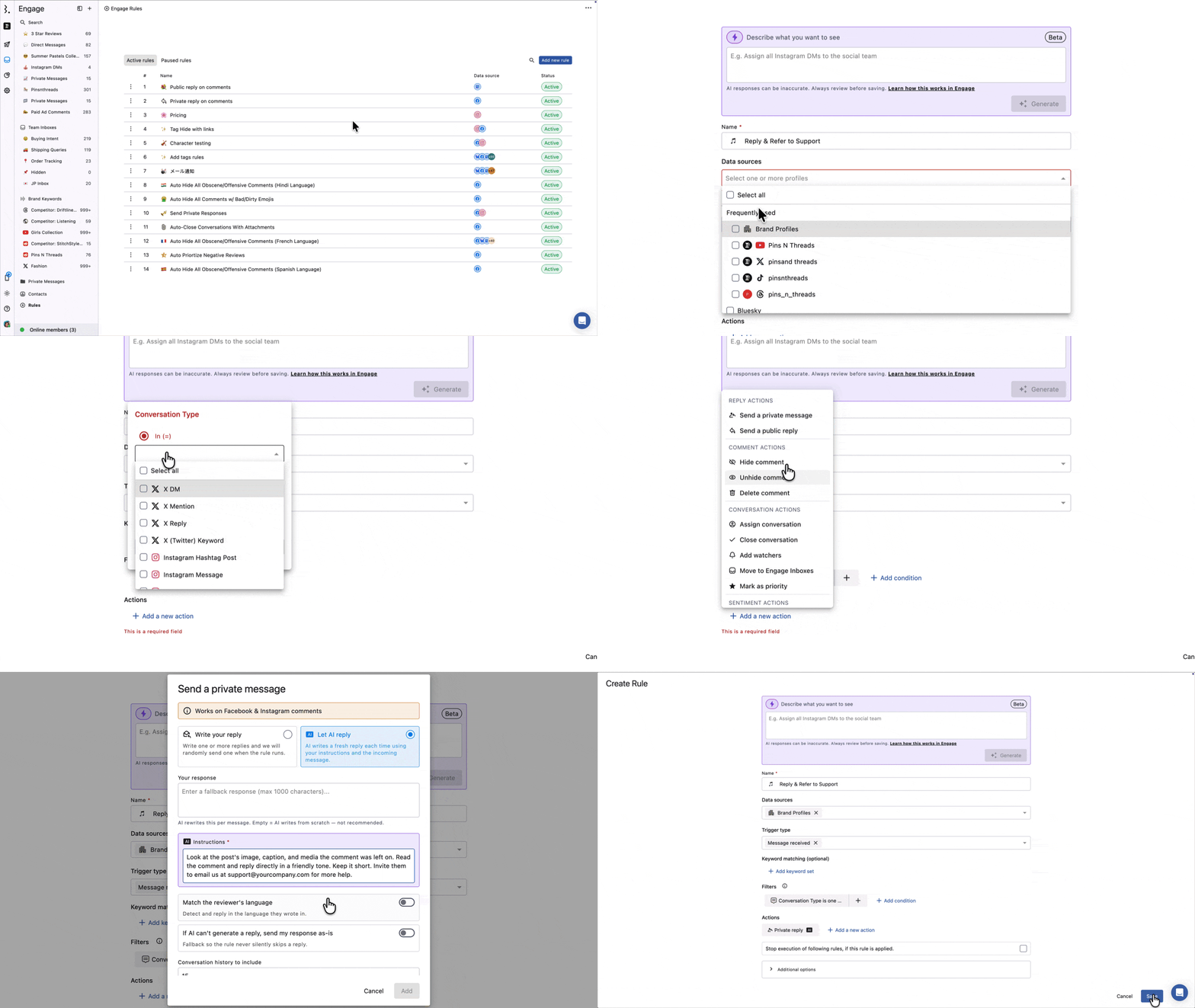
Configure it with:
Your response: An optional fallback reply (max 1000 characters). AI rewrites this per message. Leave it empty, and AI writes from scratch (not recommended).
Instructions (required): Tell the AI how to reply. Read more about writing better AI reply instructions.
Match the reviewer's language: Detects the language the person wrote in and replies in that language.
If AI can't generate a reply, send my response as-is: Sends your fallback response so the rule never silently skips a reply.
Conversation history to include: How many recent messages in the conversation does the AI read before writing a DM reply? Default is 15, max is 50. (Private message only.)
If you set up a rule with an action to send a private message with a filter of message or comment, the rule only applies when a user sends a message or comment from their personal profile. Comments received through the Facebook page will not trigger a private reply.
Comment Actions
These actions manage the visibility and response of comments on social networks. These actions are applicable only to certain types of conversation.
Comment Actions | Description |
|---|---|
Hide comment | Hides comments from public view. |
Unhide comment | Unhide the comment to make it visible again in the public view. |
Delete comment | Permanently deletes comments. This action cannot be undone. |
Conversation Actions
These are internal Statusbrew actions designed for better management and organization of conversations within the platform. These actions are applicable to all types of conversations.
Conversation Actions | Description |
|---|---|
Assign conversation | Assign conversation to specific Users or User groups. |
Close conversation | Change the status of conversations to Close. |
Add watchers | You need to select watcher(s) from the Add watchers dialog to add. |
Move to Team Inbox | Route specific conversations to a Team Inbox for better organization and tracking. The checkbox Don't apply this action if the message is already in a Team Inbox. is selected by default; clear it to move those conversations too. To create a new Team Inbox from the rule, type a new name in the select and pick the + option with that name. |
Mark as priority | Flags conversations as high priority. |
Sentiment Actions
Sentiment Actions let you automatically set or override the sentiment of incoming conversation types (comments, mentions, DMs, etc.) when rule filters match.
Sentiment Actions | Description |
|---|---|
Set Sentiment | Sets the sentiment as Positive, Neutral, or Negative when the rule conditions match. |
Tag Actions
These actions categorize conversations or contacts for improved organization and tracking.
Tag Actions | Description |
|---|---|
Add tags | Assigns Tags to conversations. |
Remove tags | Removes previously assigned tags from conversations. |
Add tags to contact | Assigns tags to contacts. |
Remove tags from contact | Removes previously assigned tags from contact. |
In tag actions, you need to select tag(s) from the Add tags dialog to add or remove.
Notification Actions
These actions send alerts to team members for timely updates and responses.
Notification Actions | Description |
|---|---|
Slack Alerts | Select the Slack channel where you wish to receive notifications |
Send notification | Select the user(s)/user group(s) to whom you wish to receive in-app notifications. |
Send email | Select the user(s)/user group(s) to whom you wish to receive notifications on their email, with which they use their Statusbrew account. |
Send email to external users | Add the emails of the external users (users who are not a part of your Statusbrew space) to whom you wish to receive notifications. |
Microsoft Teams Alerts | Select the Microsoft Teams Connector that you have added in Statusbrew to receive notifications |
Only use the Hide comment or Delete comment action by specifying keywords. If you use these actions without specifying keywords, you will set up a rule that hides or deletes all comments for the selected social profile.
Actions For Custom Fields
You can use Rule Engine to automatically update custom fields associated with conversations and contacts. The following are the options available:
Custom Field Actions | Description |
|---|---|
Update conversation | Update the values of the conversation custom field(s). |
Update contact | Use this action to define values for the custom fields created for the contact to auto-update them via the Rule. |
Available Actions By Network
Network | Auto-hide | Auto-delete | Auto-reply (DM) | Auto-reply (public) |
|---|---|---|---|---|
Facebook (organic + ads comments) | Yes | Yes | Yes | On request |
Instagram (organic + ads comments) | Yes | Yes | Yes | On request |
TikTok (organic + ads comments, messages) | Yes (comments) | No | Yes (messages only) | No |
YouTube comments | Yes | Yes | No | No |
X (replies only) | Yes | No | No | No |
LinkedIn comments | No | Yes | No | No |
Threads (replies only) | Yes | No | No | No |
Google Business Profile reviews | No | No | No | Yes |
Both auto-reply actions can send a reply you write yourself or one generated by AI.
FAQs
Can A Rule Send An Automatic DM Reply On TikTok?
Yes. Add the Send a private message action to a rule that runs on your TikTok profile. It replies to TikTok messages (DMs). It doesn't reply to TikTok comments.
Can A Rule Post A Public Reply To Facebook Or Instagram Comments?
It depends on your space. Add Send a public reply to a rule and read the note under the action title. If it says Works on Facebook & Instagram comments and Google reviews, your rule can reply publicly to those comments. If it says Works on Google reviews only, public replies work only on Google Business Profile reviews, and you can use Send a private message to answer Facebook and Instagram comments instead, or contact Statusbrew support to turn public replies on for your space.
Which Networks Can A Rule Reply To Automatically?
Private replies (DMs) work on Facebook and Instagram comments and messages, and on TikTok messages. Public replies work on Google Business Profile reviews, and on Facebook and Instagram comments in spaces where Statusbrew has turned them on. See the table under Available Actions By Network.
Where Did The Move To Engage Inboxes Action Go?
It was renamed. In Add a new action, under CONVERSATION ACTIONS, the action is now Move to Team Inbox, and it works the same way. Pick the Team Inbox in the Move to Team Inbox select, keep or clear Don't apply this action if the message is already in a Team Inbox. (checked by default), and click Add.
Can A Rule Email Me When A DM Arrives From A Contact With A Certain Tag?
Yes. Build it in the Rule Engine, not in Notification Rules, which only send Slack or Microsoft Teams alerts for conversation triggers. Create a rule with the trigger Message received, add a Contact Tag filter for that tag and add the Send email action with the users who should get the email.
How Do I Track Clicks On Links Sent By A Private Message Rule?
Add UTM parameters to the link before you paste it into the rule's message, for example with Google's Campaign URL Builder. Your analytics can then attribute those visits to the rule; without UTMs, they only show total traffic from Facebook or Instagram. BrewLink short links can only be created in Compose, so shorten the tagged link there or with your own link shortener before adding it to the rule.