Using AI in Engage
Use AI in Engage to describe what you want in plain language and let Statusbrew help you set things up faster.
The AI is a great starting point but it can make mistakes. Always review what AI has configured before saving. Every field is editable after generation.
Who Can Do This?
The AI builder is available for users on Premium and above plans.
Every AI action here uses AI credits. The view and rule builders spend them when you click Generate, but AI replies and intent matching keep spending after you switch them on, because they run on every matching conversation. Learn more in Understanding AI Credits.
Creating Engage Views Using AI
Steps to follow
Use AI for views to create a filtered conversation list without manually setting every filter.
Go to Engage.
Click Create view.
In the Describe what you want to see field, type your request in plain language.
Click Generate.
Review the generated filters.
Add or edit the Name if needed.
Choose the right Share access with option.
Click Save.
Tips to Write a Good Prompt for View Creation
A good prompt for a view describes the conversations you want to see.
This usually works best when you mention details like:
Who the conversations are assigned to
whether they have a team reply
how old they are
which inbox they belong to
sentiment
review source and rating
network or conversation type
tags
You can use natural references like me for your own assigned conversations.
For better results, mention the object type along with the exact name, such as <team-inbox-name> inbox, <tag-name> tag, <user-group-name> user group, or <profile-name> profile.
For review-based views, clearly mention the review source, such as Google Business, the Play Store, or the App Store. You can ask for a specific rating, a rating below, or a rating above. Do not describe a rating range.
Example Prompts
Reply and backlog
Show new conversations from the last 7 days with no team reply
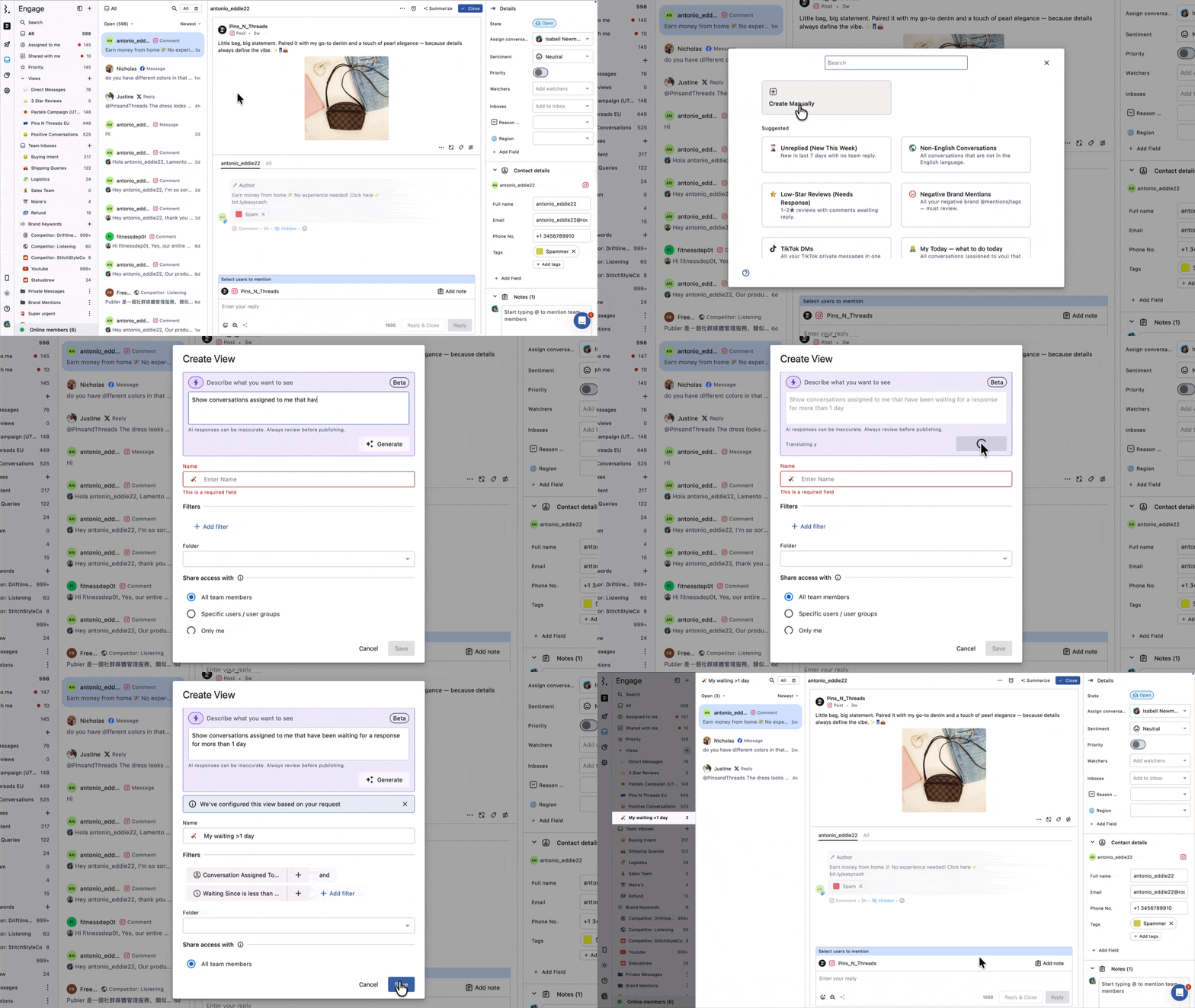
Show conversations assigned to me that have been waiting for a response for more than 1 day
Show conversations in
<team-inbox-name>inbox with no team reply for more than 3 days and marked as priority
Ownership and assignment
Show all unassigned conversations
Show conversations assigned to me that are 1 day old
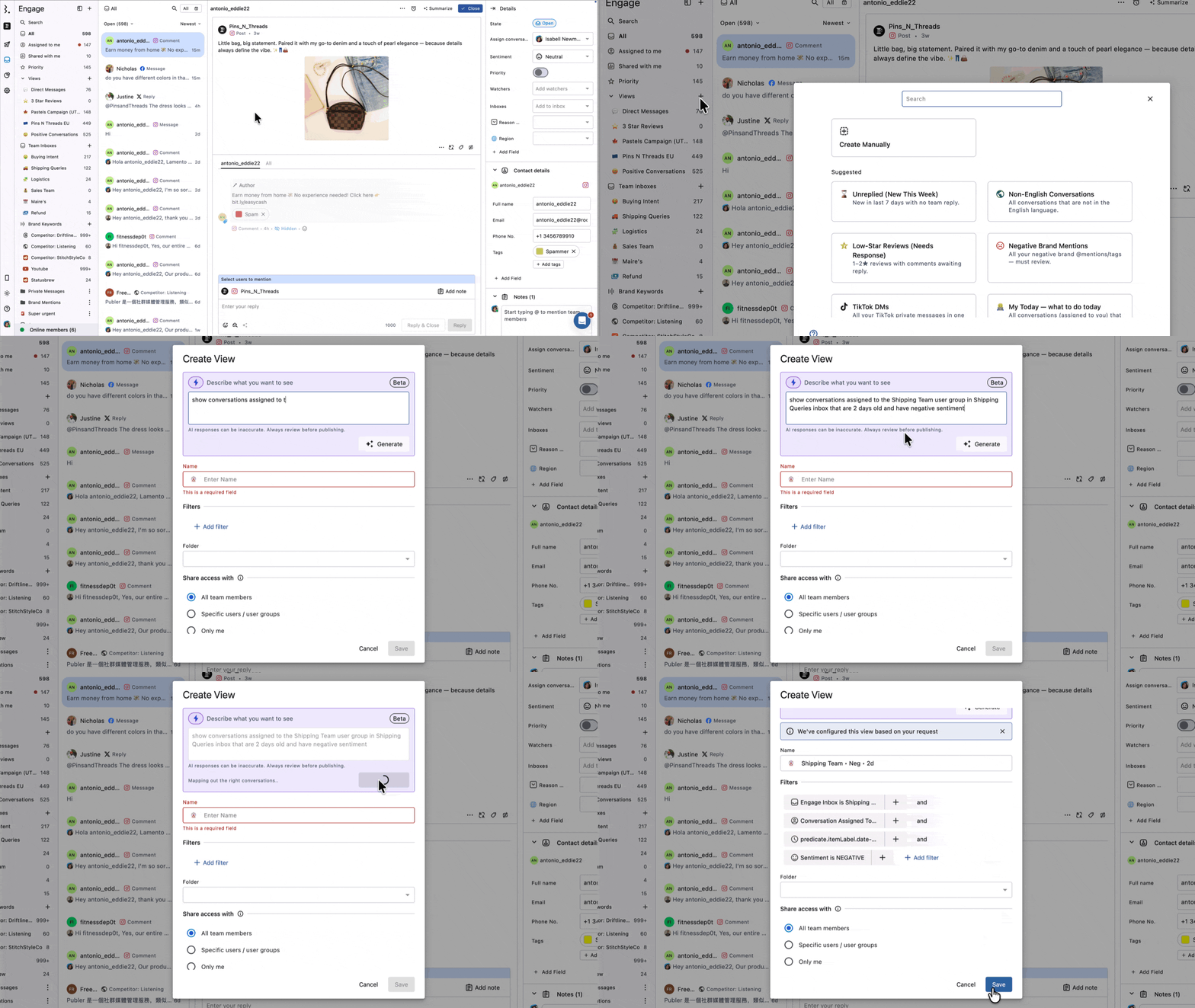
Show conversations assigned to
<user-group-name>user group in<team-inbox-name>inbox that are 2 days old and have negative sentiment
Reviews and ratings
Show Google Business reviews with a rating below 3 stars
Show App Store reviews with no team reply
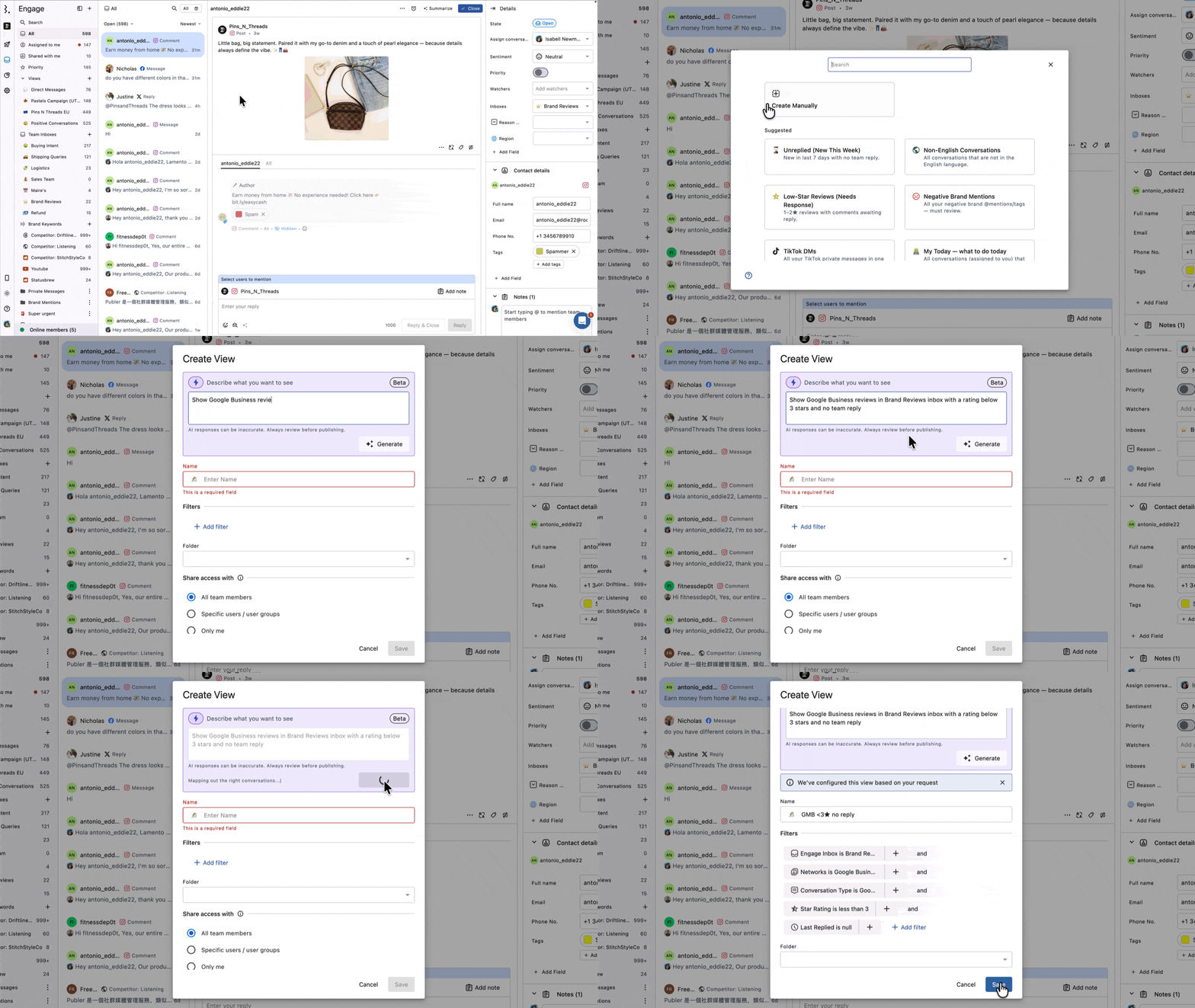
Show Google Business reviews in
<team-inbox-name>inbox with a rating below 3 stars and no team reply
Network and channel-based views
Show all TikTok DMs
Show all YouTube comments
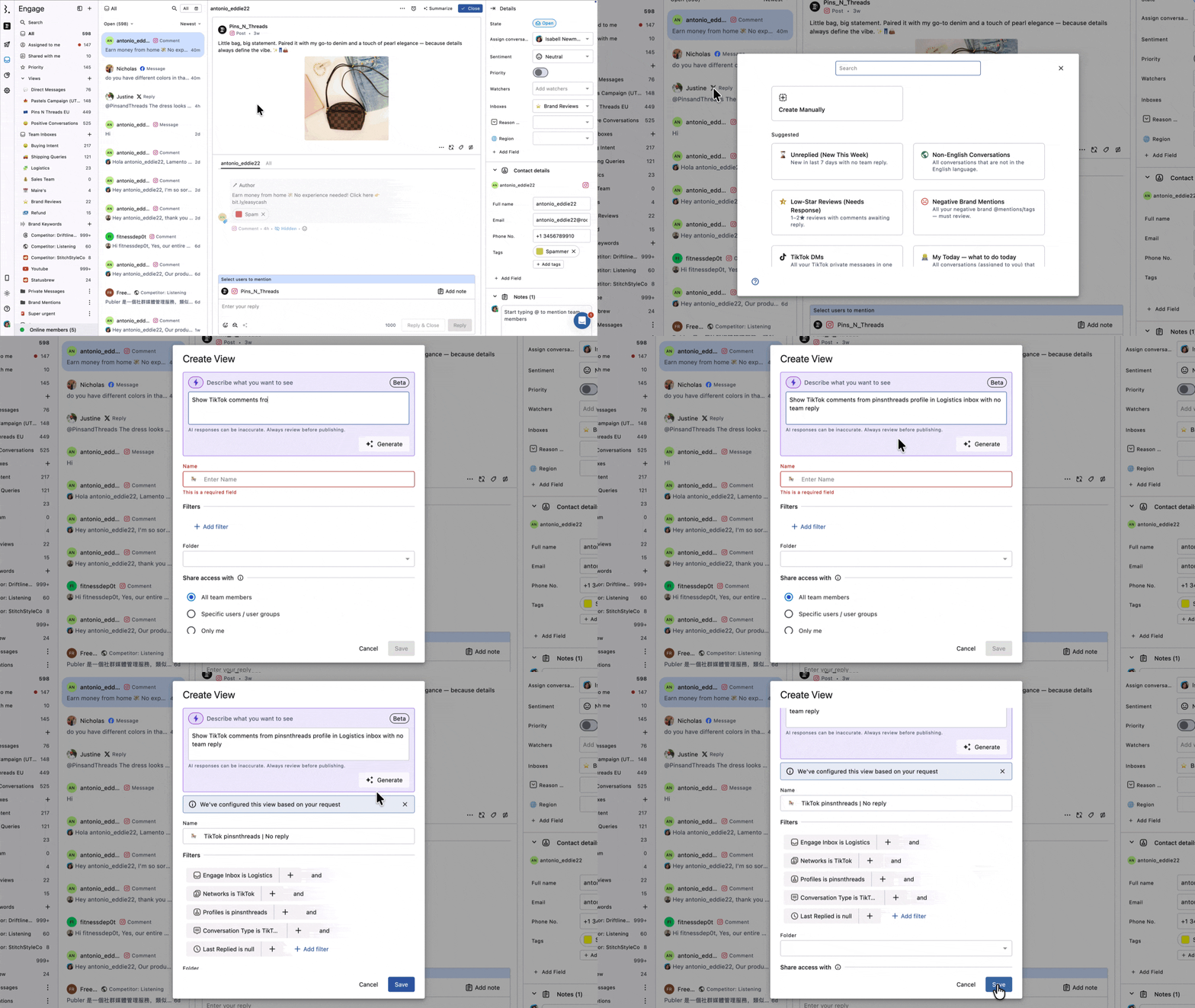
Show TikTok comments from
<profile-name>profile in<team-inbox-name>inbox with no team reply
Tags and categorization
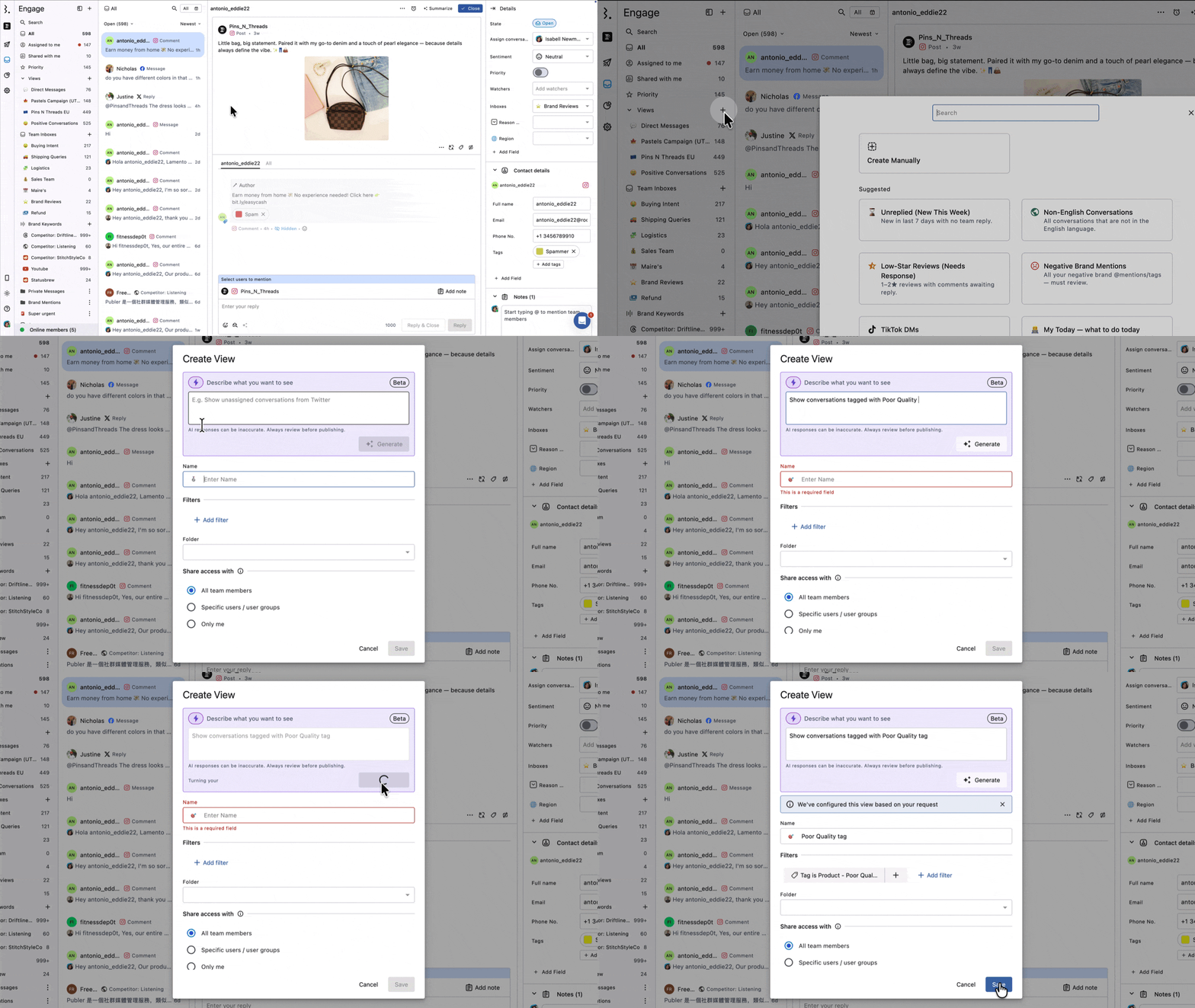
Show all untagged conversations
Show conversations tagged with
<tag-name>tagShow conversations tagged with
<tag-name>tag in<team-inbox-name>inbox with no team reply for more than 3 days
What Should I Review Before Saving a View?
AI helps with the filter setup, but you should still review the final view before saving.
Check these parts carefully:
Name: Make sure the view name is clear
Filters: Confirm the generated filters match what you asked for
Share access with: Choose whether the view is for all team members, specific users or user groups, or only you
Creating Engage Rules Using AI
How Does It Work?
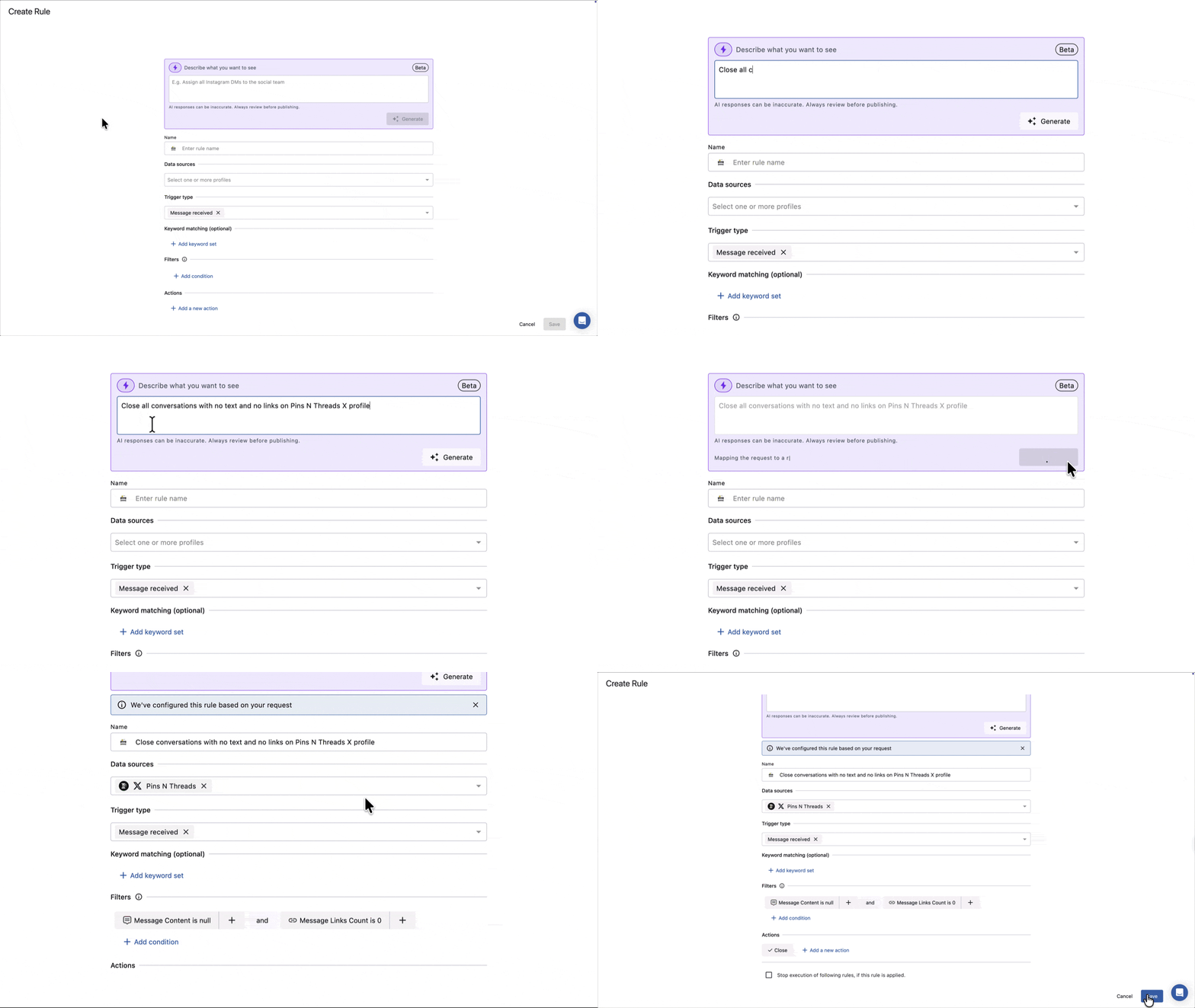
When you open the rule editor, you will see a Describe what you want to see field at the top. Type a plain-language description of the rule you want and click Generate.
The AI reads your description and automatically configures:
Rule name
Data sources (when you mention a specific profile name, or a network name followed by "accounts", for example "Facebook accounts" or "Instagram accounts")
Trigger type (always set to Message received)
Keyword matching
Filters (conversation type, sentiment, message content, link count, attachments, and more)
Actions (hide, close, assign, tag, mark as priority, and others)
A confirmation banner appears once the rule is configured: "We've configured this rule based on your request." All fields remain fully editable after generation. Review everything and adjust as needed before clicking Submit.
How To Create an Engage Rule Using AI?
Go to Engage.
From the sidebar, click Rule Engine.
Click Add new rule. The rule editor will open.
In the Describe what you want to see field at the top, type a plain-language description of your rule.
Click Generate.
Review the generated Name, Data sources, Filters, and Actions. Edit any field as needed.
Select your Data sources if not already filled in. This is always required before saving.
Click Submit to save and activate the rule.
How To Write A Good Description?
You do not need to use technical terms or exact filter names. Write the way you would explain it to a teammate.
Three things that make a description work well:
The action you want: Hide, close, assign, tag, mark as priority, etc.
The condition: Negative sentiment, specific keywords, conversation type, no text, contains links, etc.
The profile or network, if relevant: Mention the exact profile name as it appears in Statusbrew, or the network followed by "accounts" (for example, "Facebook accounts" or "Instagram accounts") so AI can fill in data sources automatically
The more specific you are, the better the result. A vague description like "hide bad comments" will still produce a rule, but a specific one like "hide all negative comments on Facebook accounts" will produce exactly what you need.
Example Descriptions
You do not need to use exact filter or action names. Here are descriptions that work well, organized by use case.
Spam and moderation
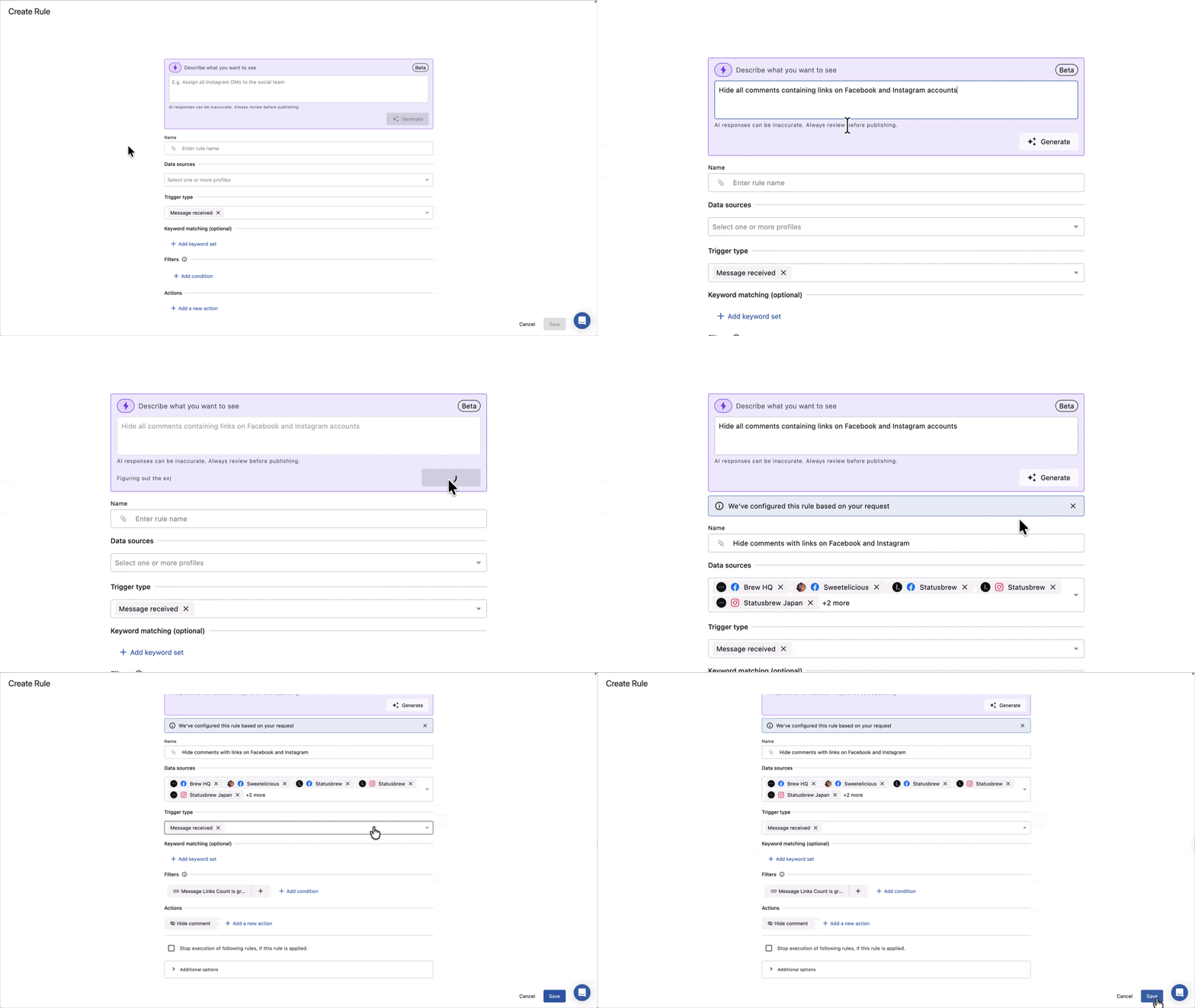
Hide all comments containing links on Facebook and Instagram accounts
Automatically hide comments with gambling, crypto, or adult content links on Facebook accounts
Hide all negative comments on
<your-instagram-profile-name>Instagram profile
Sentiment and priority
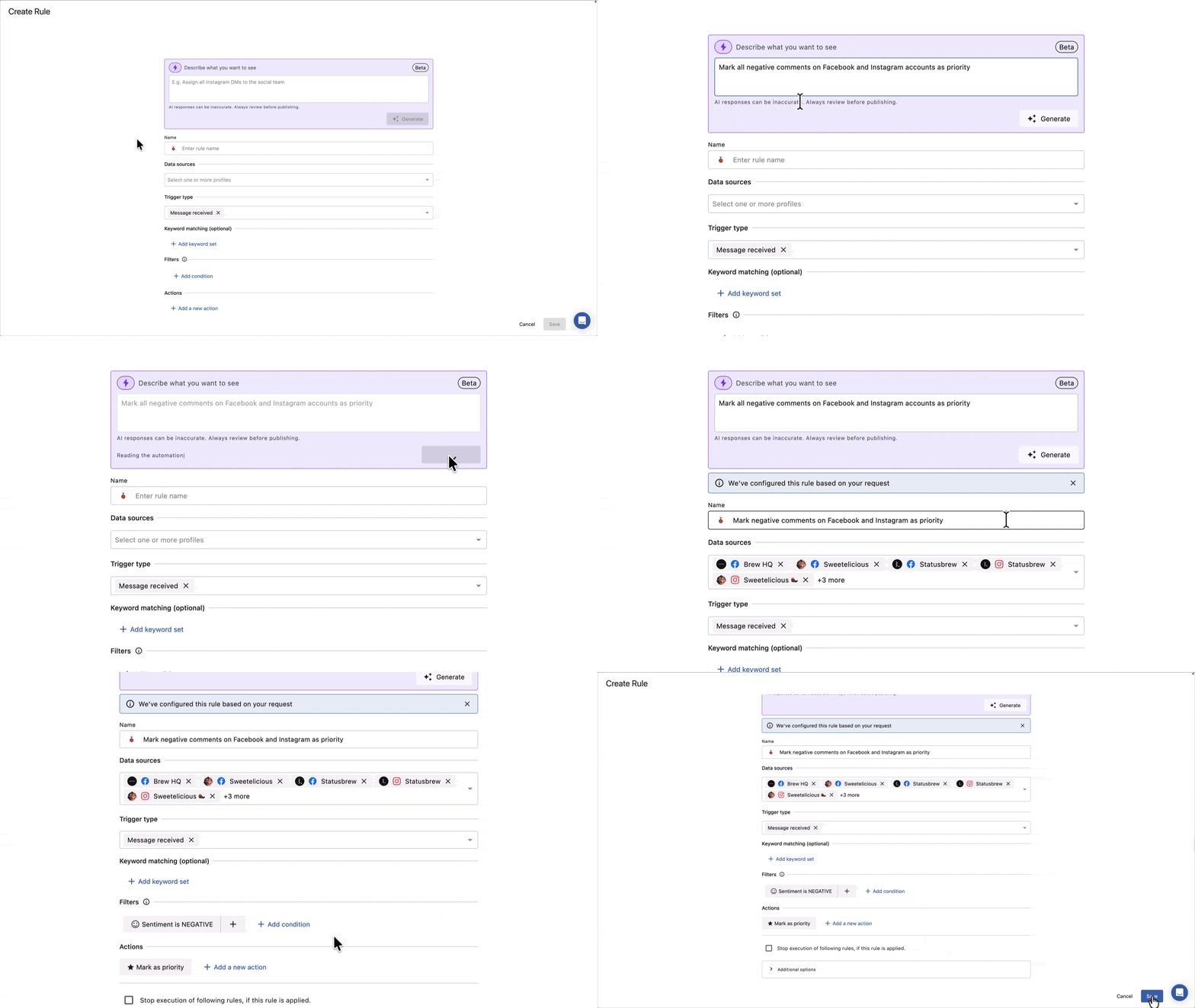
Mark all negative comments on Facebook and Instagram accounts as priority
Mark all negative comments on
<your-facebook-page-name>Facebook page as priority so the team can respond quicklyMark all negative comments on Instagram accounts as priority
Tagging and categorization
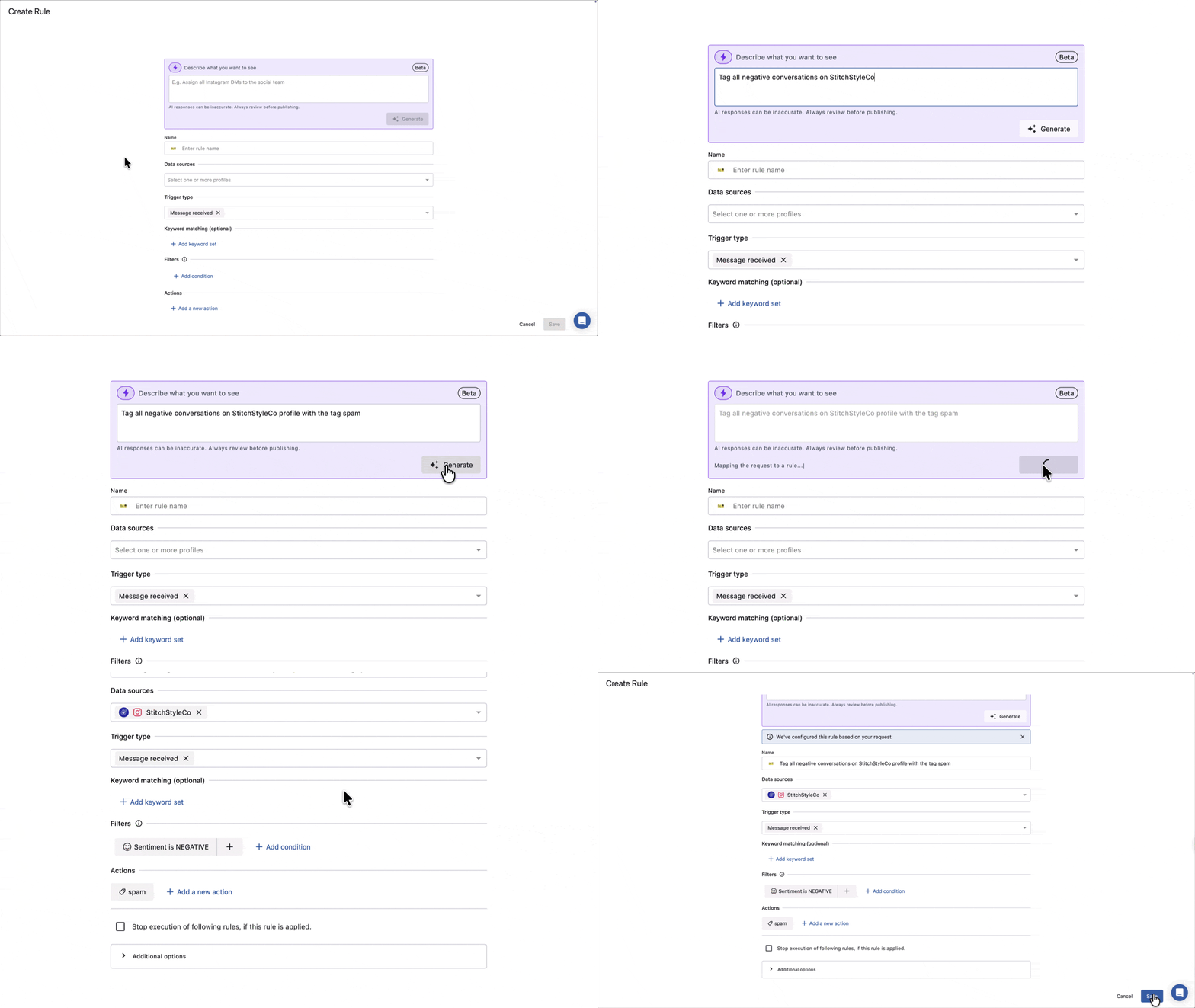
Tag all negative conversations on
<your-profile-name>with the tag<your-tag-name>Tag all Instagram DMs on
<your-instagram-profile-name>with the tag<your-tag-name>Tag all conversations with attachments on Facebook accounts with the tag
<your-tag-name>
Auto-close
Automatically close conversations that contain only attachments on Instagram accounts
Close all conversations with no text and no links on
<your-x-profile-name>X profile
Where We Recommend Reviewing Before Saving?
The AI configures most of the rules from your description. A few fields always benefit from a manual review before saving:
Data sources: Always confirm the correct profiles are selected; if you did not mention a specific profile name or network accounts in your description, select them manually
Team inboxes, users, and user groups in Actions: These currently show as
<Unknown>After generation, it needs to be selected manually from the dropdown before saving. When support is added, the same rule as tags will apply: use the exact name as it appears in Statusbrew for AI to resolve it correctlyScheduling: If you want the rule to run only during specific hours or days (for example, weekends only or outside business hours), set this manually under Additional options after generating
Action compatibility: AI picks actions based on your description, but not all actions are supported across all networks. For example, LinkedIn comments can only be deleted, not hidden. Facebook and Instagram comments support both hide and delete. Always check that the AI-selected action is supported by the networks in your data sources.
If an action shows
<Unknown>, click it and select the correct team inbox, user, or user group from the dropdown before saving.
What Happens After Generating?
The rule is not saved until you click Submit. All fields remain editable after generation. From here you can:
Change the rule name
Add or remove filters
Fix any
<Unknown>actions by selecting the correct value from the dropdownAdd keyword sets for highlighting
Adjust data sources
Enable the Stop execution of following rules if needed
Set a schedule under Additional options to run the rule only during specific hours
Once saved, the rule runs in real time on every incoming message received on the selected profiles.
Creating Auto-replies Using AI
Engage can also write replies for you. When you add a Send a private message or Send a public reply action to a rule, choose Let AI reply, and AI writes a fresh reply for each conversation using your instructions and the incoming message.
Send a private message works on Facebook and Instagram comments.
Send a public reply works on Google reviews only.
Both are available on the Premium plan and above.
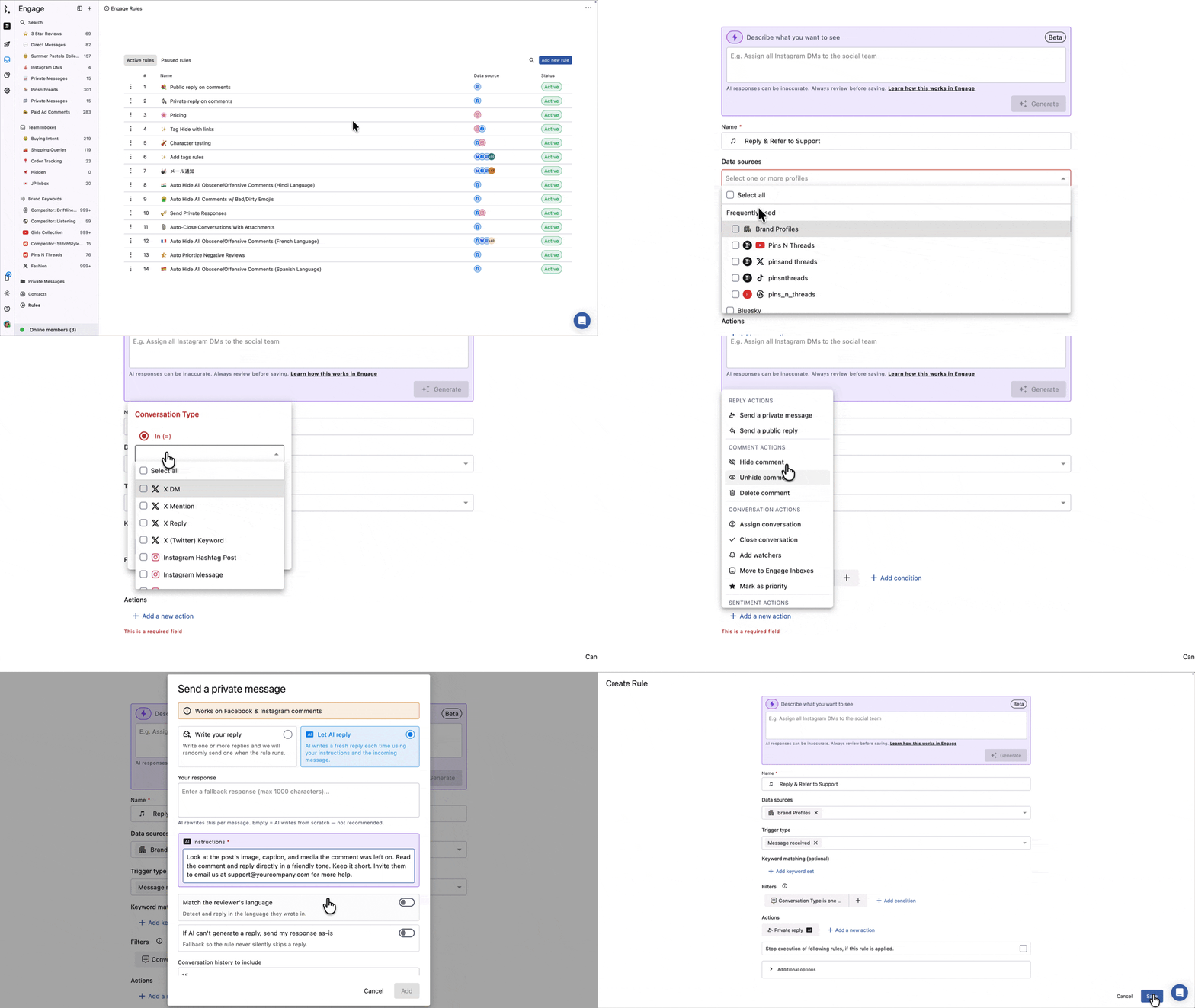
When you select Let AI reply, you configure:
Instructions (required): Tell the AI how to reply. Point it at the post so it can answer in context.
Your response (Optional): A fallback reply (max 1000 characters) is used only if AI can't generate a reply. Send my response as-is is turned on. Leave it empty to let AI write entirely from your instructions.
Match the reviewer's language: Detects the language the person wrote in and replies in that language.
If AI can't generate a reply, send my response as-is: Sends your fallback response so the rule never silently skips a reply.
Conversation history to include: How many recent messages the AI reads before writing a DM reply. Default is 15, max is 50. (Private message only.)
AI replies are a great starting point but can make mistakes. Test your instructions on a few conversations before turning the rule on for all profiles.
How To Write Good AI Reply Instructions?
The quality of every reply depends on your instructions. Vague instructions produce generic replies that dodge the question. Specific instructions that point the AI at the post produce replies that actually answer it.
A few things that make instructions work:
Be specific about tone, length, and what to do, not just "be friendly."
Tell the AI to use the post context (image, caption, and media).
Include the details you want in every reply, such as your support email or website URL.
Add do-not rules where needed, like "do not quote prices" or "do not promise refunds."
Leave Your response empty to let AI write from your instructions, or fill it in as a fallback and turn on If AI can't generate a reply, send my response as-is so the rule never skips silently.
Here are five example instructions you can drop into the Instructions field:
1. Answer in context, direct to email
Look at the post's image, caption, and media the comment was left on. Read the comment and reply directly in a friendly tone. Keep it short. Invite them to email us at support@yourcompany.com for more help.
2. Product inquiry, direct to website
Read the comment and reply based on the product shown in the post. Be helpful and friendly, keep it short, and share our website www.yourwebsite.com so they can find more details.
3. Lead capture
Reply in a warm, friendly tone using the post context. Answer their question briefly and ask them to share their email or visit www.yourwebsite.com so our team can follow up.
4. Support/complaint
Read the comment and reply calmly and empathetically. Acknowledge their concern, keep it short, and ask them to email support@yourcompany.com so we can help. Do not promise refunds or timelines.
5. Thank you with a call to action
Reply in a friendly, on-brand tone. Thank them for their comment, keep it to one or two sentences, and invite them to visit www.yourwebsite.com to see more.
FAQs
Can I use AI in Engage without having to write exact filter names?
Yes. You can describe what you want in plain language. AI will try to translate that into the right setup for you.
Can I use AI to create a view in Engage?
Yes. You can describe the conversations you want to see, and AI will generate the view filters for you.
Can I use “me” in a view prompt?
Yes. You can use me to create a view of conversations assigned to you.
Should I mention exact names like inboxes, tags, or user groups?
Yes. For better results, use the exact name and include the object type, such as <team-inbox-name> inbox, <tag-name> tag, <user-group-name> user group, or <profile-name> profile.
Can AI create review-based views?
Yes. Mention the review source clearly, such as Google Business, Play Store, or App Store, along with the rating condition you want.
Can I use a review rating range in a prompt?
No. Use a specific rating, a rating below, or a rating above instead.
Does AI save the view automatically?
No. AI only generates the setup. You still need to review it and click Save.
Can I regenerate a rule with a different description?
Yes. Update the text in the Describe what you want to see field and click Generate again. The fields will be overwritten with the new output.
Why Does My Action Show <Unknown>?
This happens when AI generates an action referencing a team inbox, user, or user group. These currently always require manual selection. Click the <Unknown> chip in the Actions section and select the correct value from the dropdown before saving.
Can AI Fill In Data Sources Automatically?
Yes, in two cases. If you mention a specific profile name (for example, <your-facebook-page-name> Facebook page), AI fills in that profile. If you mention a network followed by "accounts" (for example, "Facebook accounts" or "Instagram accounts"), AI fills in all connected profiles for that network. If you mention a network name alone without "accounts", Data sources will be left blank and you must select them manually.
Can I Edit the Rule After Saving It?
Yes. Go to Rule Engine, click (More options) beside the rule, and select Edit rule.
What does “Describe intent” mean under “Keyword matching” while creating an Engage Rule?
Describe intent lets you use AI to match messages by meaning, not just by exact keywords.
For example, you can write:
Customer is asking for a refund, return, or chargeback.
Statusbrew will use AI to understand this intent and match similar incoming messages, even if the customer uses different words.
You can also refine the matching by adding:
Keywords: words that should be included in the match
Exclude keywords: words that should not be included
Contains: matches words that include the keyword as part of the text
Exact match: matches only the exact whole word
Use this when you want an Engage Rule to detect messages like refund requests, complaints, help requests, offensive language, or positive feedback without manually adding every possible keyword.
Which networks support AI replies?
Send a private message with AI works on Facebook and Instagram comments. Send a public reply with AI works on Google reviews only. Both require the Premium plan or above.
What's the difference between AI private replies and AI public replies?
Send a private message sends a DM to the person who commented on Facebook or Instagram, so only they see it.
Send a public reply posts publicly under a Google review, so everyone who views the review sees it. The private message action also reads recent messages in the thread (default 15, max 50), while a review isn't a thread, so that doesn't apply.
Do I have to write a fallback response?
No. Your response is optional. Leave it empty, and AI writes entirely from your instructions. It's only used when you turn on "If AI can't generate a reply, send my response as-is".
Will AI reply in the customer's language?
Yes, if you turn on Match the reviewer's language. AI detects the language of the incoming message and replies in that language.
Can AI send the same reply every time?
No. In Let AI reply mode, AI writes a fresh reply each time. If you want fixed replies, choose Write your reply instead and add one or more messages, and one is sent at random.