Post detail view and data refresh rate
Statusbrew retrieves data by syncing with each social network's API. However, the frequency and duration of data updates vary by network, so there may be a short delay or discrepancy between the data and the native data (i.e., the data in each social network app/admin panel).
This article explains the data update rules for each network and how they are reflected in the post detail view.
What Is A Data Update?
Each social network has its own "data update schedule."
Native apps provide near real-time updates, but external tools like Statusbrew use APIs, which means updates are delayed.
In particular, content data (post-level insights) is managed using an update cycle that is "triggered by publication" and "triggered by engagement."
How Often Does Your Profile Data Update?
Updated once every 24 hours (7 am UTC) for all networks.
Only YouTube experiences a delay of 36 to 72 hours.
Post Insights Update Frequency
In many networks, two types of schedules run simultaneously:
Publishing a post
Engagement occurs
For example, on Instagram, if the trigger is the publication of a post, the data will be updated as shown below.

On the other hand, updates triggered by engagement (likes, comments, etc.) will look like this:
Example 2: Instagram
14 days after publication → Updated frequently
After the first engagement occurs → Renewal continues for up to 180 days
If the last engagement occurred on day 14, the last update was on day 194
Instagram's data tracking period is 14 days from the date a post is published. Therefore, if you receive engagement on the final 14th day, the final data update will be 180 days later (14 days + 180 days = 194th day), at which point data collection will be complete.
Data Update Rules By Network
As mentioned above, each network updates at different frequencies.
Instagram posts will receive their first update 15 minutes after publication, with subsequent updates occurring at varying intervals over the next 14 days.
Instagram posts are updated with new data 60 minutes after each engagement, and continue to be updated at varying intervals for 180 days, with new engagements tracked for 14 days.
Lifetime data collection for Instagram posts is completed 194 days after the post is published, after which it is no longer collected.
Instagram Stories data updates once every 25 hours after publishing.
Facebook posts will receive their first update 15 minutes after publication, with subsequent updates occurring at varying intervals over the next 14 days.
Facebook posts are updated with new data 150 minutes after each engagement, and then continue to be updated at varying intervals for 28 days, with new engagements tracked indefinitely.
Lifetime data collection for Facebook posts is completed 28 days after the most recent engagement, after which it is no longer collected.
Facebook Paid Metrics requires that you connect an ad account. Once you connect your ad account, paid data will be backfilled for the past 720 days and updated thereafter according to the guidelines above.
X (Twitter)
X (Twitter) posts will have their first data update 15 minutes after publication and will continue to update at varying intervals thereafter, at least once a day, for 30 days.
Lifetime data collection for a post is completed 30 days after publication and is no longer collected thereafter.
TikTok
TikTok posts receive their first data refresh 4 minutes after publication, and then again 5 hours after.
TikTok posts update with new data four minutes after each engagement and track new engagements for 365 days.
TikTok's lifetime data collection ends 365 days after launch and is no longer collected thereafter.
Pinterest updates on its own schedule based on the total number of pins from each profile.
Pins published within the last two weeks are updated every five minutes.
Pins published more than two weeks ago are updated with new data at a rate of 4,000 Pins per hour. For example, if your profile has 16,000 Pins, your data will be updated once every four hours.
LinkedIn posts are first updated 20 minutes after publication, and then updates are repeated every 20 minutes for 30 days.
Once your LinkedIn post is published, it will be updated once a day for 2 years.
Lifetime data collection for LinkedIn posts ends 2 years after publication and is no longer available thereafter.
YouTube
YouTube posts are updated with new data four days after new activity occurs. "Activity" includes likes, dislikes, comments, and views.
YouTube posts are monitored for new activity for two years after publication.
Lifetime data collection for YouTube posts ends 2 years after posting, after which it is no longer collected.
The 4-day delay is due to YouTube's API, which takes 72 hours for the data to reach Statusbrew.
Manually Resynchronizing Data
The data for each social networking site is automatically updated according to the update frequency mentioned above and cannot be updated manually, with some exceptions.
That's Insight Resync.
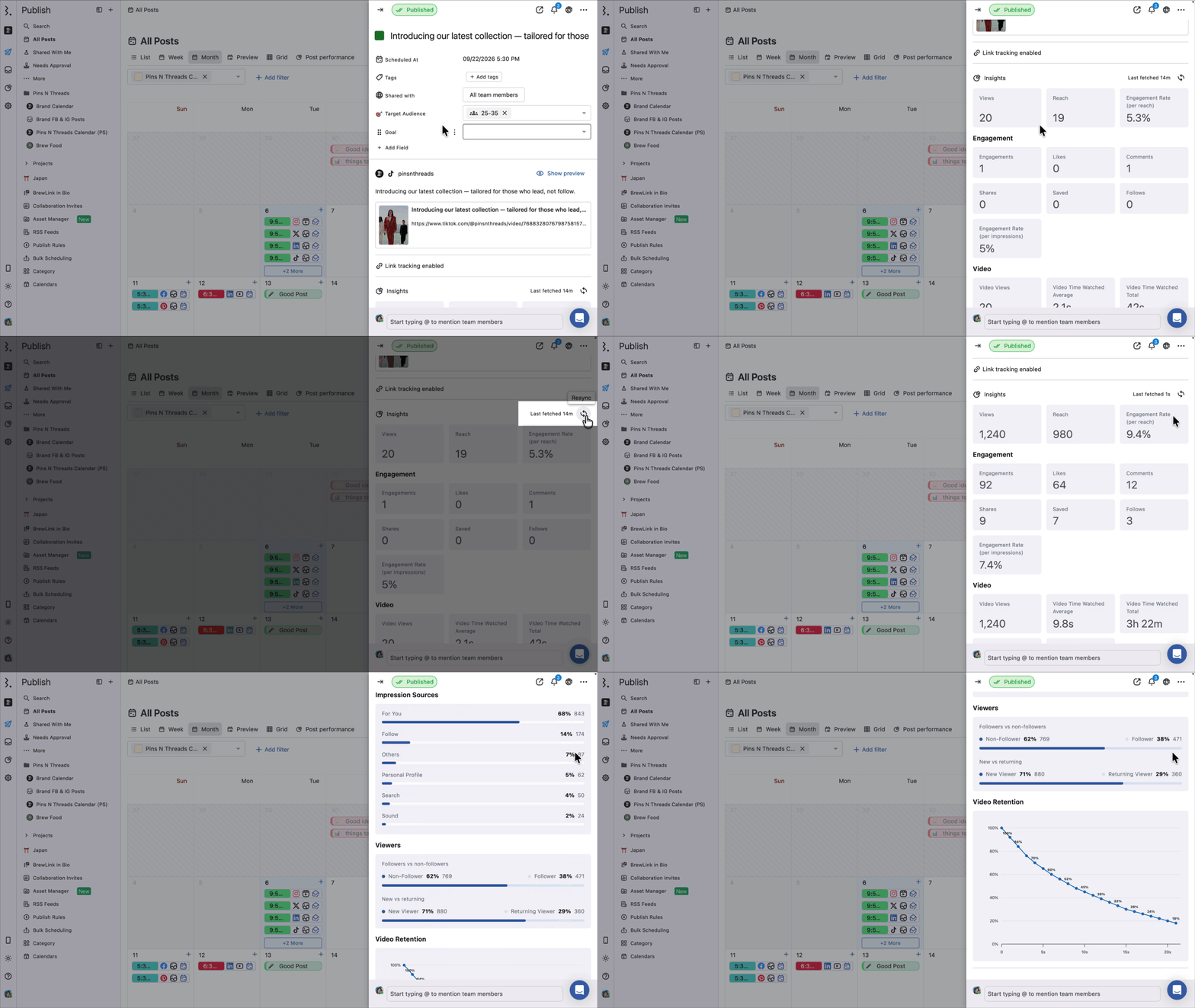
As posts get older, engagement tends to decrease and plateau. However, some metrics, such as reach and impressions, continue to increase gradually. However, this data is not synced to Statusbrew unless new engagement occurs, which causes discrepancies between your native reports and Statusbrew reports.
To avoid this, you can manually resync your insights data.
You can resync one post at a time, or every post in a date range.
How Do I Resync Insights For A Single Post?
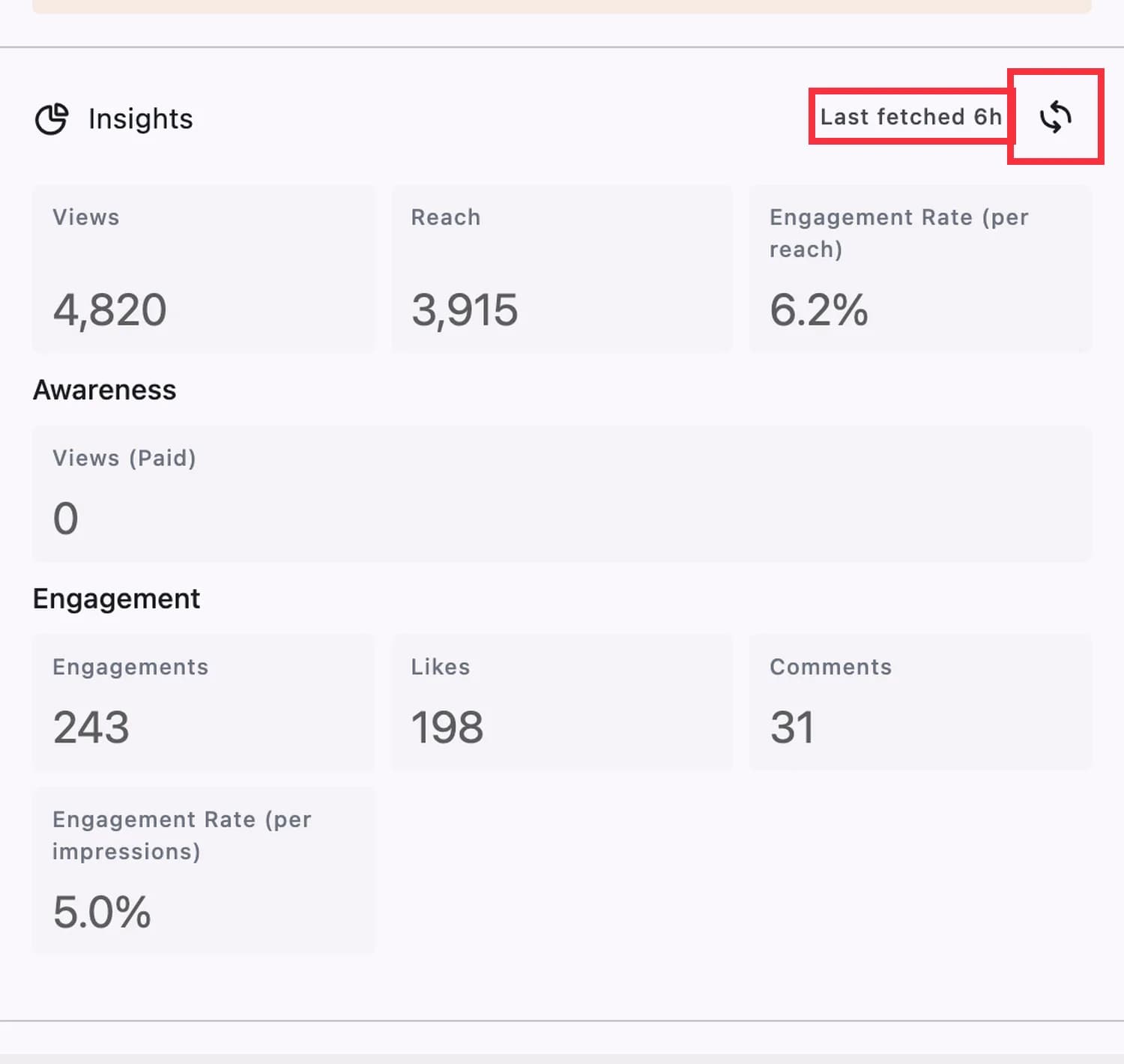
The steps are as follows:
In your Statusbrew dashboard, go to Publish → All Posts, then click the published post you want to resync.
The post's panel opens on the right. In the Insights section, Last fetched shows when the data was last retrieved, for example "Last fetched 5h" (hover over it to see the exact date and time). Click the Resync icon next to it.
When you click, a message will appear at the bottom of the screen saying "Insight data has been updated successfully." The last acquisition date will change to "a few seconds ago," and the data will be updated to the latest.
The Insights section shows Views, Reach and Engagement Rate (per reach), then Awareness (Views (Paid)) and Engagement (Engagements, Likes, Comments, Engagement Rate (per impressions)). The metrics can differ by network.
If the post is part of a group, the panel shows the whole group (for example "2 posts · 2 channels"), and Insights shows the group's combined values.
How Do I Resync Insights For Multiple Posts At Once?
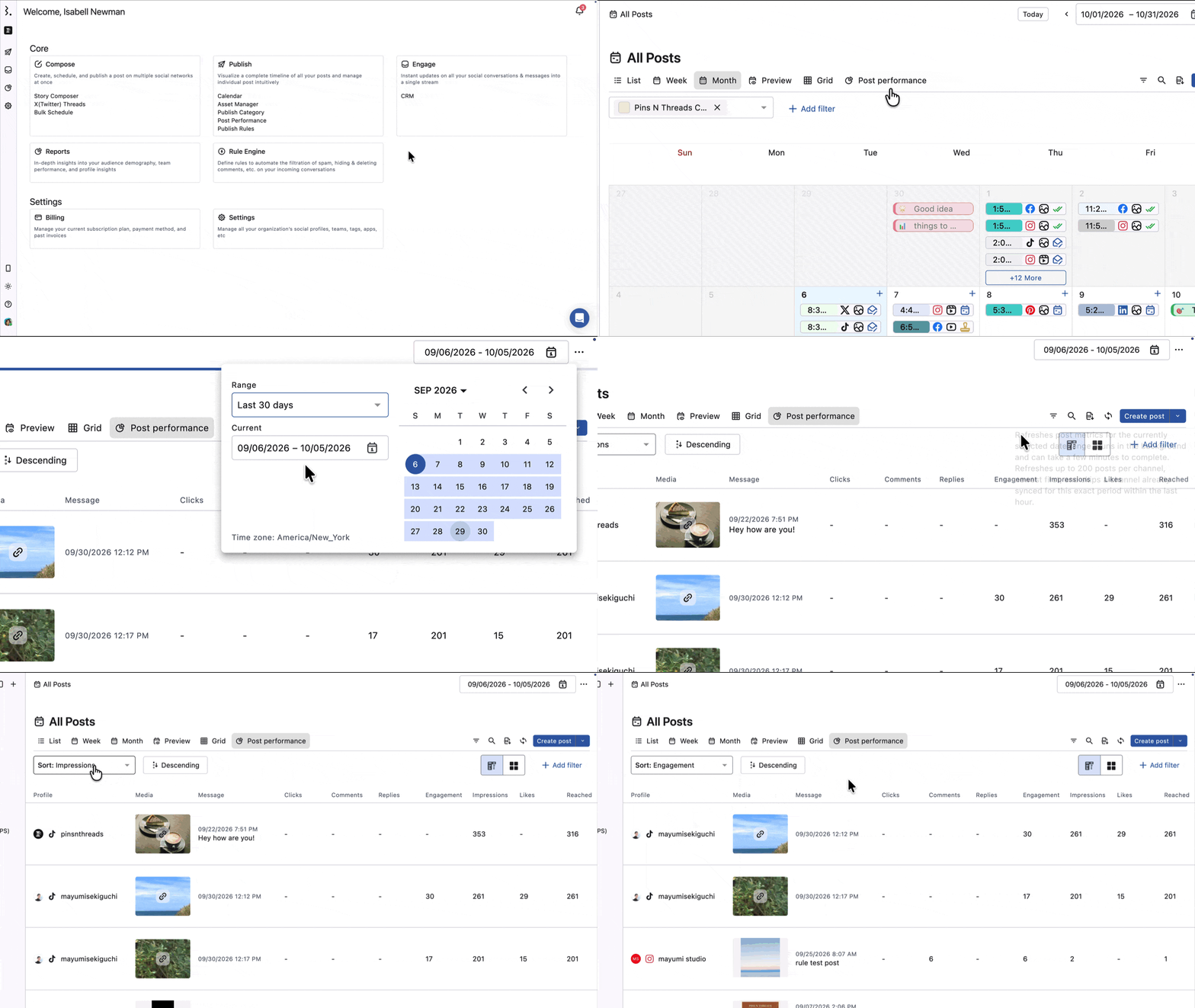
You can refresh metrics for every post within a date range in one go, instead of opening each post and clicking Resync. Any user who can open All Posts can do this.
Go to Publish > All Posts.
Click Post performance.
Set the date range using the date picker at the top right.
Click the Sync posts icon in the toolbar, next to Create post. The icon has no label; hover over it to see: "Refreshes post metrics for the currently selected date range. Runs in the background and can take a few minutes to complete. Refreshes up to 200 posts per channel, newest first, and skips a channel already synced for this exact period within the last hour."
The resync runs in the background, so you can keep working while it finishes. It can take a few minutes or more, depending on how many posts are in the date range.
Bulk resync is only available in All Posts > Post performance. You won't find it in Calendars or Projects.
Here's what a bulk resync covers:
Every profile in your Space with posts in the date range you selected. Filters don't narrow the resync, so it covers all profiles even if you've filtered the view.
Up to 200 posts per profile, starting with the newest.
If a profile was already synced for that exact date range within the last hour, it gets skipped. A message shows how many profiles started syncing and how many were skipped, for example: "39 channels were already synced within the last hour."
If a profile has more than 200 posts in your date range, the oldest ones won't be refreshed. Pick a shorter date range and run the resync again to cover them.
A resync only pulls whatever the social network is reporting right now. If the network hasn't updated a metric yet, your numbers won't change.
Relationship With Post Detail View
The post detail view will always reflect the latest metrics, as defined by the update rules above.

For example:
Instagram post → Posts are updated every few minutes immediately after publishing, and are updated for 180 days as long as there is engagement.
Facebook post → Updates end 28 days after last engagement
LinkedIn post → Updated for 2 years from publication
This means that even if a post is old, the numbers will be updated again if there is additional input (likes, comments, etc.).
FAQs
Why Are The Numbers Different From Native (Instagram App, Etc.)?
This is due to API update cycles and delays, and is normal behavior.
Will The Numbers For Old Posts No Longer Be Updated?
They will stop updating after the "last update period" for each network has passed. Instagram's maximum is 194 days, LinkedIn's is 2 years, etc.
Can I Force An Update Myself?
You can query with a manual refresh, but the value will not change unless the SNS side updates it.
Can I Resync All My Posts At Once?
Yes. Go to Publish > All Posts > Post performance, pick a date range, and click the Sync posts icon in the toolbar. It refreshes up to 200 posts per profile for that range, starting with the newest. Any user can do this.
Why Can't I See The Sync Posts Button?
The Sync posts icon only appears in Publish > All Posts > Post performance. It isn't available in Calendars, Projects, or the List, Week, Month and Preview views.
Is The Resync Button In Grid View The Same Thing?
No. The Resync button in Grid view refreshes your Instagram feed layout. To refresh post metrics for a date range, use Sync posts in Post performance.
Does The Bulk Resync Only Cover The Profiles I've Filtered?
No. Filters change what you see in Post performance, but the resync covers every profile in your Space with posts in the selected date range.
Why Did I Get A Message Saying Channels Were Already Synced?
A profile is skipped if it was already synced for the same date range within the last hour. The message shows how many profiles were skipped, for example "39 channels were already synced within the last hour." Wait an hour and try again.
Why Didn't My Numbers Change After A Bulk Resync?
The resync runs in the background and can take a few minutes or more, depending on how many posts are in the date range. If you saw the "already synced within the last hour" message, those profiles were skipped. And if the social network hasn't updated a metric on its side, the numbers stay the same.
Why Were Some Older Posts Not Refreshed?
A bulk resync covers up to 200 posts per profile, starting with the newest. If a profile has more posts than that in your date range, shorten the range to reach the older ones.
What's The Difference Between Resyncing One Post And Resyncing A Date Range?
The Resync icon in a post's panel refreshes just that post. The Sync posts icon in Post performance refreshes every post in the selected date range, up to 200 per profile.