Report Sidebar Sections
The Reports Sidebar in Statusbrew provides a space to manage, organize, and access all your reports. Here’s all what you can do with the Reports Sidebar:
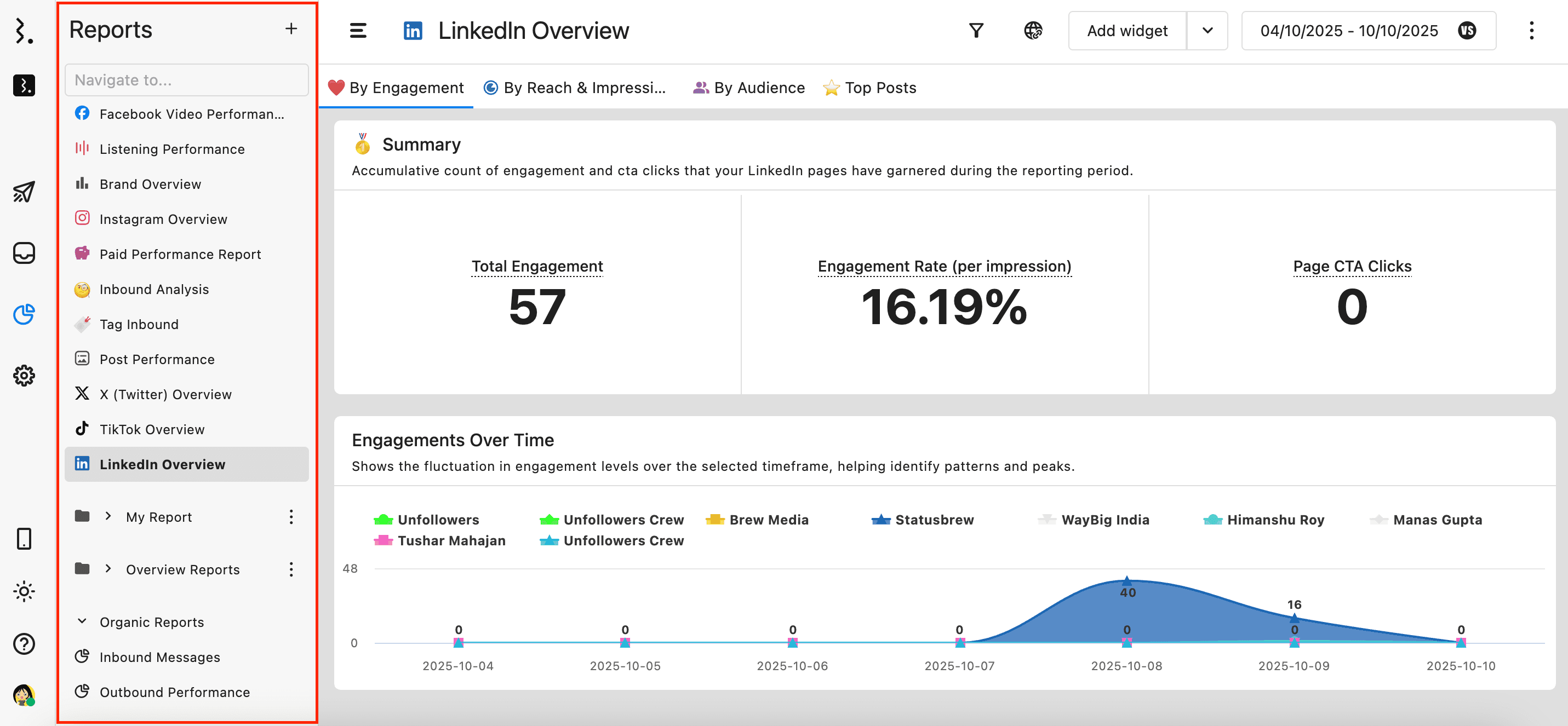
The search bar at the top of the sidebar allows you to quickly locate any report in the sidebar without scrolling through the entire list. Type in a keyword of the report, and the results will filter. You can also use your arrow keys (Up & Down) to move through search results and press Enter to open the selected report.
Create options
Create New Reports
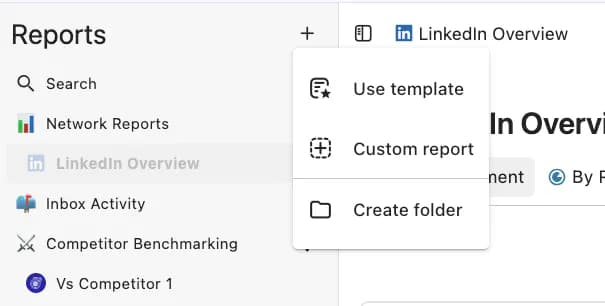
You can start building a new report either from scratch or by selecting one from our library of 26 reporting templates tailored to common reporting needs.
To create a report:
Click Add a new report.
Select:
Create Folders
You can create a new folder by clicking Create folder.
View & Access Reports
The sidebar displays a list of all reports you have access to. Once a report is created, it becomes accessible directly from the sidebar. This centralized view makes it easy to keep track of and access all reports.
Regular users can only see and access reports they created and those to which they are added as collaborators. Admins, owners, and primary owners can see and access all reports they create, and their team creates.
Learn more about user types
To better organize, you can drag and drop reports into the appropriate folders to rearrange their order.
Folders
To keep your report sidebar organized and easy to navigate, you can organize your reports into folders.
You can:
Create new folders to organize your reports.
Add reports directly within a folder at the time of creation.
Rearrange existing reports across folders and even within folders by simply dragging and dropping them.
Rearrange folders by dragging and dropping.
This way, you and your team members can quickly find the reports you need without scrolling through endless lists.
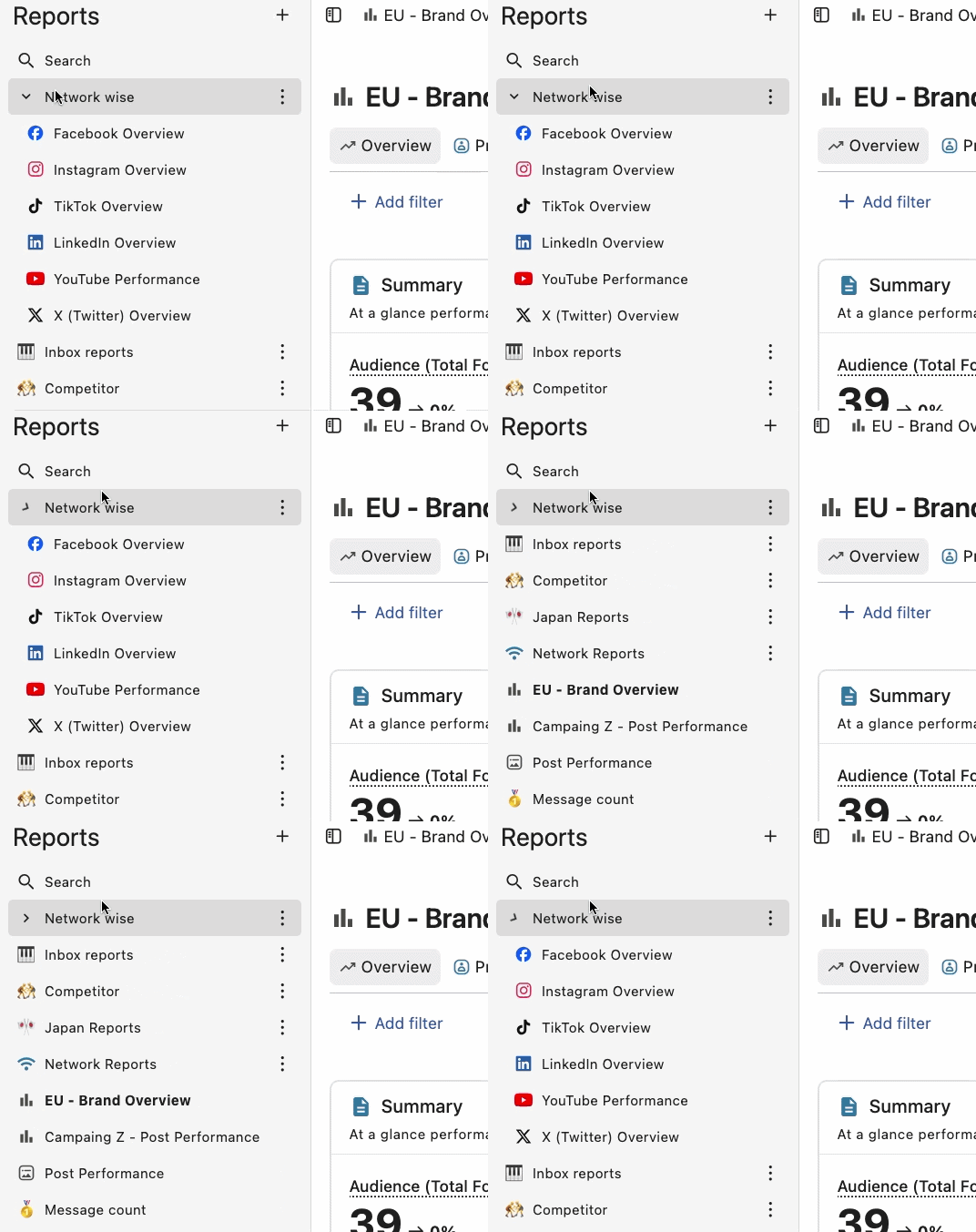
You also have the flexibility to expand or collapse specific folders in the sidenav by clicking the (to expand) or (to collapse) on the left side of each folder.
Learn more about folders in our help article.
More Options
Hovering over any report will reveal the (More option), which allows you to:
Edit report
Clone report
Download PDF. See Export Report.
Delete report
Organic Reports
Organic Reports in Statusbrew provide quick insights into all incoming conversations and post performance. Unlike custom reports, these reports do not support widgets or layout customization.
There are two Organic Reports in Statusbrew:
Inbound Messages
The Inbound Messages Report gives you a consolidated view of all incoming conversations across your connected social profiles.
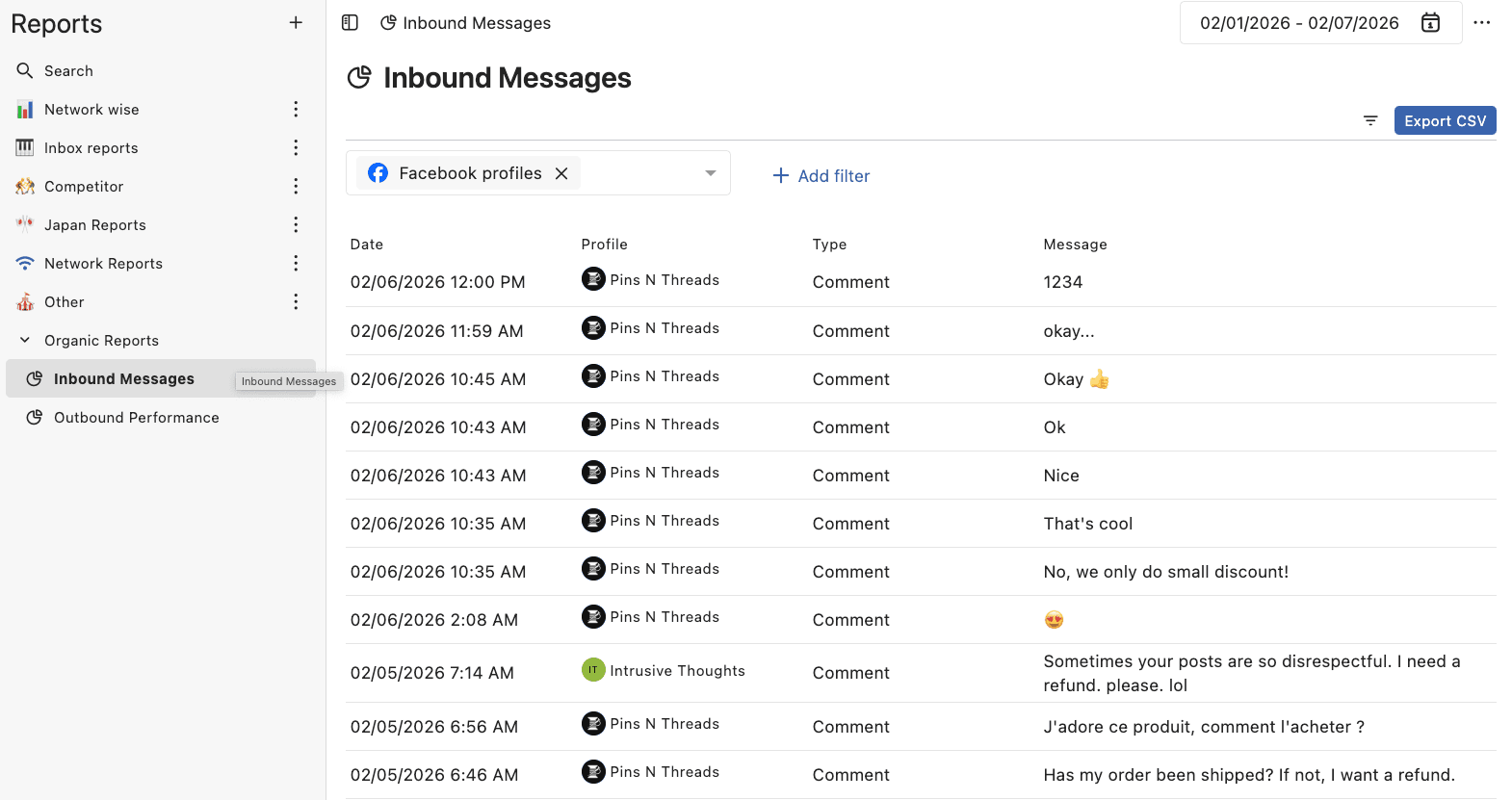
This list shows the first 200 conversations. To view all the conversations, you will have to export the report as CSV from the top bar by clicking (More option) > Export CSV
Here's a breakdown of every column shown in this view:
Date: The timestamp of when the conversation was received. See Conversation Type And Sync Rates.
Social profile: The social profile from which the conversation was received. Each entry includes:
The profile picture (not displayed for competitor profiles)
The social network icon
The profile name. Competitor’s profile names are labeled with "Competitor:"
Conversation type: Indicates the type of inbound conversation.
Message: Shows the full content of the conversation
Contact: The username of the contact from whom the conversation was received. See Understanding Social Contacts.
View conversation: Clicking on View conversation will open the Conversation Detail sidebar.
You can filter the conversations by:
Outbound Performance
The Outbound Performance report directs you to the Post Performance view in Statusbrew’s Planner, which offers a quick way to review how individual posts are performing across your connected social networks. It’s ideal for quick checks or spotting top-performing content at a glance.
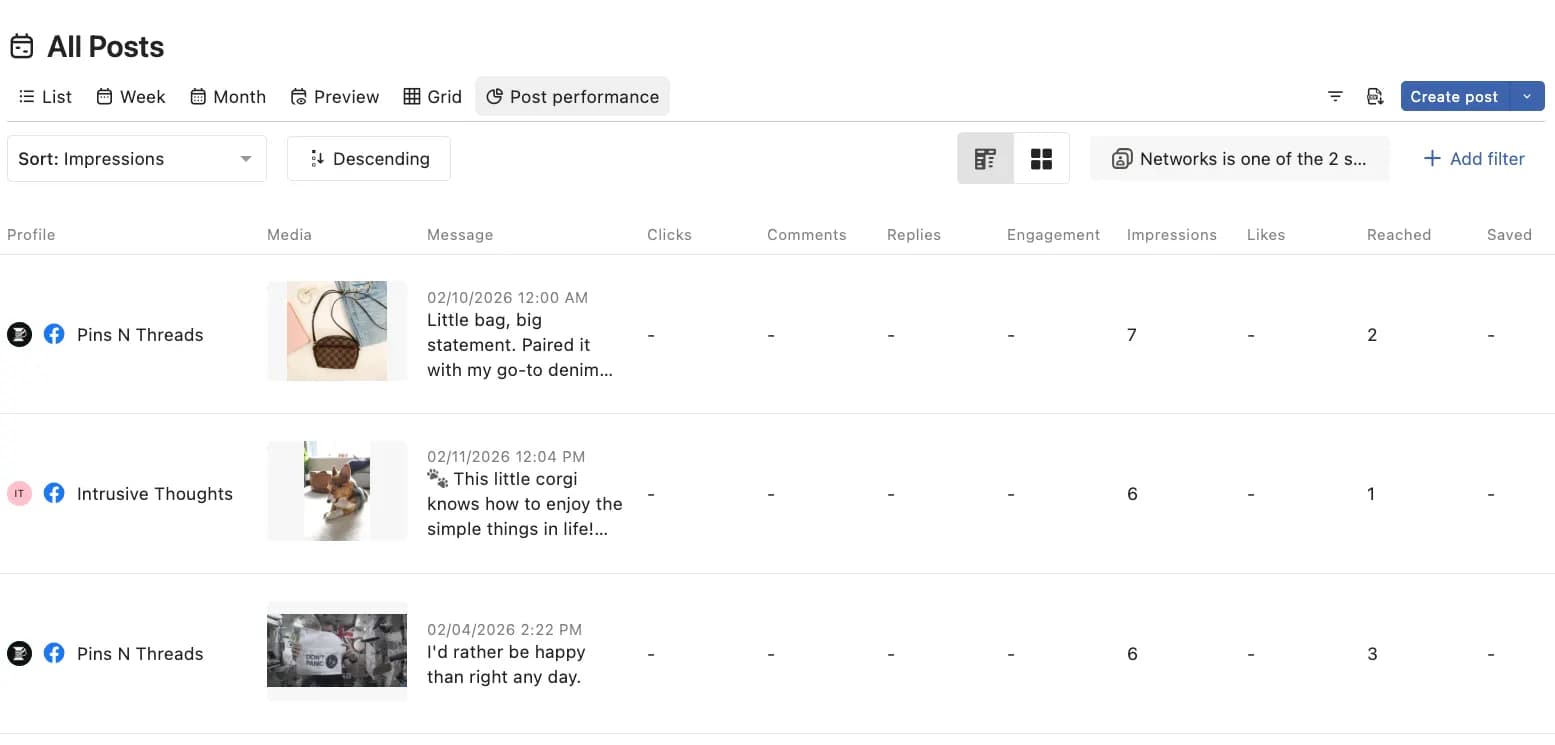
Insights are not only sourced from all posts sent via our platform, but also from posts published outside Statusbrew.
Learn about Post Performance.