Reporting Timezone
Statusbrew generates reports based on the time zone you selected when setting up your account. While we will try to reflect your preferred time zone whenever possible, some reports are generated in a fixed time zone and may not reflect the time zone you set.
How to check and change your time zone
You can check and change your account time zone by following the steps below.
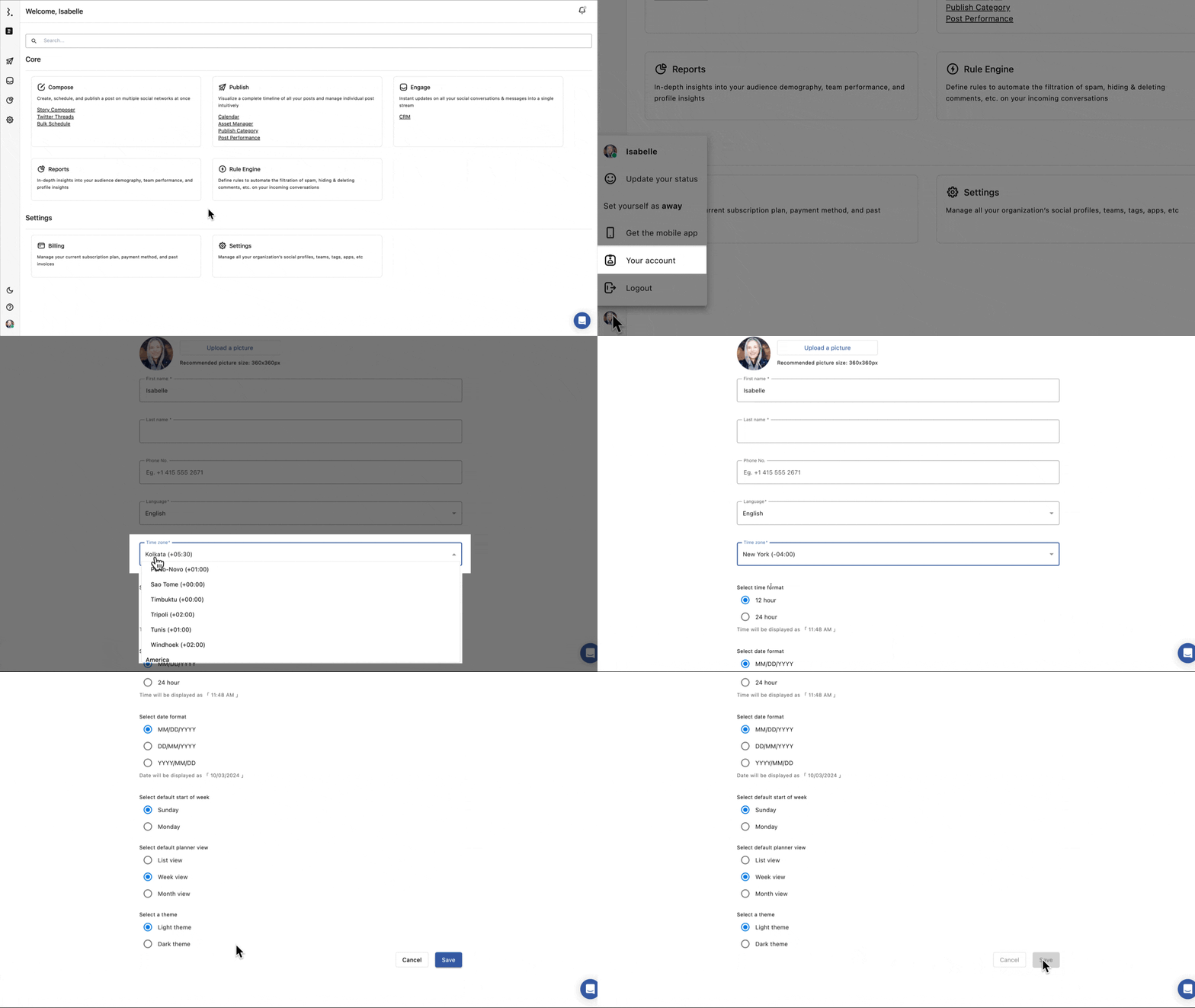
Log in to Statusbrew and click on your profile at the bottom of the left panel.
Select your account.
The account settings screen will be displayed. The time zone displayed under "Time Zone" is the set time zone. To change it, select the desired time zone from the drop-down list.
Click "Save" to complete the changes.
The time zone you set applies to most reports, but some reports are restricted to time zones determined by network or system requirements.
Time zones for template reports and free reports
Statusbrew reports use different time zones depending on the type: User-defined, Network-based, or Local time zone. Below are the template reports (free reports based on analytical KPIs) and a list of the time zones that apply to each report.
Template Report Time Zone
Template Report | Time Zone |
Inbound Analysis | The time zone set by the user |
Post Performance | The time zone set by the user |
Tag Inbound | The time zone set by the user |
Best time to post | The time zone set by the user |
Competitive Performance Analysis | UTC (Coordinated Universal Time) |
LinkedIn Overview | UTC (Coordinated Universal Time) |
Google Business Overview | Network Region Time Zone |
Facebook Overview | Pacific Standard Time/Pacific Daylight Time (PST/PDT) |
Cross-Network Analysis | The time zone set by the user |
Multi-Network Analysis | The time zone set by the user |
Cross-Network v2 Analysis | The time zone set by the user |
Facebook Audience | Pacific Standard Time/Pacific Daylight Time (PST/PDT) |
Facebook Video Performance | Pacific Standard Time/Pacific Daylight Time (PST/PDT) |
Instagram Overview | PT (PST: Pacific Standard Time/PDT: Pacific Daylight Time) |
X Overview | UTC (Coordinated Universal Time) |
TikTok Overview | UTC (Coordinated Universal Time) |
YouTube Overview | UTC (Coordinated Universal Time) |
YouTube content | UTC (Coordinated Universal Time) |
Listening Performance | The time zone set by the user |
Note : For ad account-based reports, ensure that the time zone for that ad account is set correctly, as this can directly impact report timing and analysis.
Free Report Time Zone
Free Report time zone is based on the selected analytics metric.
For example, if you create a custom widget and select the metric "Competitor Profile Engagements," you'll see data for Facebook, Instagram, and X networks in the UTC (Coordinated Universal Time) time zone.
However, if you select the metric "Instagram: Followers," the data will be displayed in the PT (Pacific Time) time zone.
Note : Always check the default network or account time zone for platform-specific reports. For example, Facebook and Instagram may follow PT (Pacific Time), while LinkedIn and X reports may default to UTC (Coordinated Universal Time).