How to Suggest Edits to a Post Awaiting Approval
When a post is sent for approval, the approver can suggest changes to its caption instead of rejecting it. The post creator sees the approver's exact wording and can accept it in one click.
What Are Post Suggestions?
A post suggestion is a proposed new version of a post's caption. The original caption stays as it is until someone accepts the suggestion.
Approvers use suggestions when a post is almost ready but needs a typo fixed, a line reworded or a mention added. This skips the reject and resubmit loop, and the creator gets the exact text the approver wants.
A post for two or more profiles is saved as a Post Group, with one post per profile, unless the creator picked Separate posts, in which case each post is reviewed on its own. A post for one profile is a normal post. Suggestions work per post, so an approver can suggest a change to one profile's caption, several, or all of them.
Who Can Do This?
Suggest edits: Anyone who is an approver on the post through an Approval Workflow. This includes team members and external approvers you added by email. Older posts that still have individually selected reviewers keep them, and those reviewers can suggest edits too.
Accept, decline or delete a suggestion: The post creator, approvers on the post, Admins and Owners. The creator sees Decline, and everyone else sees Delete.
Everyone else: Team members who can see the post but aren't approvers can view suggestions, but they can't make them.
Suggestions are part of approvals, and Approval Workflows are available on Premium and above plans. Team approvers can suggest and review edits on the web app only. The mobile app shows Approve and Reject only.
Which Posts Support Suggestions?
Suggest edits only shows on posts that are awaiting approval. Suggestions change the caption only. Media, schedule time and selected profiles stay the same.
Suggestions are not available for:
Stories: Use a comment instead.
X threads with more than one post: X threads with a single post do support suggestions.
How Do I Suggest An Edit As A Team Approver?
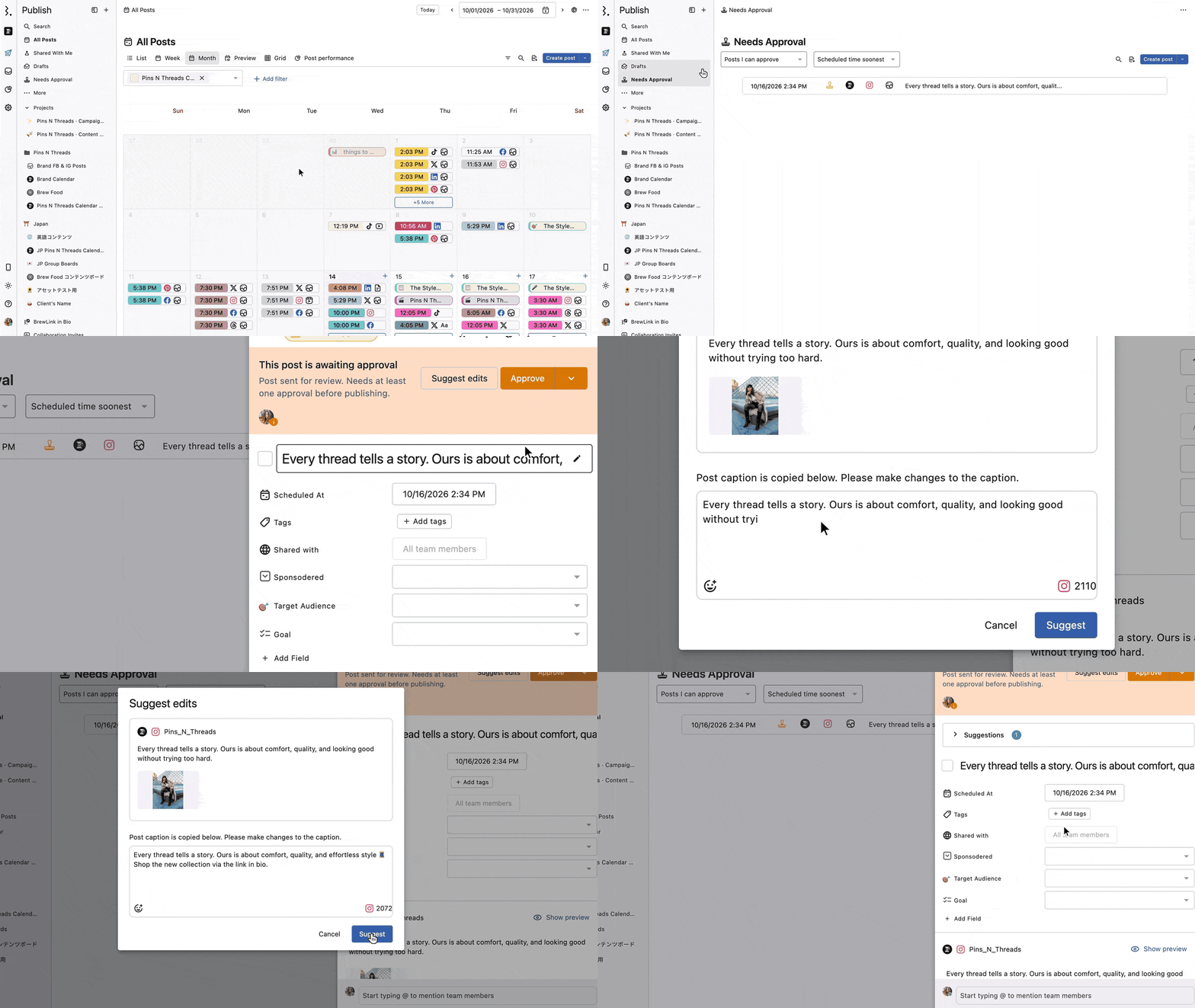
Go to Publish → Needs Approval and open the post. The Post Detail opens.
Click Suggest edits in the "This post is awaiting approval" banner, next to Approve.
The current caption is copied into the dialog. Make the changes. Emojis and @mentions work here, and the character counter updates while typing.
Click Suggest.
The approver sees "Suggestion added successfully."
If the post is part of a Group with several profiles, each post in the Group has its own Suggest edits button. A post opened on its own shows only Suggest edits. To approve or reject, open the Group from the banner, because a Group is approved or rejected as a whole.
Approvers should write the exact text they want in the caption, not an instruction. "Our new jacket is fully waterproof" works. "Mention that it's waterproof" doesn't, because accepting a suggestion pastes the text straight into the caption.
An approver can add more than one suggestion to the same post. Each one appears separately.
How Do I Suggest An Edit As An External Approver?
External approvers review posts on the external approvals page (external.statusbrew.com). Open it from the approval email, or sign in at external.statusbrew.com.
Find the post you want to change. In a Group, every post has its own Suggest edits button.
Click Suggest edits, change the caption in the dialog and click Suggest.
The post now shows Suggestion sent.
The external approvals page (external.statusbrew.com) has a Classic view / Table view toggle at the top right. Your choice is remembered in that browser.
Suggesting an edit doesn't approve or reject anything. The Group still shows Approve and Reject, and the post you suggested on shows Suggestion sent.
How Do I Review A Suggestion?
The creator sees Suggestion pending on the post. Inside a Group, the Group sidebar marks which post has a pending suggestion.
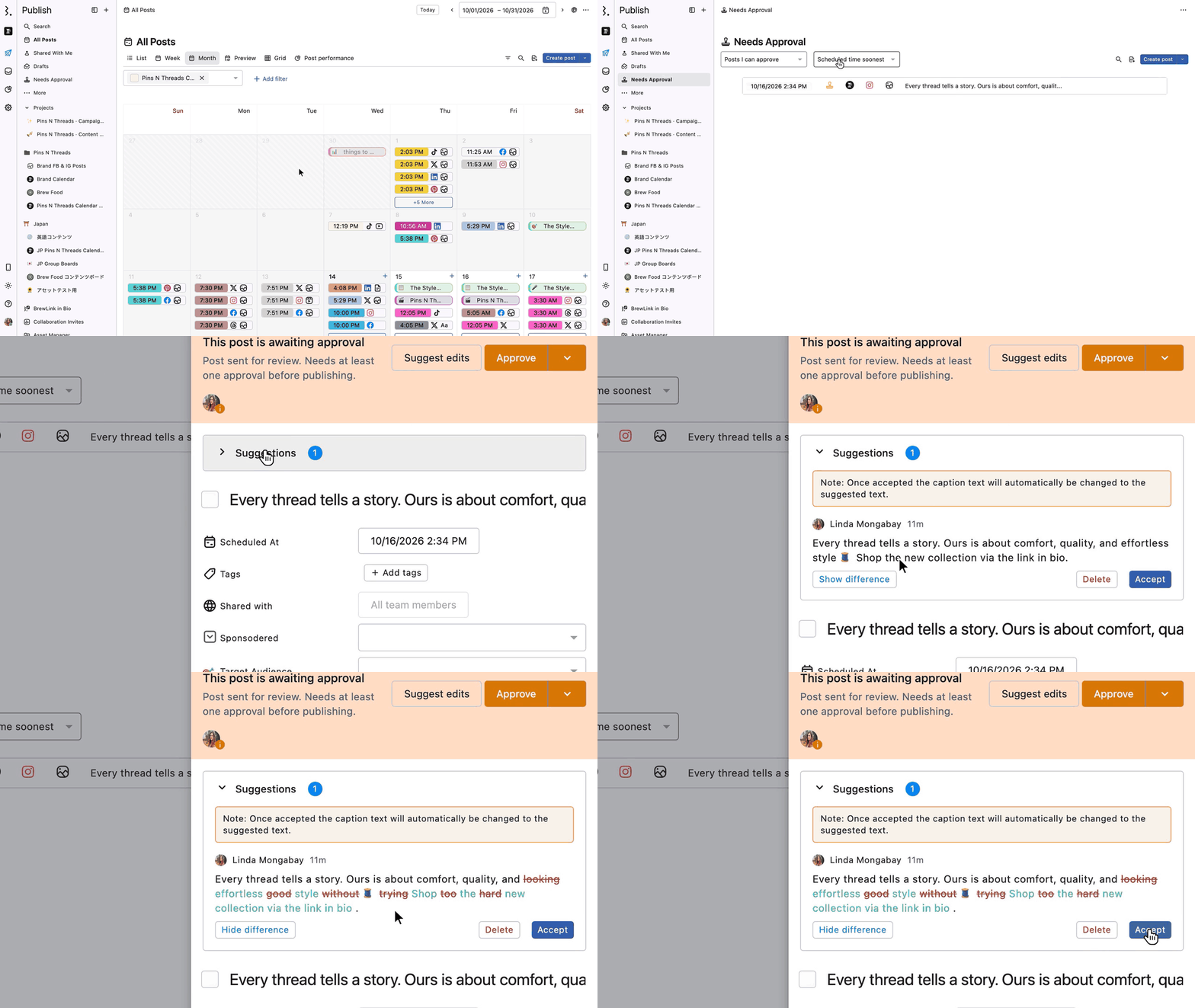
Open the post from Publish → Needs Approval, or from the Group.
Suggestions appear in the Suggestions section of the Post Detail, with a count of how many are waiting. Each one shows which approver suggested it, when, and the suggested caption.
Click Show difference to compare it with the current caption. Removed text appears in red with a strikethrough. Added text appears in green.
Click Accept to use the suggestion, or Decline / Delete to remove it.
What Happens When A Suggestion Is Accepted?
Accepting a suggestion takes that post out of its Group. Statusbrew asks you to confirm first in a Remove from "[Group name]"? dialog: click Accept suggestion to go ahead. A post that isn't in a Group with other posts is updated straight away, with no dialog.
Caption: The post's caption is replaced with the suggested text right away.
Group: The post leaves its Group and is no longer covered by the Group's approval. It can't rejoin the Group later.
Approval: Accepting counts as approval for the current step. In a one-step workflow, or at the last step, the post is approved and goes live or gets scheduled for its publish time. In a multi-step workflow, it moves on to the next step.
Other suggestions: Other suggestions on the post stay visible, but they can't be applied.
To change a caption and keep the post in its Group, edit the post or the Group yourself instead of accepting the suggestion.
What Happens When A Suggestion Is Declined Or Deleted?
The suggestion is removed from the Suggestions section, the caption stays the same and the post stays in its Group. A declined or deleted suggestion can't be restored, but it still shows in activity.
How Do I Track Suggestions In Activity?
Every suggestion is recorded in activity, for example "[Approver name] created a post suggestion" or "[Creator name] rejected a post suggestion."
Group Activity: The entry is logged under that post's profile. Click View post to open the post with the suggestion.
Post Detail: The All activity section at the bottom lists the same entry. Click Show difference to see what changed.
How Do I Get Notified About Suggestions?
Approvers, creators and admins can each choose how they get suggestion alerts.
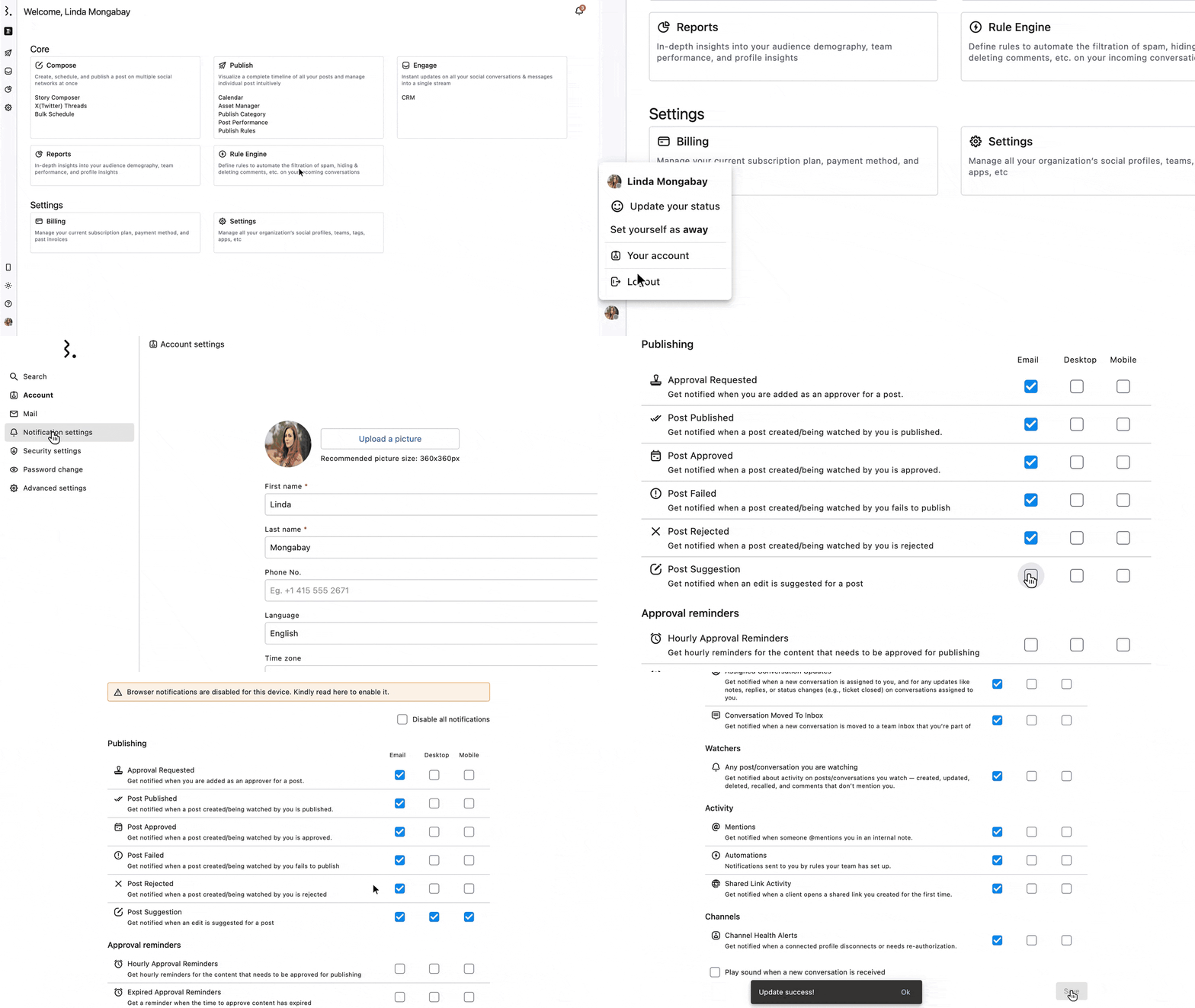
Click the profile avatar at the bottom left and select Your Account.
Select Notification settings.
Under Publishing, find Post Suggestion and select Email, Desktop or Mobile.
Click Save.
External approvers don't have these settings. They learn whether their suggestion was accepted or declined by email only, not on the external approvals page (external.statusbrew.com).
FAQs
Does Accepting A Suggestion Approve My Post?
Yes. Accepting replaces the caption and counts as approval for the current step. At the last step, the post then goes live or gets scheduled for its publish time. Otherwise it moves to the next step. It also takes the post out of its Group.
Why Did My Post Leave Its Group After I Accepted A Suggestion?
Accepting a suggestion always takes the post out of its Group, and Statusbrew asks you to confirm first. Once removed, it can't rejoin. To keep the post in the Group, decline the suggestion and edit the post's caption yourself. Caption, media and network option edits on one post keep it in the Group.
Can I Suggest Edits On Any Scheduled Post?
No. Suggest edits only shows on posts that are awaiting approval, and only for the approvers on that post. To change a post that isn't in an approval flow, edit the post directly.
Can I Approve One Post In A Group And Suggest Edits On Another?
No. A Group is approved or rejected as a whole. You can suggest edits on any number of posts in the Group, then approve or reject the whole Group.
Can I Suggest Edits As The Post Creator?
No. Only approvers can suggest edits. The creator can accept or decline the suggestions they receive.
Can I Edit A Suggestion After Sending It?
No. Team approvers can delete it and add a new suggestion.
Can I Suggest Changes To Images, Videos Or The Schedule Time?
No. Suggestions only change the caption. To change media or the time, edit the post directly. A media change keeps the post in its Group. Changing one post's time takes it out of its Group, and Statusbrew asks you first. To add or remove profiles, open the Post Group and click Edit group. A separate post's profiles can't be changed later.
Can I Restore The Original Caption After Accepting A Suggestion?
Not in one click. Open All activity, click Show difference on the suggestion entry, copy the original text and edit the post.
As An External Approver, How Do I Know If My Suggestion Was Accepted?
You get an email with the outcome. The external approvals page (external.statusbrew.com) shows Suggestion sent but doesn't show whether it was accepted or declined.
Why Do I Still Get Emails When A Suggestion Is Accepted?
Suggestion alerts are controlled by the Post Suggestion row under Publishing in Notification settings. Clear Email, Desktop and Mobile on that row and click Save.
Can I Suggest Edits From The Statusbrew Mobile App?
No. The mobile app shows Approve and Reject only. Use the web app to suggest or review edits.
How Can I Give Feedback On A Story Or An X Thread?
Suggestions aren't available for these posts. Add a comment in the Comments tab of the Post Detail instead.