Select The Best Time To Post With Optimal Times
Use Optimal Times in Compose to schedule a post at the times your audience engages most, based on your past post performance.
Optimal Times removes the guesswork from scheduling by suggesting posting times based on historical engagement data, helping you publish when your audience is most active.
You see the suggestions in the Select schedule type dialog when you schedule a post for a custom time. Each time row has an Optimal Times icon that lists the best times for that date.
Who Can Do This?
Anyone who can create and schedule posts in Compose. Optimal Times is available on the Standard plan and above.
How Do I Pick An Optimal Time When Scheduling?
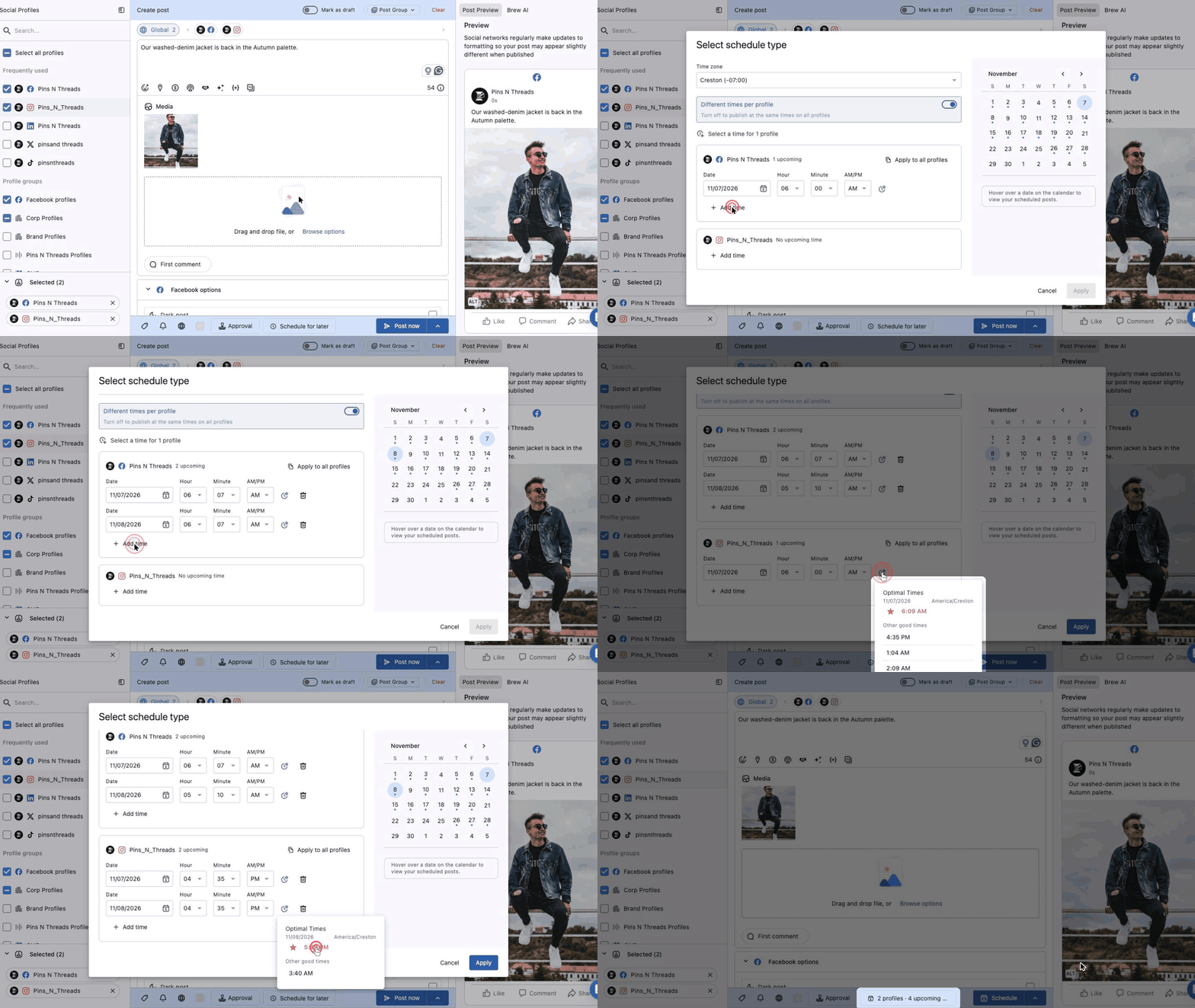
Go to Compose, select your profiles and create your post.
Click Schedule for later in the bottom bar. The Select schedule type dialog opens.
Choose Custom time, check the Time zone, then click Add time.
Pick the date, then click the Optimal Times icon next to the AM/PM field.
Click a time in the list. The Hour, Minute and AM/PM fields fill in with that time.
Click Apply.
The list shows the date and time zone at the top. The best time for that date is first, marked with a star. The times under Other good times are also good options, ranked from most to least likely to get engagement.
Pick Optimal Times For Each Profile
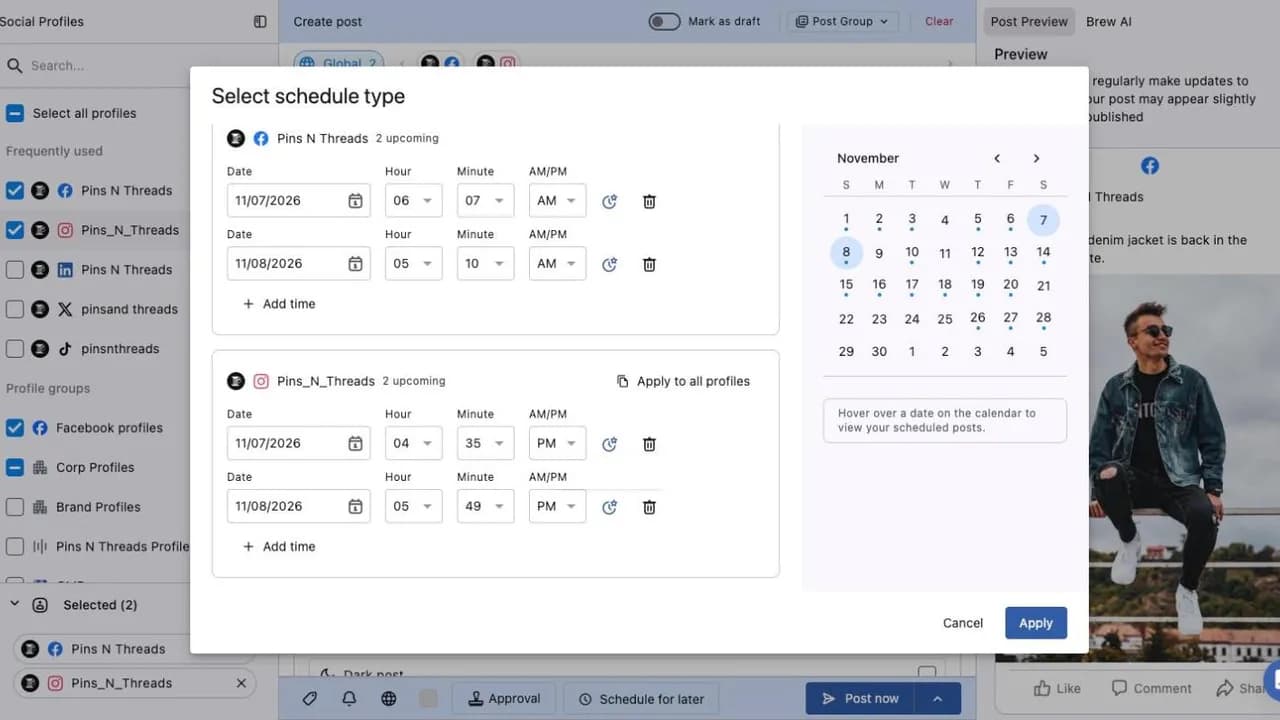
When you select more than one profile, turn on Different times per profile. Each profile gets its own time row with its own Optimal Times icon, so a Facebook Page and an Instagram profile can show different best times for the same date. Use Apply to all profiles to copy one profile's time to the rest.
Tip: Use our Best Time To Post template in Reports for even more personalized suggestions based on your goals.
What Happens After
The post is scheduled for the time you picked once you click Apply and finish scheduling.
Picking an optimal time only fills the time fields. You can still change the hour or minute before you click Apply.
If you change the Time zone after picking a time, the fields convert to the same moment in the new time zone.
Click Cancel to close the dialog without scheduling. Your post stays in Compose.
How Are Optimal Times Calculated?
We calculate the optimal times using the data of the post-performance of the past 180 days. To calculate, we analyze the engagement, activities, and reach of the posts published in the last 180 days. The optimal time suggestions may vary according to:
Type of the posts (Image, video, carousel etc.)
Social networks (Facebook, Instagram etc.)
We also consider the data associated with the Tags used in the post, as we do to show tag insights in our Reporting dashboard.
FAQs
Why am I seeing “No optimal times for the selected date”?
This usually happens when the audience activity data for that date is not available.
In such cases, you have two options:
Choose your own posting time manually.
Select another date where optimal posting times are available.
Why are the optimal times different for each profile?
Each profile has its own audience and post history. With Different times per profile turned on, every profile row shows the best times for that profile only.
Where do I find Optimal Times in Compose?
Click Schedule for later, choose Custom time and click Add time. The Optimal Times icon sits at the end of each time row, next to AM/PM. It does not show when you choose Immediately.
Which time zone are the optimal times shown in?
In the time zone selected in the Time zone field of the Select schedule type dialog. The list header shows that time zone next to the date.
Can I schedule a post at more than one optimal time?
Yes. Click Add time to add another time row, then use its Optimal Times icon to pick a second time.
Is there a report for the best time to post?
Yes. Go to Reports → + → Use template and pick Best Time To Post. It looks at past post performance, when your audience is online and engagement patterns for each network.