Post Group in Statusbrew
A Post Group keeps the posts you create together in Compose as one item, so you can edit, approve, comment on and track posts for several profiles in one place.
What Is A Post Group?
When you create a post in Compose for two or more profiles, it's saved as a Post Group, unless you pick Separate posts. The Group holds one post for each profile and each scheduled time.
A post for a single profile is saved as a normal post, not a Group.
All posts in a Group start from the same Global content. You can still give any profile its own caption, media, network options and schedule. You edit the Group once to update every post, approve it once, and follow its comments and Activity in one place.
X threads and Stories are created in the previous Compose and aren't saved as Post Groups. Posts created in the mobile app and posts uploaded by CSV are saved as separate posts, as before.
Instagram profiles set to Publish via mobile reminders (profile options → Publishing Type) are saved as separate posts, not in the Post Group, even when the rest of the post is a Group.
What Is Shared And What Can Differ Per Profile
Shared by the whole Group | Can differ per profile |
|---|---|
Global caption and media | Customised caption and media |
Tags | Network options (for example Dark post or LinkedIn poll). You can also set them in the Global tab and every matching profile uses them |
Custom fields and visibility | Schedule date and time |
Approval workflow, comments and Activity | Link card edits and watchers |
Publish rules |
Who Can Create Post Groups
Post Groups are the default way to publish in Statusbrew, so they're available on all plans. Admins and above can create them, and so can any user with Full publishing or Needs approval access on the profiles they post to.
Create A Post Group
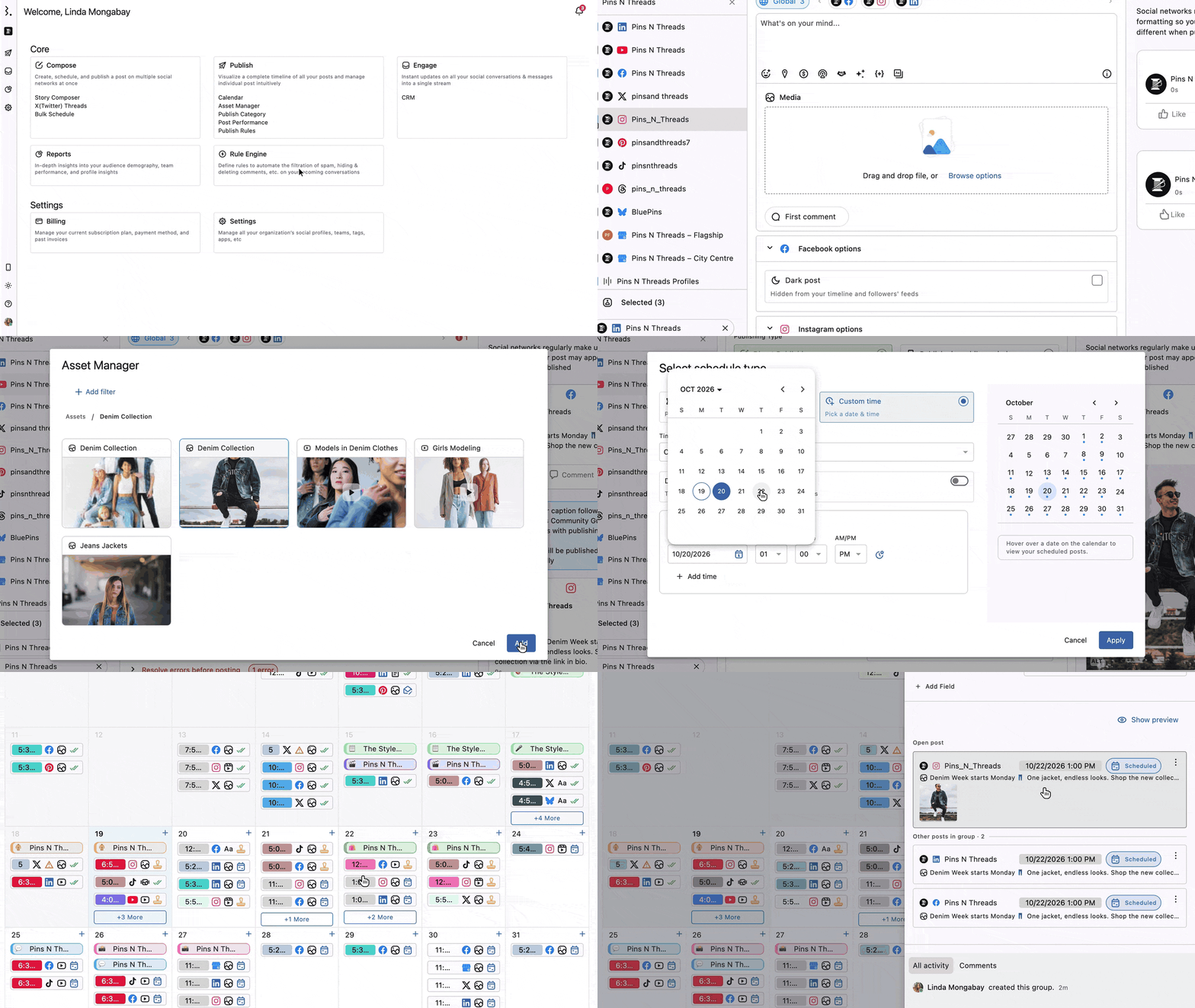
Go to Publish and click Create post.
Select the profiles you want to post to in the Social Profiles list.
With two or more profiles selected, pick Post Group in the toggle at the top of Compose, next to Mark as draft. Pick Separate posts instead if you want one standalone post per profile. Compose remembers your last choice.
Write your caption and add media in the Global tab. Each profile tab shows Inheriting from Global until you change it. Each network tab shows that network's remaining characters, and the icon on the Global tab lists the count for every profile.
To change the content for one profile, open its tab and edit it. The tab then shows Customised · this profile has its own content, and the other profiles keep the Global content. Click Reset to Global to undo it, or Copy customisation to reuse it on another profile.
A new post is set to Immediately, with a Post now button. To schedule it, click Immediately in the bottom bar. In Select schedule type, choose Custom time, check the Time zone and click Add time.
To give each profile its own time, turn on Different times per profile and add a time for each profile. To copy one profile's time to the rest, click Apply to all profiles on its card. Click Apply.
Add a Group name in Internal title if you want one. If you leave it blank, the Group is named after the first 60 characters of the caption.
Click Schedule to schedule the Group. To save it as a draft instead, turn on the Mark as draft switch at the top, then click Save as draft.
Statusbrew confirms the post is scheduled or drafted and saves everything as one Group.
You can't schedule a Group until every profile has at least one time. The schedule dialog marks each profile that still needs one. Each time must be at least 15 minutes from now, and Apply stays disabled until you add a time.
A draft can be saved without a time. The Planner only shows posts that have a date and time, so a draft without one won't appear there. Find it in Publish → Drafts instead.
To schedule a draft later, open it with Edit group, turn off the Mark as draft switch, add a time and click Schedule.
Open A Post Group
In the Planner, each post in a Group shows as its own card. Click any card to open the post. A banner at the top shows Part of "Group name" with View group and Edit group instead, and says: "Changes to this post stay in the group. If a change would take it out of the group, you'll be asked first." Below it, a note says tags, visibility and custom fields are shared with the Group, and changing them updates every post in it.
Click View group to open the Group sidebar. There you'll see:
Header: the Group's status, how many posts and channels it has, and Share link, Edit group and More (three dots), which has Duplicate group, Copy link and Delete group.
Details: tags, sharing and custom fields for the whole Group.
Show preview: the network preview of every post.
Posts: the post you opened under Open post, and the rest under Other posts in group. Each post shows its status, such as Needs Approval or Expired, and Suggestion pending when a suggested edit is waiting.
All activity and Comments: the Group's log of changes and its comments.
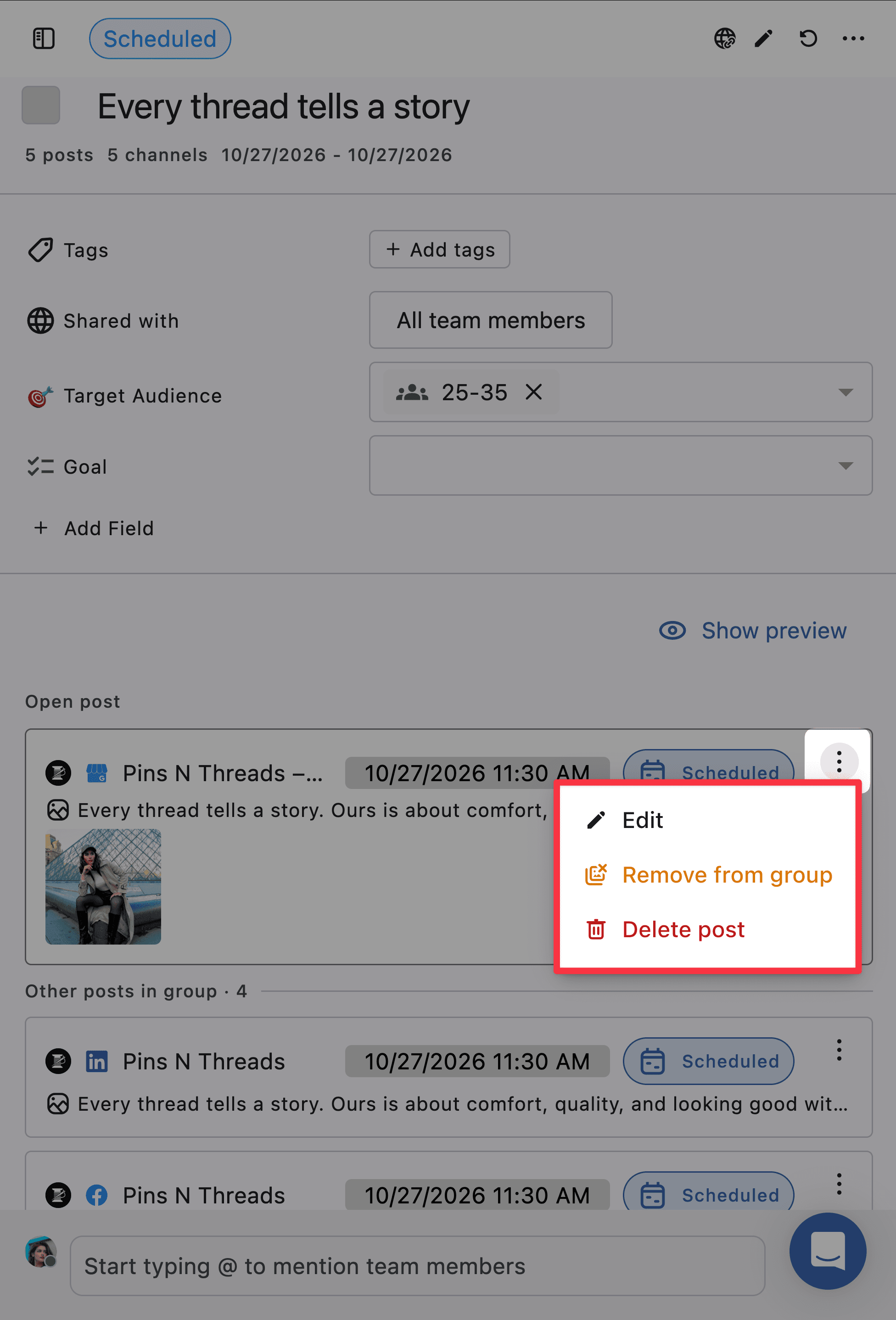
Each post in the list has a More (three dots) menu with three options:
Edit: opens the editor for that post only. Caption, media and network option edits keep the post in the Group. Changing its time takes it out, and Statusbrew asks you first.
Remove from group: takes the post out of the Group after you confirm. It becomes a standalone post.
Delete post: deletes that post permanently after you confirm. The other posts in the Group stay as they are.
Edit A Whole Post Group
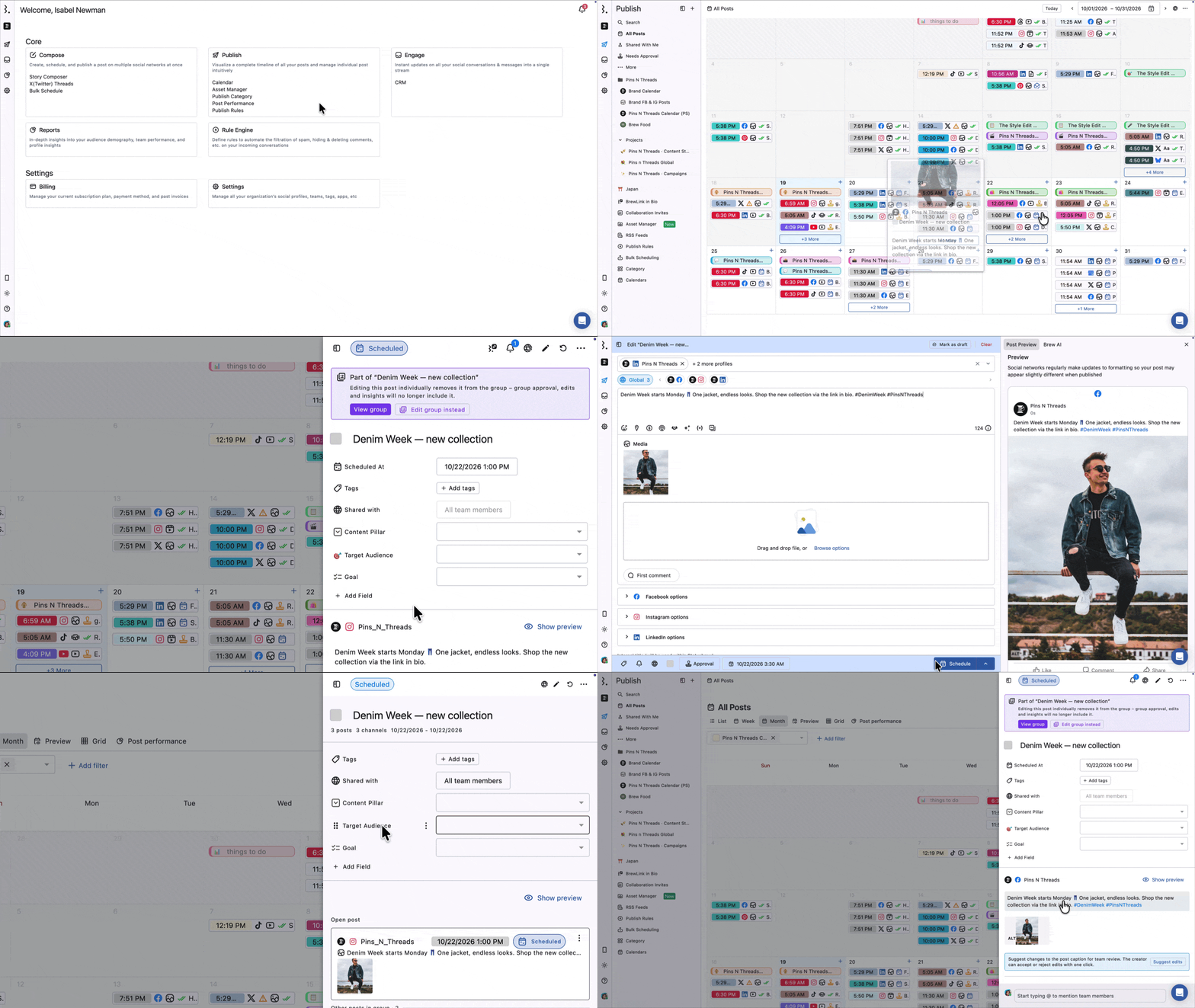
Open the Group and click Edit group, or open any post in it and click Edit group instead in the banner.
Compose opens with every profile in the Group. If some profiles have their own content, a note shows how many, with View customised.
Change the Global content to update every profile that isn't customised, or open a profile's tab to change only that profile.
Add or remove profiles by ticking or unticking them in the profile field, or change their times.
Save your changes.
If a profile has several scheduled times in the Group, changing one of those times replaces that post. Its comments, Activity and approval don't carry over. Compose shows a note under the time when this applies.
Only a Post Group can take more profiles after you save it. A post saved as Separate posts, or any single-profile post, has its profile locked. To post the same content to more profiles, create a new post.
Edit One Post In A Group
Some details are shared by the whole Group, and others belong to each post:
Tags, visibility and custom fields are shared. Change them on any post and every post in the Group gets the change. The post stays in its Group.
Watchers are set per post. Adding or removing a watcher keeps the post in its Group.
Caption, media and network options belong to each post. Change them on one post and save, and the post stays in its Group. Changing the post's title renames the whole Group.
Schedule belongs to each post. Changing one post's time on its own takes it out of the Group.
When you change one post's time, Statusbrew asks first with Remove from "Group name"?. Click Cancel to keep the post in the Group, or Save changes to save it as a standalone post. Group approval, edits and insights then no longer include it.
To change one post's time and keep it in its Group, use Edit group and make the change in that profile's tab.
Take A Post Out Of A Group
Open the Group.
Next to the post, click More (three dots). You can also open the post itself and click More (three dots) at the top.
Select Remove from group.
In Remove "post" from the group?, click Remove from group.
The post keeps its content and schedule and becomes a standalone post with its own approval, comments and Activity. Its Activity shows "moved this post out of Group name", with View group. The Group's Activity shows "moved a post on profile name out of this group", with View post.
You can't add a post back to a Group once it leaves.
When the last post leaves a Group, the Group is deleted. A deleted Group is read-only, and Copy link is its only action.
These actions on a single post also take it out of its Group: changing its time on its own, recalling it, sending it now and accepting a suggested edit. Statusbrew asks you first before each of them. Declining a suggestion doesn't take a post out.
Delete A Post Group
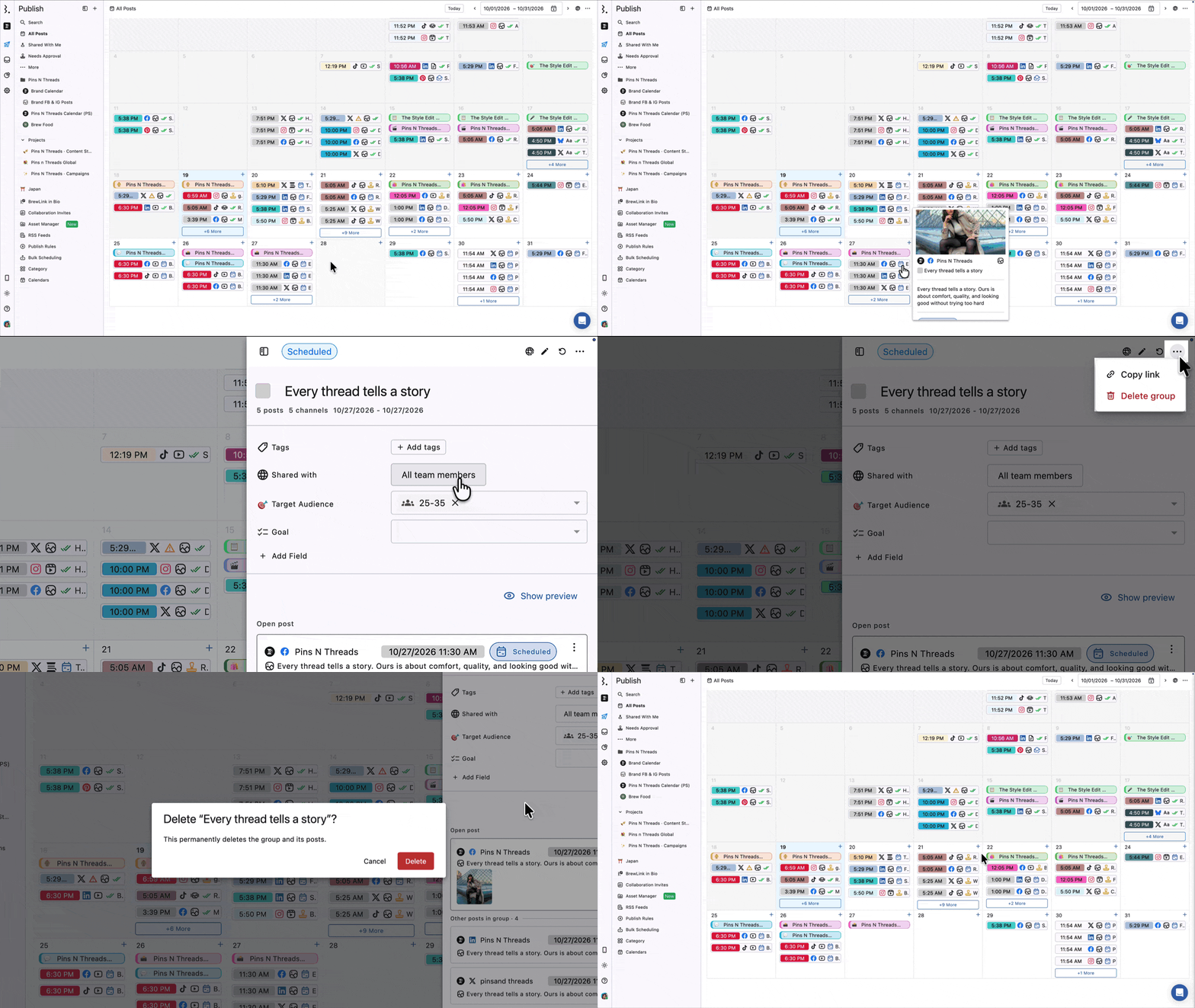
To delete the whole Group and every post in it:
Open the Group.
Click More (three dots) in the header and select Delete group.
In Delete "Group name"?, click Delete.
Deleting a Group permanently deletes the Group and all of its posts.
Delete A Post From A Group
To delete one post and keep the rest of the Group:
Open the Group.
Next to the post, click More (three dots) and select Delete post.
In Delete "post"?, click Delete post.
The other posts stay in the Group. The Group's Activity logs a single "deleted" line for that post.
Deleting a post removes it permanently. Group approval, edits and insights no longer include it.
Duplicate A Post Group
Open the Group, click More (three dots) in the header and select Duplicate group to make a new Group from it. Times that are still upcoming are copied, and times that have passed are dropped.
Approve Or Reject A Post Group
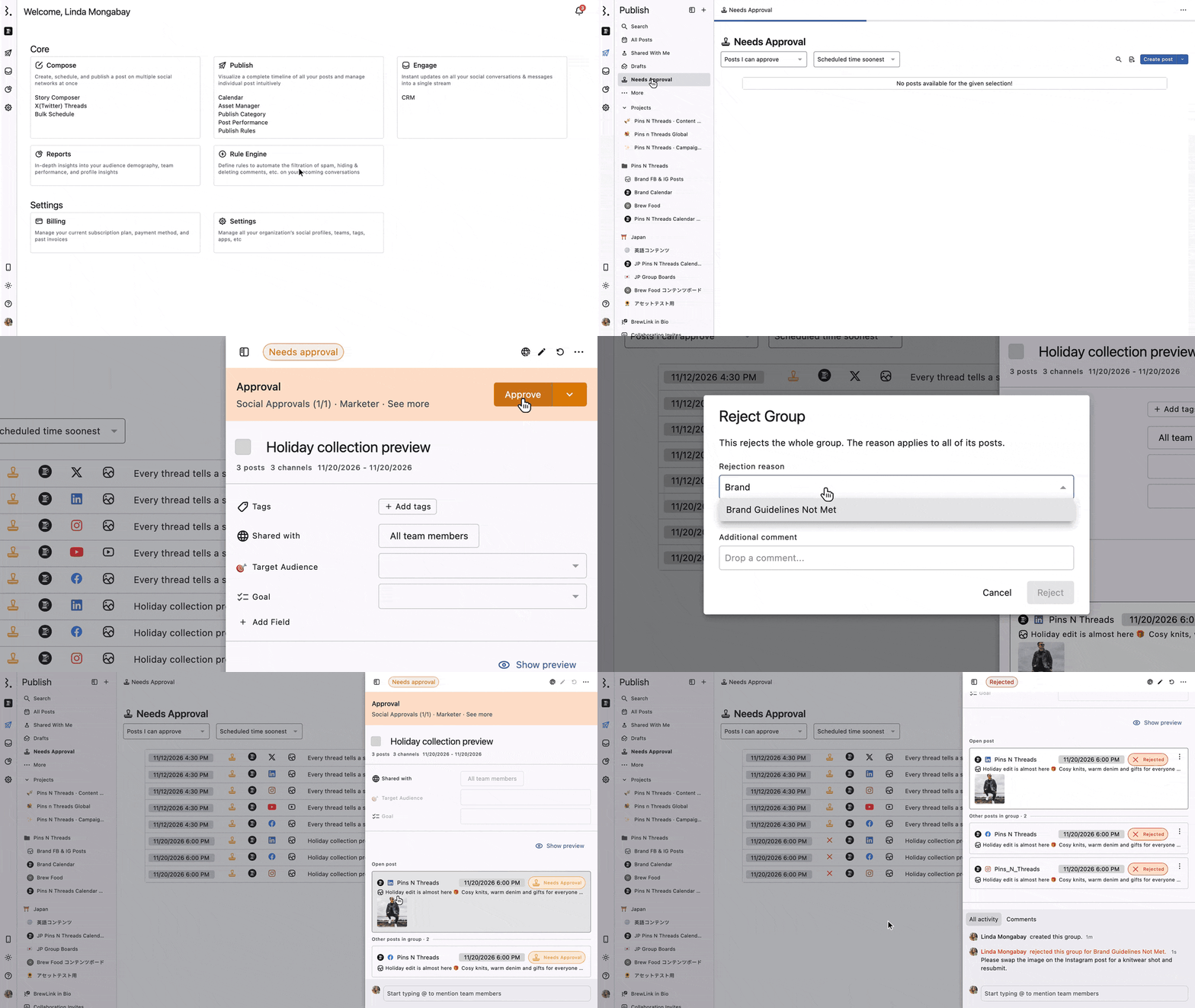
A Group goes through one approval workflow, and approvers approve or reject the whole Group in one action. You can't approve some posts in a Group and reject others.
Approval Workflows are available on the Premium plan and above.
If you used Add approver or reviewers before, there's a better solution available on your current plan. Contact our support team (in chat, type "human please") and they'll help you set it up.
In Compose, click Approval and choose No Review or Use Workflow, then pick the Workflow name. New posts are approved through workflows only, so you can't pick individual reviewers. Turn on Suppress approval notifications for this post if approvers shouldn't be notified about it.
Approve As A Team Member
Go to Publish → Needs Approval and select Posts I can approve. In Classic view, each post in a Group shows as its own row.
Hover over any post from the Group and click Open. The Group sidebar opens with every post in the Group.
Click Approve to approve the whole Group. To reject it, click the arrow next to Approve and select Reject.
In the Reject Group dialog, choose a Rejection reason, add an Additional comment and click Reject. The reason applies to every post in the Group, and Reject stays disabled until you choose one.
A post opened on its own shows Suggest edits only. To approve or reject, click View group in its banner.
Only approvers on the workflow's current step can approve or reject. Everyone else, Admins included, sees Approve and Reject greyed out.
To review in a table instead, click Table view at the top of Needs Approval. Each Group shows as one row, such as "Group · 5 posts", with Edit (pencil icon), Open in side peek (icon), Reject group and Approve group. Click Start review to go through each pending post and Group one at a time. Click Classic view to switch back.
Approve As A Guest Or External Approver
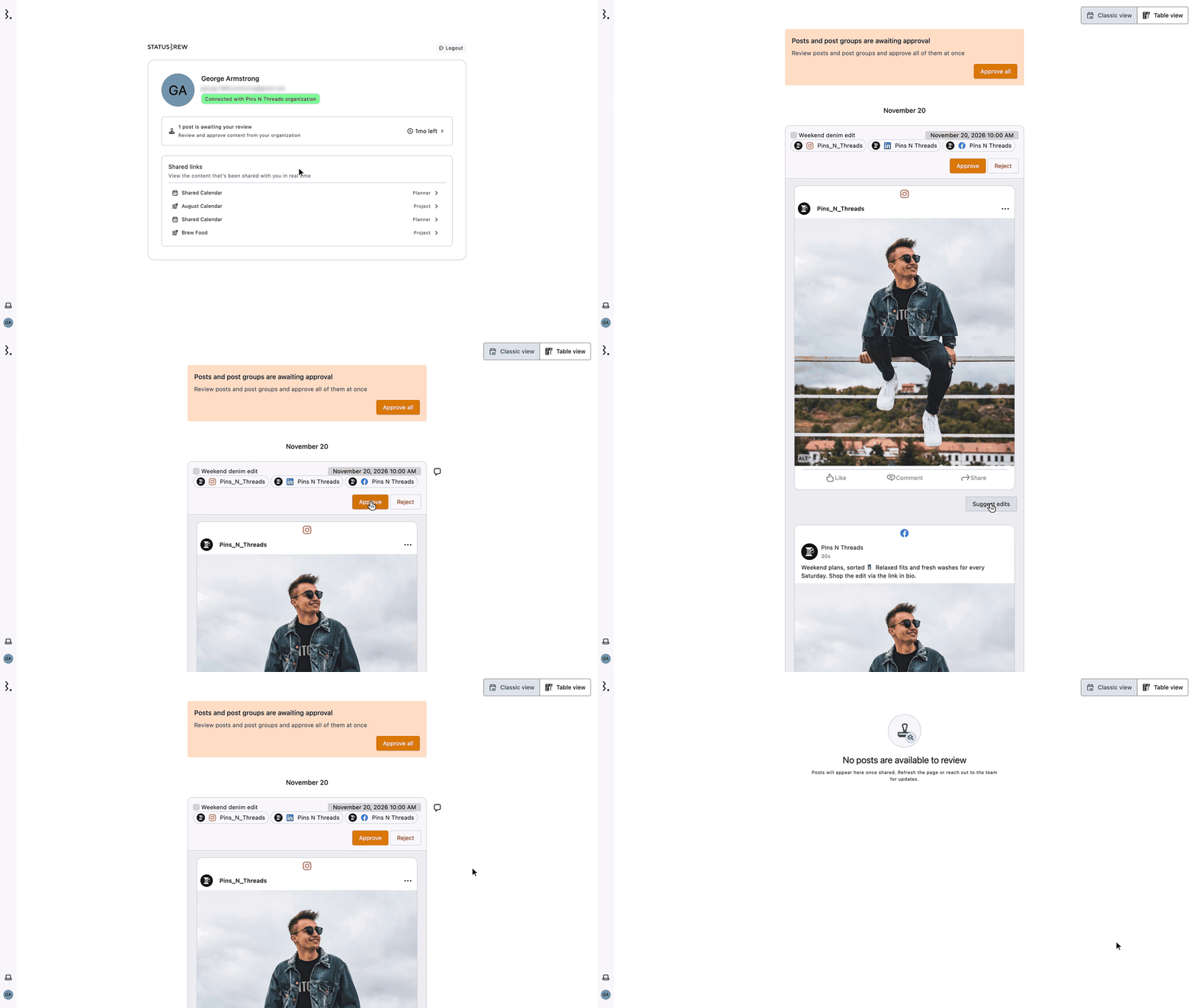
Guest users and external approvers sign up at external.statusbrew.com to review posts. Once they're signed in, their approval page shows each pending Group as one block:
Header: the Group's name, schedule and profiles, with Approve and Reject for the whole Group. Click the header to open the Group.
Previews: every post's preview. Click a preview to open that post.
Suggest edits: each post has its own Suggest edits button.
Comments: one comments thread for the Group.
When you reject a Group, the Reject Group dialog opens: "This rejects the whole group. The reason applies to all of its posts." Add a Comment and click Reject. Every post in the Group moves to Rejected.
An Approve all button at the top approves every pending post and Group at once.
External approvers can also switch to Table view at the top of the page. Each Group shows as one row with Approve group and Reject group, and Start review goes through them one at a time.
Suggest Edits On A Post In A Group
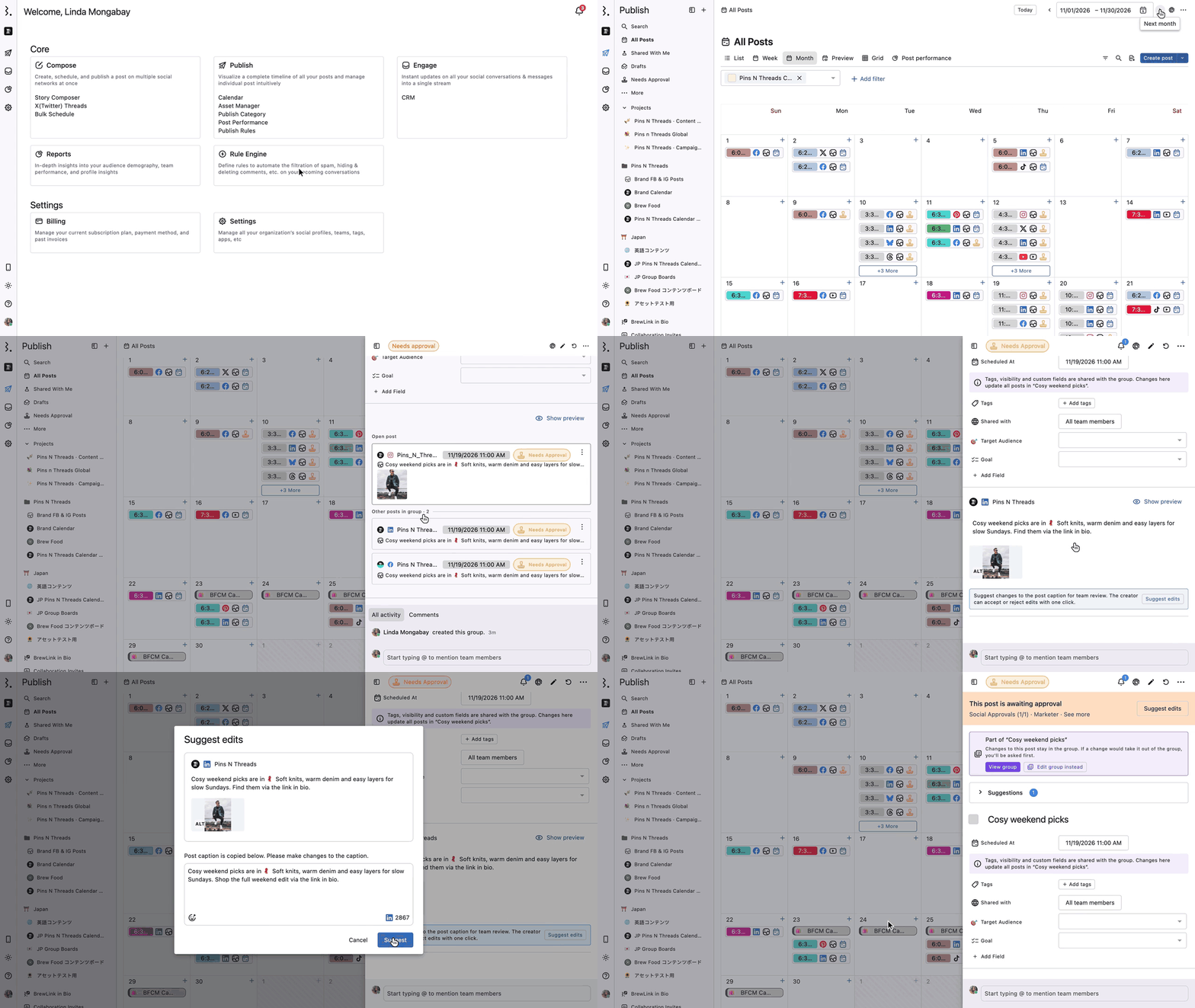
Approvers can suggest a caption change for any post in a Group without rejecting the whole Group. Suggest edits works on regular posts that haven't been sent yet. It isn't available on Reels or Stories. Each post has its own Suggest edits button, so you can suggest a change on one post and leave the rest, or suggest changes on every post. Team members and external approvers can both suggest edits.
In the approval list, or on the post itself, click Suggest edits on the post you want to change.
Edit the caption in the Suggest edits dialog and click Suggest.
The Group's Activity shows "created a post suggestion" under that post's profile, with Show difference. The post's sidebar shows the suggestion under Suggestions, with Show difference, Decline and Accept.
Once a suggestion is sent, the approver sees Suggestion sent on the post. In the Group sidebar, the post shows Suggestion pending until the creator accepts or declines it.
Decline: the suggestion is dropped and the post stays in its Group.
Accept: Statusbrew asks Remove from "Group name"? first. Click Accept suggestion to update the caption. The post leaves the Group and is no longer covered by the Group's approval.
To change a caption and keep the post in its Group, edit the post or the Group yourself instead of accepting the suggestion.
When A Group's Approval Expires
If a Group isn't approved before its scheduled time, each post that missed its time shows Expired and can't be approved. The Group's Activity logs "The scheduled time to approve this post has expired." for each one.
To send an expired post for approval again, give it a new time. It's added back to the Group as a new post and moves to Needs Approval. The other posts stay Expired until you give them a new time too.
If you save a Group while some posts have a time that has passed and no new time, Compose stops you with a dialog such as 2 posts need a new time. Click Go back, pick new times or choose Immediately for those posts, then save the Group.
Share A Post Group
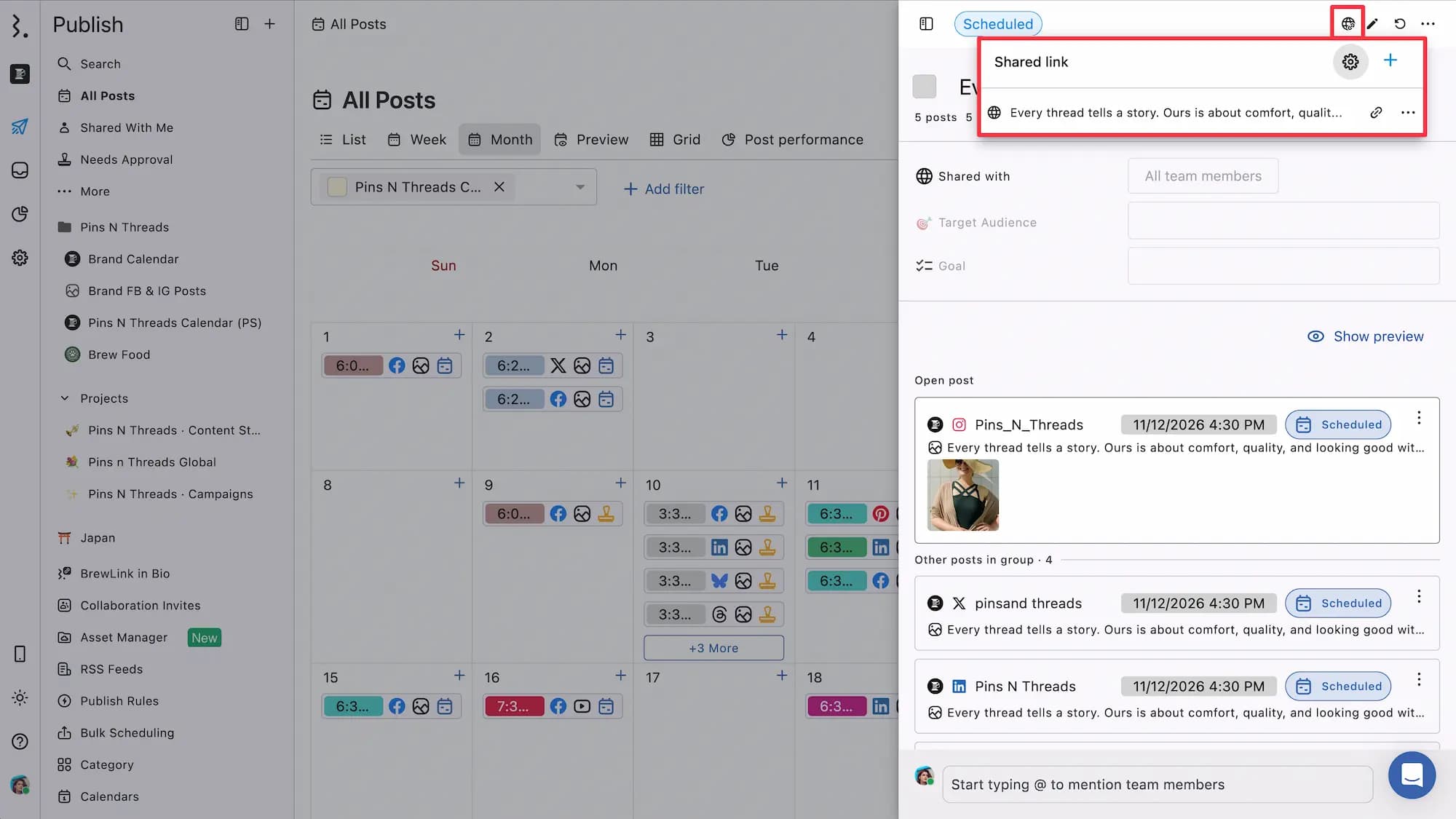
Open the Group and click Share link. Anyone with the link sees the Group with all its posts. To copy the Group's link for your team, click More (three dots) and select Copy link. Learn more in Shared Links For Posts.
Group links are listed in Settings → Shared links under the Post groups tab. Each link expires 60 days after you create it.
What The Group's Activity Shows
The Group's All activity tab logs:
Created: who created the Group.
Edits: "updated this group", with Show difference for the details.
Rescheduled posts: "rescheduled the post on profile name", with Show difference, when a post's time changes.
Added posts: "added 2 new posts on profile name to this group."
Removed posts: "moved a post on profile name out of this group", with View post to open it. When several posts move out together, it reads "moved 3 posts on profile name out of this group", with a View post link for each.
Deleted posts: "deleted" for a post deleted from the Group.
Approvals: "rejected this group" with the comment, or "approved this group".
Suggestions: "created a post suggestion" under the post's profile, with Show difference to see the removed and added text.
Expired approvals: "The scheduled time to approve this post has expired." under each post's profile.
The history of a post that left the Group stays in the Group's Activity.
The Comments tab shows the Group's comments and the comments left on each of its posts. On plans with external comments, you can also post an external comment from the Group sidebar.
Tags And Publish Rules
Tags belong to the whole Group. When a publish rule matches any one profile in a Group, the rule's tag goes on the Group, and every post in it gets the tag.
What Happens When A Group Is Published
Each post publishes at its own time. Once every post in the Group is published, the Group shows Published and becomes read-only. The banner on its posts then shows only View group.
If you recall a Group, or it's rejected, saving it again (not as a draft) sends it back to Scheduled, or to Needs Approval if it has a workflow.
FAQs
Is A Post For One Profile Also A Post Group?
No. A post for one profile is saved as a normal post. Single-profile posts created before this change may still show as one-post Groups, with "1 post 1 channel" in the sidebar.
Why Can't I See The Post Group Option In Compose?
The Post Group | Separate posts toggle only shows when you create a new post for two or more profiles. It's hidden when you pick one profile, because a one-profile post is always a normal post. It's also hidden in Edit group and when you edit a single post.
What Does Separate Posts Do?
Separate posts saves one standalone post for each profile instead of one Group. Each post shows on its own in the Planner, has no Part of "Group name" banner, and is edited, approved and scheduled on its own. Compose remembers your choice and opens with it the next time you create a post in the same browser.
Can I Add More Profiles To A Post After I Save It?
Only if it's a Post Group. Open the Group, click Edit group and tick the profiles you want in the profile field. A post saved as Separate posts, or any single-profile post, has its profile locked. To post the same content to more profiles, create a new post.
Can I Add A Post Back To Its Group?
No. Once a post leaves a Group it stays a standalone post. To change several posts together, or to change one post's time without taking it out, use Edit group.
Why Did My Post Leave Its Group After I Edited It?
You changed its time on its own, recalled it, sent it now or accepted a suggested edit. Statusbrew asks first before each of these. Changing its caption, media, network options, tags, visibility, custom fields or watchers keeps the post in its Group.
Can I Approve Some Posts In A Group And Reject Others?
No. Approval covers the whole Group. To hold back one post, reject the Group and say in the comment which post needs changes.
Why Can't I Add An Approver Or Reviewer To My Post?
Posts are approved through Approval Workflows. In Compose, click Approval, choose Use Workflow and pick the Workflow name. Approval Workflows are available on the Premium plan and above. Learn how to set one up in Understanding Approval Workflows.
If you used Add approver or reviewers before, there's a better solution available on your current plan. Contact our support team (in chat, type "human please") and they'll help you set it up. Posts that already have individual reviewers keep them when you edit them.
How Do I Get Posts Approved On The Standard Plan? Do I Have To Upgrade?
Approval Workflows are part of the Premium plan and above, so they aren't included in the Standard plan.
If you used Add approver or reviewers before, you don't need to change your plan right away. There's a better solution available on your current plan. Contact our support team (in chat, type "human please") and they'll help you set it up.
How Do I Tell Which Planner Posts Belong To A Group?
Open the post. Posts in a Group show the Part of "Group name" banner. The Planner card itself doesn't mark Group posts.
Why Do I See Duplicate Group Instead Of Duplicate Post?
The Group sidebar offers Duplicate group because the post belongs to a Post Group. To copy a single post, open the post and select Duplicate post in its More (three dots) menu.
What Happens If A Group Isn't Approved In Time?
Each post that missed its time shows Expired and can't be approved. Give the post a new time to send it for approval again. It's added back to the Group as a new post.
Why Does Compose Say My Posts Need A New Time?
Some posts in the Group have a time that has already passed and no new time. When you save, Compose shows a dialog such as 2 posts need a new time. Click Go back, pick new times or choose Immediately for those posts, then save the Group.
What Happens To A Group If I Remove A Profile From Statusbrew?
The profile's posts are removed from every Group that uses it. A Group left with no profiles is deleted.
Why Can't I Schedule My Group?
At least one profile in the Group has no time, or a time is in the past or less than 15 minutes from now. Open the schedule dialog and fix every profile it marks. A past time shows "Pick a time in the future." and a time too soon shows "Pick a time at least 15 minutes from now." You can also save the Group as a draft.
Why Can't I See My Draft In The Planner?
The draft has no date and time. The Planner only shows posts with a time, so drafts saved without one are listed in Publish → Drafts. Add a time to the draft if you want it to show in the Planner.
Are My Older Multi-Profile Posts Now Post Groups?
No. Posts created before Post Groups launched stay as separate posts.
Can I Create Post Groups In The Mobile App?
No. Posts created in the mobile app are saved as separate posts, the same as before.