Understanding Engage Conversations
With the Engage Inbox, you can interact with customers by managing and replying to conversations happening with or about your brand.
Every conversation you receive for your connected social profiles shows up in the Engage Inbox.
What Is A "Conversation" In Statusbrew?
A conversation in Engage refers to the top-level exchange between you and your audience on social.
Each network features a variety of message types, which may include
Public mentions: Conversations where your profile is publicly tagged or mentioned.
Private messages: Direct, one-on-one messages received on your profile.
Comments: Comments left on your published posts & ads, even if they don’t mention your profile.
Reviews: Customer feedback or ratings left on platforms like Google Business, Facebook, Trustpilot, App Store, or Play Store.
Brand Keyword conversations: Posts or messages that mention tracked keywords, even if your profile isn’t tagged.
To learn about the supported conversation type in Statusbrew and they are sync rate, refer to our article on Conversation Type And Sync Rates.
Managing Engage Conversations
There are two main ways to manage conversations in your Engage inbox: Internal conversation actions and External conversation actions.
Internal Conversation Actions
Internal actions are used within Statusbrew to help you and your team organize and handle a high volume of conversations more efficiently. These actions do not impact how the conversation appears publicly.
Examples include:
Assigning a conversation to a specific team member or user group
Marking conversations as a priority for urgent handling
Closing conversations once they’re resolved
Learn more Internal Conversation Actions.
External Conversation Actions
External actions are network-specific actions that you can take on conversations directly from Statusbrew Engage.
Examples include:
Hiding or unhiding comments on Facebook or Instagram
Deleting inappropriate or irrelevant comments
This way, you can take the necessary steps to manage your brand’s reputation while still keeping your internal workflows smooth and efficient.
FAQs
How Do I Open a Conversation or a Particular Comment on the Native Platform From Statusbrew Engage?
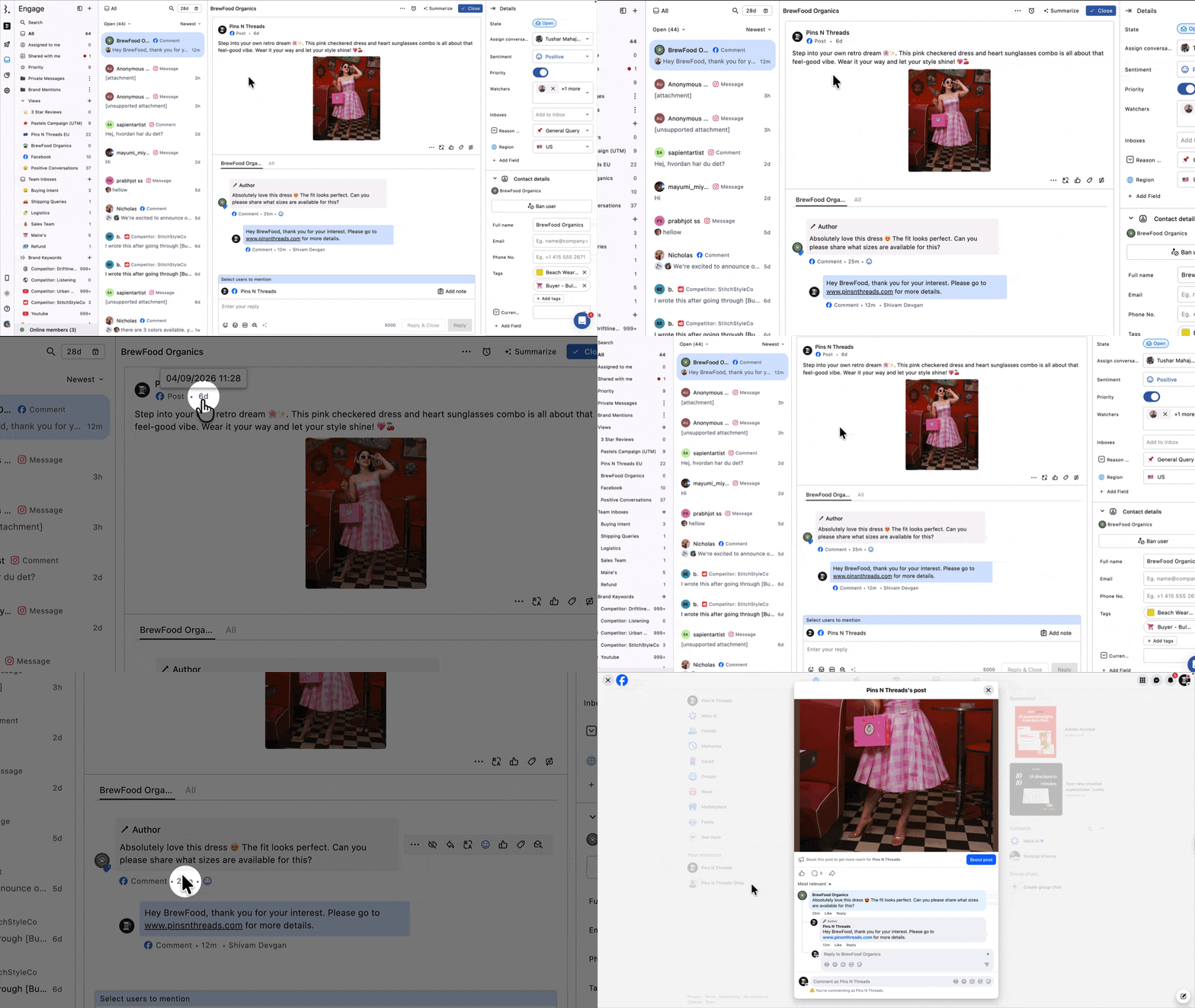
For a post, open the conversation in Engage and click the timestamp below your page name to view it on the native platform.
For a comment, open the comment conversation in Engage and click the timestamp to view it on the native platform.
This works for comments on Facebook, Instagram, LinkedIn, and YouTube, replies on X and Threads, and mentions and Brand Keyword conversations across all supported networks.
Why Do I See “You Don’t Have Sufficient Permission to Make This Request” When Clicking on an Instagram Ad Comment Timestamp?
Clicking the timestamp on a comment in Engage normally opens the original post on the native platform. For Instagram ad comments, this redirect depends on Instagram's API returning a permalink for that ad post.
When Instagram's API doesn't provide a permalink for a specific ad, Statusbrew can't complete the redirect and shows the error: "You don't have sufficient permission to make this request."
Despite the wording, this is not a permissions issue with your Statusbrew account or Instagram connection. It's an Instagram API limitation: the permalink data for certain ad posts is unavailable, affecting all third-party tools equally.
What you can do:
Open the ad directly in your Ads Manager to view and manage comments natively.
You can still reply to, hide, or delete the comment from within Statusbrew. Only the timestamp redirect is affected.
Why Is the Full Caption Not Visible When Another Brand or User Mentions Us in a Facebook Post?
When another Facebook user or Page mentions your brand in a post, Statusbrew only shows a preview of the post caption in your Engage inbox. To read the full caption, click the timestamp on the conversation to open the original post directly on Facebook.
Why Does a Conversation Show “Anonymous” Instead of a User’s Name?
This happens when Statusbrew doesn't have access to the user's profile details. A few reasons this can occur:
The user's account is private, or they have enabled privacy settings that restrict profile data from being shared via API
The platform has flagged the account as a bot or spam, which causes profile information to be withheld
The message or mention came in before the profile was connected to Statusbrew, so the sender's details were never retrieved
The original post or comment was deleted before the profile details could be fetched
This is outside Statusbrew's control. There's no way to manually fetch the missing profile information. If you need to identify the user, check the conversation directly through the platform's native app or Meta Business Suite.
Why Can’t I See Some YouTube Comments In Engage?
YouTube comments usually appear in Engage within 30 minutes.
If a comment is still not visible, check these things:
Check the Space: Make sure the YouTube channel is connected to the same Space where you are looking for the comment. If the channel is connected to another Space, the comment will not appear in your current Space.
Check if the conversation is closed: The comment may already be synced, but moved out of the Inbox because someone closed the conversation. Use All Conversations or remove the status/filter applied to your Engage view.
Check the Engage view filters: Make sure your view includes:
The right YouTube profile
Comment conversation type
Closed conversations, if you are trying to find older or handled comments
Check if it is a YouTube Community post comment Statusbrew syncs comments from regular YouTube videos. YouTube Community post comments are not supported at the moment.
Check if the video belongs to your connected channel Comments on videos owned by another creator or collaborator will not sync into Statusbrew, even if you can reply to them natively.
Check the channel connection If no YouTube comments are syncing at all, refresh or reconnect the YouTube channel from Settings → Profiles.
If you still can’t find the comment, contact the Statusbrew team in live chat by saying “human please” or “talk to agent” and share the YouTube video link and a screenshot of the missing comment.