How to remove and add data sources?
Having trouble removing or adding a data source to your report? This article will show you how to do so.
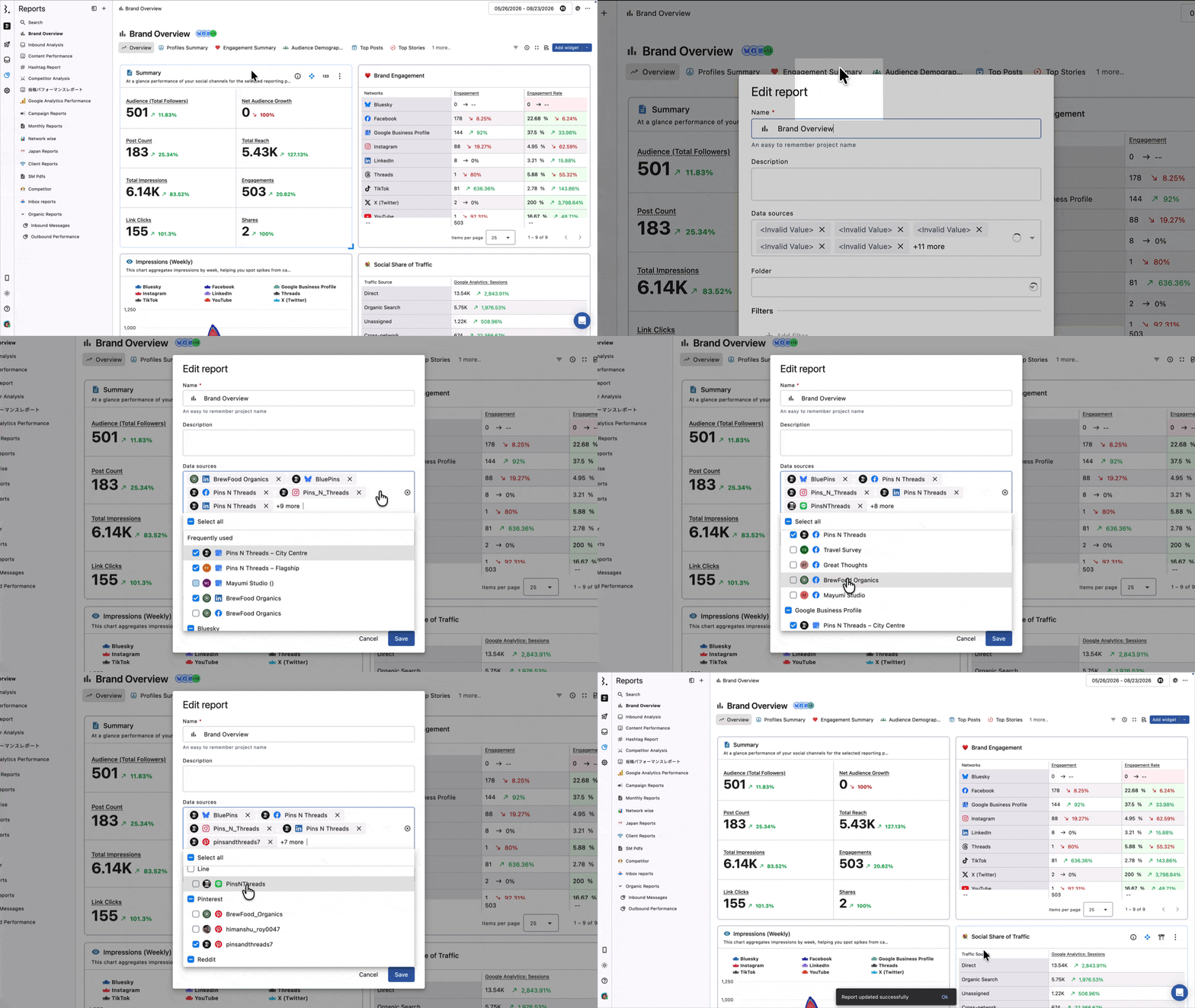
Edit the entire report
If you edit the data source for the entire report, the change applies to all widgets in the report.
Click the three dots next to the report you want to edit.
From the drop-down menu, click Edit Report.
From the data source dropdown, uncheck the data source you want to remove and check the data source you want to add .
After making your changes, click Update to save them.
Edit each widget
You can change the data source setting for each widget. If you do not set it, the entire report will reflect data from the selected data source.
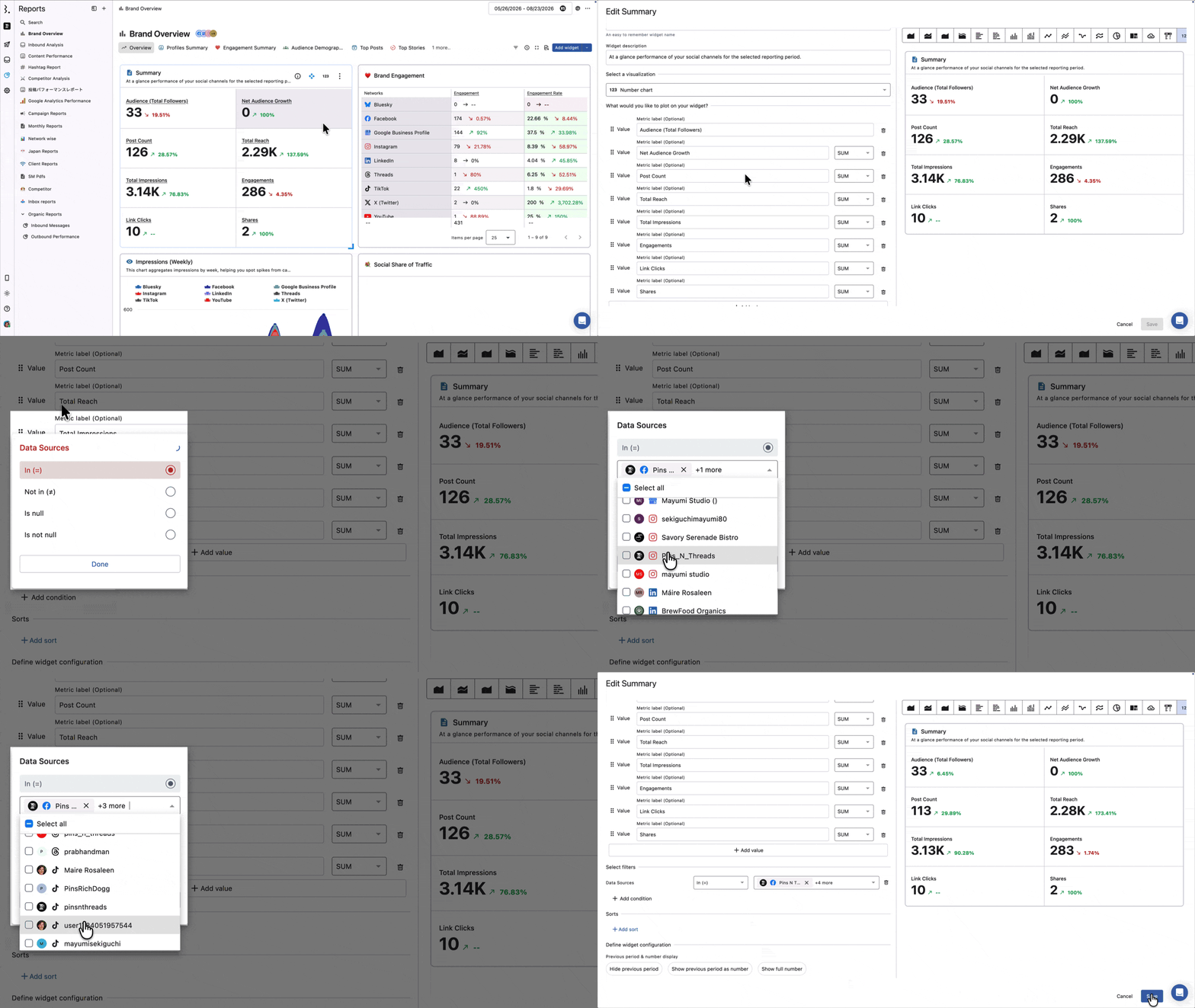
Add a data source to a widget
The three-dot menu in the top right corner of the widgets section Click
Click Widget Settings from the menu .
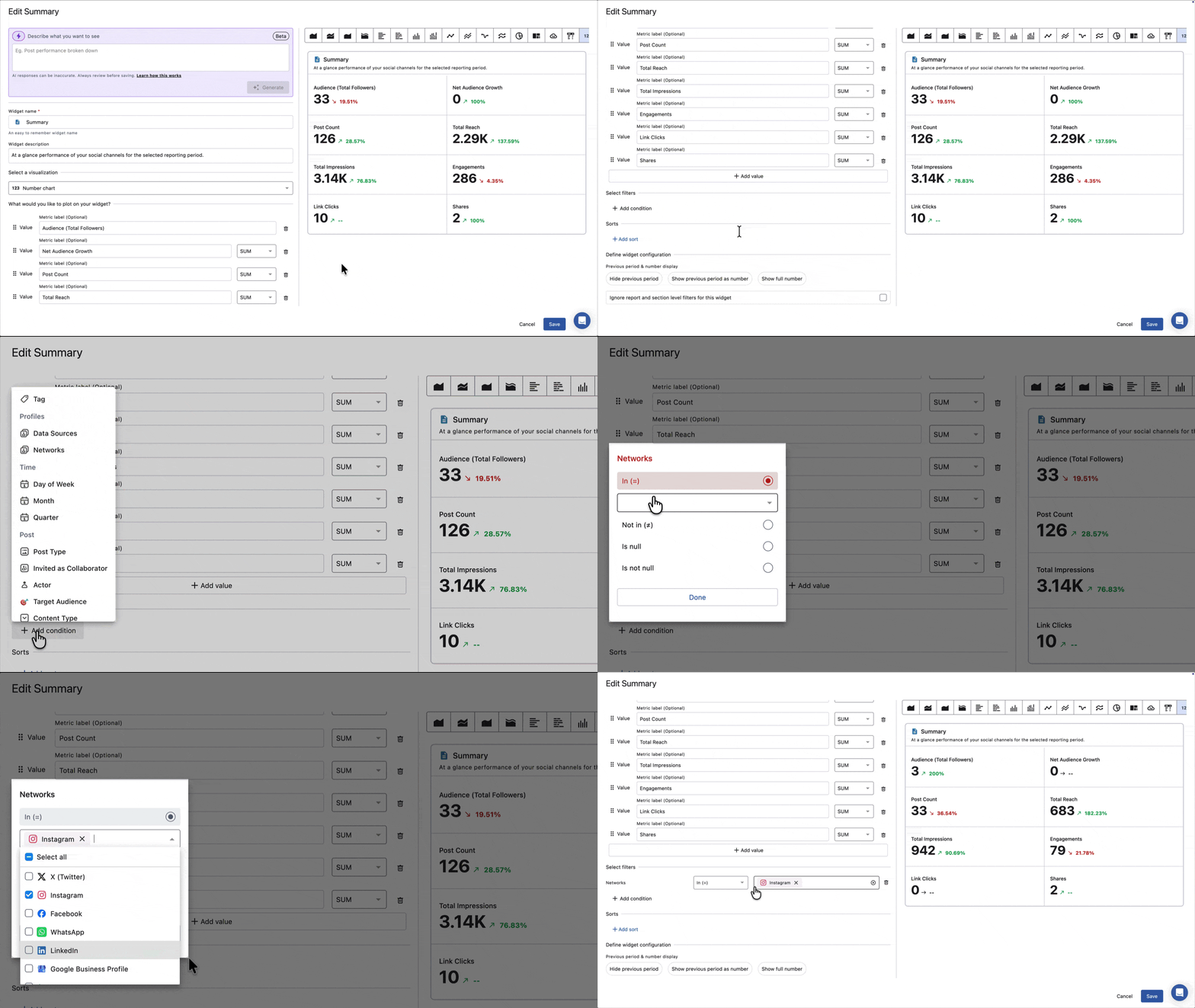
Click + Add condition under Select filter .
Click Data Sources and select the data source you want to add from the In dropdown. Repeat this process to select multiple data sources.
Click Finish.
You can also select a network to select all of the social accounts for that network.
Remove a widget's data source
You can delete all data sources by clicking .
If you want to delete only a specific data source, Click the dropdown to the right of and click the data source you want to delete.
