Filtering Widgets
Statusbrew's reporting widgets let you add filters to narrow results to specific campaigns or ad performance.
So let's take a look at how to do it.
Note: The following method assumes you have already created a widget.
Set up filters
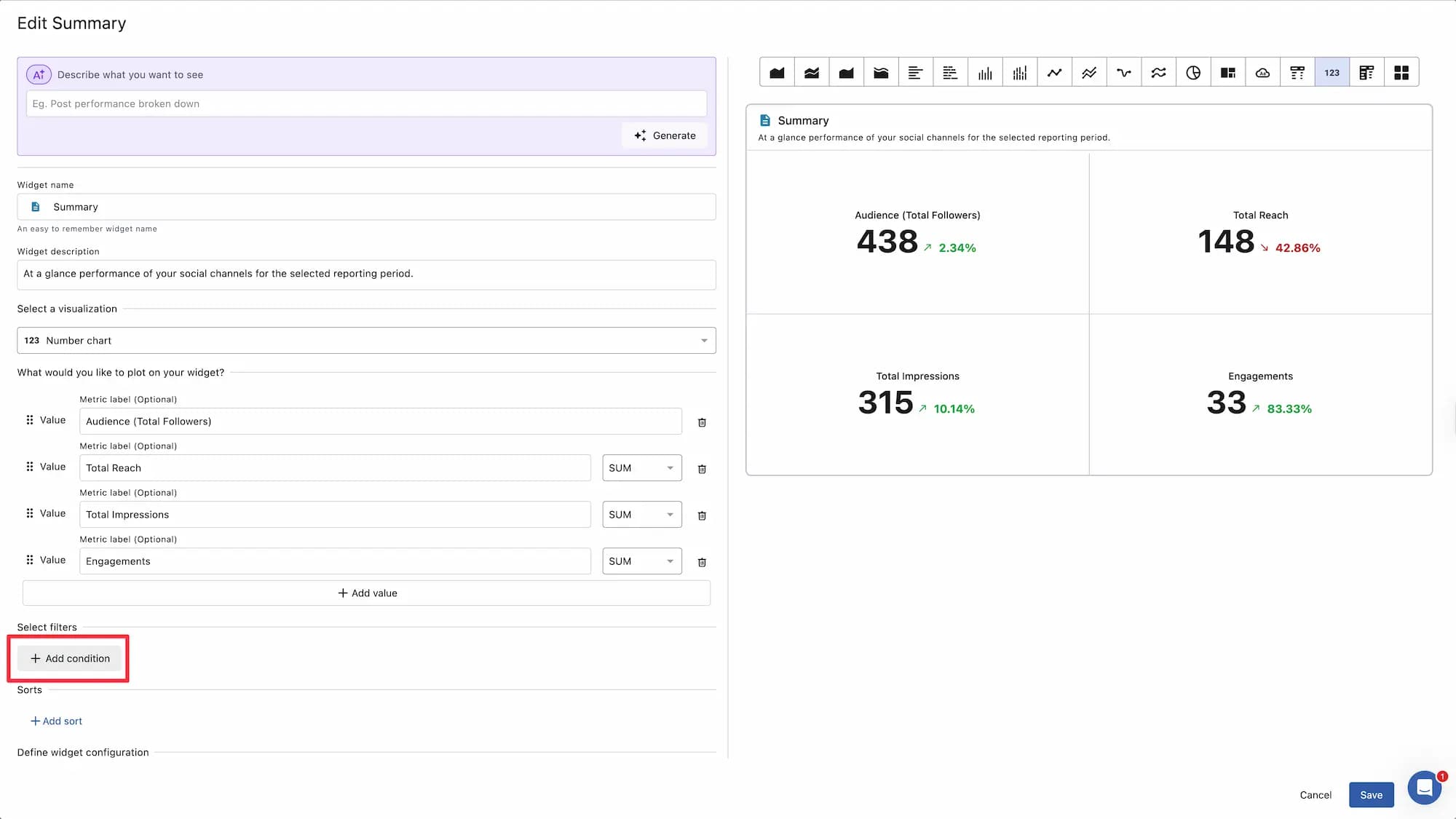
To set filters within a report, click the three dots in the top right corner of the widget. Select the widget settings .
In the Select filters section, Click Add condition .
Select the filter you want to add.
For example: If you want to see the performance of your campaign, click Filters > Tags > Add Tag In Campaign > Done
Once you're done, click Save in the bottom right.
Filter Types
Below are all the types of filters, but the filters displayed may vary depending on the widget and network.
tag
Data Source
network
Post Types
Conversation Type
Executor
UTM Campaign
UTM Source
UTM Medium
UTM Content
UTM Term
Post likes
Number of comments posted
Post shares
Post clicks
Post impressions
Post reach
Number of views of posted videos
Number of saved posts
Post replies
Number of reposts
Post citation count
Post Follow Count
Number of views of posted videos
Total Interactions
Total profile activity
Bio link clicks
Call Clicks
Directions clicks
Email clicks
Other clicks
Text clicks
Time Zone
day of week
month
quarter
Message Type
Language used
sentiment
hidden
Deleted
Brand Message
Star Rating
Brand Keywords
End time (seconds)
End time calendar (seconds)
Initial reply
Response time (seconds)
Response Time Calendar (seconds)
Engage Inbox
Stories impressions
Stories reach
Number of automatically sent stories
Number of taps to next story
Number of taps to return to Stories
Number of people leaving Stories
Stories back swipes
Stories swipes down
Stories Next Swipe Count
Stories swipes up
Number of stories shared
Number of replies to stories
Stories completion rate
Stories profile visits
Total Stories Interactions
Total Stories profile activity
Story bio link clicks
Stories call clicks
Stories Directions Clicks
Stories email clicks
Stories and other clicks
Story text clicks
You can also filter by custom data attributes if you have created any relevant custom data attributes . If applicable, you can select the applicable data attribute from the dropdown.
If you want to delete a filter
Filters can be accessed by clicking. If you have multiple filters selected, you can remove them by clicking . Clicking will reset all filters, so if you want to remove some filters, open the dropdown and click only the ones you want to remove. Don't forget to save your changes.