Adding internal notes to reports
Statusbrew's Reports feature lets you add notes to your reports, making it easier to share the report with other members.
How to add internal shared notes
From Statusbrew Home, open Reports.
Open the desired report from the left panel.
Click the arrow to the right of Add Widget at the top of the screen and select Add Note . A note will be added to the bottom of the report.
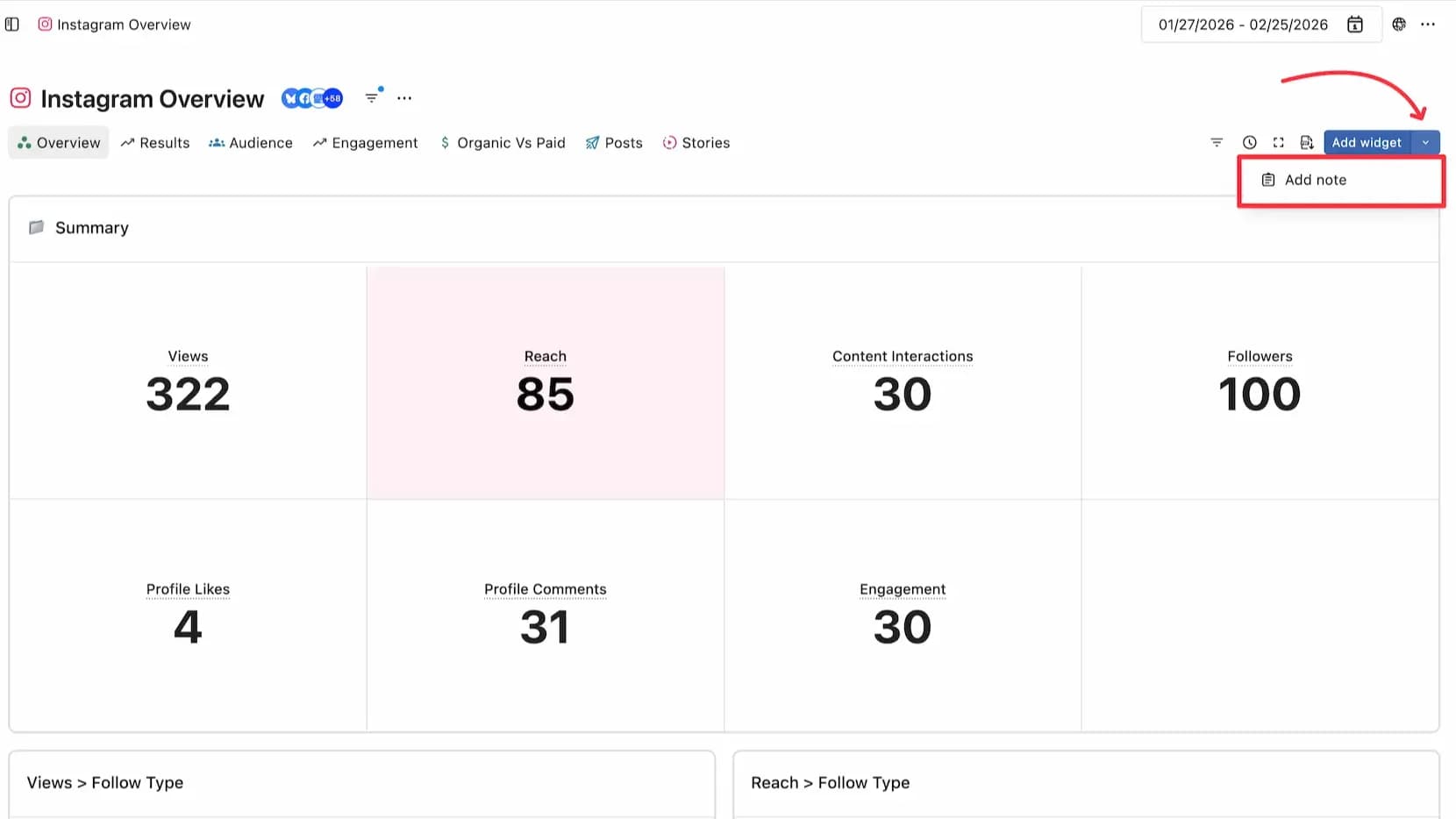
Internal shared note function
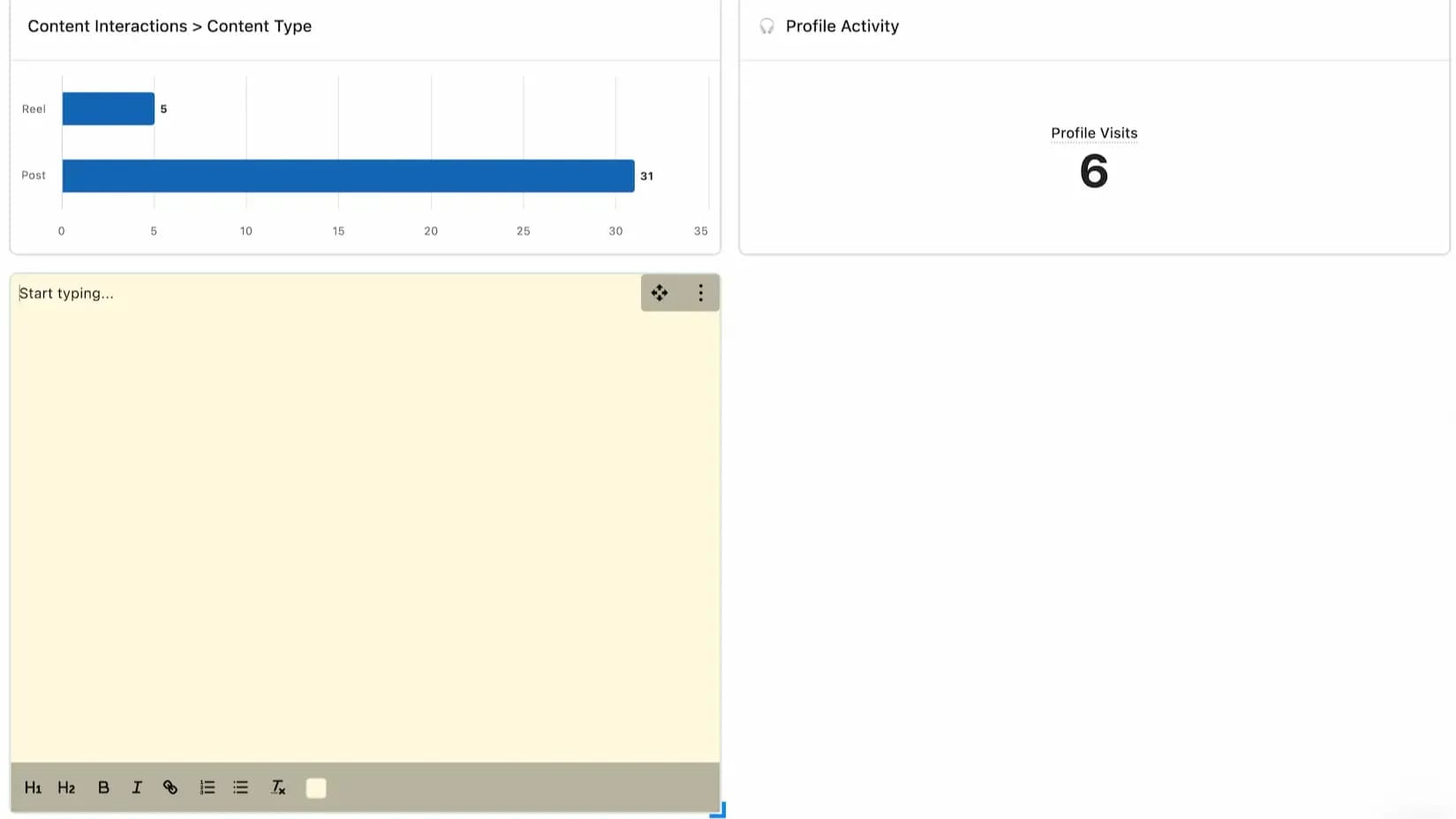
Input: Click Insert text here... to start typing text.
Title: You can choose from two sizes of headline (H₁, H₂) and introduce it.
Bold: Click Bold (B) to make the text bold.
Italics: Click Italics ( I ) to make the text italic.
Link: You can insert a link.
Color: You can choose the color of your notes from 27 colors. Please choose the one that is easy to see.
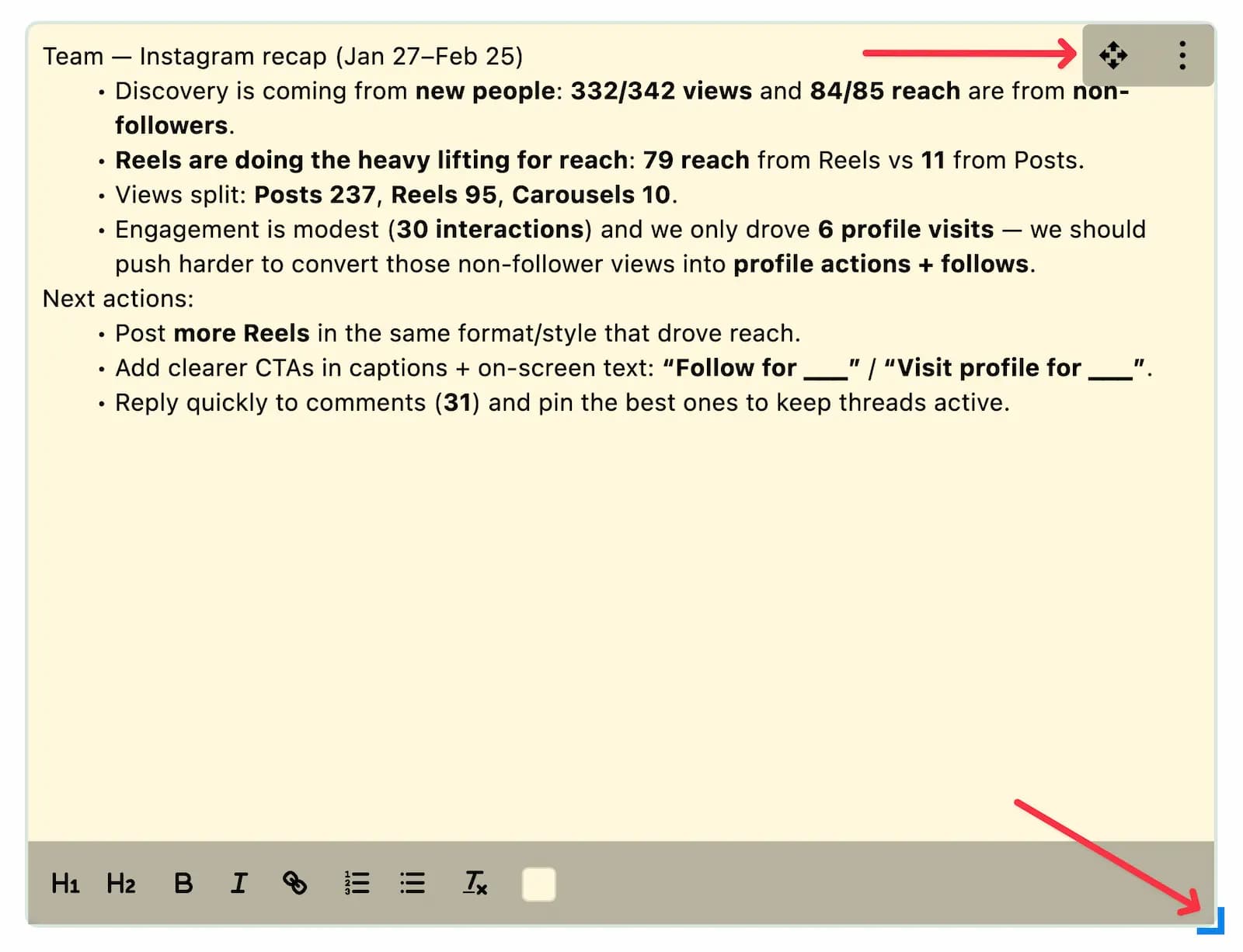
Resize: Click and hold the bottom right corner to resize your note.
Reorder: Click and hold on the icon to move notes around within the report.
Duplicate: You can duplicate a note by selecting Duplicate from the three-dot menu in the top right corner .
Delete: You can delete a note by selecting Delete from the three-dot menu in the top right corner .