Statusbrew Notification Center
Use the Notification Center to see mentions, approvals, assignments and alerts from all your spaces in one place, and act on them without leaving the page.
The Notification Center is one list of everything that needs you, from every space you belong to: approvals, mentions, assignments and alerts. Open the bell in the left bar, pick a notification, and act on it right there. Instead of checking each space, you work through one list.
Who Can Do This?
Everyone on your team in Statusbrew can open the Notification Center. You see activity from the spaces you belong to, and you can approve, reject or reply only where your role allows it.
Open The Notification Center
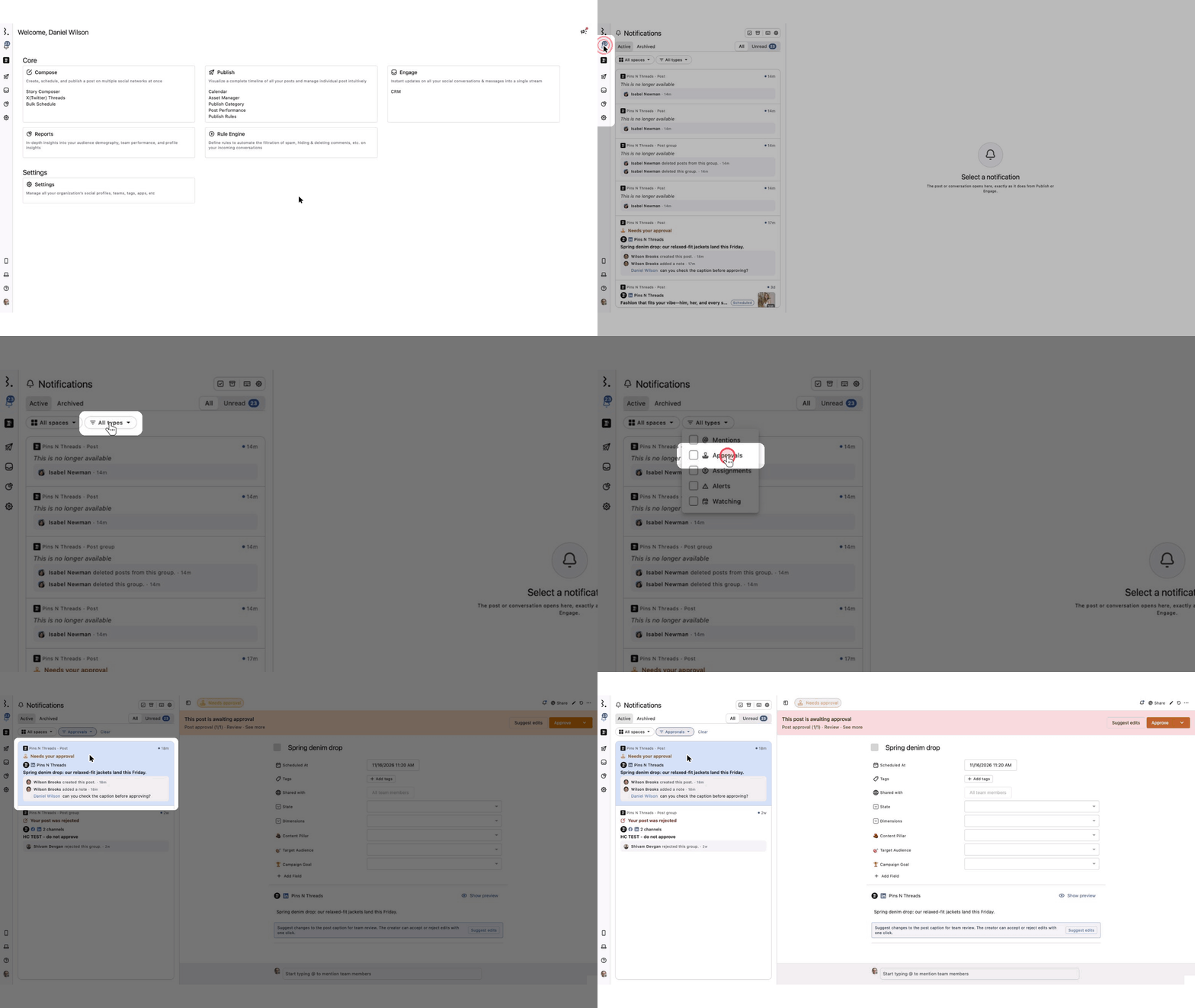
Click the bell at the top of the left bar, under the Statusbrew logo. Hover over it and the label reads Notifications. The blue number on it is how many notifications you haven't read, and it stops counting at 99 and then shows 99+. When you have read everything, the number disappears.
The product updates button in the top right is now a megaphone named What's new. It shows a small red dot when there are updates you haven't seen. It does not hold your notifications.
Notifications You Can Receive
The Notification Center collects the notifications that need you from every space you belong to. They come in five types: mentions, approvals, assignments, things you watch, and alerts. Here they are by area: Publish, Engage and Settings.
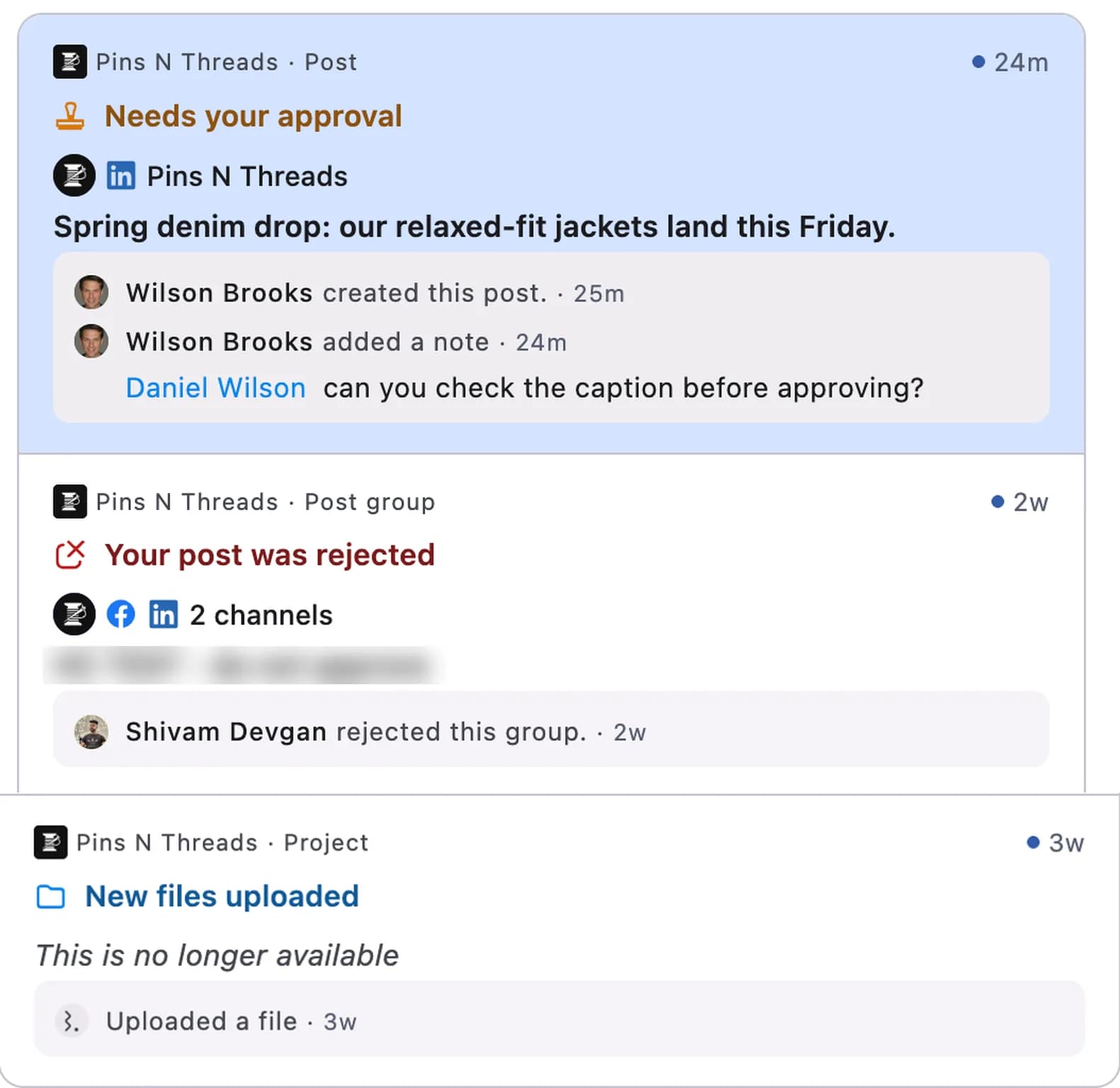
Which notifications arrive follows your notification settings. Approval requests, mentions and comments always arrive. Post published is off by default for new users.
Publish
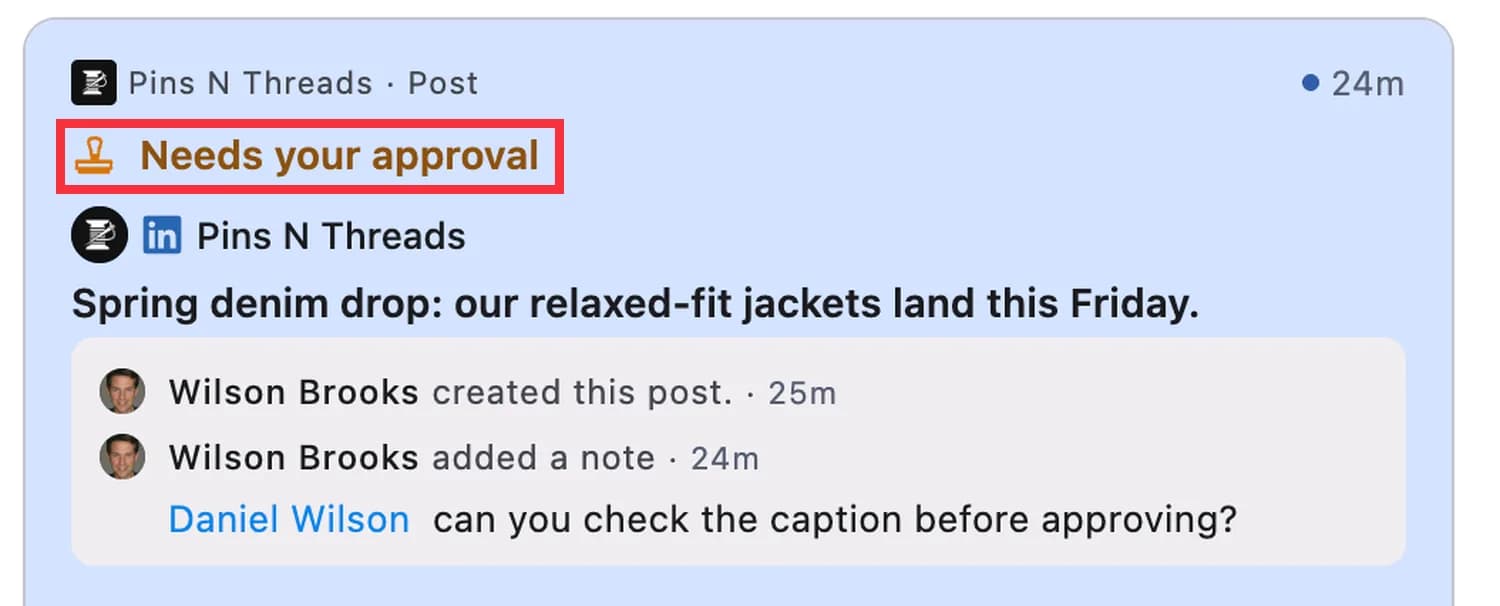
Needs your approval: a post, or a whole post group as one notification, is waiting for your approval. It goes away when the approval is decided or its time runs out, and an expired one reads Time to approve has expired. The person who sent the post for approval is not asked.
Mentioned you: someone mentions you in a note on a post or post group.
Your post was approved or rejected: the result of an approval you asked for.
Watching: updates and notes on posts you watch.
Post published: a post you created or watch went live. This one is off by default.
New files uploaded: someone uploaded a file to a project you are in. The activity line reads "Uploaded a file".
Failed to publish: a post you created or watch could not be published.
This is no longer available: the post or group was deleted, so the card can't open it. The activity line says who deleted it, for example "Name deleted this group".
Each item shows once, as a single notification, even when several things happen on it. A note that mentions you, for example, appears inside the post's card, and the reason line shows the most important reason, such as Needs your approval.
When you send a post for approval, turn on Suppress approval notifications for this post in the Approval dialog if you don't want the approvers notified. They then get no notification for the first request or for later edits.
Engage
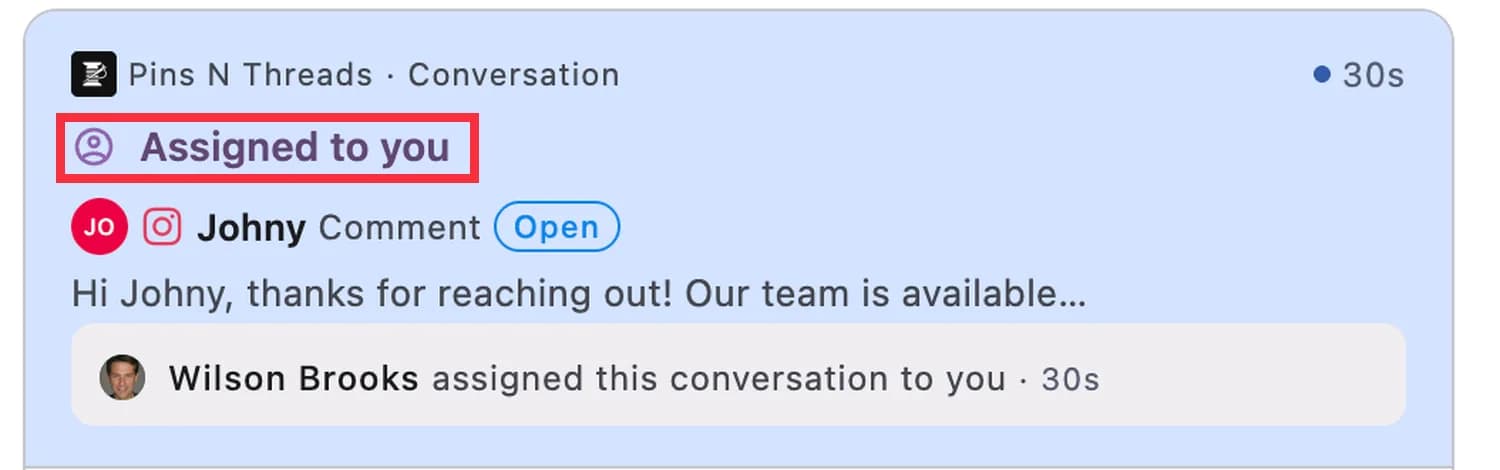
Assigned to you: a conversation is assigned to you.
Mentioned you: someone mentions you in a note on a conversation.
Assigned to you follows your notification settings. If you don't see it, open Notification settings (the gear in the Notifications header) and tick Email, Desktop or Mobile on Assigned Conversation Updates. Mentions and approval requests always show.
Settings
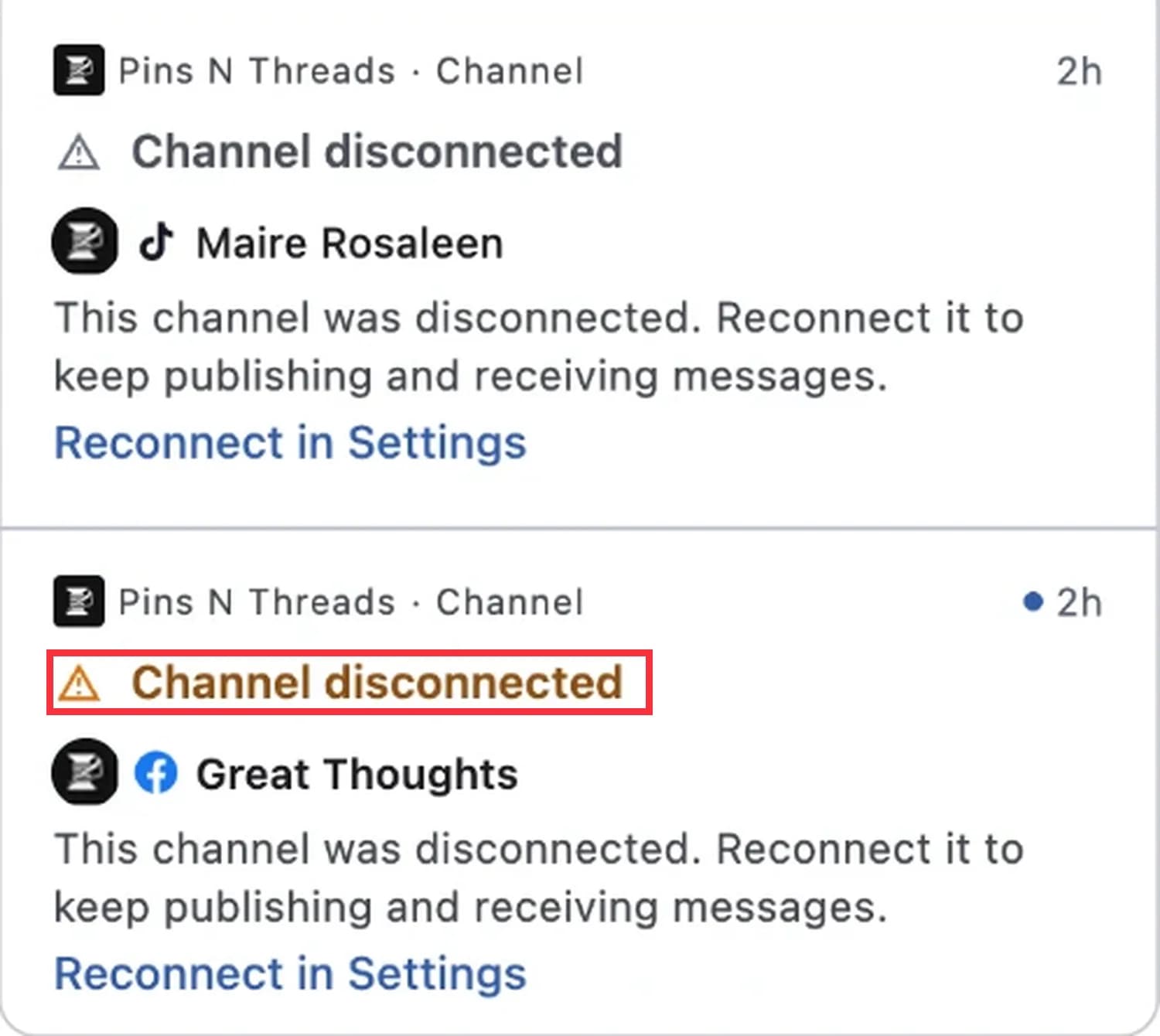
Channel disconnected: a profile has disconnected and needs to be reconnected. The card names the channel and says "This channel was disconnected. Reconnect it to keep publishing and receiving messages.", with a Reconnect in Settings link. You get it when you are the person who connected the channel.
When Do I Get Each Notification?
Notification | You get it when | Who gets it |
|---|---|---|
Needs your approval | A post or post group is waiting for your approval | The approvers on the workflow. The person who sent it is not asked. |
Mentioned you | Someone mentions you in a note on a post, post group or conversation | The person mentioned |
Your post was approved or rejected | An approval you asked for is decided | The person who sent the post for approval |
Assigned to you | A conversation is assigned to you | The new assignee |
Watching | A post or conversation you watch gets an update or a note | Everyone watching it |
Post published | A post you created or watch goes live | The creator and the watchers |
Failed to publish | A post you created or watch could not be published | The creator and the watchers |
New files uploaded | Someone uploads a file to a project you are in | The people in the project |
Channel disconnected | A connected profile disconnects | The person who connected the channel |
Approval requests and mentions always arrive. Assigned to you follows your notification settings, so Assigned Conversation Updates has to be on for at least one of email, desktop or mobile. Post published is off by default.
I'm Not Seeing A Notification
If a notification you expected is missing, check these in order:
Open All spaces and make sure it is not set to a single space.
Click Clear next to the filters, so no type is filtered out.
Choose All instead of Unread, in case you already read it.
Open the Archived tab. Archived notifications stay there for 60 days after their last activity.
Open Notification settings and check that the type you expect is switched on.
Check that you belong to the space and that your role allows you to see that item. You only see activity from spaces you belong to.
Read Your Notifications
The page has two parts. The list of notifications takes about a third of the width, and the item you pick opens in a panel beside it. The first notification opens by default.
Each notification in the list shows:
Space, type and time: where it happened, what kind of notification it is, and how long ago.
Reason: why you got it, for example Mentioned you, Needs your approval or Assigned to you.
Title and details: the post, group, conversation or asset, with a short preview and a thumbnail when it has an image.
State label: a small outlined label next to the title, such as In Draft on a post or Open on a conversation. It is left out when the reason already says it, so an approval request shows only Needs your approval.
Activity: the latest steps in a tinted box, for example "Name created this post", "Name updated this post", "Name added a note" or "Name assigned this conversation to you".
A blue dot and a bold title mark a notification you haven't read. Click a notification to open it. Opening it marks it as read and lowers the number on the bell. When you have no notifications, the page shows You're all caught up.
A team remark on an item is called a note. In the item panel, the Comments tab is now named Notes. Comments are only comments left on a social network.
Find The Notifications You Need
Use the Active and Archived tabs to switch between current and archived notifications.
Choose All or Unread to show everything or only what you haven't read.
Open All spaces to show one space only.
Open All types and tick one or more of Mentions, Approvals, Assignments, Alerts or Watching.
Click Clear next to the filters to remove them.
When there is nothing to show, the page tells you why. A filter with no matches shows Nothing matches these filters with a Clear filters button. The Archived tab shows No archived notifications until you archive something.
Mark Notifications As Read Or Archive Them
Hover over a notification and click Mark as read (or Mark as unread) or Archive, the two icons at its top right.
Use the icons in the page header: Mark all shown as read and Archive all shown.
Click Keyboard shortcuts in the header to see the list. The notification shortcuts are j and k to move down and up, Enter to open, i to mark as read or unread, e to archive, Shift + i to mark all as read, Shift + e to archive all shown, u to switch between All and Unread, a to switch between Active and Archived, and s to filter by space.
Click Notification settings, the gear in the header, to choose what you get by email, desktop and mobile.
Filter first, then archive all. The header action applies to what is shown, so a filter on Approvals archives only approvals.
Act On A Notification
Open a notification to work on it in the panel, even when it belongs to another space. You stay on the Notifications page.
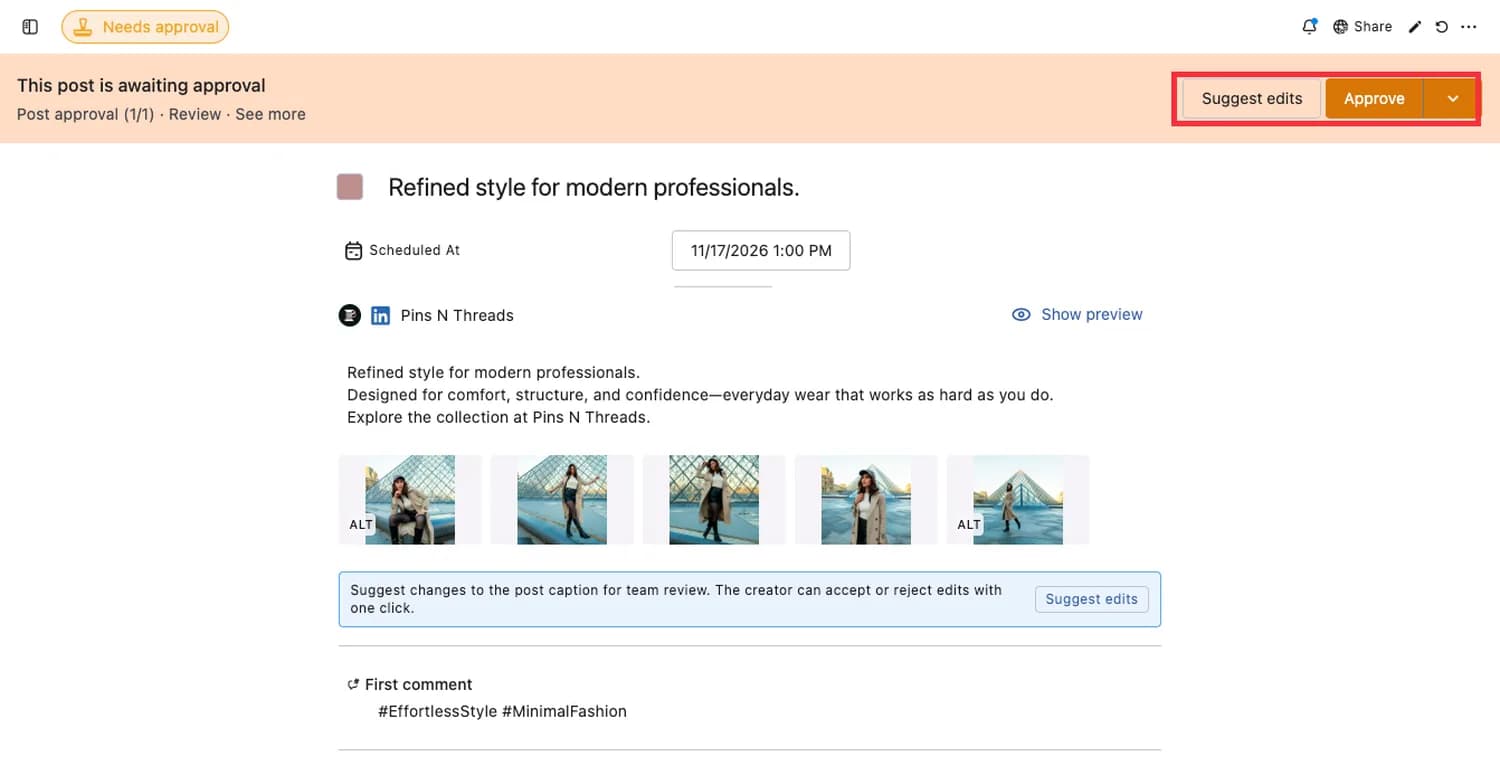
Approve or reject a post that needs your approval. The bar at the top of the panel says "This post is awaiting approval" and shows the workflow name, with Approve and Suggest edits.
Reply to a conversation with Reply or Reply & Close, or use Add note to leave a note for your team.
Open a post from the group panel to see its details. A back arrow takes you to the panel you came from.
You can only do what your role in that space allows. If you no longer have access to the item, the panel closes.
What Happens After
New notifications arrive in the list as they happen, so you don't need to refresh: the card and the number on the bell update by themselves. Statusbrew keeps notifications for 60 days after their last activity. Comments and mentions on post groups also reach you by email and push notification, according to your notification settings.
Set Up The Notifications You Get
These articles explain what sends you notifications and how to control them:
Choose notification types and channels in Updating Your Mobile, Email & Desktop Notification Settings.
Control what reaches your phone in Manage Mobile Notifications.
Create alerts for your team in Set Up Notification Rules.
Send the same events to a Slack channel with Get Statusbrew Alerts In Slack.
Follow a post to get Watching notifications in How To Add Watchers To A Post?
See how approvals work in Understanding Approval Workflows.
FAQs
Does the Notification Center replace my email and mobile notifications?
No. It adds one place inside Statusbrew to see and act on them. Your email, desktop and mobile settings stay in Notification settings.
Will I still get an email for a notification I already read?
Usually not. Statusbrew holds the email for 5 minutes. If you read the notification in Statusbrew during that time, the email is not sent.
Why does the bell show 99+?
The bell counts up to 99. After that it shows 99+ until you read some notifications.
Where did the Comments tab go?
It is now the Notes tab. Team remarks on posts and post groups are called notes everywhere in Statusbrew.
Can I see notifications from every space in one list?
Yes. The list shows every space you belong to. Use All spaces to narrow it to one.
Do I need to turn the Notification Center on?
No. It is on for everyone and has no setting to switch off.
How often do approval reminders arrive?
Every 10 minutes. You turn them on or off in Notification settings, where the setting is still named Hourly Approval Reminders.
Why don't I see an "Assigned to you" notification?
Assignment notifications follow your notification settings. Open Notification settings and tick Email, Desktop or Mobile on Assigned Conversation Updates. Mentions and approval requests always show, whatever your settings are.
Does archiving delete a notification?
No. Archiving moves it to the Archived tab, where it stays for 60 days after its last activity. Archiving also marks it as read.
Does opening a notification mark it as read?
Yes. Opening a notification from the list marks it as read, and so does approving, rejecting or replying in the panel. Click Mark as unread to bring the blue dot back.
Why does a notification say "This is no longer available"?
The post, post group or conversation was deleted, so Statusbrew can't open it. The notification stays in the list, and its activity line shows who deleted it.
Can I mute or snooze notifications?
No, not for single notifications. To get fewer of them, change what you receive in Notification settings.
Where did my notification go?
Check the Archived tab, and make sure All spaces is selected and no type filter is on. Statusbrew keeps notifications for 60 days after their last activity.