Using AI in Statusbrew Settings
Statusbrew is gradually introducing AI across its Settings features. Each addition is designed to reduce manual work, automate checks, and help your team move faster. As Statusbrew rolls out new AI features in Settings, each one gets its own section here.
Who Can Use This?
AI features in Settings are available on Premium and Enterprise plans. Primary Owners, Owners, and Admins can configure them.
AI Review Instructions use AI credits. Each step with instructions is a separate check, so a workflow with three of them uses credits three times for every post submitted. Learn more in Understanding AI Credits.
AI in Approval Workflows
AI Review Instructions let you add an AI check to individual steps in an approval workflow. Before a post reaches any approver, Statusbrew runs these checks and shows the results to the composer in a pre-review popup.
How to Add AI Review Instructions
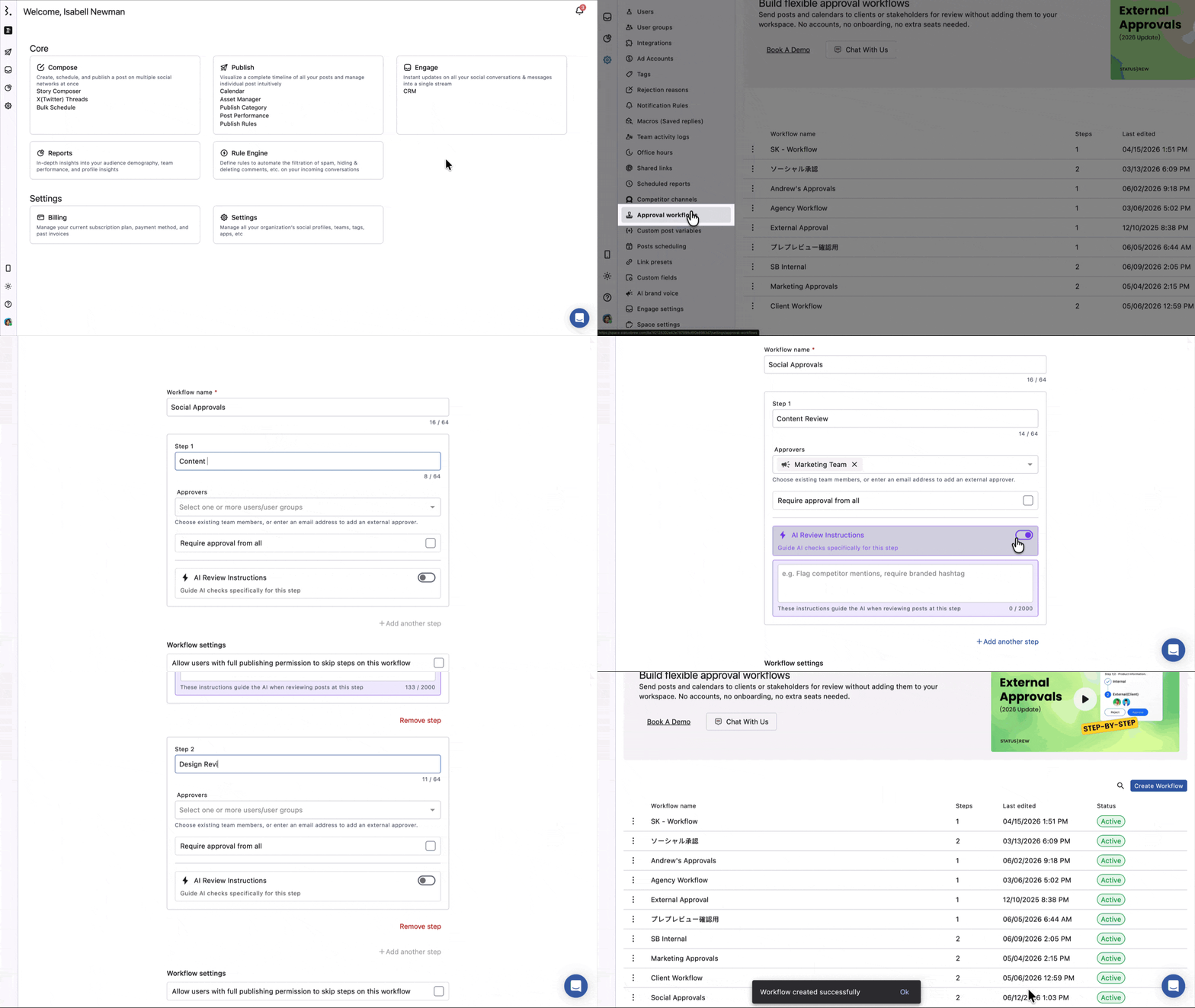
Go to Settings.
Select Approval Workflows.
Click Create Workflow, or open an existing workflow to edit it.
Inside any step, find the AI Review Instructions section and toggle it on.
Type your instructions in the text field. Describe what the AI should check in plain language, for example:
Review the caption for grammar, clarity, brand tone, and campaign relevance. Do not include any unapproved links in the post content.Up to 2000 characters per step.Click Submit to save the workflow.
Each step in your workflow can have its own AI Review Instructions, or none at all.
How the AI Pre-Review Works
When a composer selects an approval workflow and clicks Send for approval, an AI pre-review pop-up appears before the post is submitted. The pop-up is shown only to the composer. Approvers don't see it.
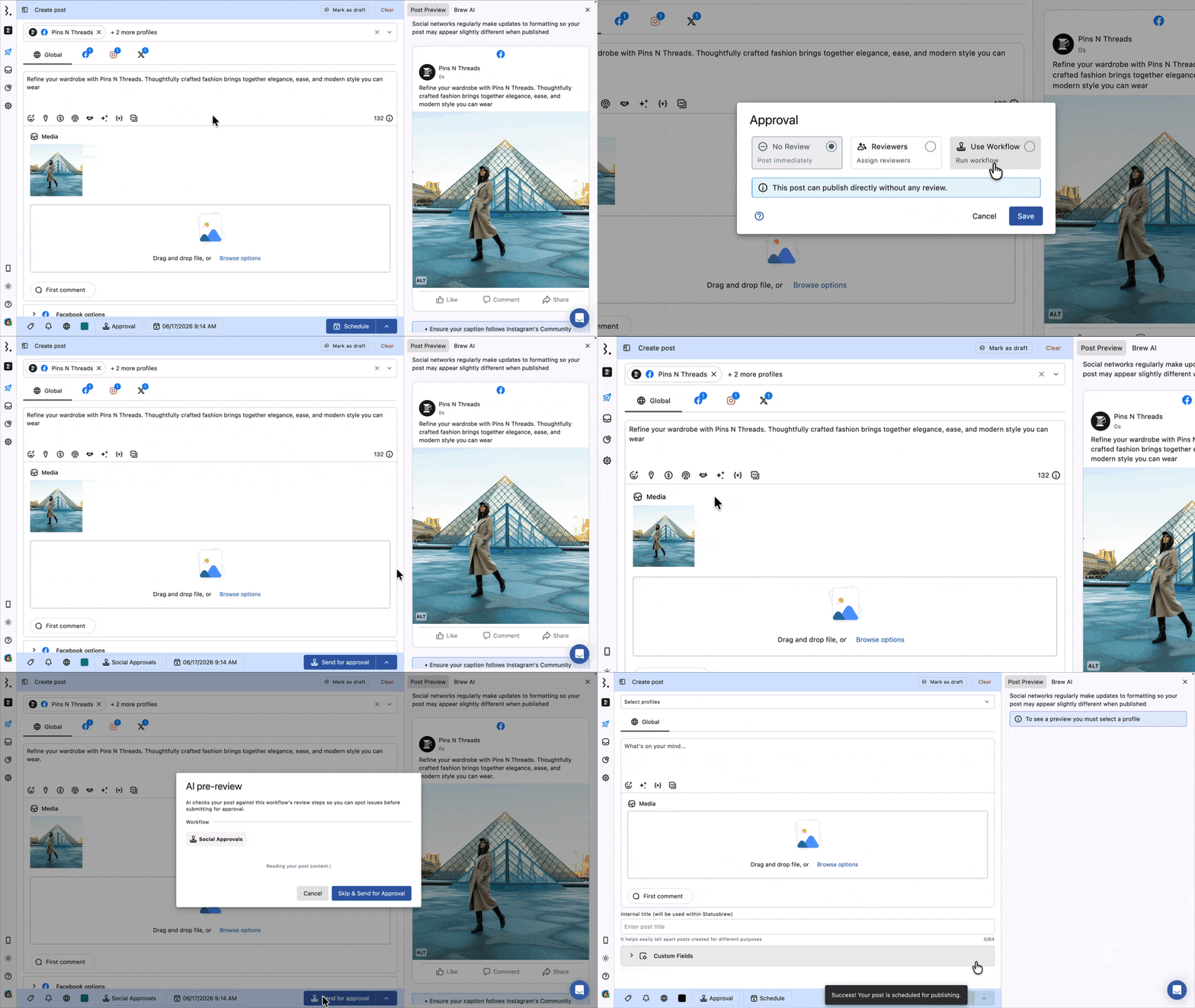
The pop-up lists every step in the workflow along with its AI review status:
No AI review: No AI Review Instructions are configured for this step
Safe: AI checked the post and found no issues based on this step's instructions
Rejected: AI found an issue based on this step's instructions
This check runs before the post reaches any approver. Even if AI Review Instructions are only on the second or third step, the composer still sees the full pre-review popup before submitting.
If AI flags an issue, the composer has two options:
Go back & fix: Return to Compose and edit the post
Override & Submit: Send the post for approval anyway
If all checks pass, the composer clicks Send for Approval directly from the pop-up.
AI Review Instructions don't block submission or replace human approval. A composer can always override a rejection and submit.
What Does AI Check?
AI Review Instructions currently check:
Caption
First link in the first comment
Links added to the post
You can write instructions to flag posts for things like:
A restricted word (such as "free") appearing in the caption
A competitor's name being mentioned
A required hashtag missing from the caption
A link that doesn't match an expected format
A required tracking link missing from the post
FAQs
Can the Composer Bypass the AI Pre-Review in Approval Workflows?
Yes. If AI flags an issue, the composer can click Override & Submit to send the post for approval anyway. The check is advisory, not a hard block.
Does Every Step in an Approval Workflow Need AI Review Instructions?
No. AI Review Instructions are optional per step. Steps without instructions will show No AI review in the pre-review popup.
Do Approvers See the AI Pre-Review Results?
No. The pre-review pop-up is shown only to the composer. Approvers see the post as they normally would.
Does AI Check Images or Videos in Approval Workflows?
No. AI Review Instructions currently check only the caption and links. Image and video content is not checked.
Is There a Limit to What I Can Write in AI Review Instructions?
Each step supports up to 2000 characters. You can describe multiple checks in a single instruction field using plain language.