Updating Your Mobile, Email & Desktop Notification Settings
Choose which Statusbrew notifications you get and where: email, desktop, and mobile.
Who Can Do This
Each user controls their own notifications and sees the full set of options. Changes you make here apply only to your account, not your teammates'.
How Statusbrew Notifies You
Statusbrew notifies you in three ways. Turn any of them on or off per notification.
Email: Sent to the email address you use to sign in to Statusbrew.

Desktop: Browser pop-ups that appear while you're signed in to Statusbrew.
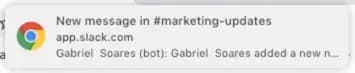
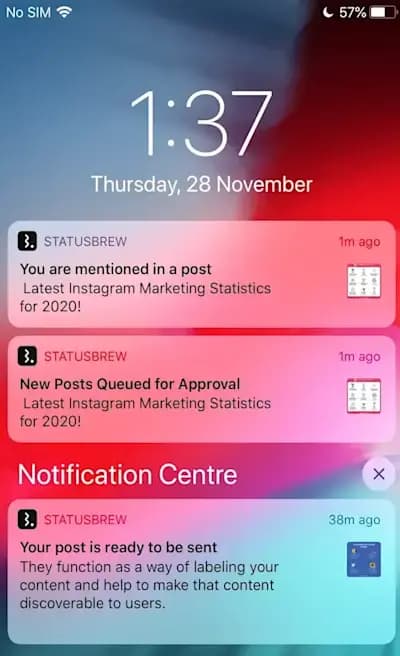
Mobile: Push notifications sent through the Statusbrew mobile app.
If your team uses Slack or Microsoft Teams, you can also route notifications there.
How To Update Your Notification Settings
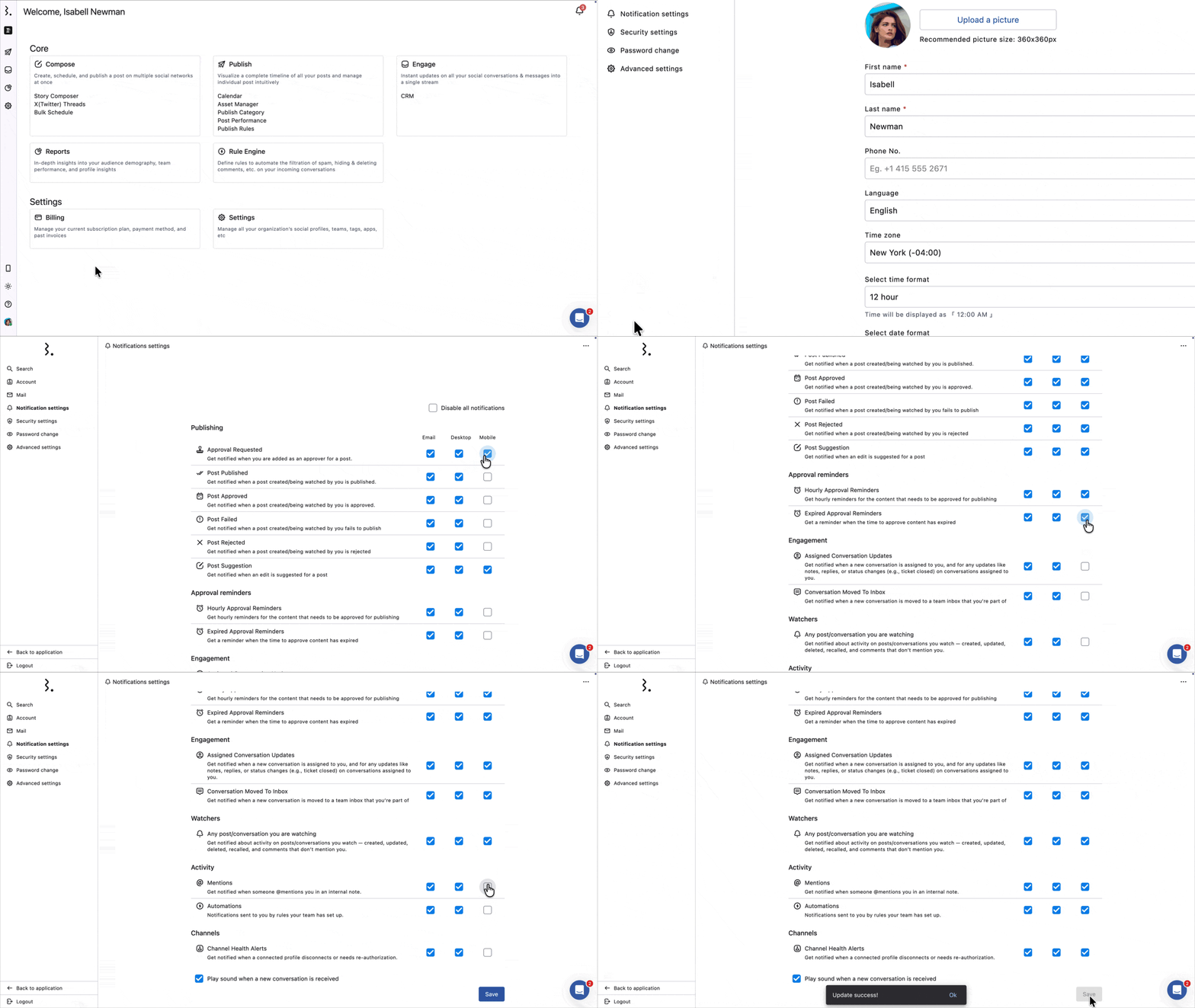
Click your Profile Avatar at the bottom left of your Statusbrew dashboard and select Your account.
Select Notification settings from the left side nav.
Select the checkboxes for the notifications you want and deselect the ones you don't. You can pick more than one channel for the same event. For example, you might want Email, Desktop, and Mobile all on for Post Failed.
Click Save.
Which Notifications Can I Turn On?
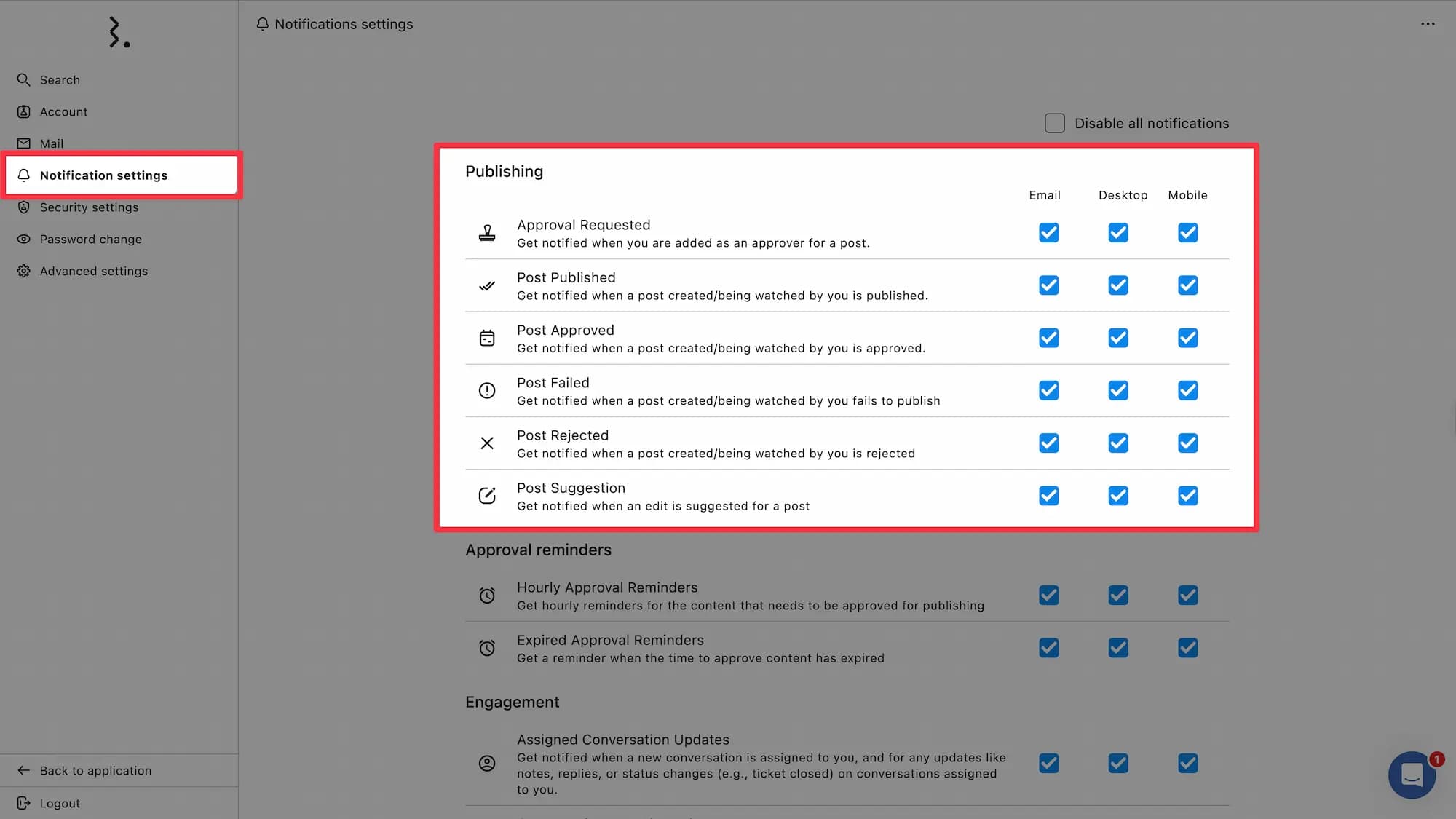
Notifications are grouped by the part of Statusbrew they come from. Each row can be delivered by Email, Desktop, and Mobile.
Publishing
Name | Description |
|---|---|
Approval Requested | Get notified when you're added as an approver for a post. |
Post Published | Get notified when a post you created or watch is published. |
Post Approved | Get notified when a post you created or watch is approved. |
Post Failed | Get notified when a post you created or watch fails to publish. |
Post Rejected | Get notified when a post you created or watch is rejected. |
Post Suggestion | Get notified when an edit is suggested for a post. |
Approval Reminders
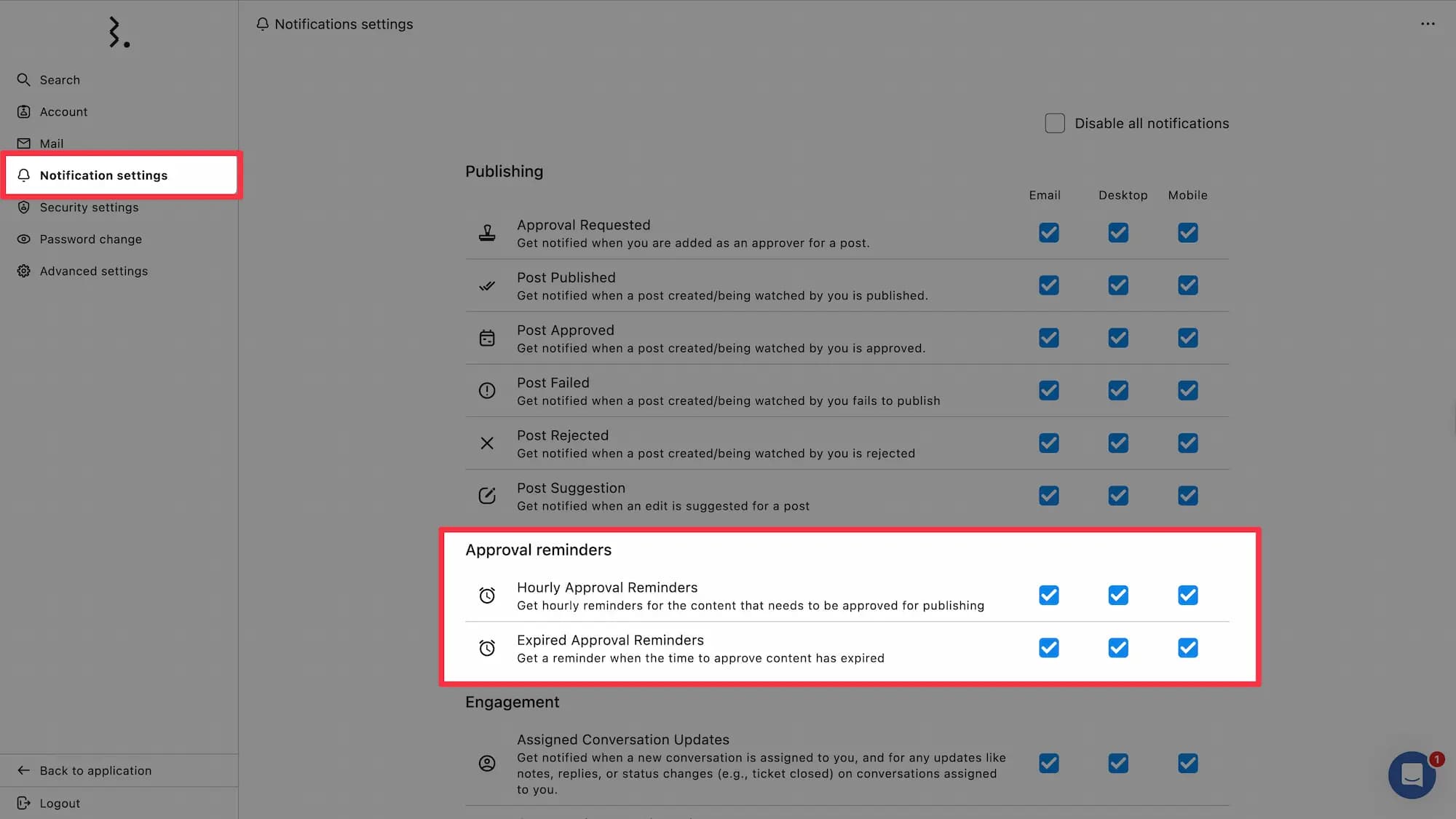
Name | Description |
|---|---|
Hourly Approval Reminders | Get hourly reminders for content that's waiting on your approval. |
Expired Approval Reminders | Get a reminder when the content approval period has expired. |
Engagement
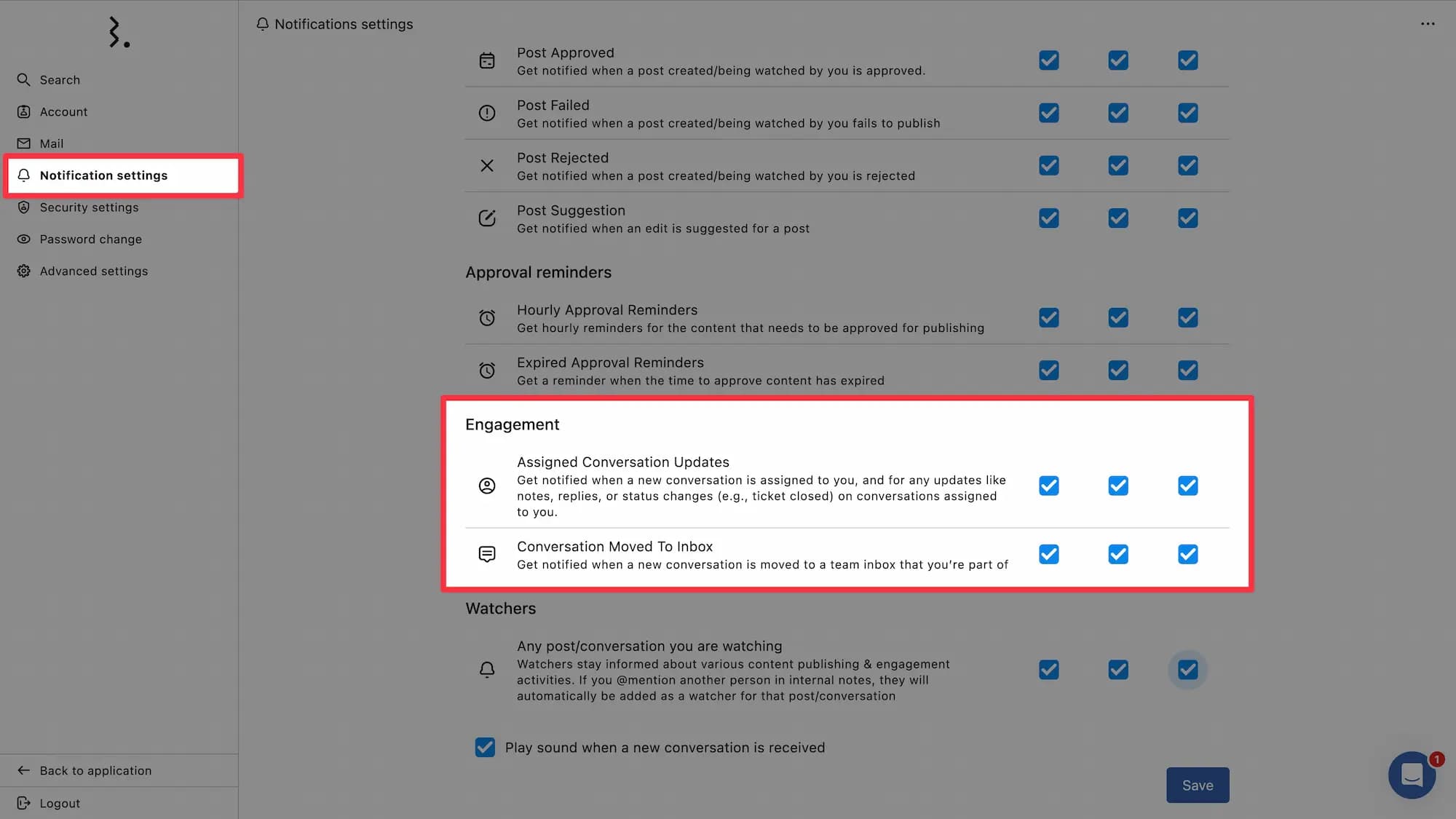
Name | Description |
|---|---|
Assigned Conversation Updates | Get notified when a conversation is assigned to you, and for updates on it, such as notes, replies, or status changes (e.g., ticket closed). |
Conversation Moved To Inbox | Get notified when a conversation is moved to a team inbox you're part of. |
Watchers
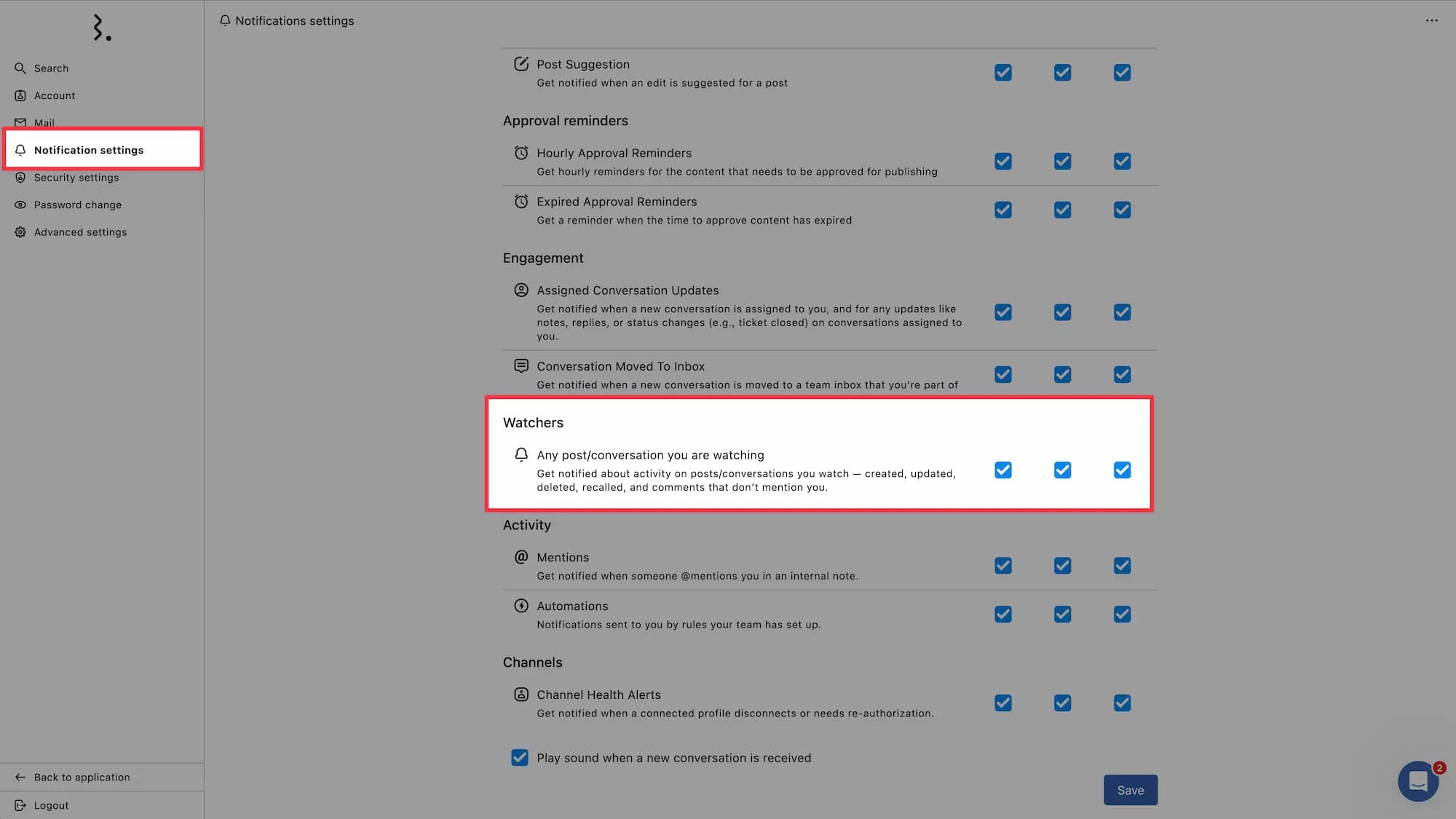
Name | Description |
|---|---|
Any post/conversation you are watching | Get notified about activity on posts and conversations you watch, including when they're created, updated, deleted, or recalled, and comments that don't mention you. |
Activity
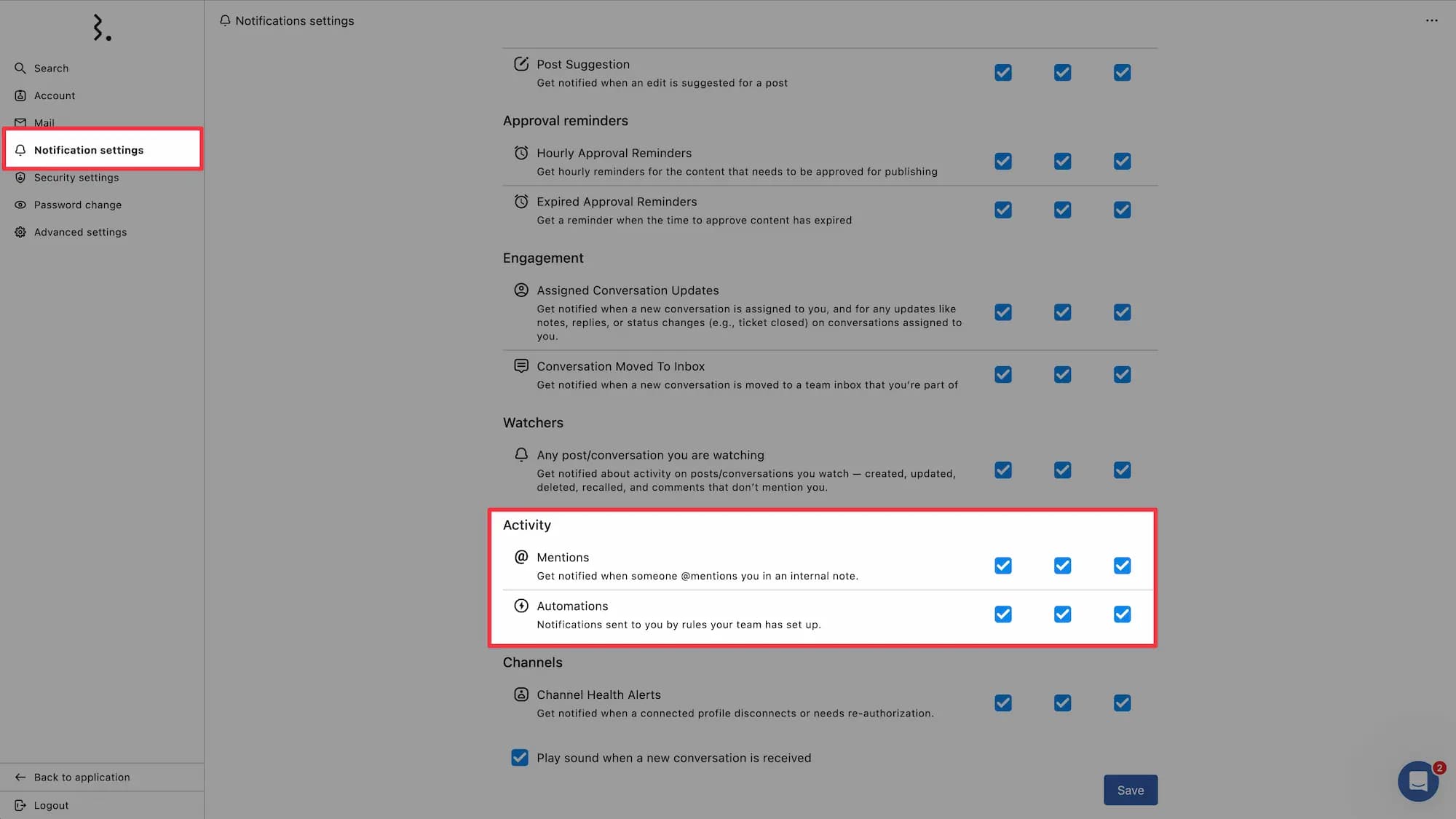
Name | Description |
|---|---|
Mentions | Get notified when someone @mentions you in an internal note. |
Automations | Get notified when a rule your team set up triggers. |
Shared Link Activity | Get notified the first time a client opens a shared link you created. |
To be notified only when someone mentions you, turn on Disable all notifications and select Mentions. To be notified only about automations you're part of, turn on Disable all notifications and select Automations.
Channels
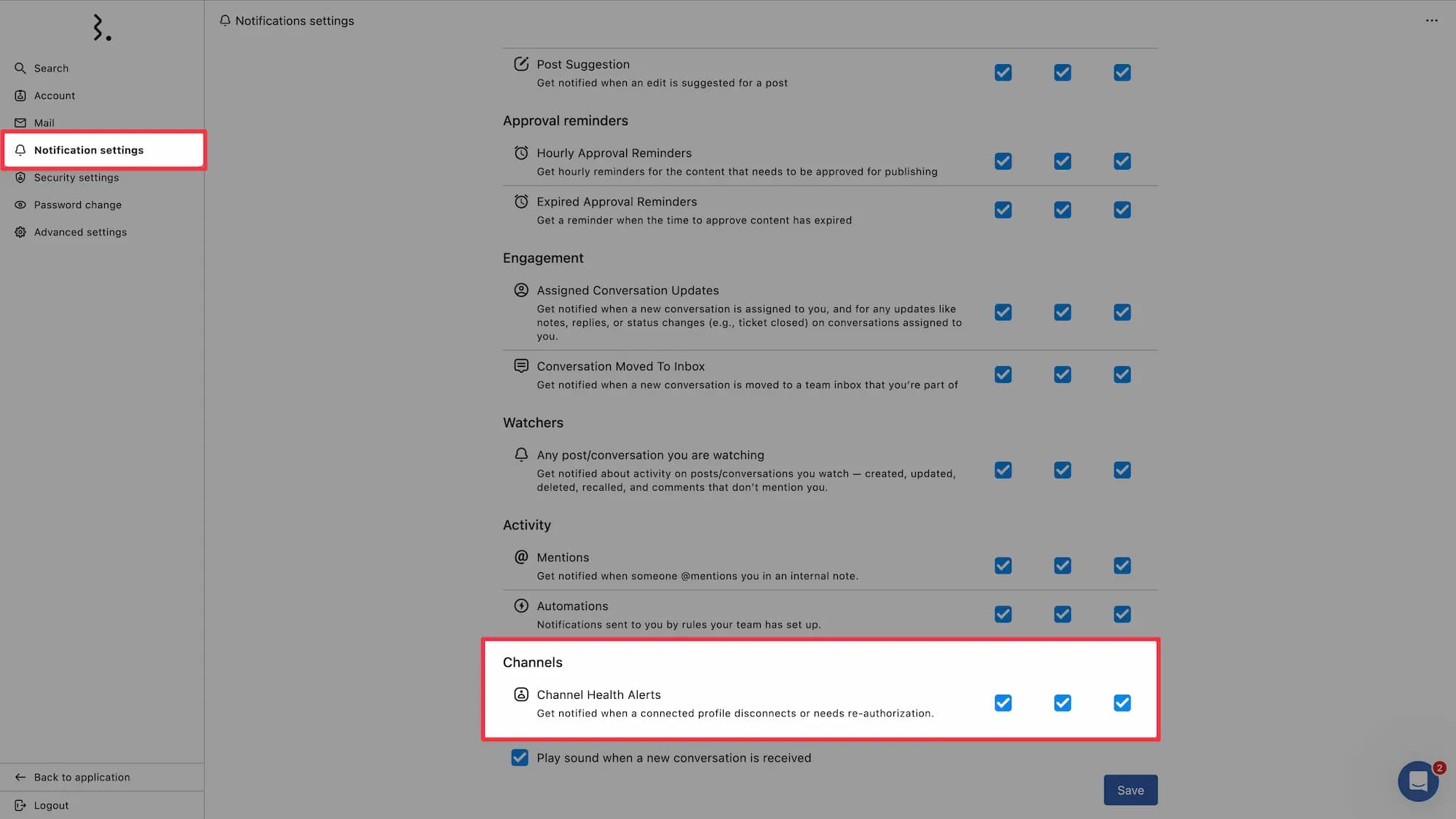
Name | Description |
|---|---|
Channel Health Alerts | Get notified when a connected profile disconnects or needs re-authorization. You get these for profiles you added and profiles you watch. |
Other Options At The Top And Bottom
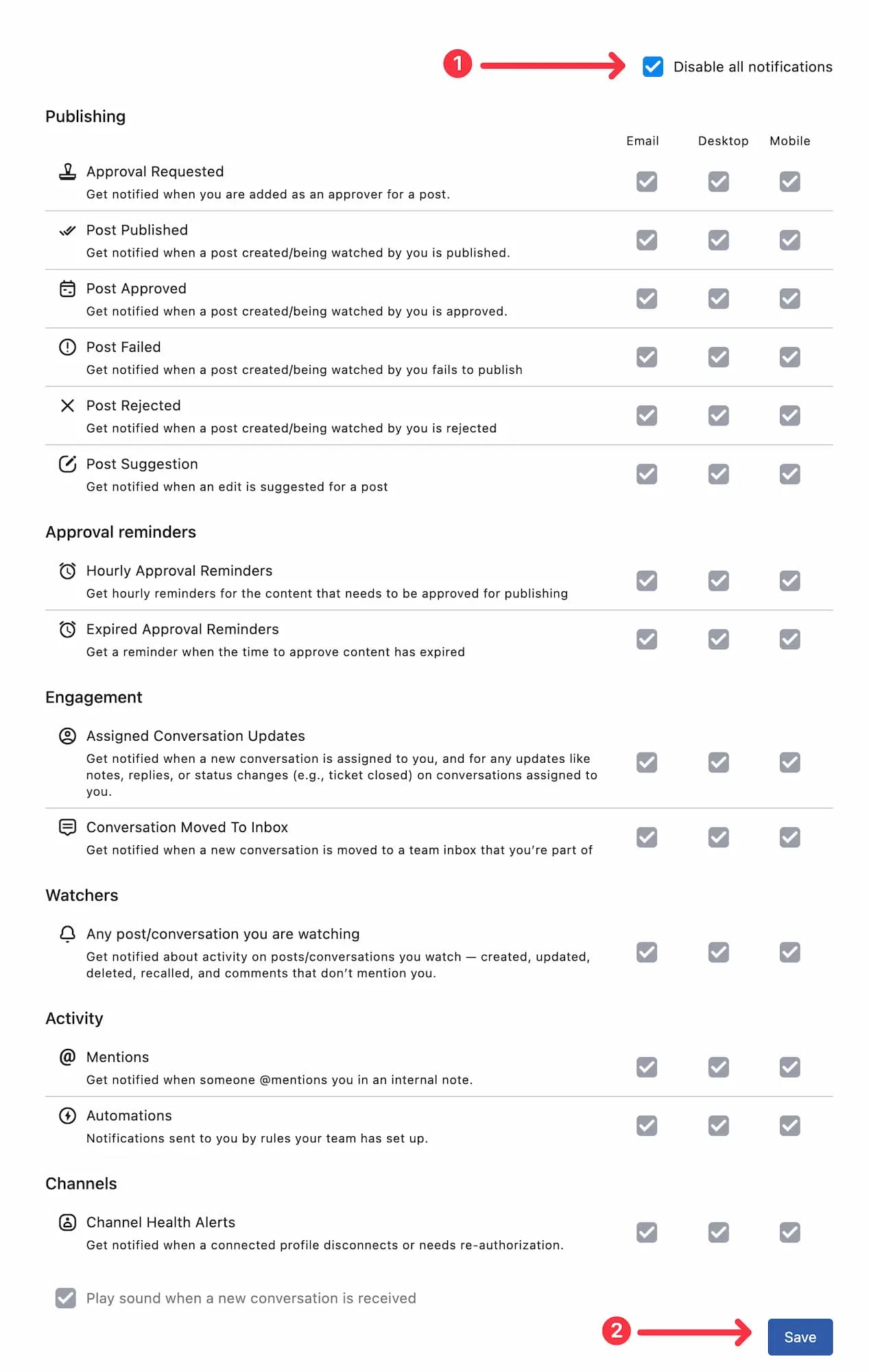
Disable all notifications
Select the Disable all notifications checkbox to instantly disable all alerts. It overrides your individual preferences and pauses all alerts until you uncheck it.
Play sound when a new conversation is received
Select Play sound when a new conversation is received to hear an audible alert for the notifications you've enabled.
Turn On Desktop (Browser) Notifications
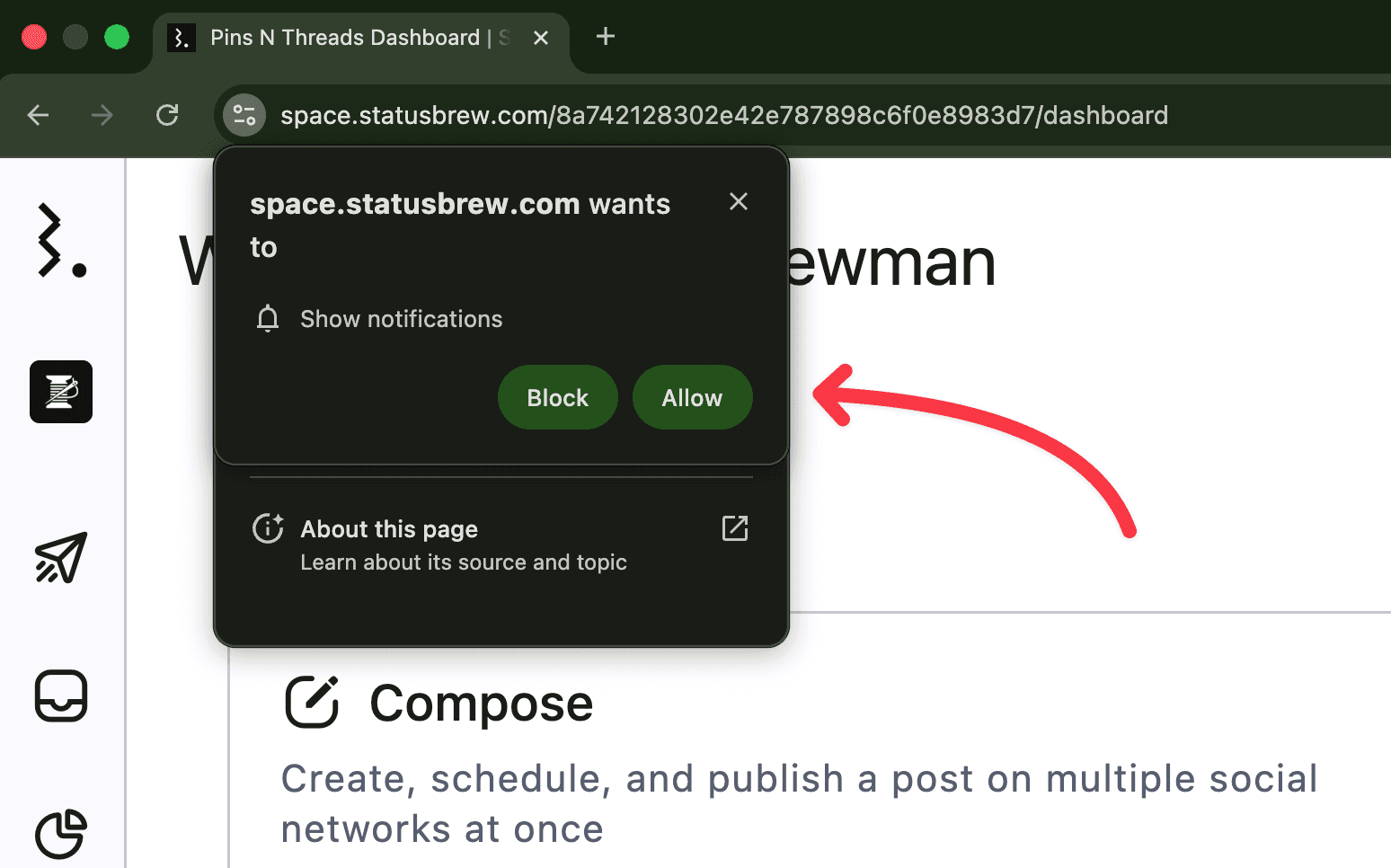
Allow Notifications: When prompted, enable Show notifications for space.statusbrew.com in your browser.
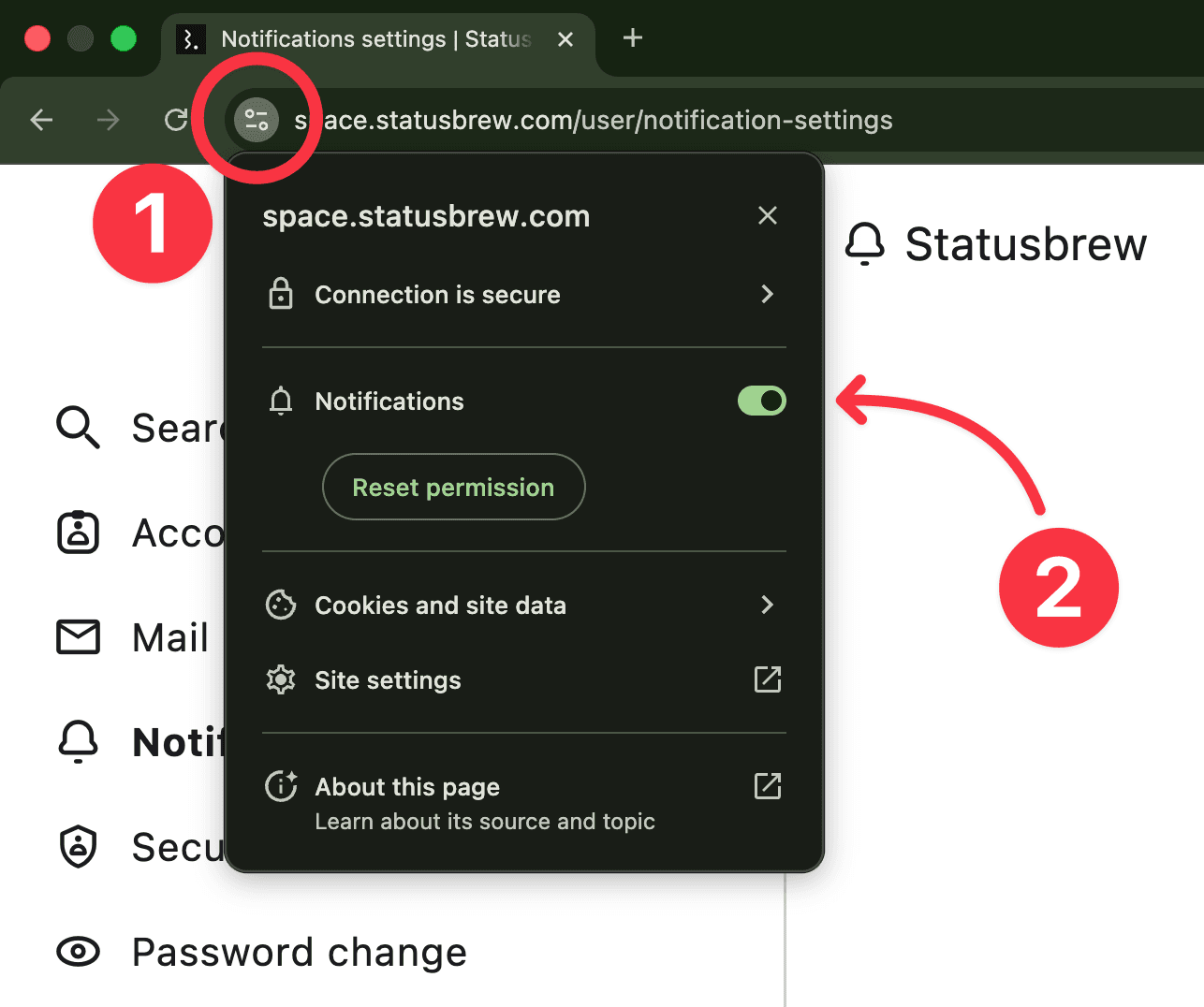
Unblock Notifications: If you blocked them before, click the lock icon next to the address bar and choose Allow Notifications.
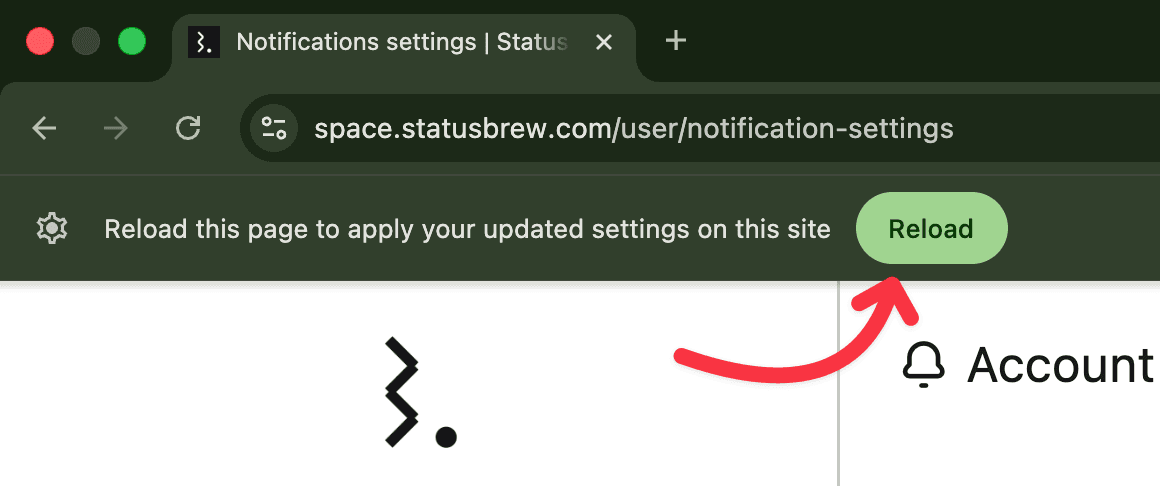
Reload the Browser: Reload the page when prompted so the updated setting takes effect.
FAQs
What Is The Post Suggestion Notification?
It alerts you when someone suggests an edit to a post. Turn it on under Publishing and choose Email, Desktop, or Mobile.
Can I Get Notified Only When Someone Mentions Me?
Yes. Deselect every other notification and keep only Mentions (under Activity) checked, then click Save. You'll then be notified only when someone @mentions you in an internal note, and nothing else.
Can I Get Notified Only Through Rules I've Created?
Yes. Your rules feed the Automations notification, so deselect every other notification and keep only Automations (under Activity) checked, then click Save. You'll then receive alerts only from the rules your team set up, and nothing else.
How Do I Get Notified When Someone @mentions Me?
Turn on Mentions under the Activity group. You'll be notified whenever a teammate @mentions you in an internal note on a post or conversation.
What Are Automations Notifications?
Automations (under Activity) notifies you about alerts sent by the automation rules your team sets up in the Rule Engine and Publish Rules. It controls only these rule-driven notifications, nothing else. Turn it off if you don't want to receive them.
How Do I Know When A Client Opens My Shared Link?
Turn on Shared Link Activity under Activity and pick Email, Desktop, or Mobile, then click Save. You'll be notified the first time a client opens a shared link you created. Only the person who created the link gets this notification.
What Are Channel Health Alerts?
Channel Health Alerts (under Channels) tell you when a connected profile disconnects or needs re-authorization, so you can reconnect it before posts fail. You get these alerts for profiles you added and for profiles you watch.
Do These Settings Affect My Whole Team?
No. Notification settings are per user. What you change here applies only to your account.