Team Member Can't See Posts in the Calendar
If a teammate's calendar is empty or missing posts, it's almost always a permissions issue. This article walks through every cause and how to fix it.
Who can fix this?
Permission changes require an Admin, Owner, or Primary Owner.
Teammates can fix date-range and filter issues themselves.
Fix 1: Assign a publishing permission for the profile
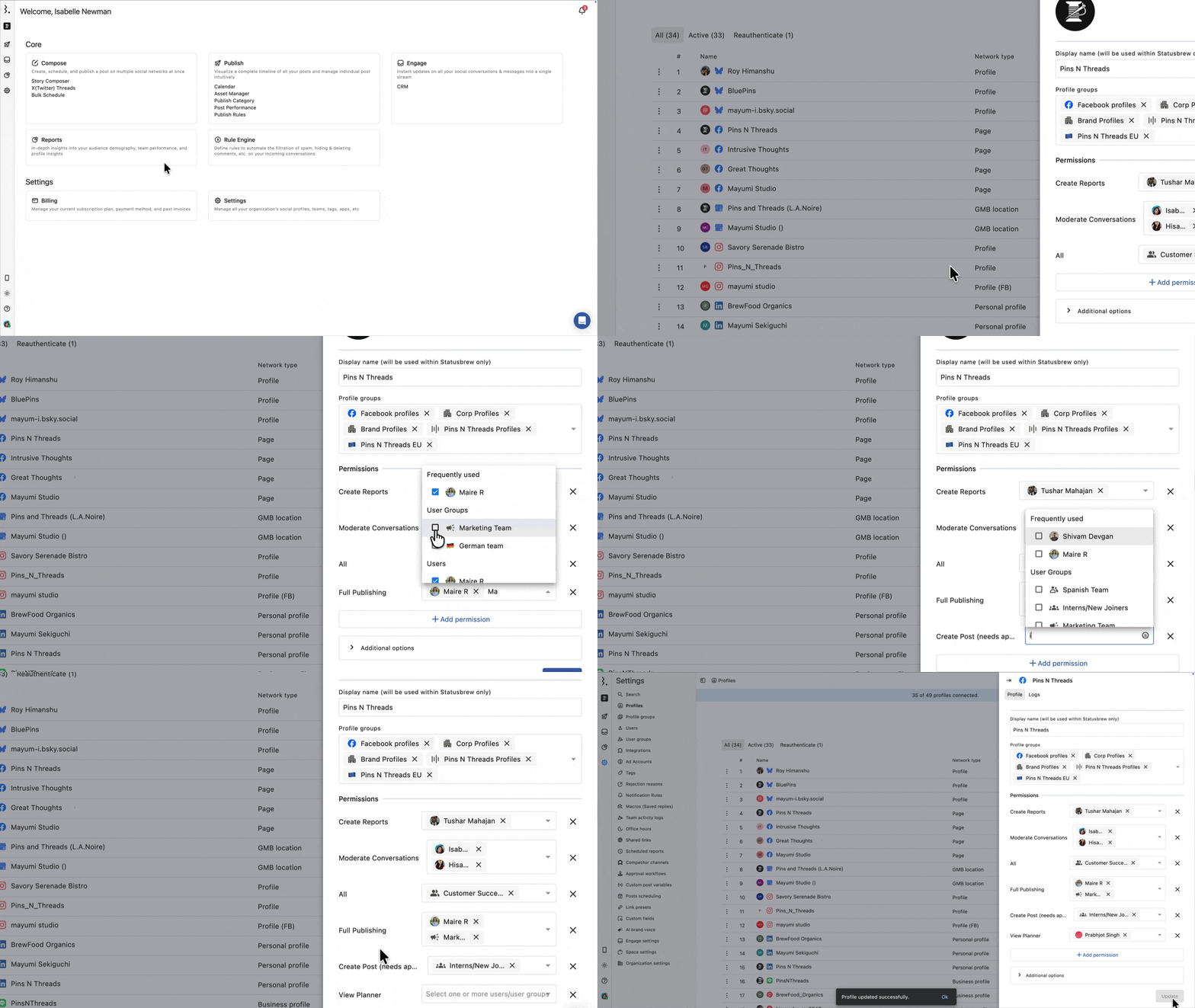
This is the most common cause. The Planner only shows posts for profiles to which a user has been given access.
If no permission has been assigned, the calendar appears empty.
Go to Settings > Profiles, find the relevant profile, and assign one of these permissions to the team member:
Full Publishing: Full create, schedule, and publish access
Create Post (Needs Approval): Can create and draft posts, but not publish directly
View Planner: Read-only access to the calendar
All: This covers Full Publishing alongside Engage and Reports, but it's not a separate publishing permission. It's a top-level catch-all for senior managers or account leads.
Note: View Planner permission show draft, scheduled and published posts but they can’t take any further action like creating, editing or publishing a post.
A user with Planner access can save drafts, create & customize projects, add Filters to the calendar, create events, tag content, apply custom fields, tag team members & make comments, & Add watchers.
Most of the actions required for Internal collaboration can be taken.
Here's how to assign it:
Go to Settings.
Select Profiles.
Click beside the profile and select Edit.
Click Add permissions.
Select the permission and add the team member's name.
Click Update.
Tip: If you manage many profiles, assign permissions at the Profile Group level instead. Any profile added to the group later inherits the same permissions automatically.
Fix 2: Check the date range
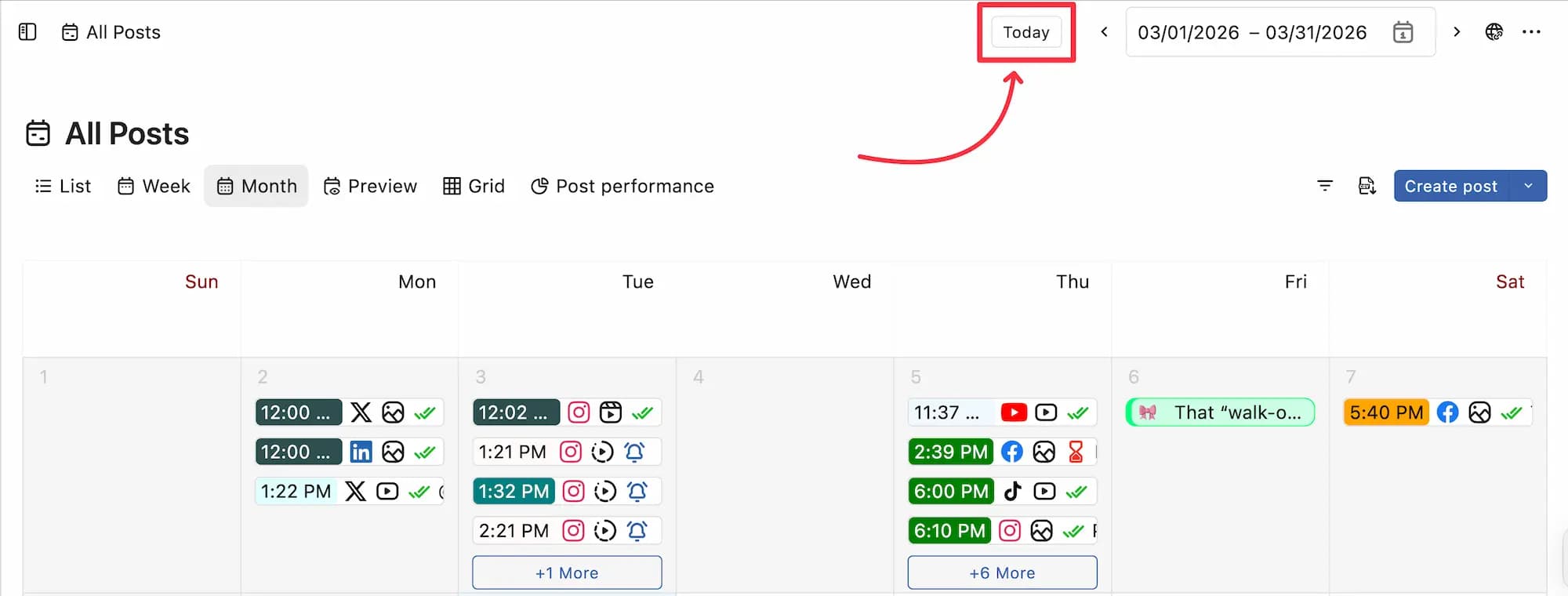
The Planner only shows posts within the selected date range. If the team member is looking at a date range with no scheduled content, the calendar will appear empty, even with full access.
Ask them to click the Today button in the Planner to reset the view to the current date. Alternatively, they can use the date range picker to manually select the period that should have posts.
Fix 3: Clear any active filters
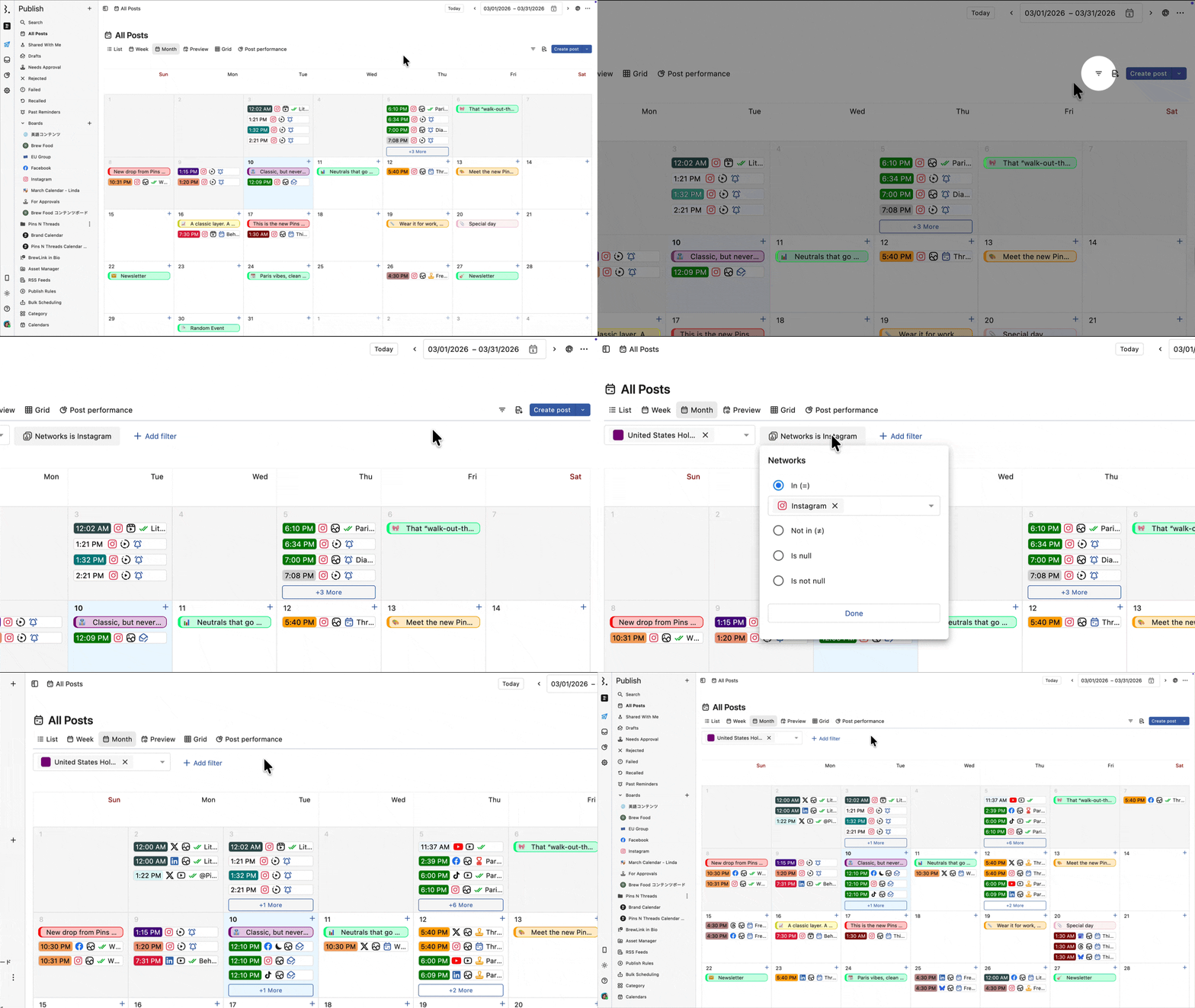
Active Planner filters narrow down what's visible. If a filter is set, for example, showing only a specific profile, post state, or tag, posts outside that filter won't appear.
Ask the team member to go to Publish > All Posts and check if any filters are applied in the Filters Bar.
Remove any active filters and check if the posts reappear.
Note: In case posts of a specific calendar board is not visible, ask the board owner to share that calendar board with you.
Fix 4: Check if post access was restricted
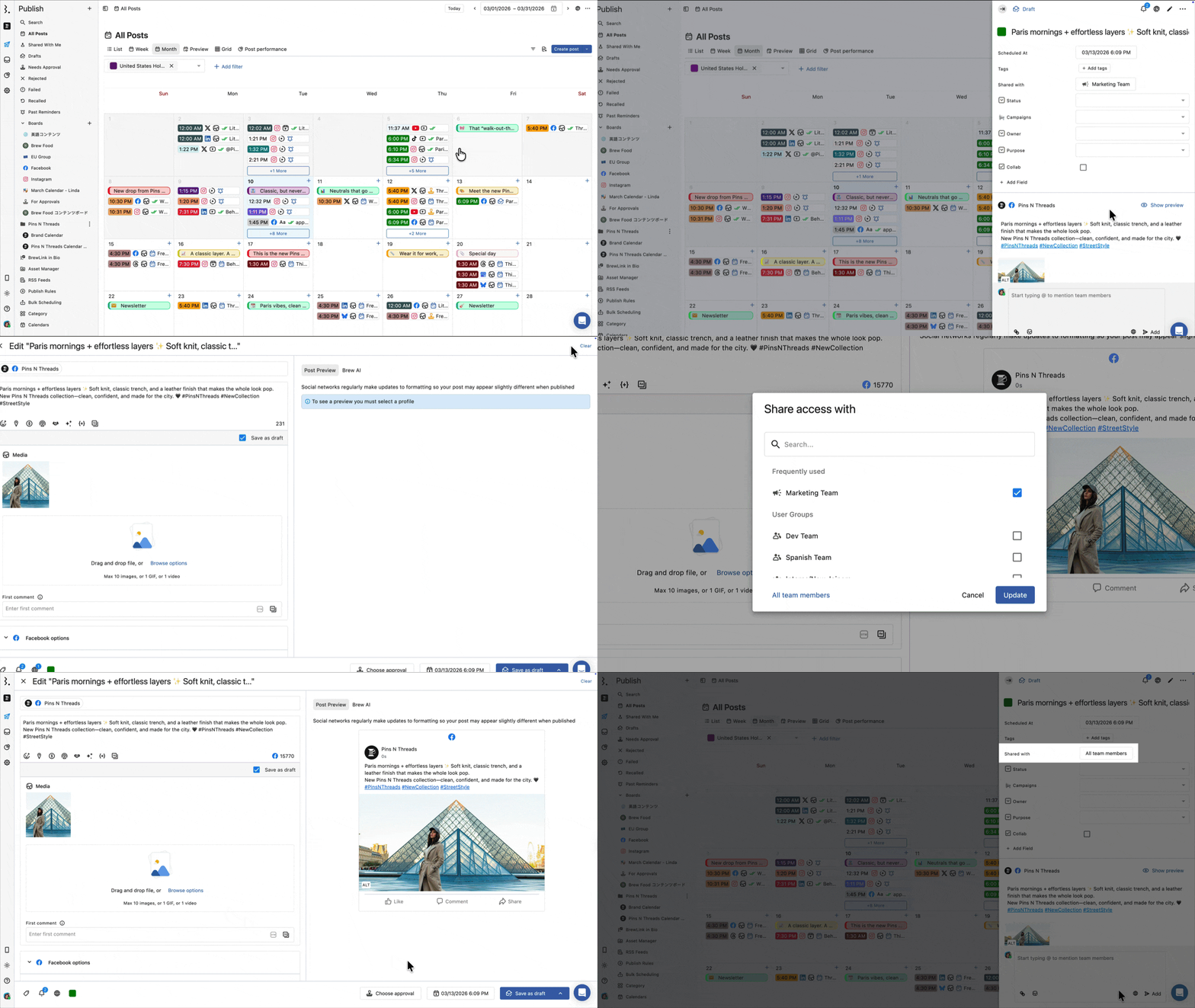
By default, every post is visible to all team members who have profile access. But a post's creator can restrict it to specific users using the Share access with setting.
If that's happened, the post won't appear for anyone not on the access list, even if they have the right profile permissions.
This is less common and only affects specific posts (not the entire calendar). If a team member can see some posts but not others, this is likely the cause.
To fix it, the post creator needs to:
Open the draft or scheduled post in Compose.
Click in the bottom bar.
Click All team members to restore full access for all team members, or select a specific member to share access with.
Click Update.
Note: Only the post creator can change the Share access with setting on a post.
FAQs
A team member was just added to Statusbrew, and their calendar is completely empty. Why?
New users have no profile permissions until an Admin assigns them. Go to Settings > Profiles and assign the appropriate permission to the new team member for each relevant profile. Learn more about access permissions.
A team member can see some posts but not others. What's going on?
They have profile access, but specific posts may have been restricted using Share access with. Ask the post creator to check the icon on those posts and restore access to all team members. See Fix 5 above.
The calendar shows posts for one profile but not another. Why?
The team member likely has permission for one profile but not the other. Check their permissions in Settings > Profiles for each profile they should have access to.
To restrict a user to specific profiles and control what they can do there, see Access Permissions.
Can I give a whole team access at once instead of user by user?
Yes. Assign permissions to a User Group rather than individual users. Every member of that group inherits the permissions, and anyone added to the group later gets them automatically.
Can a team member see posts for profiles in a Profile Group?
Yes, if they've been assigned a permission at the Profile Group level. Go to Settings > Profiles > Profile Groups to manage group-level permissions.
Team members cannot see my draft posts in the calendar - how to make them visible for collaboration?
The most common reason is that the team member hasn't been assigned permissions for any profiles or profile groups. An Admin, Owner, or Primary Owner needs to go to Settings > Profiles, click the three-dot menu next to each relevant profile, select Edit, and add the user with the appropriate permission (Full Publishing, Create Post (Needs Approval), or View Planner). Alternatively, if you're using User Groups, make sure the team member has been added to a group that already has profile access assigned.
My scheduled posts disappeared after I moved profiles to a new board. How do I get them back?
Your posts are still there. Moving profiles between projects doesn't affect scheduled content. The most likely cause is that the board or section filters don't include the profiles you moved.
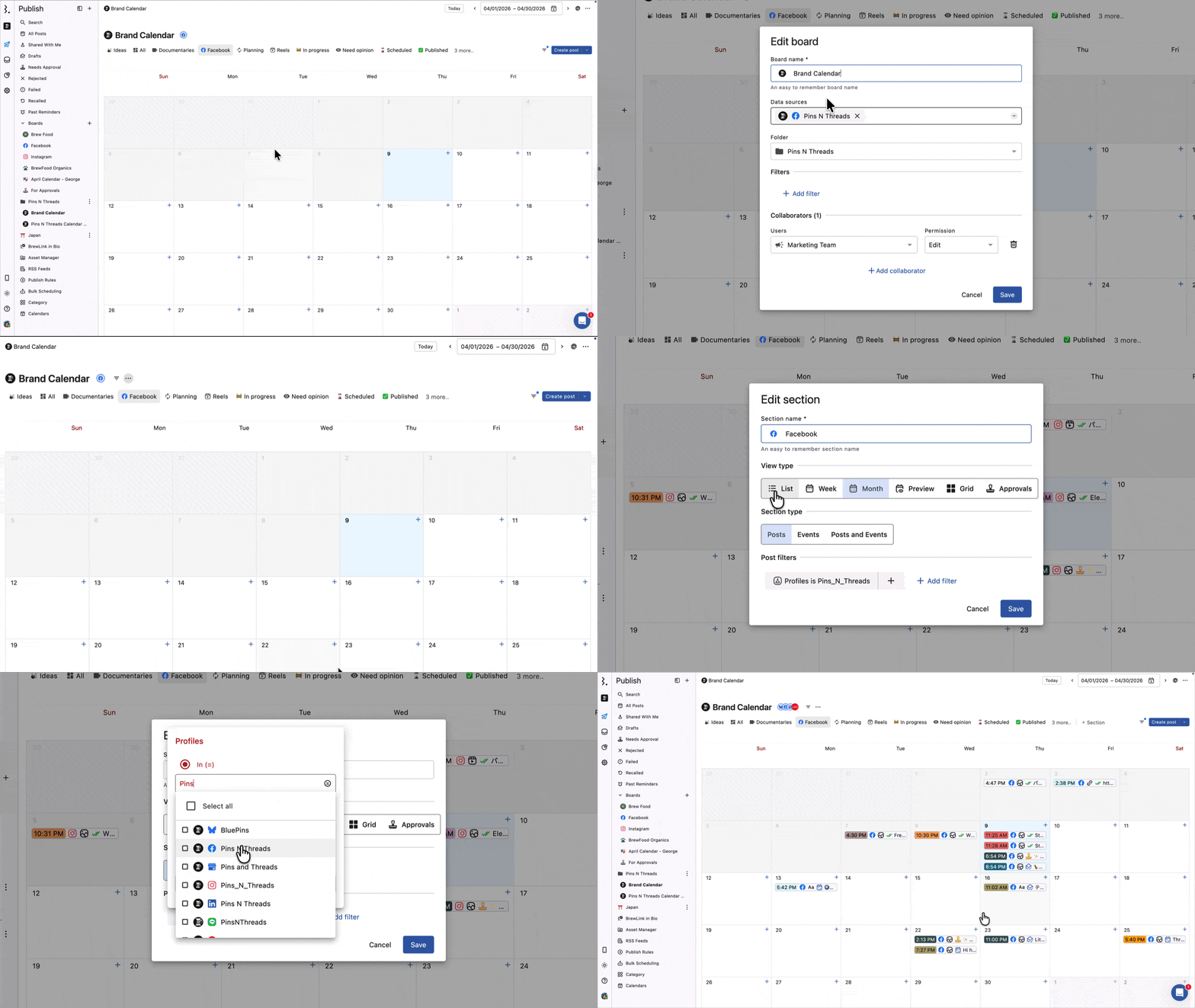
Check these two things:
Board-level filter
Click next to the board name in the left sidebar and select Edit board. Under Data sources, confirm the profiles you moved are listed. If they're missing, add them and save.
Section-level filter
If you are checking the post in a section, you need to check section-wise filters. If specific profiles are deselected there, posts for those profiles won't appear in that section even if the board-level filter is correct.
Once the right profiles are included at both levels, your scheduled posts will reappear.