How To Create And Manage Filtered Views In Engage
Filtered Views are saved filters in your Engage inbox that let you sort conversations by profile, network, conversation type and more, and open them with a single click.
What Is A Filtered View?
Managing multiple profiles and receiving hundreds of conversations daily can clutter your Engage Inbox. A Filtered View filters conversations based on your needs, so you can open exactly the conversations you want with a single click.
You can create a Filtered View manually, from a template, or by describing it to the AI View Builder, which is especially helpful for complex Filtered Views.
All your Filtered Views appear in the sidebar of your Engage screen. The Filtered Views you see depend on the shareability setting of each Filtered View.
How To Create A Filtered View?
Go to Engage.
In the sidebar, click next to Filtered Views. You can also click Create options → Filtered Views in the top right corner of the sidebar.
A picker opens with a search box, Create Manually, and a list of Suggested templates.
Create A Filtered View Manually
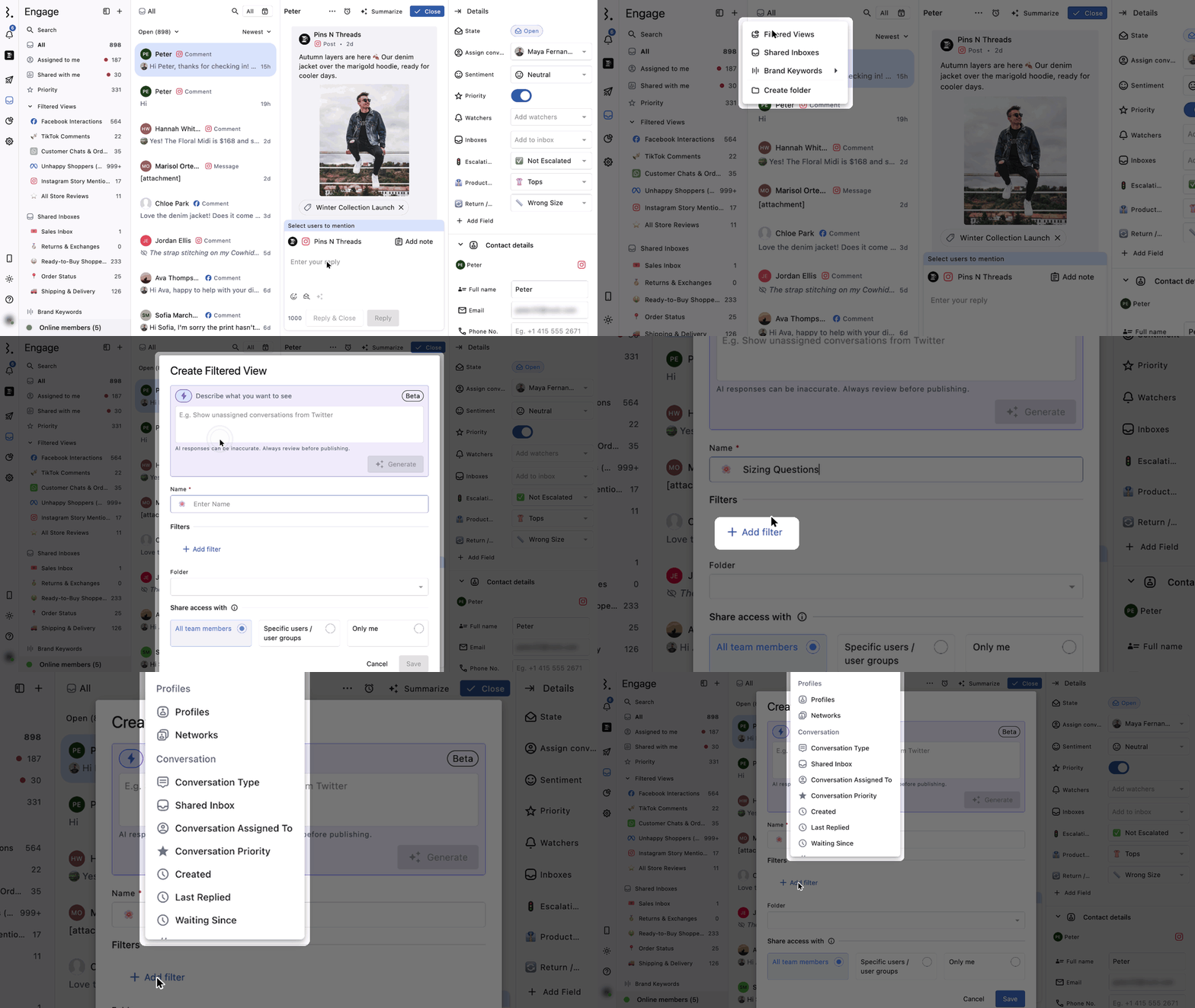
Click Create Manually. The Create Filtered View dialog opens.
Add a Name. The name is required. You can also customize the icon.
Click Add filter and choose the filters you need.
Select the Folder to create the Filtered View in.
Under Share access with, choose who can see the Filtered View: All team members, Specific users / user groups, or Only me.
Click Save.
The first time you create a Filtered View, Share access with starts on All team members. After that, Statusbrew remembers the option you chose the last time you created a Filtered View in this space and selects it for your next Filtered View. This is remembered for you only; your teammates' choices don't change it. You can still change it before you click Save.
The Filtered View opens in Engage and appears in the sidebar under Filtered Views.
To create a Filtered View inside a custom folder, click More (three dots) beside the folder and select Filtered View. The folder is filled in for you in the Create Filtered View dialog.
If you choose Specific users / user groups but don't select any users or user groups, the saved Filtered View is visible only to you.
Create A Filtered View With The AI View Builder
The Create Filtered View dialog has a Describe what you want to see box (Beta).
Type what you want the Filtered View to show, for example "Facebook comments with positive sentiment" or "Instagram DMs that mention refund".
Click Generate. Statusbrew applies the most relevant filters for you.
Review the filters, then add, change or remove any of them.
Check the Name, Folder and Share access with settings, and click Save.
The AI only fills in the filters. The Filtered View is created when you click Save.
Create A Filtered View From A Template
If you're not sure where to start, Statusbrew provides pre-built Filtered Views with commonly used filters already applied.
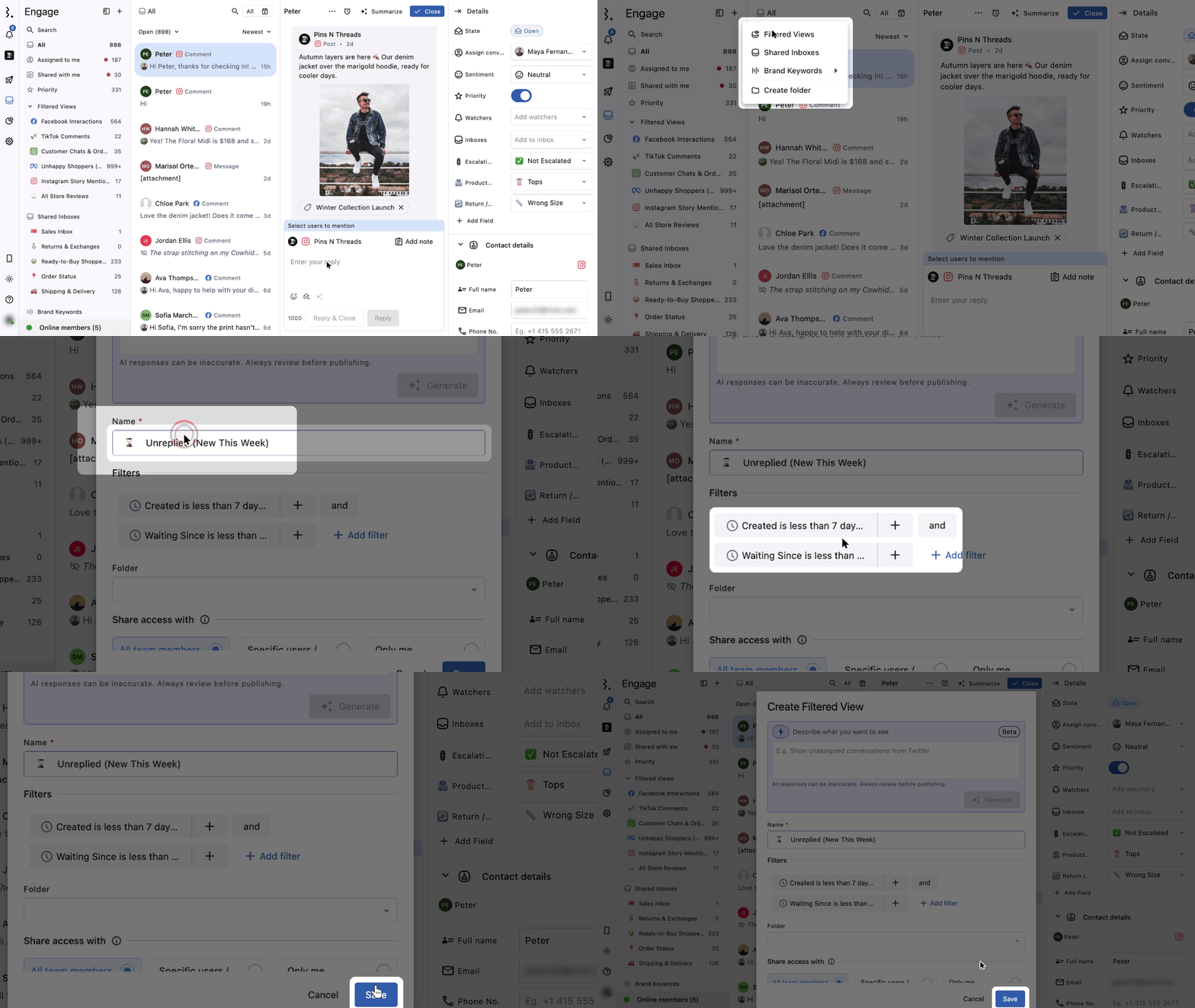
Pick a template from the Suggested list in the picker, for example Unreplied (New This Week), Non-English Conversations, Low-Star Reviews (Needs Response), Negative Brand Mentions, TikTok DMs or My Today. Use the search box to find a template by name.
Once you choose a template, the Create Filtered View dialog opens. You can change the Filtered View's name, filters and shareability before you save it.
Example: An Unassigned View
You can create an Unassigned Filtered View that shows all conversations that don't have a user or user group assigned.
The number next to the Unassigned view counts all open conversations that don't have a user or user group assigned yet. When you assign conversations, automatically with a rule or manually in the inbox, they leave the Unassigned view immediately and no longer count towards that number.
Want to flag Facebook and Instagram comments that contain specific words or phrases? Learn how to set up a rule and Filtered View for keyword-based comment flagging.
How To Manage Filtered Views?
Reorder Filtered Views
Drag and drop Filtered Views to rearrange them across folders and within a folder.
More Options
Hover over any Filtered View in the sidebar and click More (three dots) to:
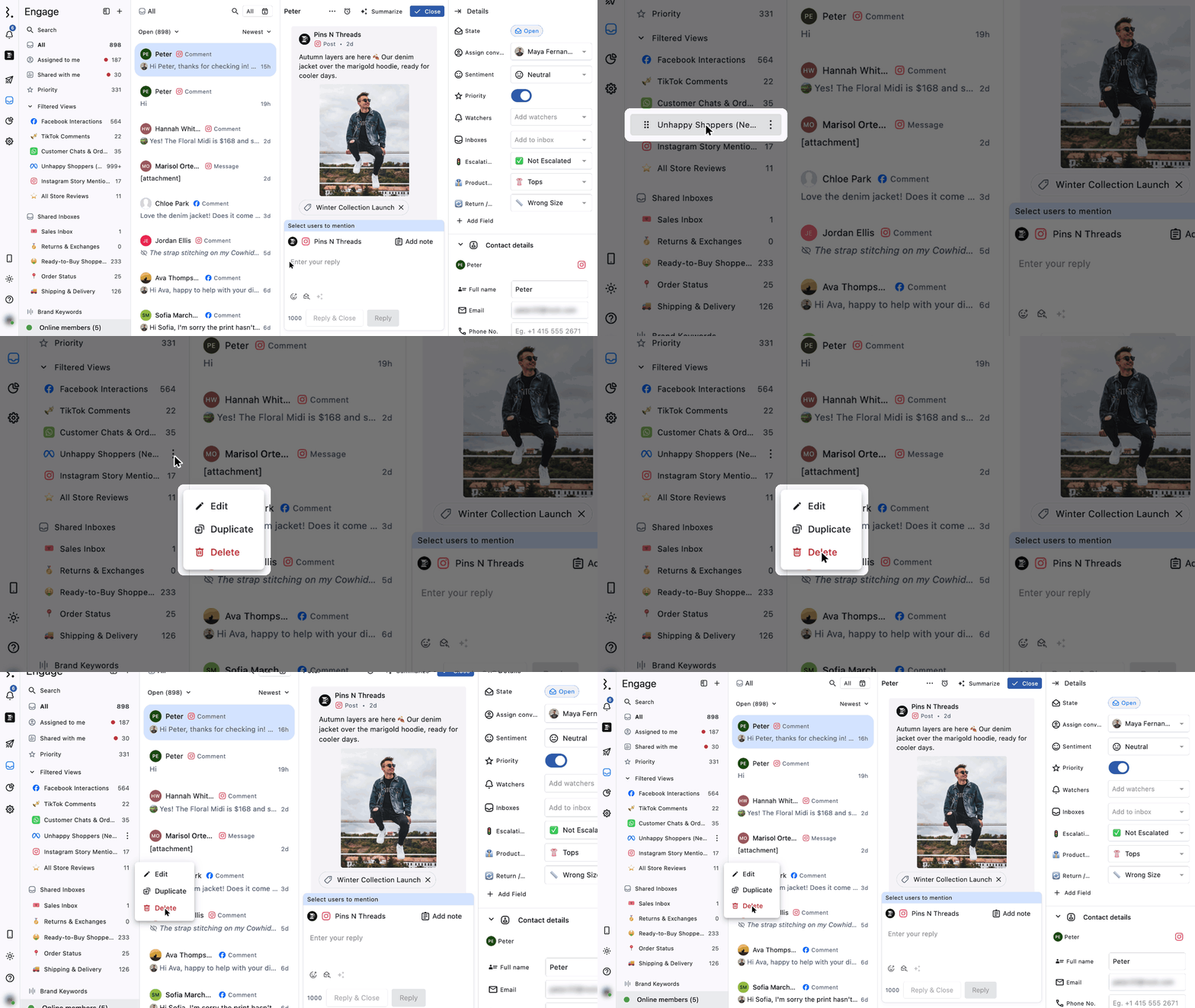
Edit the Filtered View
Duplicate the Filtered View
Delete the Filtered View
How To Edit A Filtered View?
In the sidebar, hover over the Filtered View and click More (three dots) → Edit.
Change the name, icon, filters, folder or shareability.
Click Save.
Only the user who created the Filtered View can change its Share access with setting.
Editing a Filtered View doesn't change the Share access with option Statusbrew remembers for your next new Filtered View.
How To Manage Filters In A Filtered View?
While editing a Filtered View, you can add or remove a filter or filter group.
Add a filter: Click Add filter.
Remove a filter: Hover over it and click (Remove filter).
Remove all values of a filter: Click (Clear).
Add values: Click anywhere inside the filter field.
Remove one value: Click (Clear) in front of it. Hover over the "+ n more" label to see all the selected values.
How To Duplicate A Filtered View?
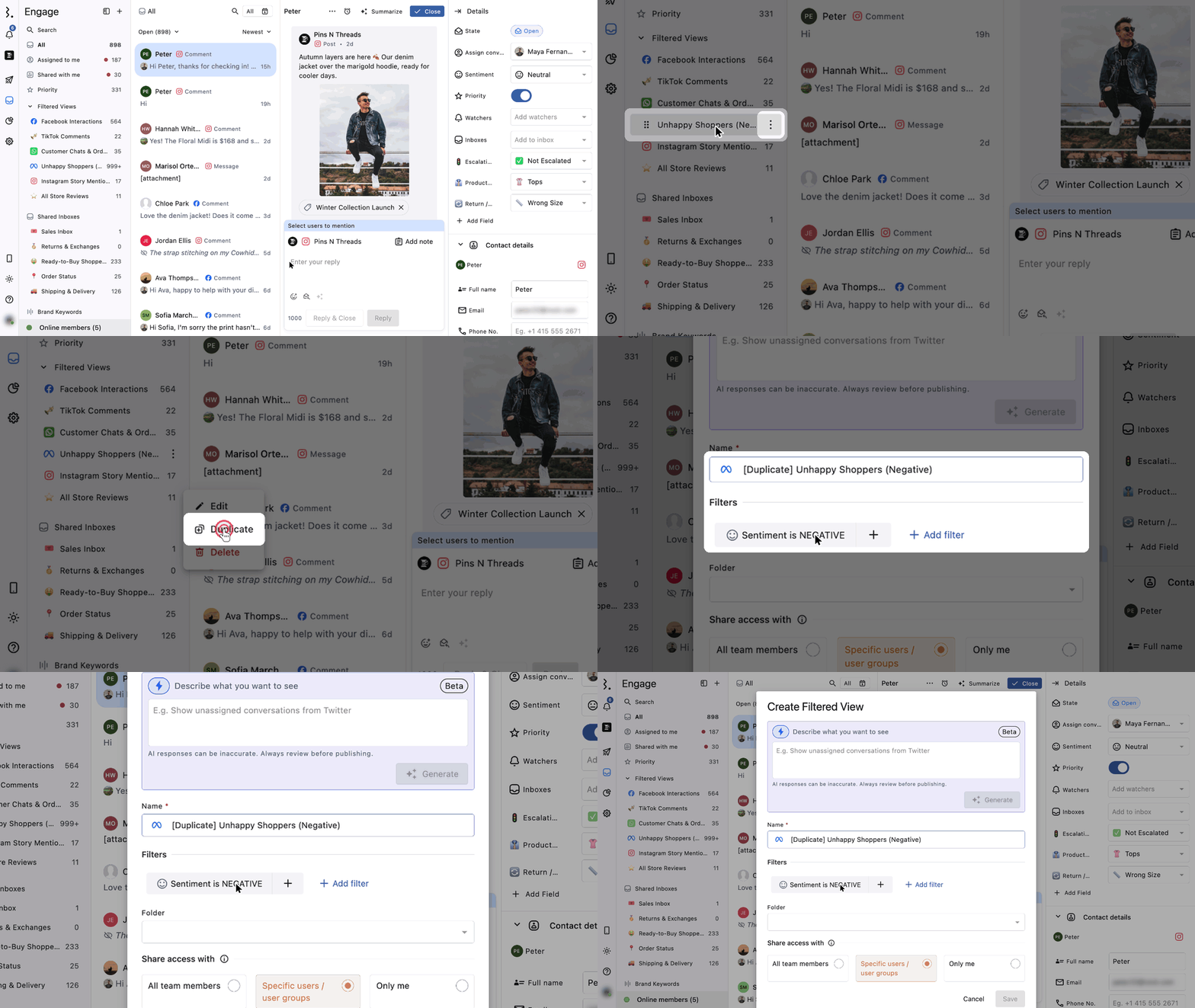
In the sidebar, hover over the Filtered View and click More (three dots) → Duplicate.
The Create Filtered View dialog opens with the same settings as the original Filtered View, and "[Duplicate]" at the start of the name.
Change the name, icon, filters, folder or shareability, and click Save.
How To Delete A Filtered View?

In the sidebar, hover over the Filtered View and click More (three dots) → Delete.
Confirm that you want to delete the Filtered View.
FAQs
Why Does A New Filtered View Start With Only Me Selected?
Statusbrew remembers the Share access with option you chose the last time you created a Filtered View in this space, and selects it for your next new Filtered View. If you picked Only me last time, your next Filtered View starts on Only me. Choose a different option before you click Save.
The first Filtered View you create starts on All team members. Editing an existing Filtered View doesn't change the remembered option.
Can I Filter Comments, Tagged/Brand Mentions, By Profile Or Platform In Engage?
Yes, but you need to create a Filtered View first. Engage has no general filter bar for profile, platform, tag, mention or conversation state.
Go to Engage and create a new Filtered View.
Add the filters you need, such as Profiles, Networks or Conversation Type. For mentions, select the relevant mention-based Conversation Type.
Save the Filtered View.
There is no separate Conversation State filter while creating the Filtered View. Open the Filtered View and switch between states, such as Open or Closed, from within it.
Why Are Conversations Not Showing In My Filtered View?
Check these three things:
Filters: Make sure the selected profiles, networks, tags or conversation types match the conversations you expect to see.
Conversation state: After opening the Filtered View, make sure you're on the right state, such as Open or Closed.
Date range: Make sure the selected date range includes the conversations you're looking for.
Why Does A Restricted User Still See All Profiles In A Filtered View?
A Filtered View shared with All team members is visible to everyone in the space, regardless of each user's profile permissions. To limit it, edit the Filtered View, set Share access with to Specific users / user groups, and choose only the users who should see it. This is separate from restricting a user's role and profile access under Settings → Profiles.
Can I Create A Filtered View Based On The Ad Campaign Goal?
There is no direct filter for ad campaign goal in Engage, such as Profile Visits, Traffic, Awareness or Engagement.
Most ad campaigns are created with one goal, so use the Ad Campaign Name filter instead. For example, to see paid engagements from a Profile Visits campaign, create a Filtered View with these filters:
Conversation Type: Ad Comment
Ad Campaign Name: The relevant campaign
Profile: The relevant profile
Network: Instagram or Facebook
You can narrow it further with Ad Set Name or Ad Name.
What Is The Difference Between A Filtered View And A Shared Inbox?
A Filtered View only filters conversations, so you can see the ones that matter to you right now. A Shared Inbox is a shared space where specific team members manage and reply to the same set of conversations.
How Many Filtered Views Can I Create?
You can create up to 800 Filtered Views in each space and 1,000 across your organization. When you reach the maximum, you'll see a message asking you to contact support. Anything you already have above a limit is kept, but you can't add more until you are under it.