Comment Moderation in Statusbrew
Manage spam, hide or delete inappropriate comments, block repeat offenders, and automate comment moderation across networks from a single inbox.
Who Can Do This?
All roles can hide, delete, and moderate comments in Engage, provided they have access to the relevant social profile.
Regular Users with profile access can moderate comments manually. Creating and editing automation rules requires Admin access or above. Available on all plans.
Which Networks Are Supported?
The table below shows what moderation actions are available per network.
Network | Hide | Unhide | Delete | Auto-hide | Auto-delete |
|---|---|---|---|---|---|
Facebook (organic + ads) | ✓ | ✓ | ✓ | ✓ | ✓ |
Instagram (organic + ads) | ✓ | ✓ | ✓ | ✓ | ✓ |
TikTok (organic + ads) | ✓ | ✓ | ✗ | ✓ | ✗ |
YouTube | ✓ | ✓ | ✓ | ✓ | ✓ |
X (replies only) | ✓ | ✓ | ✗ | ✓ | ✗ |
✗ | ✗ | ✓ | ✗ | ✓ | |
Threads | ✓ | ✓ | ✗ | ✓ | ✗ |
A hidden comment is not deleted. It is removed from public view but remains visible to you in Engage. The original commenter and their friends can still see it on the native platform. Only delete a comment if you want it removed permanently. This cannot be undone.
How To Hide Or Delete A Comment Manually?
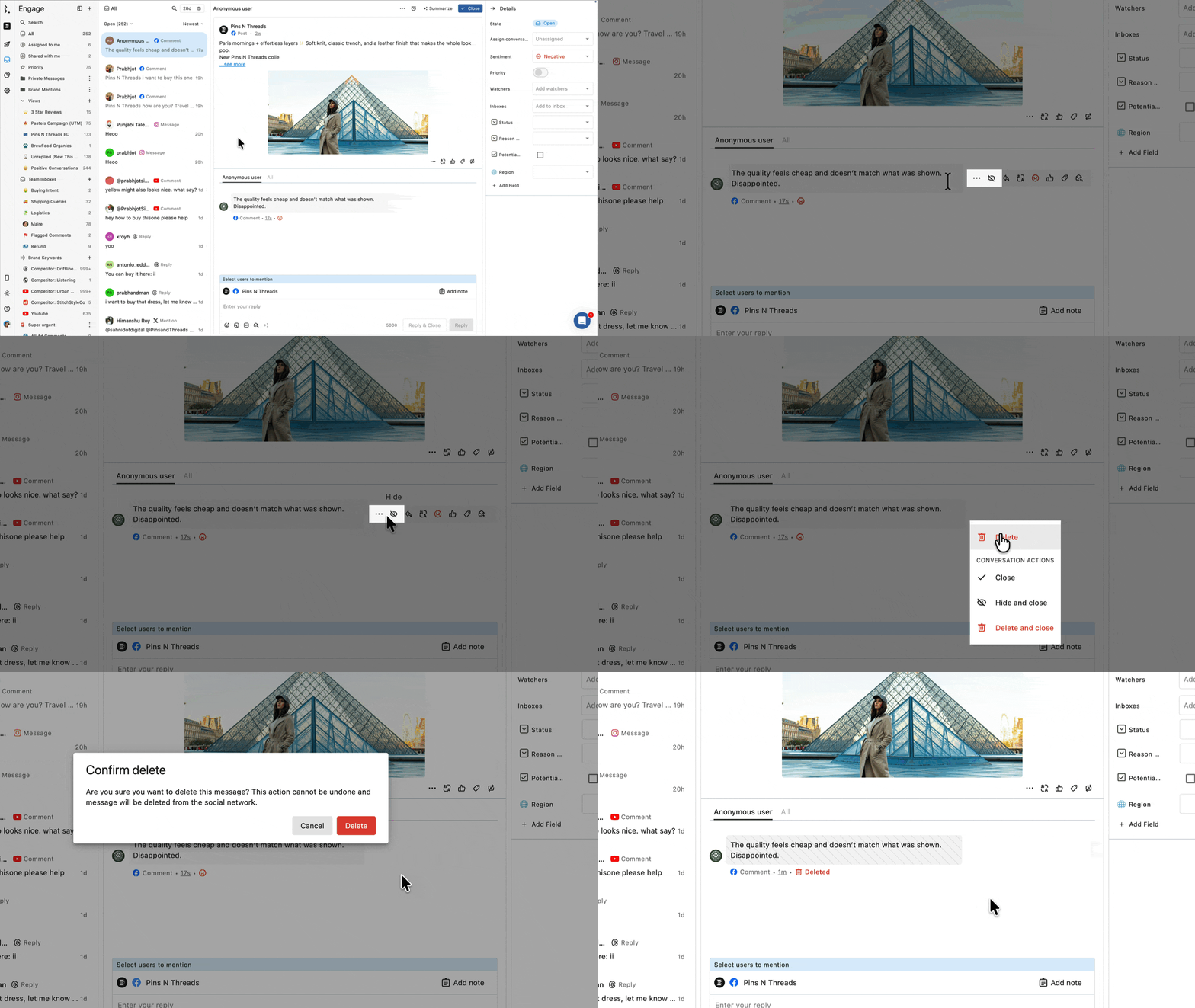
Go to Engage.
Open the conversation containing the comment you want to moderate.
Hover over the comment and click (more) beside it.
Select Hide or Delete from the menu.
After hiding, the comment appears blurred in your Engage inbox with a Hidden label. Hovering over it shows who hid it and when. After deleting, the comment appears with diagonal lines and a Deleted label with the same audit detail.
You can also use the combined actions Hide and close or Delete and close to moderate the comment and mark the conversation as resolved in one step.
How To Block A Repeat Commenter?
For Facebook, you can ban a user directly from Statusbrew to stop them from commenting on your Page again.
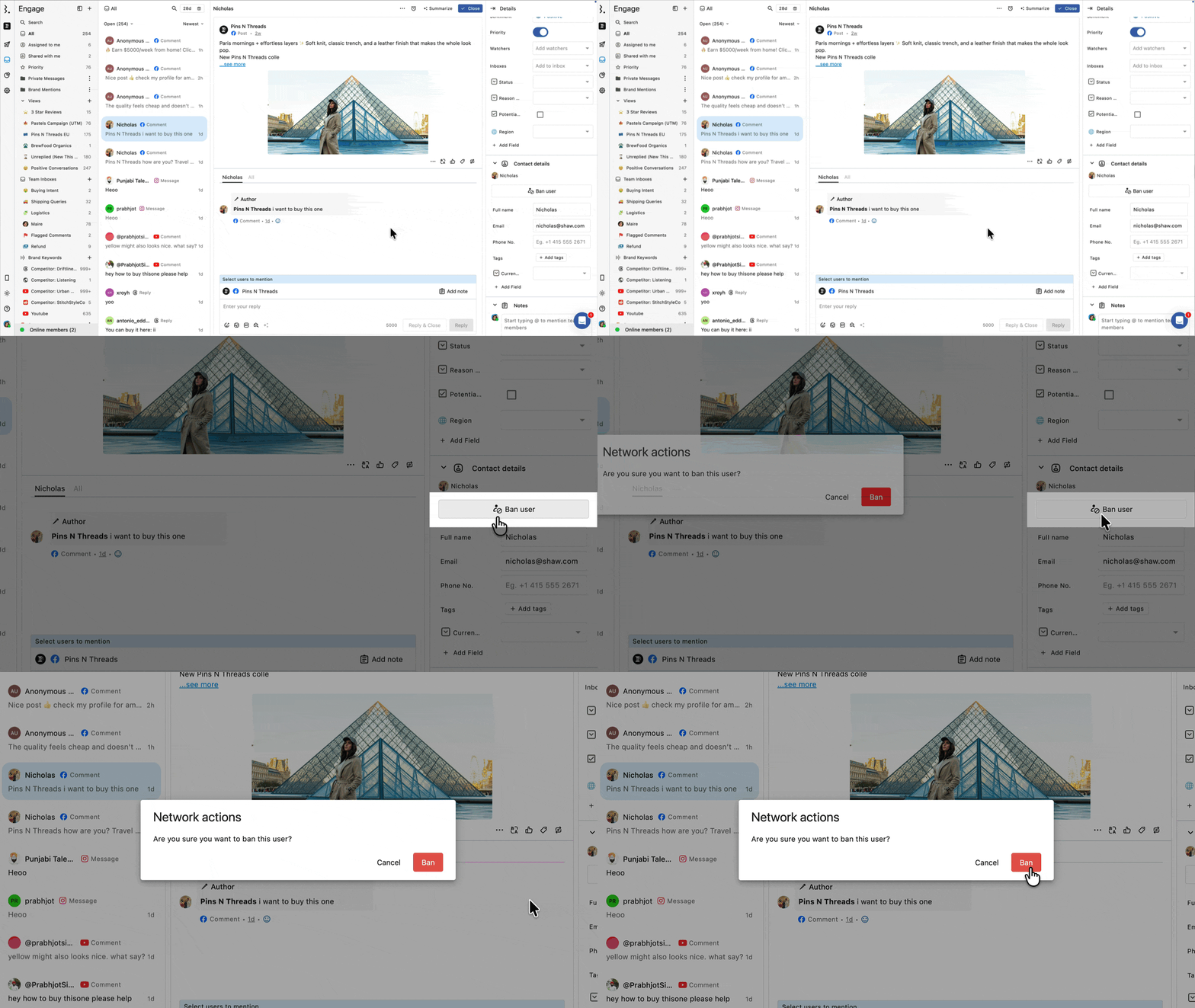
Open any conversation from that user in Engage.
In the Contact Sidebar on the right, locate their contact details.
Click Ban user next to their name.
This sends the block action to Facebook and prevents the user from commenting on your Page going forward.
The Ban user option is only available for Facebook network and that too for comments made by Facebook profiles not Facebook pages due to APIs availability.
For networks that do not support banning users, you can use a tag-based rule as a workaround. Once the spammer is tagged, any future comments from that contact can be automatically hidden or deleted, depending on the network's settings. Refer to the table above for network-specific actions.
Check the example below:
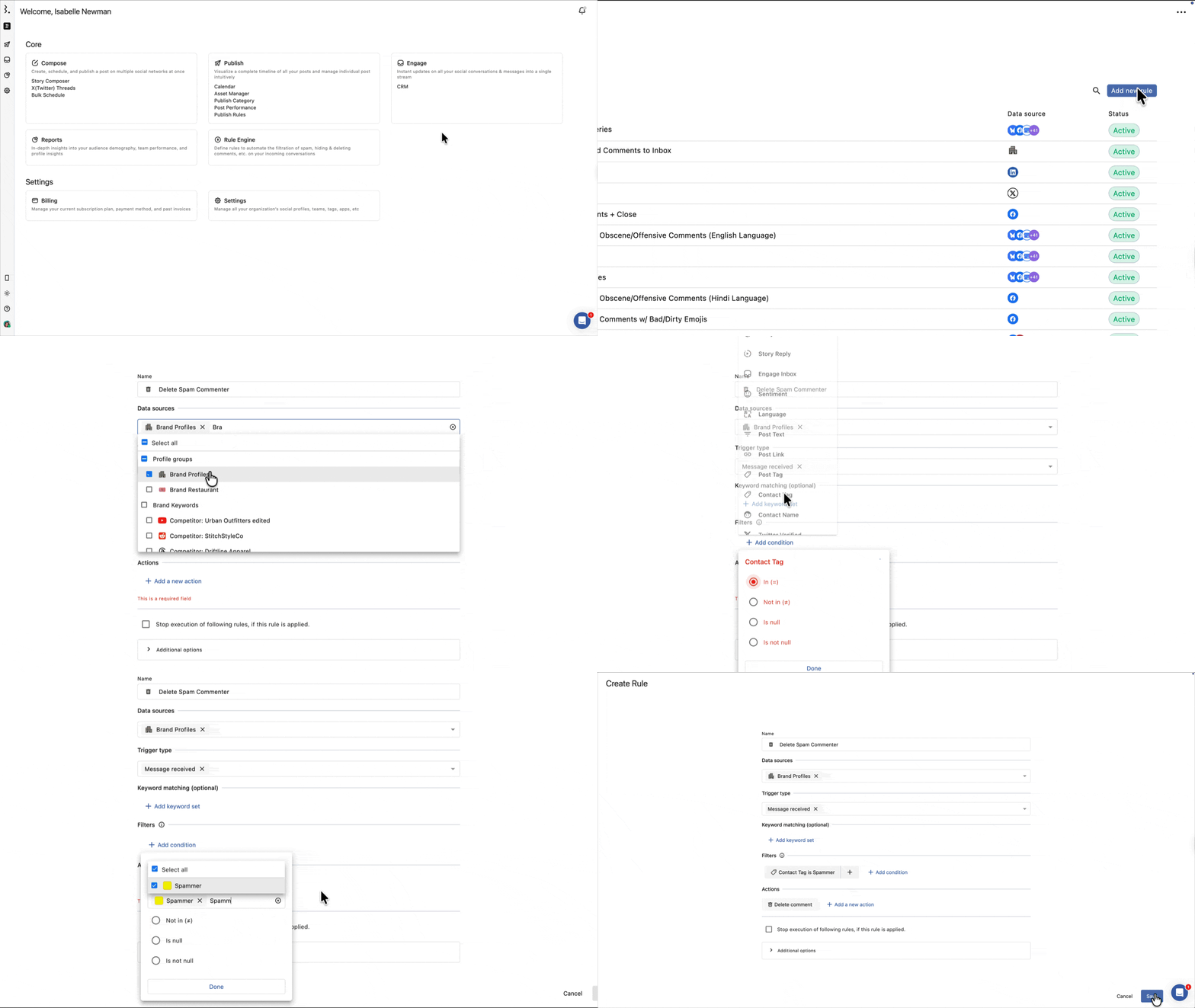
Go to Rule Engine and click Add new rule.
Enter a name for the rule, for example, Delete Spam Commenter.
Select the Data sources. These are the social profiles the rule should apply to.
Click Filters and select Contact tag. Choose a tag like Spammer. Create an Engage tag if you have not already.
Under Action, select Delete comment.
Click Save.
To apply tags to past spammers, go to Contacts in Engage and search for them by name. Open the contact profile and apply the tag manually so future comments from that contact can be handled by the rule automatically. Use Delete comment only when you are fully sure the contact is a spammer.
How To Disable Comments On A Post?
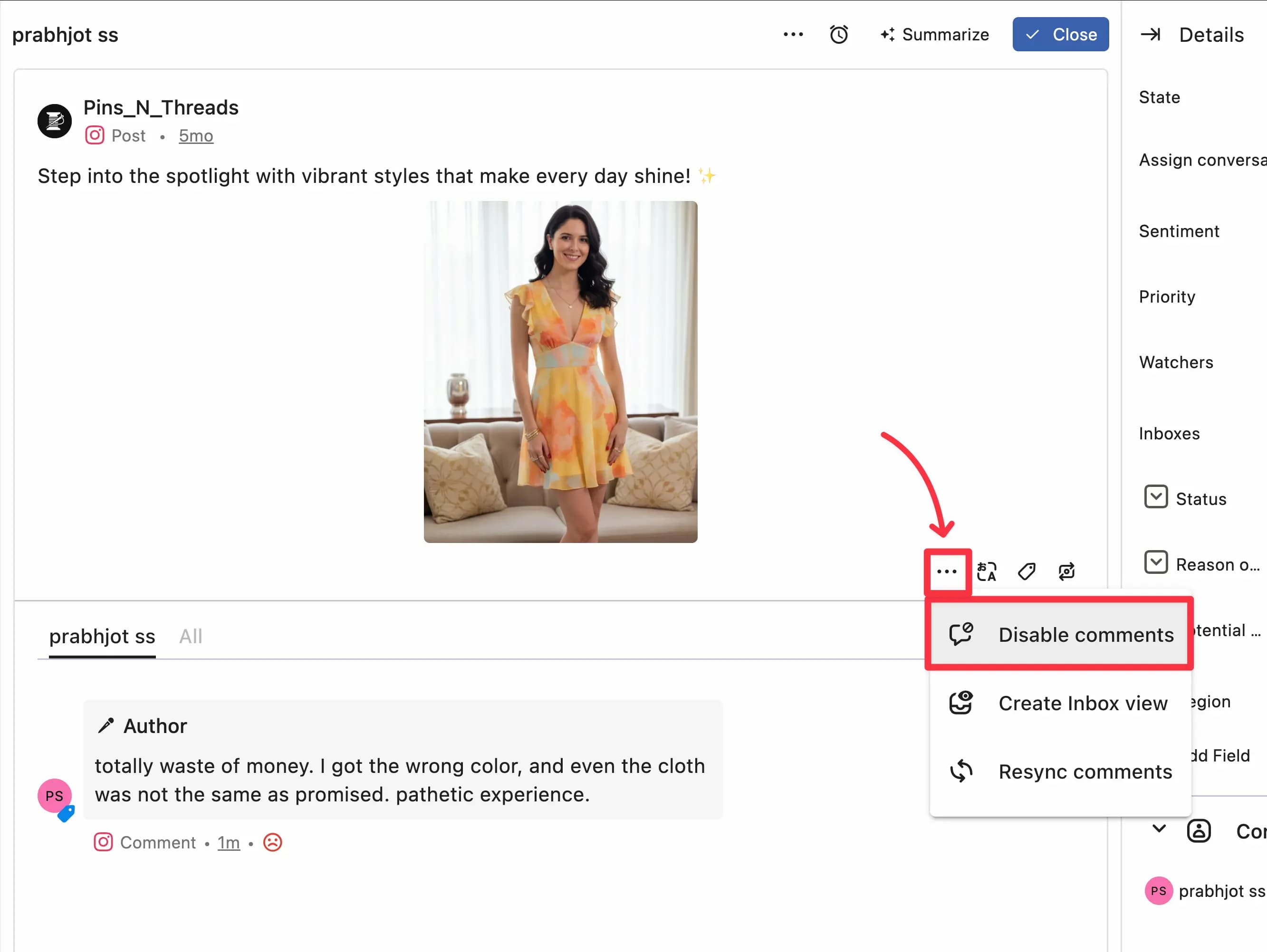
If you want to stop new comments entirely on a specific post, you can turn off the comment section from Engage.
Go to Engage and open any conversation on the post.
At the top of the conversation view, click (More).
Select Disable comments.
This turns off the comment section for that post on the platform. Available for owned media posts on LinkedIn, TikTok, and Instagram.
Start With A Ready-To-Use Template
Statusbrew includes pre-built Rule Engine templates for the most common moderation scenarios. Instead of building a rule from scratch, you can apply a template in a few clicks and be up and running immediately.
To use a template, go to Rule Engine > Add new rule, then browse the available templates. Select one, choose your Data sources, review the pre-configured filters and actions, and click Save.
Moderation Templates
Auto Hide Negative Comments: Automatically hides negative audience comments to keep your comment section free from spam, hate, and troll comments.
Auto Hide Comments with Links: Automatically hides comments that contain any kind of external links to reduce spam or phishing.
Auto Hide All Obscene/Offensive Comments (English Language): Hides comments containing obscene or offensive English words.
Auto Hide All Obscene/Offensive Comments (Spanish Language): Hides comments containing obscene or offensive Spanish words.
Auto Hide All Obscene/Offensive Comments (French Language): Hides comments containing obscene or offensive French words.
Auto Hide All Obscene/Offensive Comments (Hindi Language): Hides comments containing obscene or offensive Hindi words.
Auto Hide/Close All "Page Getting Disabled" Conversations: Protects against the widespread "Page Disabled" phishing scams.
Auto Hide All Comments w/ Gambling, Crypto Scam + Porn Links: Removes comments containing links to gambling, crypto scam, or porn sites.
Auto Hide All Comments w/ Bad/Dirty Emojis: Hides comments with sexual, violent, or inappropriate emojis.
Auto-Hide Negative Comments on Weekends: Hides negative audience comments during weekends to keep profiles clean while your team is offline.
Auto-Close Conversations With Only Mentions & No Text: Automatically closes conversations that contain only mentions (tags) without any text.
Auto-Close Conversations With Attachments: Automatically closes conversations containing attachments. Clears the inbox of low-value or non-actionable items.
Auto Prioritize Negative Reviews: Flags customer reviews with ratings 3 stars and below so your team can act quickly.
Categorization Templates
Auto Prioritize Important Conversations (For eCommerce): Flags conversations with e-commerce buying or service intent (orders, shipping, refunds, returns, payments) and marks them as priority.
Auto Prioritize Important Conversations (For Healthcare): Flags healthcare-related conversations (side effects, reports, insurance, emergencies) as priority so your team can respond immediately.
Templates come pre-configured with filters and actions. You can customize them after applying - add extra filters, change the action, or combine multiple actions like hiding a comment and closing the conversation in one rule.
How To Create Manual Engage Rules?
The Rule Engine lets you set up moderation rules that run automatically in real time.
Auto-Hide Or Delete Comments By Sentiment
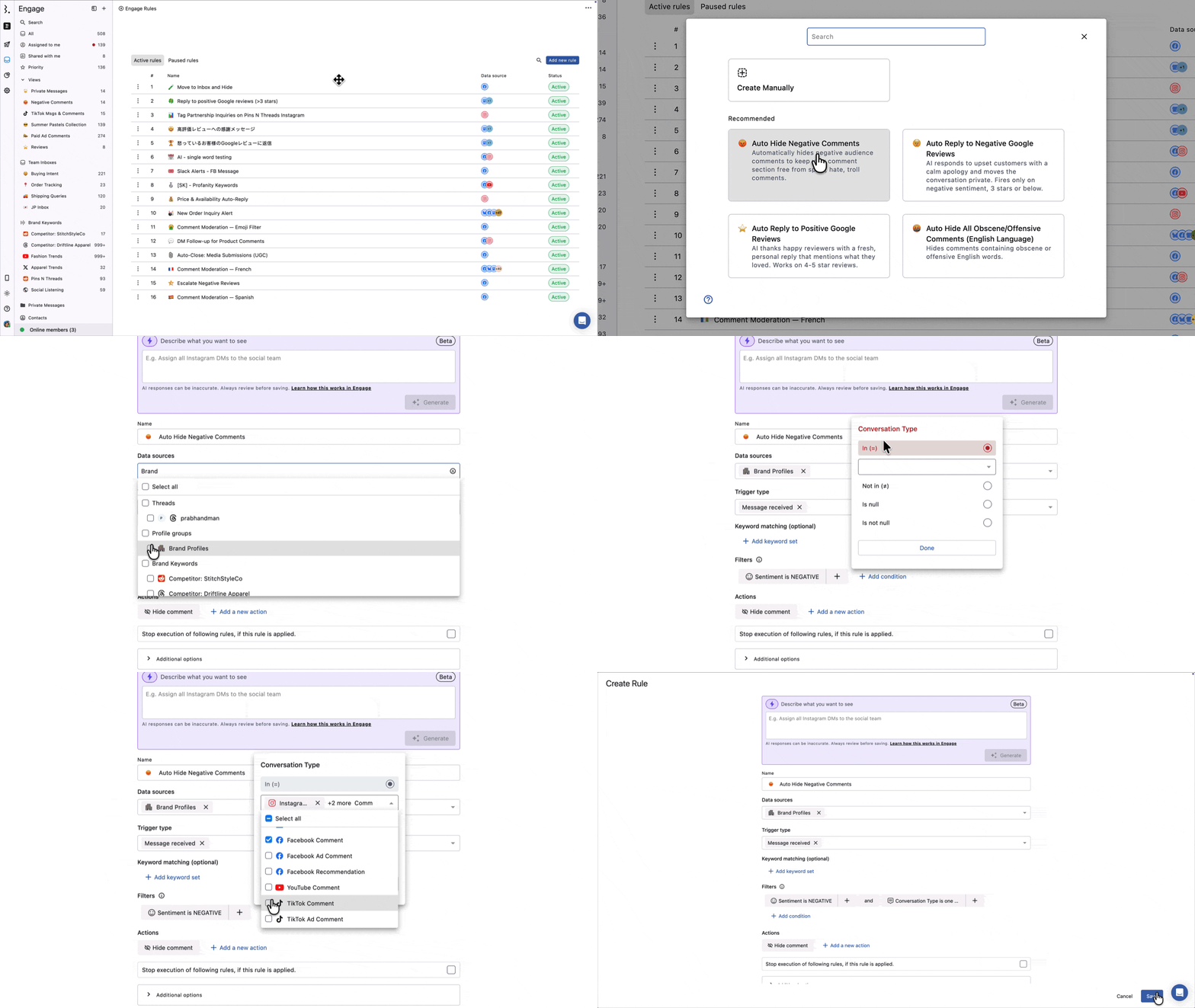
This is the most common moderation setup. Use it to automatically hide or delete negative comments as they come in, without manual review.
Statusbrew has a ready-to-use template for this called Auto Hide Negative Comments. It comes pre-configured with the sentiment filter and hide action already set up.
Go to Rule Engine and click Add new rule
Select the Auto Hide Negative Comments template
Select the Data sources
Review the pre-selected filter Sentiment is Negative and adjust it if needed.
Add a filter for Conversation type.
Select the comment type(s) for the networks you want to moderate, such as Facebook Comment, Instagram Comment, YouTube Comment, or TikTok Comment.
Optionally, add extra actions such as moving flagged comments to a Team Inbox or assigning them to a team member.
Click Save.
Sentiment auto-detection is available on Premium plan and above. On Standard and below, you can still manually label sentiment on conversations but not use it as an automated rule filter.
If you are running this rule during off-working hours, consider adding a second action. Move hidden comments to a dedicated Team Inbox (for example, "Hidden for Review") or apply a tag like "Auto-hidden". Your team can then review that inbox at the start of each day and unhide any legitimate comments that were caught by mistake.
Auto-Hide Comments By Keyword
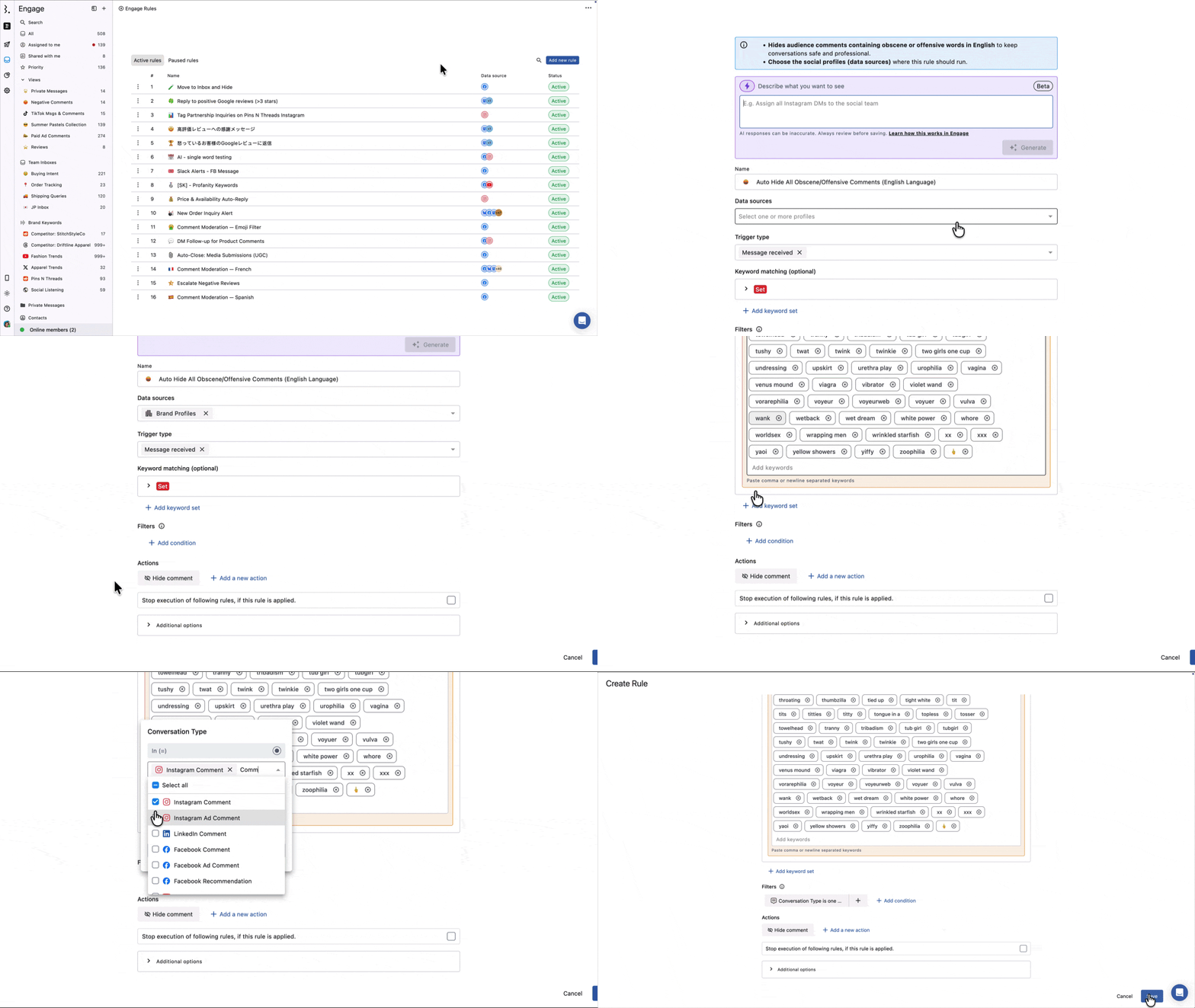
Go to Rule Engine and click Add new rule
Select Create Manually or choose a ready-to-use template
Name the rule, for example, Hide spam comments
Select the Data sources
Set the Trigger type to Message received
Under Keyword matching (optional), click Add keyword set
Give the set a name, choose a highlight color, and add your keywords
Add a filter for Conversation type
Select the comment type(s) for the networks you want to moderate, such as Facebook Comment, Facebook Ad Comment, Instagram Comment, Instagram Ad Comment, YouTube Comment, or TikTok Comment
Add an action: click Add a new action → Hide comment
Click Save
Keyword matching highlights matching keywords in the conversation list so your team can visually spot flagged comments at a glance. The filter is what actually triggers the rule action.
Auto-Hide Comments Containing Links
To catch spam link drops without relying on keywords.
If you want to keep the things simple and fast, you can try our template named “Auto Hide Comments with Links”.

Or you can take more steps to specify the outcome.
Add a filter: Add condition → Message Links Count → Is not null.
Combine with a Conversation type filter (e.g., Facebook Ad Comment, Instagram Ad Comment) to limit scope.
Add the Hide comment or Delete comment action.
Auto-Set Sentiment By Condition
Statusbrew’s AI assigns sentiment to every incoming conversation, but it can misread slang, sarcasm, or industry wording. Positive slang like “sick” or “fire” often gets flagged as negative.
Instead of correcting these one at a time, set up a rule that applies the sentiment you want to any conversation matching a condition you define.
Go to Rule Engine and click Add new rule
Select Create Manually
Name the rule, for example, Fix Sentiment For Positive Slang
Select the Data sources
Under Keyword matching, click Add keyword set
Give the set a name, choose a highlight color, and add the words the AI gets wrong, such as sick, fire, insane, killer, unreal
Add a filter for Conversation type and select the types you want this to apply to, such as Facebook Comment, Instagram Comment, or YouTube Comment
Add an action: click Add a new action → Set Sentiment
Pick the sentiment to apply: Positive, Neutral, Negative, or Mixed
Click Save
The sentiment you pick applies to the matching message and its conversation, overriding whatever the AI assigned. The change is logged, so hovering over the sentiment on the conversation shows the rule that set it.
Set Sentiment works on every conversation type, not just comments. Change the Conversation type filter to apply the same rule to mentions, DMs, and reviews.
Rules run in the order they appear in Rule Engine. Put your Set Sentiment rule above any rule that filters on sentiment, such as Auto Hide Negative Comments. If it sits below, the hide rule acts on the AI’s original value and your correction arrives too late.
Pair this with a tag. Add a second action of Add tags with something like Sentiment corrected, then use the Tag Insights report to see how often the rule fires and whether your keyword list still fits.
How To Moderate Post Comments In Bulk?
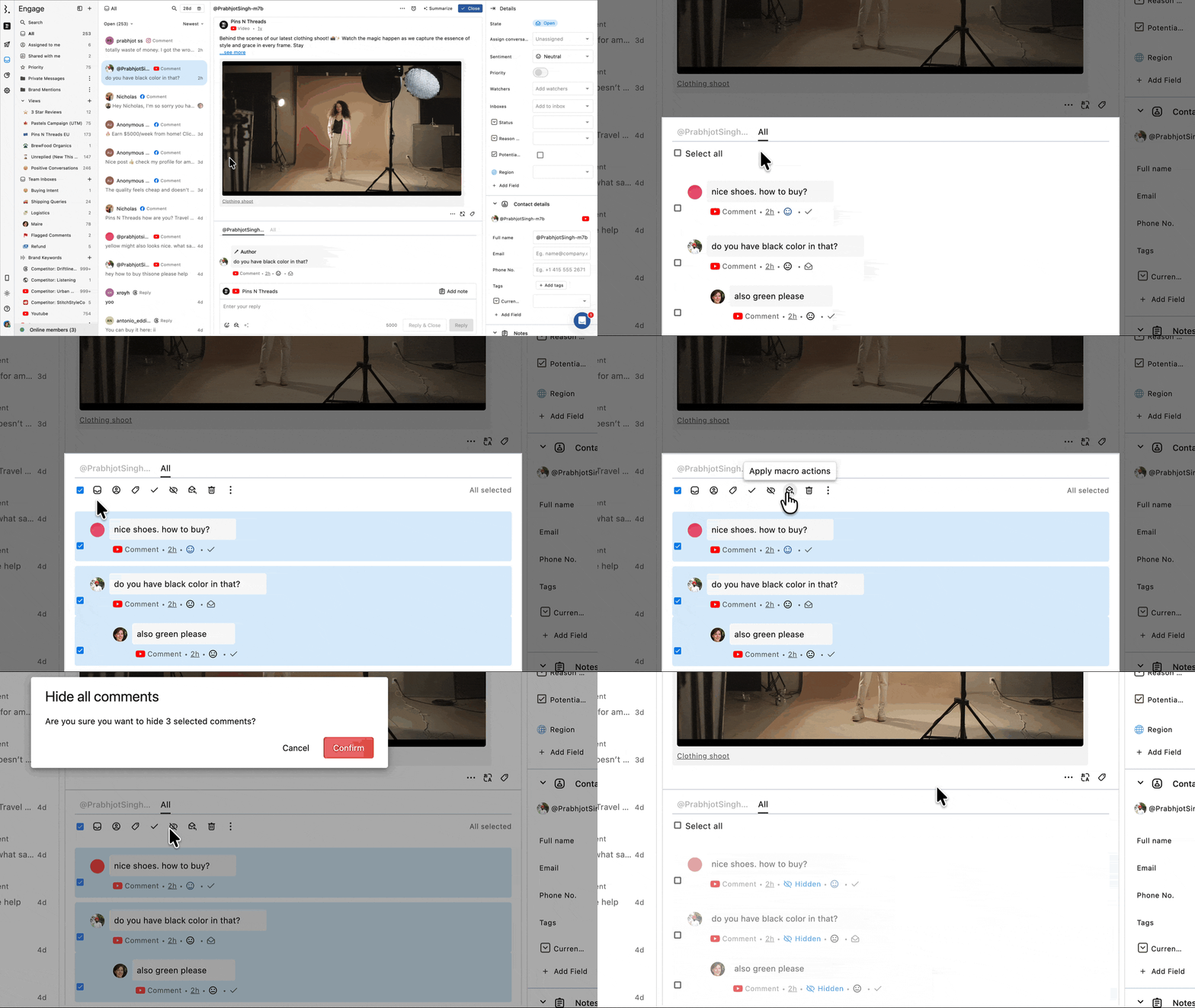
Go to Engage and open a post's conversation view.
Click All beside the post to see all comments.
Hover over a comment and click the checkbox to select it. Click Select all to select all visible comments.
Choose the action: Hide, Unhide, Delete, Add tags, Assign, or Close.
Bulk hide and delete are available for Facebook, Instagram, TikTok, and YouTube comments.
How Team Moderation Works?
Assign Conversations To The Right Person
Any flagged or escalated comment can be manually assigned to a specific team member or user group. You can also automate assignment by rule. For example, automatically route all negative-sentiment comments to a senior agent.
Collision Detection
Collision detection prevents duplicate responses. If two agents open the same conversation at the same time, a typing indicator appears to prevent them from stepping on each other. Available on Premium plan and above.
Internal Notes
Internal notes let your team coordinate without leaving the platform. Add a note on any conversation and @mention a teammate. They get an in-app notification immediately.
Macros
Macros speed up moderation at scale. Create a macro that hides a comment, tags it as "Spam," and closes the conversation in one click. All users in the space can apply macros once an Admin creates them.
Audit Trail
Every action is logged. Statusbrew keeps an audit trail on every hide, delete, assign, and close. It is visible inline on the comment and in the full Conversation History log.
Moderation On Mobile
The Statusbrew mobile app (iOS and Android) includes the full Engage inbox. Available on all plans.
FAQs
Does Statusbrew Work On Paid Ads As Well As Organic Posts?
Yes. Statusbrew supports comment moderation for both organic posts and paid ads on Facebook, Instagram, and TikTok.
For TikTok ad comments, make sure your TikTok ad account is connected. If the TikTok ad account is not connected, ad comments may appear like regular organic comments, and the TikTok Ad Comment label will not be visible.
Statusbrew does not backfill older TikTok ad comments. Once the TikTok ad account is connected, new TikTok ad comments will automatically start syncing into Engage.
How Does Hiding Behave Differently Across Networks?
Facebook: Parent and child comments are hidden independently. Hiding a parent does not automatically hide its replies.
Instagram and TikTok: Hiding a parent comment automatically hides all its child replies.
Threads: Child comments cannot be hidden directly. Hiding a parent automatically hides its children.
X: Solo replies can be hidden and unhidden independently. Hiding a parent also hides its child's replies.
YouTube: Hiding works for comments.
On LinkedIn, hiding is not supported. You can only delete comments.
Can I See Comments In Context, With Reply Threads Nested Under The Original Comment?
Yes. When you open a post's conversation in Engage, the original post appears at the top with all comments below it. Replies to a comment appear in a threaded view under it, so you can see what others are responding to before taking action.
Can I See DMs And Mentions In The Same Place As Comments?
Yes. Engage is a unified inbox. Comments, DMs, mentions, ad comments, and reviews from all connected profiles all appear in one place. You can filter by conversation type to focus on specific message types.
Does Auto-Hide Use AI Or Just Keyword Matching?
Both. You can set up keyword-based rules that hide comments containing specific words. The AI Keyword Assistant can generate keyword sets for you. On Premium plan and above, sentiment-based auto-moderation is also available.
Can I Change A Conversation’s Sentiment Automatically?
Yes. Create a rule in Rule Engine with the Set Sentiment action. Any conversation that matches your filters gets the sentiment you pick applied to both the message and its conversation, overriding the AI’s classification. It works with comments, mentions, DMs, and reviews across all plans. Creating the rule needs Admin access or above. To correct a single conversation instead, click the sentiment icon on the message in Engage and pick the right one.
Can I Use Set Sentiment On Standard And Lite Plans?
Yes. The Set Sentiment action is available on all plans. What is limited on Standard and below is AI sentiment auto-detection, which is available on Premium plans and above. On lower plans, incoming conversations lack an AI-assigned sentiment, so a rule that uses Message Content or Conversation type filters is a practical way to apply sentiment yourself.
Can I Set Sentiment To Unknown?
No. Set Sentiment offers four values: Positive, Neutral, Negative, and Mixed. Mixed covers messages carrying both positive and negative opinions. There is no Unknown or Clear option, so a rule cannot strip a sentiment once it has been assigned.
What Happens To A Hidden Comment? Is It Gone For Good?
No. Hidden comments are removed from public view on the platform but remain visible to you in Statusbrew, blurred and labeled as Hidden. You can unhide them at any time. Deletion is permanent and cannot be reversed.
Can Statusbrew Block A User So They Can't Comment Again?
For Facebook Pages, yes. Use the Ban user button in the Contact Sidebar to block a commenter directly from Statusbrew. For other networks, blocking is not available via the API and must be done natively on each platform.
Can Multiple Team Members Moderate At The Same Time Without Duplicating Actions?
Yes. On Premium and above, collision detection shows a real-time typing indicator when a teammate is already working on a conversation. On all plans, the audit trail shows who took each action, ensuring a clear record.
Can I Moderate Comments From My Phone?
Yes. The Statusbrew mobile app for iOS and Android includes the full Engage inbox. You can hide, delete, assign, and reply to comments from your phone. Available on all plans.
How Many Comments Can Statusbrew Handle Per Day?
There is no Statusbrew-imposed daily limit. Volume limits are determined by each social network's API. For high-volume use cases, automated rules are the recommended approach. They run in real time and automatically process every incoming comment.
Does Snapchat Moderation Work In Statusbrew?
No. Snapchat is not a supported network in Statusbrew.
Why were some important comments automatically hidden or closed?
This usually happens because an automation rule in Rule Engine matched that comment and performed the hide or close action.
Open Rule Engine and review your active rules to see which rule may be hiding or closing those comments.
In the conversation view, matched terms or conditions may be highlighted when a rule uses specific keywords. You can hover over the highlighted part to check which rule was triggered.
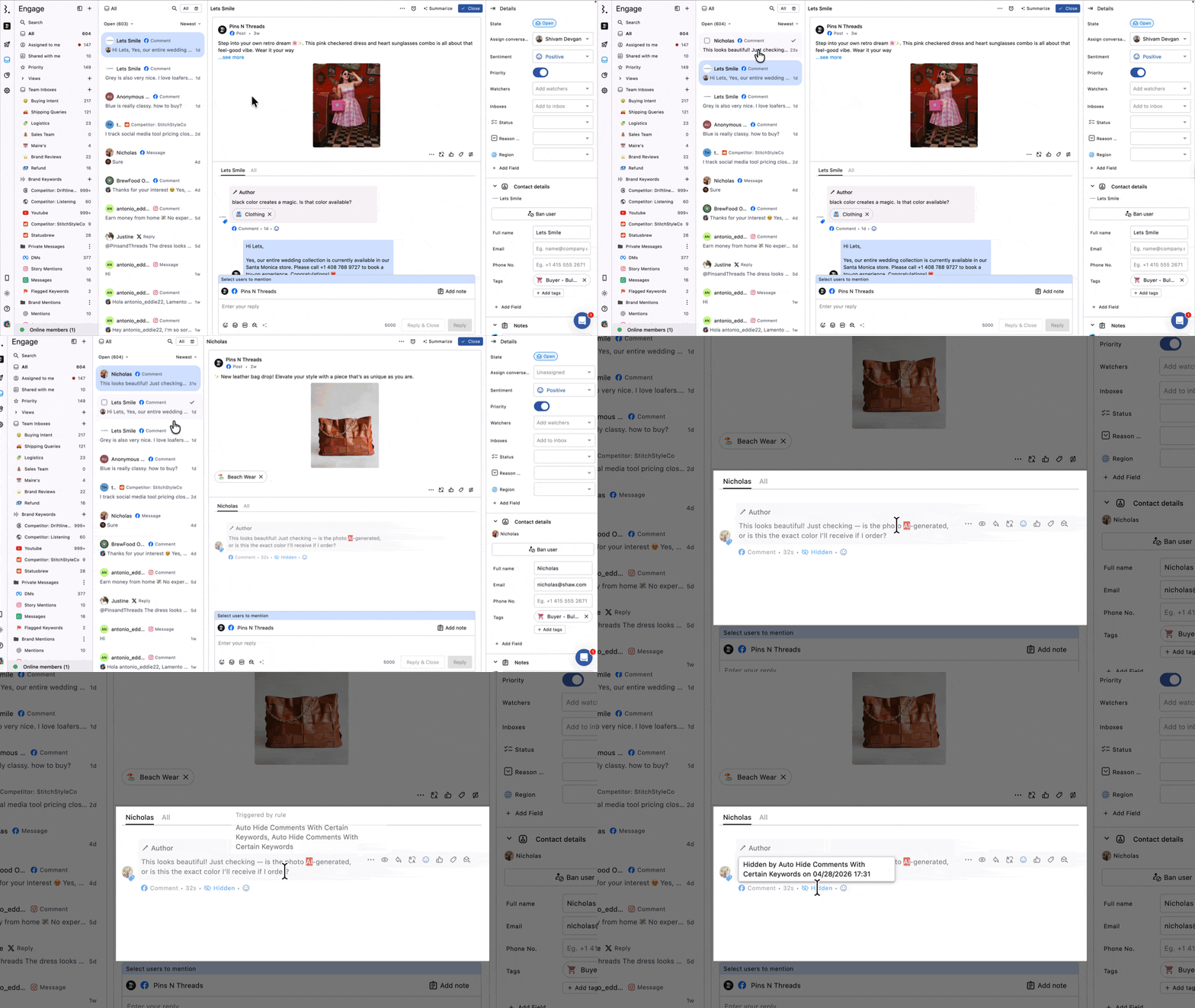
Once you find the rule, update its conditions or actions so important comments are not automatically hidden or closed again.
Why were some important comments automatically hidden or closed?
This usually happens because an automation rule in Rule Engine matched that comment and performed the hide or close action.
Open Rule Engine and review your active rules to see which rule may be hiding or closing those comments.
In the conversation view, matched terms or conditions may be highlighted when a rule uses specific keywords. You can hover over the highlighted part to check which rule was triggered.
Once you find the rule, update its conditions or actions so important comments are not automatically hidden or closed again.
Why Can’t I Hide Or Reply To TikTok Ad Comments?
You may see this error:
“Authorization expired or canceled, no permission to operate [comment id]”
This does not mean the TikTok connection has expired. It means the TikTok account used to publish the ad was authorized in the TikTok Business Center without comment management permission. Comments can still sync to Statusbrew, but moderation actions will fail.
To fix it:
Open TikTok Business Center
Go to Assets → TikTok accounts
Find the TikTok account used as the ad’s posting identity
Edit or re-authorize its permissions
Enable comment management permission
Retry the action in Statusbrew.
You do not need to reconnect the profile in Statusbrew.