Download A Report Widget As A PNG Image
Download any report widget as a PNG image from its More (three dots) menu, ready to drop into a slide deck, email or chat.
Who Can Do This?
Anyone who can open the report in Statusbrew can download its widgets as images. Downloading does not change the report.
Download A Widget Image
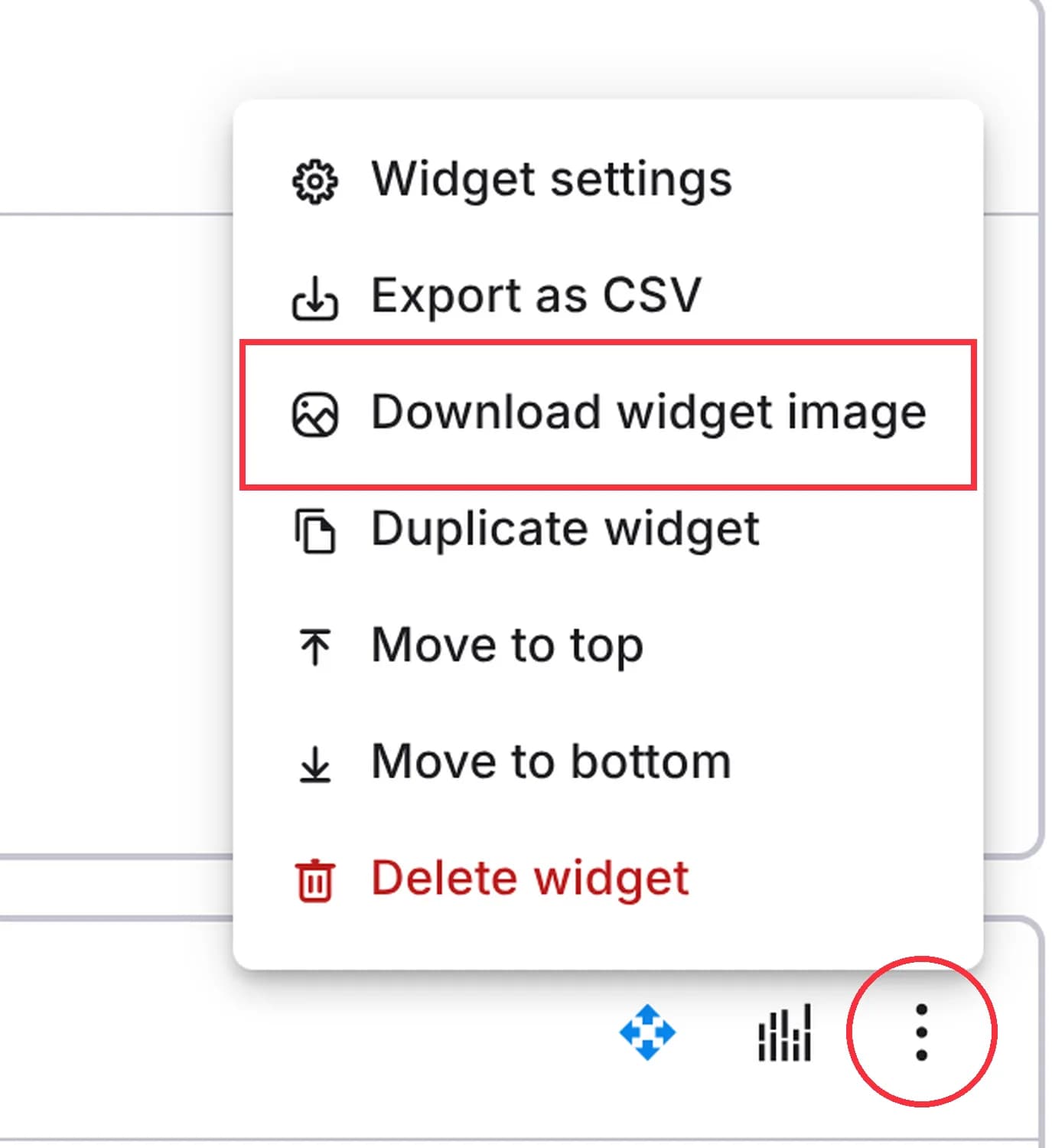
Go to Reports and open the report from the sidebar.
Hover over the widget you want to export and click More (three dots) in its top-right corner.
Select Download widget image.
Tip: To get the numbers behind a widget instead of a picture, select Export as CSV from the same menu.
What Happens After
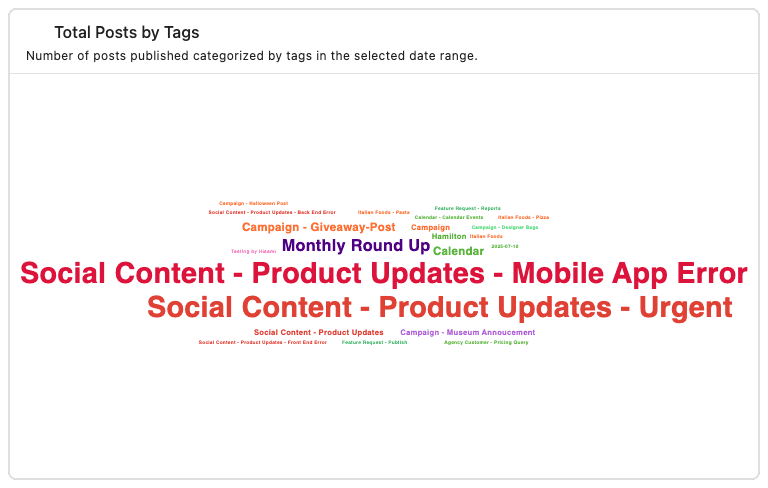
Your browser downloads a PNG file of the widget exactly as it appears on screen, with the report's current date range and filters applied. The file is named after the widget title, for example "How many new conversations do we get daily_.png".
FAQs
Can I Download A Whole Report Or Section As An Image?
No. Download widget image works one widget at a time. To share a full report, export it as a PDF or share a Live Link from Share at the top of the report.
Which Date Range Does The Image Use?
The one selected at the top of the report when you download it. Change the date range first if you need a different period.
Can I Download The Data Instead Of A Picture?
Yes. Select Export as CSV from the widget's More (three dots) menu.
Why Is My Downloaded Image Empty?
The image shows the widget as it is on screen. If the widget shows "Data not available. Please update your widget configs", fix the widget's profiles, metrics or date range first, then download it again.
Does Downloading A Widget Image Change The Report?
No. It only saves a copy of the widget to your computer.