Using Brew AI: Statusbrew's Content Creation Assistant
Use Brew AI in Compose to write, rewrite and translate social media captions in your brand voice.
What Is Brew AI?
Brew AI is Statusbrew's built-in AI writing assistant for social posts. It works inside Compose and gives you five options:
Generate from existing post: rewrites the caption you've already written.
Translate existing post: translates your caption into another language.
Generate from custom topic: writes captions from a topic you enter.
Generate from article: turns an online article into captions that include its link.
Generate from top performing posts: writes captions based on how your published posts performed.
Who Can Do This?
Plans: Brew AI is available on Premium plans and above.
AI credits: every Brew AI generation uses AI credits, and regenerating uses more. Your plan includes a monthly allowance, and you can buy more at any time.
Learn more in Understanding AI Credits.
How Do I Open Brew AI In Compose?
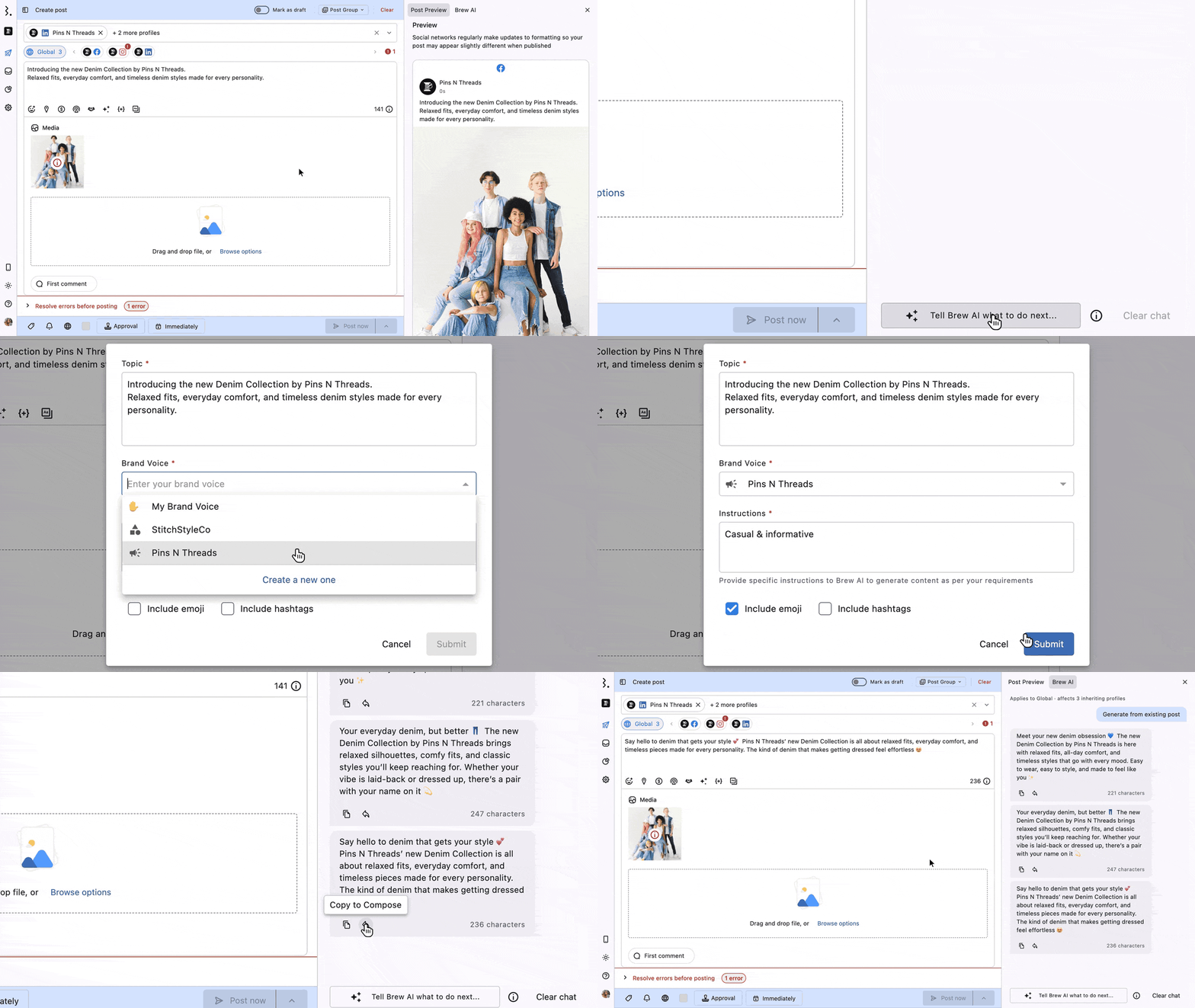
Go to Publish and click Create post.
Select the profiles you want to post to.
Click the sparkle icon (tooltip Brew AI) in the caption box toolbar, or click the Brew AI tab next to Post Preview. Both open the Brew AI panel.
Click Tell Brew AI what to do next... at the bottom of the panel. It opens the menu of options.
The line at the top of the panel shows which tab Brew AI works on:
On the Global tab: "Applies to Global · affects N inheriting profiles". Results you copy go to every profile that is inheriting from Global.
On a profile tab: "Applies to <profile> only · <profile> will stop inheriting Global". Results you copy go to that profile only, and it becomes customized.
What Do The Form Fields Mean?
Every option except Translate existing post opens a short form. Submit stays disabled until every required field is filled.
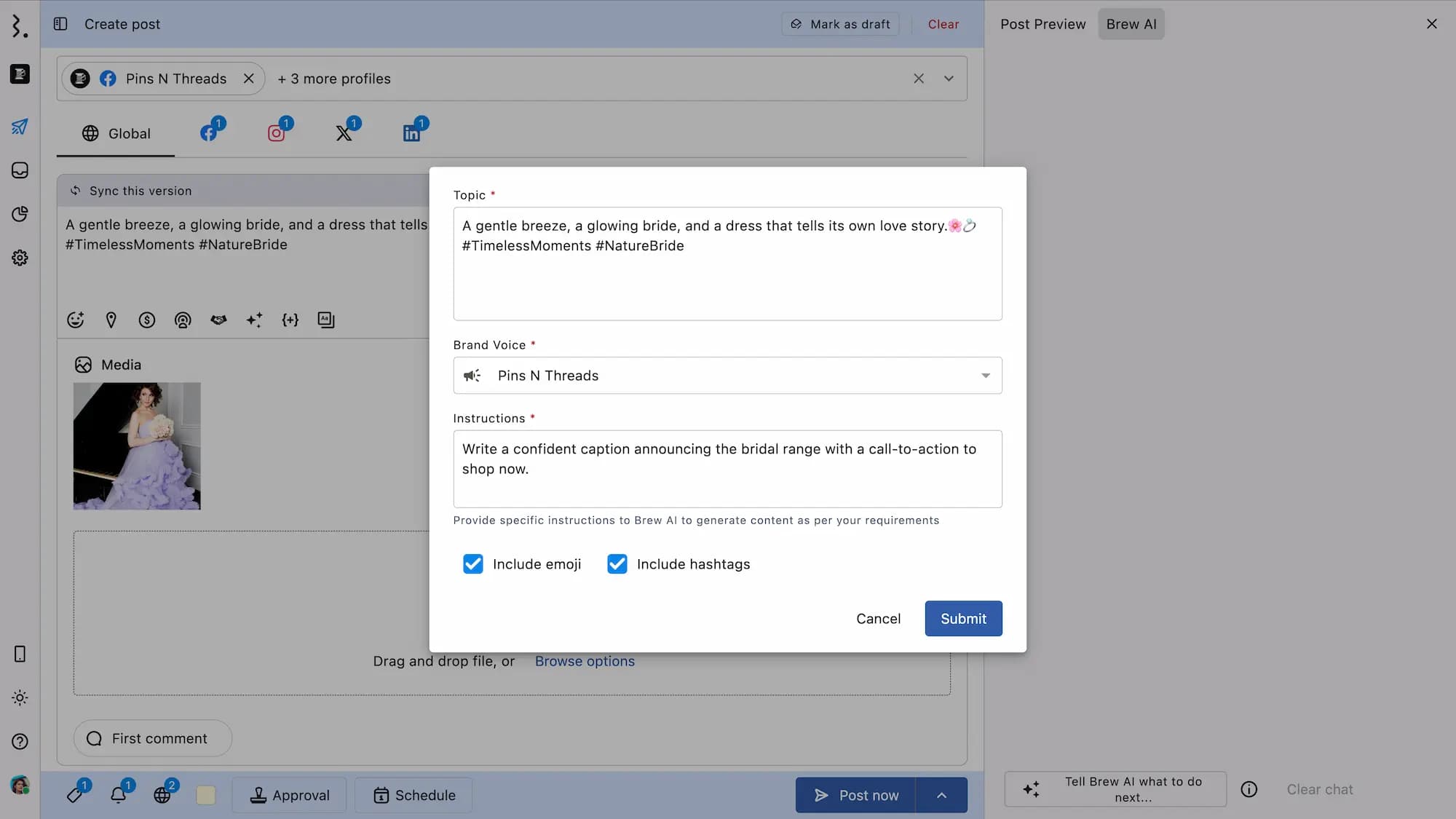
Topic (required): what the post is about.
Link (required): the URL of the article. Only in Generate from article.
Brand Voice (required): pick one of your brand voices. The dropdown remembers the last voice you used.
Instructions (required): tell Brew AI exactly what you want, for example "Rewrite in a more user-friendly tone." The more specific you are, the closer the result.
Include emoji: adds emojis to the captions.
Include hashtags: adds hashtags to the captions.
Include emoji and Include hashtags start unticked each time you open a form.
How Do I Rewrite My Caption?
Use Generate from existing post to refresh a caption or improve its tone and clarity.
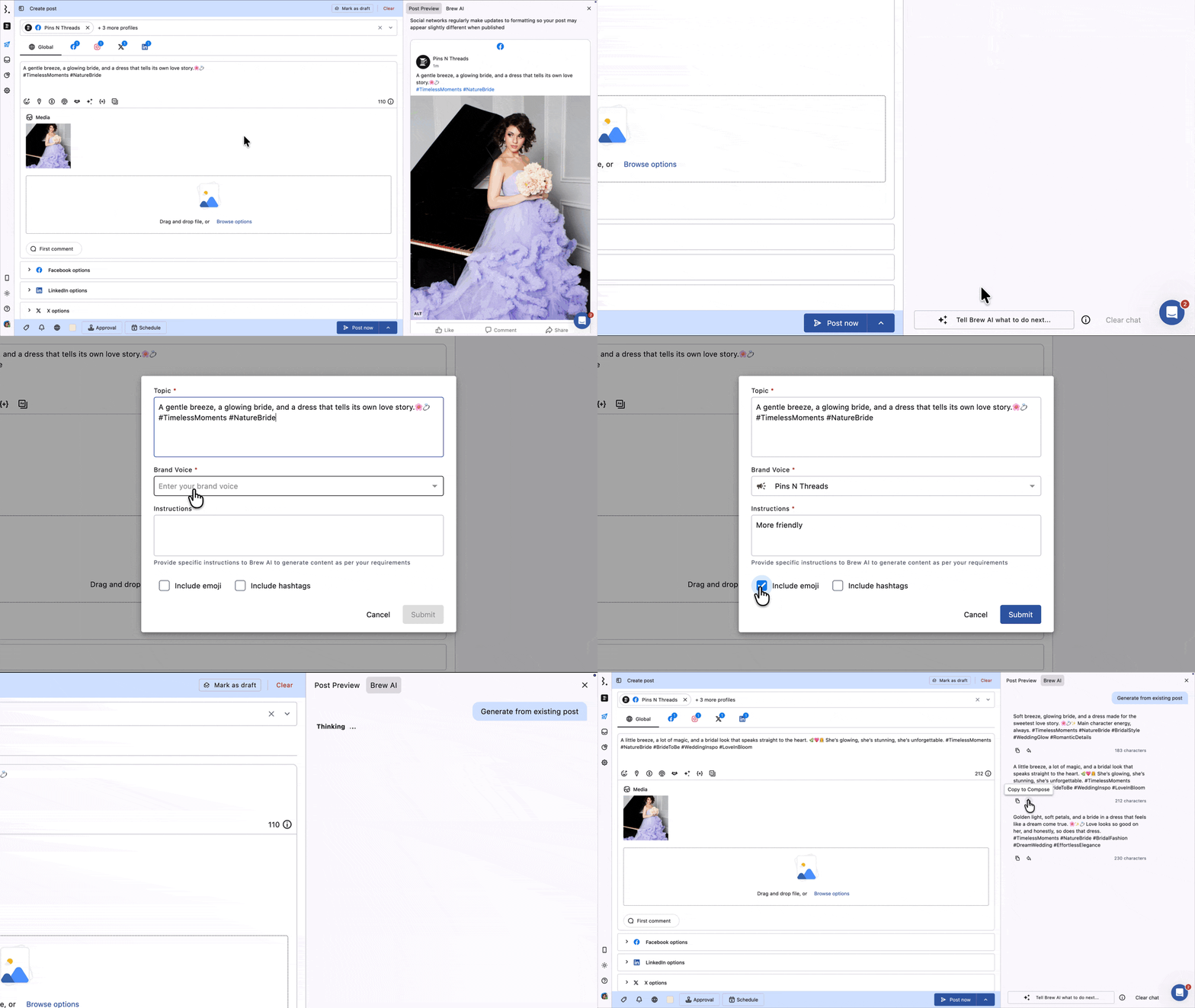
Write or paste your caption in the caption box. With an empty caption, this option is greyed out.
Click Tell Brew AI what to do next... and choose Generate from existing post.
Topic is already filled with your caption. Edit it if you like.
Pick a Brand Voice, enter your Instructions, tick Include emoji or Include hashtags if you want them, and click Submit.
Brew AI returns 3 suggestions.
How Do I Write A Post From A Topic?
Use Generate from custom topic when you're starting from an idea, for example "Introduce our new vegetarian burger".
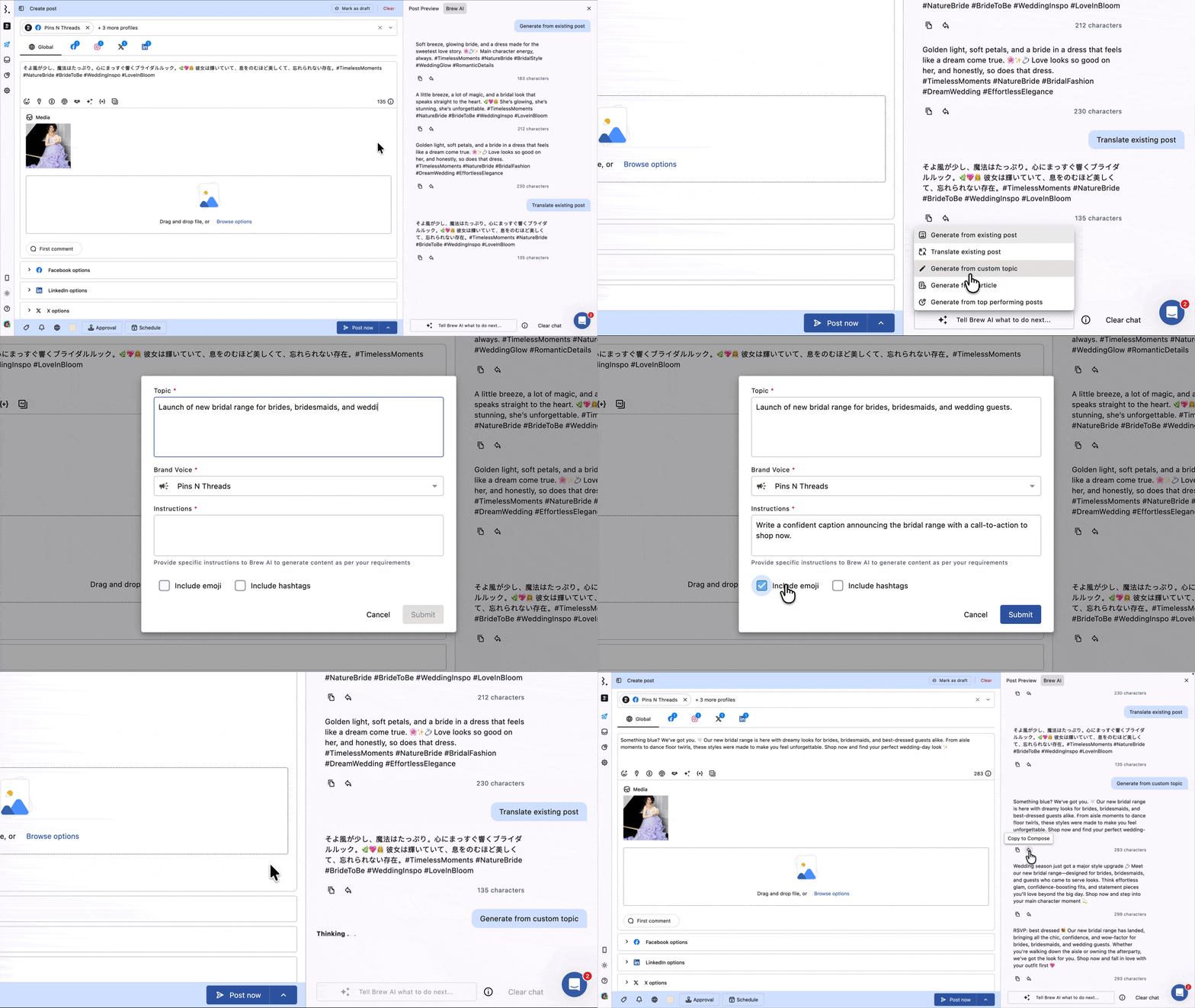
Click Tell Brew AI what to do next... and choose Generate from custom topic.
Enter a Topic. It starts empty.
Pick a Brand Voice, enter your Instructions, choose the emoji and hashtag options and click Submit.
Brew AI returns 3 suggestions.
How Do I Turn An Article Into A Post?
Use Generate from article to share a blog post, news story or press release.
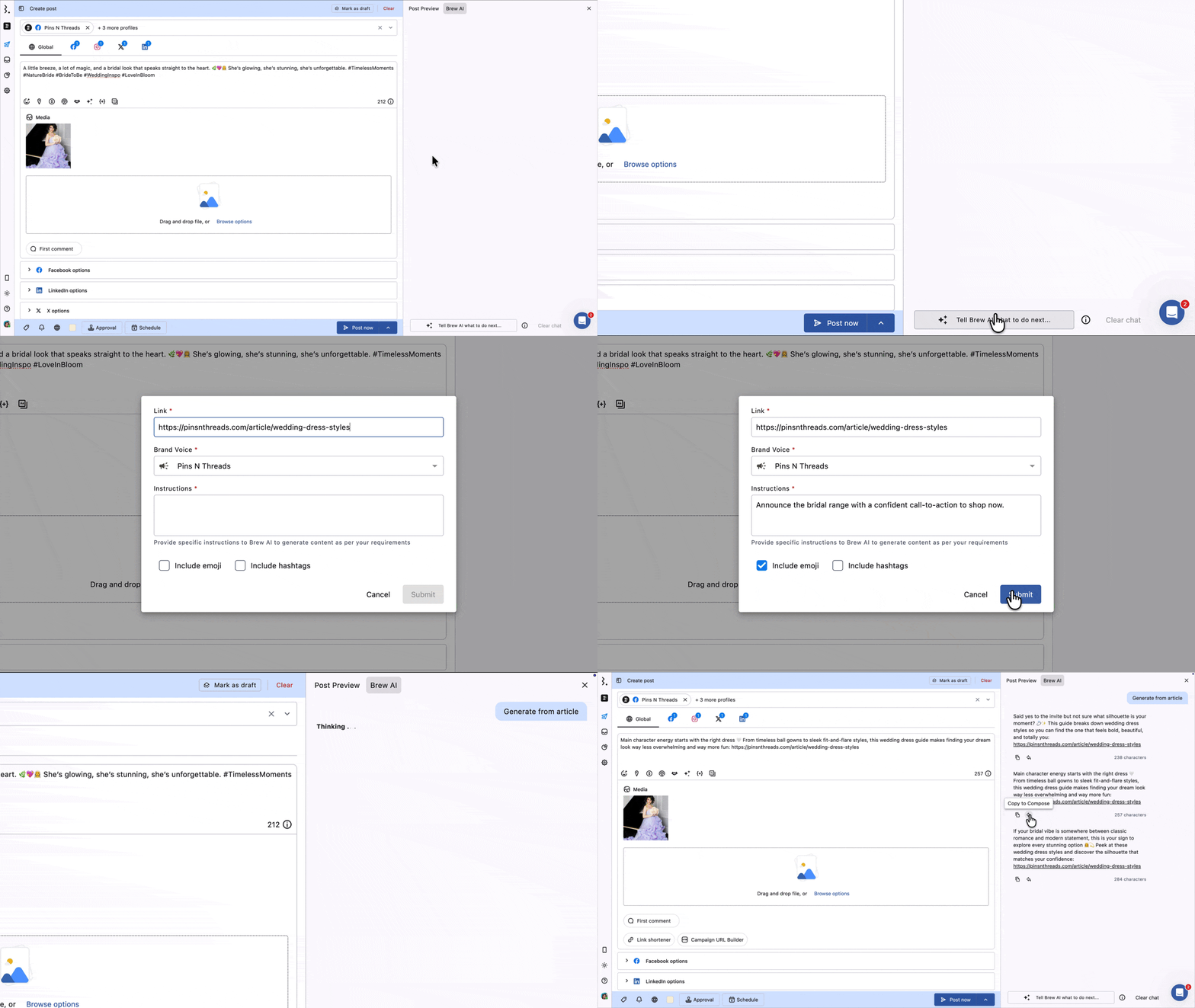
Click Tell Brew AI what to do next... and choose Generate from article.
Paste the article URL in Link.
Pick a Brand Voice, enter your Instructions, choose the emoji and hashtag options and click Submit.
Brew AI returns 3 suggestions, and each one includes the article link.
How Do I Write Posts Like My Best Ones?
Use Generate from top performing posts to write captions based on how your published posts performed. You need published posts on the selected profiles for it to work from.
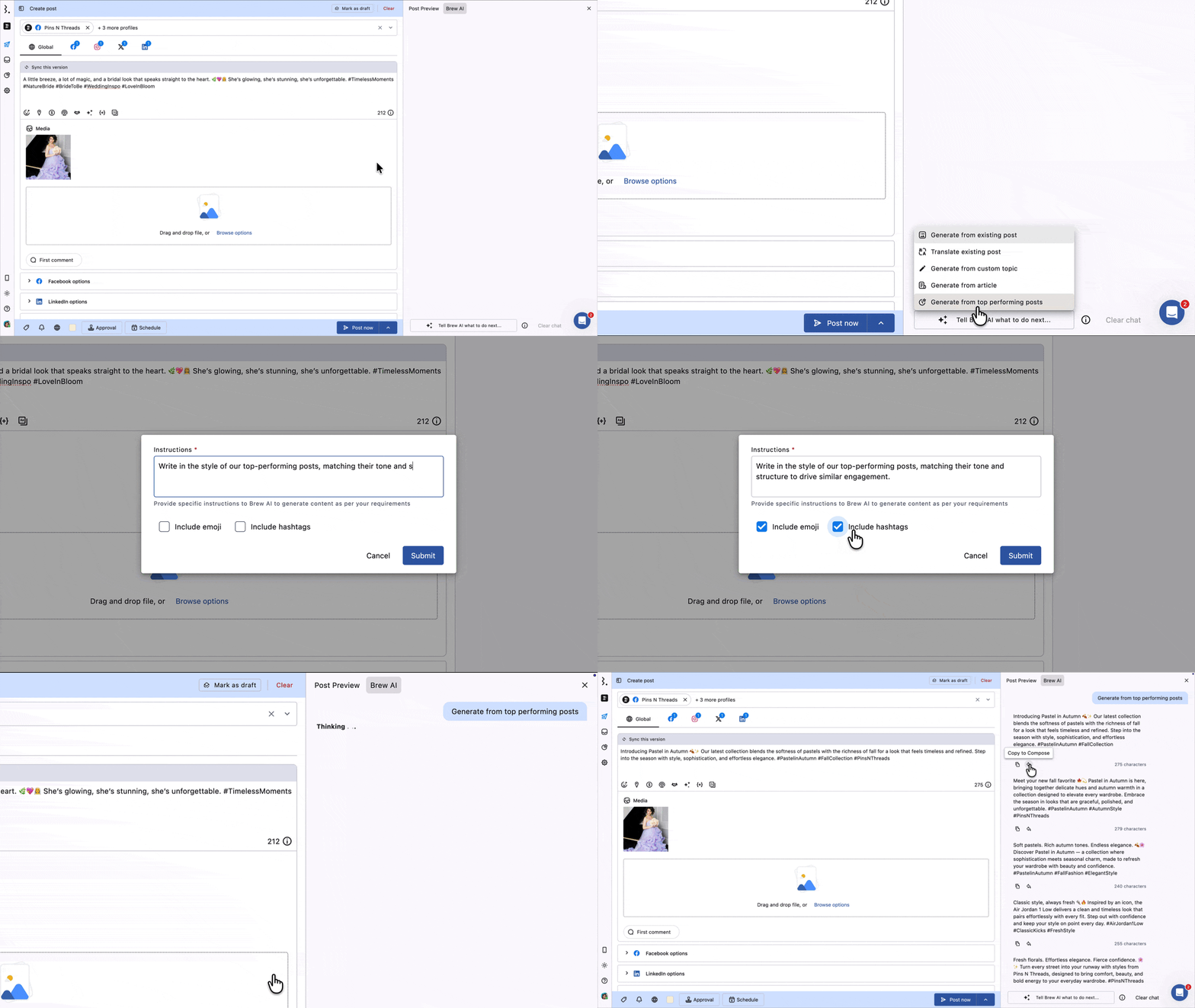
Click Tell Brew AI what to do next... and choose Generate from top performing posts.
Enter your Instructions, for example "Take inspiration from posts with high reach. Create post text for dance-related videos." There is no topic or brand voice field.
Choose the emoji and hashtag options and click Submit.
Brew AI returns 5 suggestions.
How Do I Translate A Caption?
Translate existing post has no form. It opens a language list and translates as soon as you pick one.
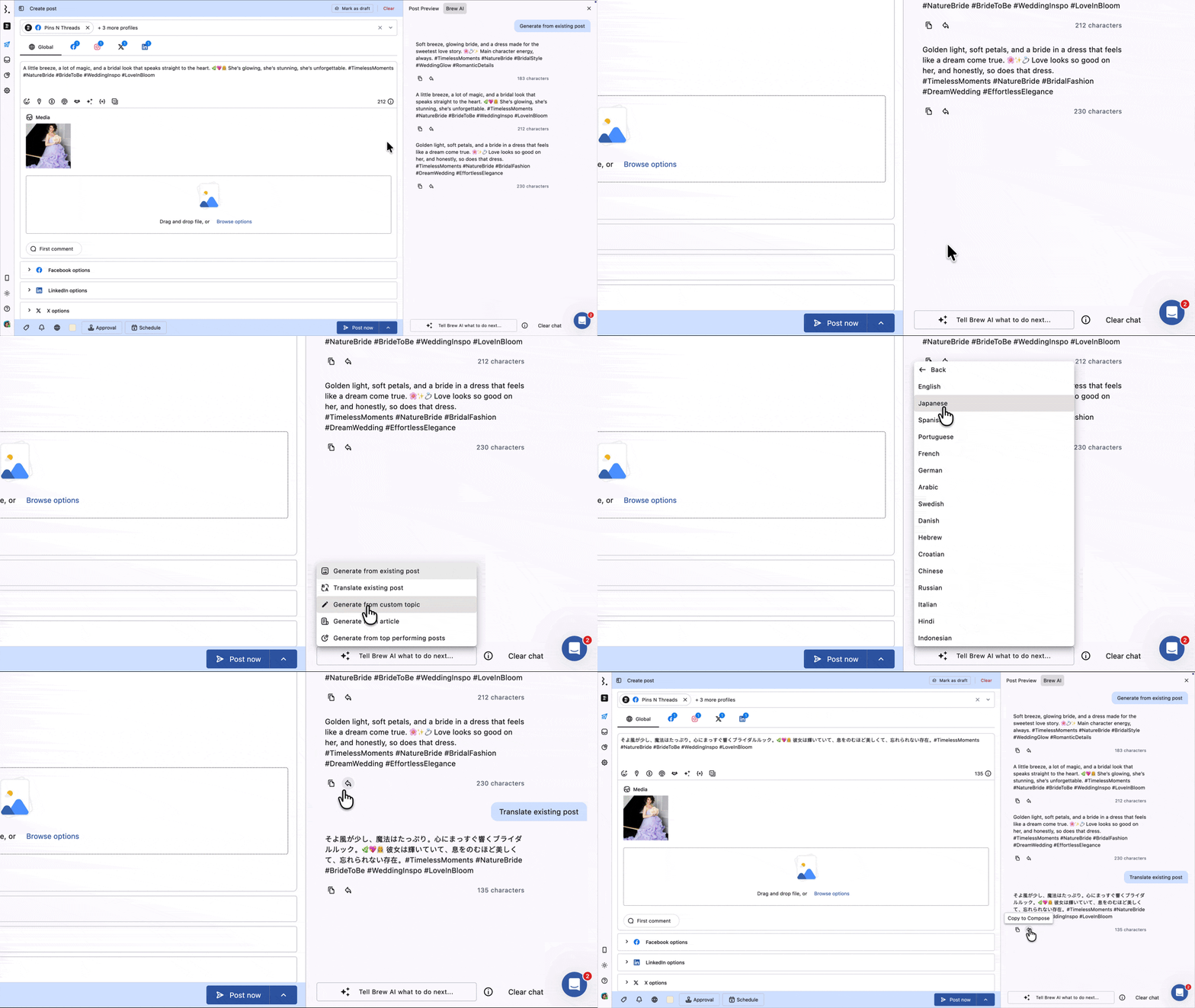
Write or paste your caption in the caption box. With an empty caption, this option is greyed out.
Click Tell Brew AI what to do next... and choose Translate existing post.
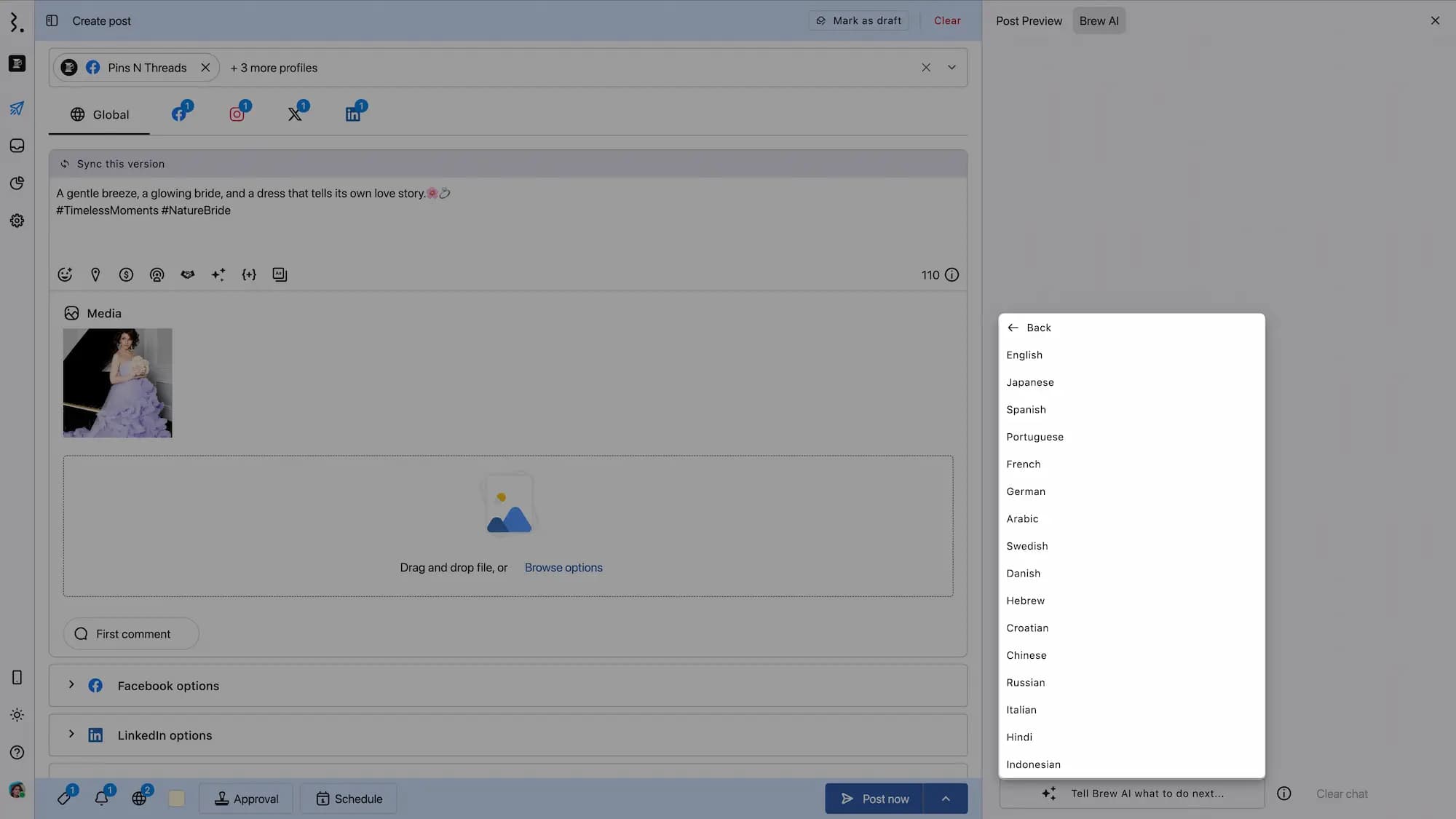
Click a language. To find one quickly, type in the Search... box at the top, for example "spa" for Spanish, then use Up Down and press ↵.
Brew AI returns 1 translated result.
After your first translation, the list shows Frequently used at the top with the languages you've used, then Languages with the full list. Before that, it shows only the full list.
You can translate into 17 languages: English, Japanese, Spanish, Portuguese, French, German, Dutch, Arabic, Swedish, Danish, Hebrew, Croatian, Chinese, Russian, Italian, Hindi and Indonesian.
How Do I Use The Results?
Results appear in the panel like a chat. Each request shows its option name, for example "Generate from existing post", followed by the suggestions. Run another option and the new results appear below the old ones.
Each suggestion shows its character count and two buttons:
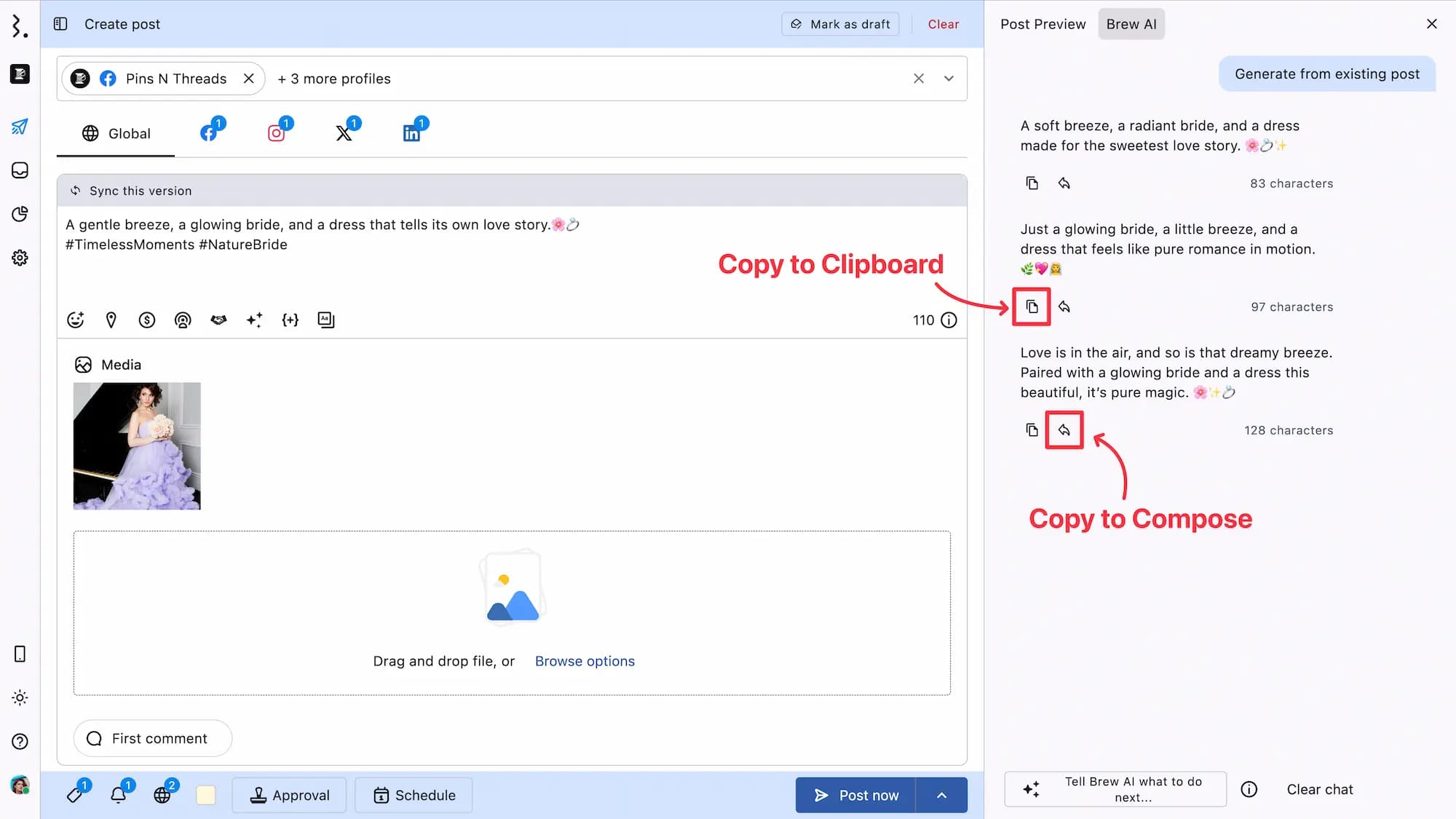
Copy to clipboard: the copy icon copies the text so you can paste it anywhere.
Copy to Compose: the reply arrow icon replaces the caption in the tab named at the top of the panel. It doesn't add to your existing text.
At the bottom of the panel:
Tell Brew AI what to do next...: opens the menu so you can run any option again.
Info icon: a reminder that AI responses can be inaccurate, so always review before publishing.
Clear chat: clears every result in the panel at once, with no confirmation. It's greyed out when the panel is empty.
Then finish your post as usual. Open the Post Preview tab to check it before you click Post now or Schedule. Learn more in How Can I Schedule Social Network Posts With Statusbrew?
Your edits to generated text are not used to train Brew AI. They stay private.
How Do I Create A Brand Voice?
Your brand voice is the tone and writing style your posts should have, such as trustworthy and formal for PR posts, or upbeat for campaigns. Generate from existing post, Generate from custom topic and Generate from article need one.
To create one, go to Settings → AI brand voice. For the full steps, see How To Set Up Brand Voice In Statusbrew?
You can also create one without leaving Compose: open the Brand Voice dropdown in any of those forms and click Create a new one.
FAQs
Why Are Some Brew AI Options Greyed Out?
Your caption box is empty. Generate from existing post and Translate existing post work from your caption, so they stay greyed out until there is text. The other three options work without a caption.
Why Can't I Click Submit?
A required field is empty. Instructions is required in every form, along with Topic and Brand Voice, or Link and Brand Voice for an article.
Can I Type My Own Prompt To Brew AI?
Yes, in the Instructions field of each form. Tell Brew AI what to do next... is a button that opens the options menu, not a text box.
Does Copy To Compose Add To My Caption?
No. It replaces the caption in the tab named at the top of the panel. Use the copy icon instead if you want to paste the text somewhere in your caption yourself.
Why Did Copy To Compose Only Change One Profile?
The panel applied to a profile tab ("Applies to <profile> only"), so only that profile got the text, and it stopped inheriting Global. If the panel applied to Global, profiles you customised kept their own content. Open the Global tab and copy again to update every inheriting profile.
Which Languages Can Brew AI Translate Into?
17 languages: English, Japanese, Spanish, Portuguese, French, German, Dutch, Arabic, Swedish, Danish, Hebrew, Croatian, Chinese, Russian, Italian, Hindi and Indonesian. Type in the Search... box to find one quickly.
Why Don't I See Frequently Used In The Translate List?
You haven't translated with Brew AI yet. The group appears after your first translation.
Which Plans Include Brew AI?
Premium plans and above. Each generation uses AI credits from your plan's monthly allowance.
Does Brew AI Learn From My Edits?
No. Edits you make to generated text are not used to train Brew AI.