Using Statusbrew Via MCP-supported AI Tools
Connect Claude, ChatGPT, or any MCP-compatible AI assistant to your Statusbrew account to manage posts, approvals, analytics, and more through natural conversation.
Statusbrew MCP supports Publish, Reports and read-only Engage. In Engage, your AI tool can find and read conversations and look up CRM contacts, and add internal notes that mention teammates or user groups. It can't reply to, close, snooze, assign or tag conversations, and it can't create or edit rules. Do those in Engage in Statusbrew. The Statusbrew team is actively working on expanding MCP capabilities.
What Is MCP
MCP (Model Context Protocol) is an open standard that lets AI assistants connect directly to external tools and services. It was originally developed by Anthropic and is now supported by OpenAI, Google, Microsoft, and others.
When you connect an AI tool to Statusbrew via MCP, the AI can read your data and take actions in Statusbrew on your behalf, directly from the AI's chat interface. You use the AI tool you already work with. No new tools to learn.
Who Can Use This
Plan availability: MCP connectivity is included on the Enterprise plan. It is also available as a +$100/month add-on for Premium plan users.
All user roles (Primary Owner, Owner, Admin, Regular User) can connect to an AI tool. The AI tool will only be able to access the profiles and data that your individual Statusbrew account has permission to view and manage.
What You Can Do Once Connected

Once connected, you can ask your AI tool to draft posts, manage calendar items, review approvals, read your Engage inbox, and fetch reporting data from Statusbrew.
Content and publishing: Create, update, or bulk-create draft posts across your connected social profiles, with text, date, time, media, and tags pre-filled. You schedule or publish them from Statusbrew.
Media: Attach images and videos to drafts from the public, direct file links.
Content calendar: View your upcoming schedule across channels, create calendar events for content planning, and fill gaps without leaving the AI chat.
Approvals and workflow: Review posts awaiting your approval, then approve or reject them with a reason. Approved posts are scheduled automatically.
Engage inbox: Find and read Engage conversations, including comments, DMs, mentions, reviews, and listening results. Filter by state, unread, date, sentiment, and assignee.
CRM contacts: Look up the contacts behind your conversations.
Tags and organization: Create tags and apply them to posts or calendar events to keep campaigns organized.
Team collaboration: Read your team's internal comments on posts, add new ones, and add internal notes to Engage conversations. @mention teammates or user groups in either.
Analytics and reporting: Pull social, Engage, Google Analytics, competitor, and paid ads metrics across 75 supported metrics, and break them down by date, profile, country, device, UTM, and more.
Audience: Followers, Actual Growth, Followers Gained, Unfollowers
Awareness: Impressions, Views, Reach, Video Views
Awareness (Organic): Views (From Organic), Reach (From Organic)
Engagement: Engagement, Engagement Rate per Impression, Content Interactions, Reactions/Likes, Comments, Replies, Shares, Saves, Clicks
Engagement (Organic): Engagement, Engagement Rate per Impression, Reactions/Likes, Comments, Shares, Clicks
Post-Level: Post Count, Post Impressions, Post Views, Post Reach, Post Engagement, Post Engagement Rate (per reach), Post Engagement Rate (per impression), Post Total Interactions, Post Reactions/Likes, Post Comments, Post Replies, Post Shares, Post Saved, Post Clicks
Customer Service: Message Count, Conversation Count, Conversation Close Count, Conversation Close Time, Conversation Reply Count, Conversation Reply Time, Avg Star Rating
Competitor: Competitor Profile Followers, Competitor Post Total, Competitor Post Impressions, Competitor Post Engagement, Competitor Post Likes, Competitor Post Comments
Paid / Ads: Ad Spend, Ad Impressions, Ad Reach, Ad Clicks, Ad Engagements, Ad Conversions, Purchase Conversion Value, Ad Engagement Rate (per impression), Ad CPC, Cost Per Link Click, Cost Per Engagement, Cost Per Conversion, CPM, Cost Per Person Reached, ROAS
Google Analytics: Sessions, Total Users, Pageviews, Engagement Rate, Transactions, Total Revenue, Conversions, Event Count
Spaces and team management: Navigate across organizations and spaces, list connected social profiles, and manage multi-client workflows.
Google Analytics metrics return data only if a Google Analytics property is connected in the space. You can filter them to social traffic only, for example "How many website sessions came from social media last month?"
Here is the full list of actions your AI tool can take in Statusbrew via MCP:
Posts: Create posts, get posts, update posts, get post filters
Media: Upload images and videos for posts and calendar events
Approvals: Get pending approvals, approve posts, reject posts
Calendar: Get calendar, list calendars, list calendar events, create calendar events
Tags: Create tags, list tags, set tags on posts and calendar events
Comments: Add internal comments to supported posts, calendar items and Engage conversations, and view their activity history
Engage: Get conversations, get conversation messages, get Engage filter fields and values, add internal notes to conversations
CRM: Get contacts, get contact filter fields
Analytics: Get report insights, get report metric config, list report metrics, get available data sources
Channels and profiles: List channels, get filter values
Spaces and teams: List spaces, list organizations, get organization members, get space user groups
Account: Get current user details
Reports: Fetch Statusbrew reporting data and create custom report summaries or analysis inside your AI tool.
When configuring the Statusbrew connector in your AI tool, allow all tools at once. If you restrict permissions during setup, the AI will not be able to perform certain actions, and you will need to enable each action manually afterwards.
As of now, key Publish and Report features and read-only Engage are supported via MCP. The Statusbrew team is working on expanding MCP capabilities.
How to Connect Claude (claude.ai)
Statusbrew's Claude MCP integration is a paid add-on priced at $100. Please contact your Account Manager or the Statusbrew team to get it activated on your account.
And you also require a Claude Pro, Max, Team or Enterprise plan and an add-on in Statusbrew. On both plans, an Owner must first add the Statusbrew connector at the organization level (Admin settings → Connectors) before individual team members can connect to it. Free users can connect one custom connector only.
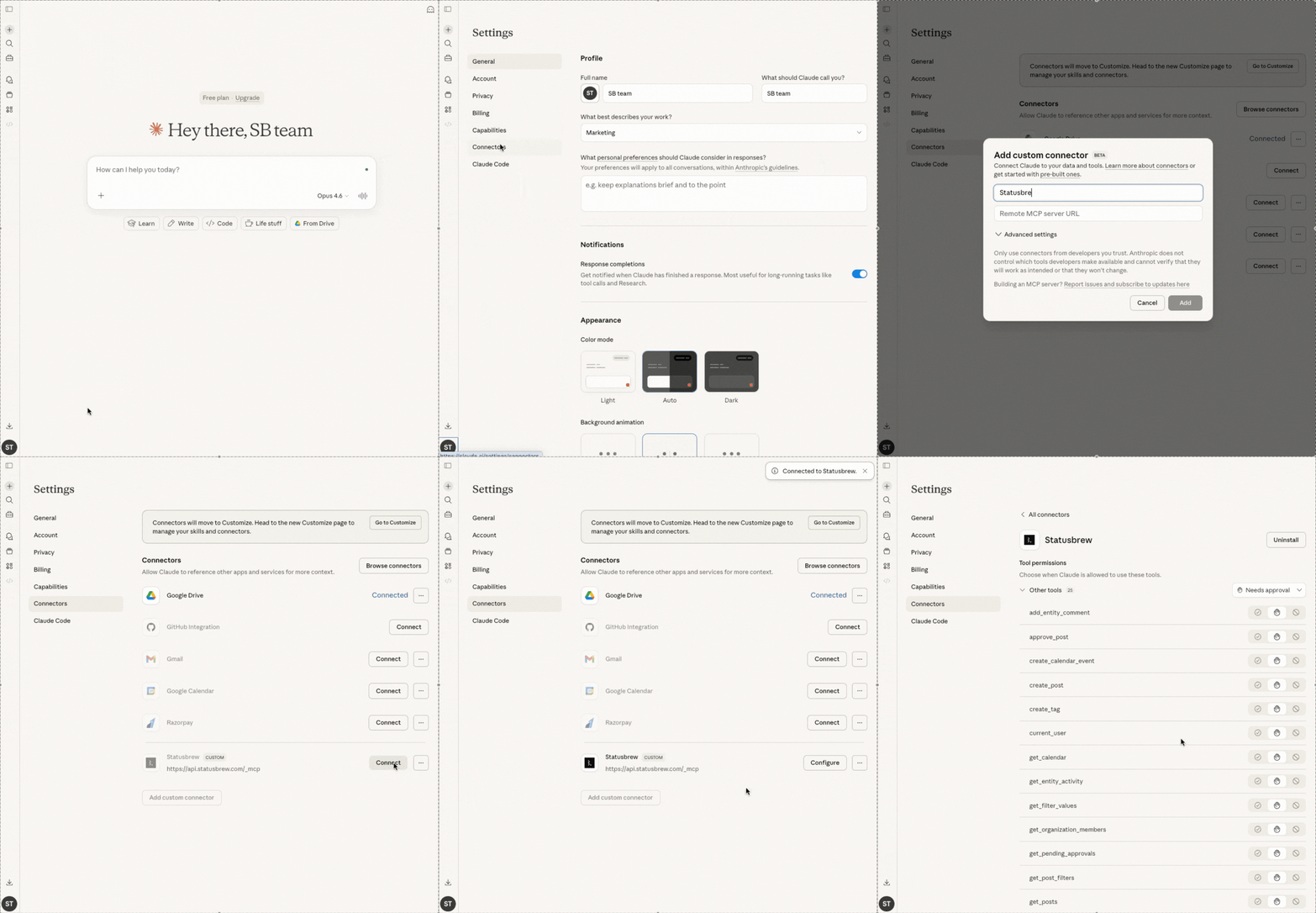
In your Claude account, open Settings.
Select Connectors from the left sidebar.
Click Add custom connector.
Enter the Statusbrew MCP server URL:
https://api.statusbrew.com/_mcpComplete the OAuth authorization flow.
Once connected, Statusbrew will appear in your Connectors list. You can start asking Claude to manage your Statusbrew account directly in the chat. We recommend using the latest version of your MCP-supported AI tool for better performance. Opus, for example, in case of Claude.
Claude's Connectors section is moving to a new Customize page. If you don't see Connectors in Settings, look for a Customize option instead and manage connectors from there.
How to Connect ChatGPT
Statusbrew's ChatGPT MCP integration is a paid add-on priced at $100. Please contact your Account Manager or the Statusbrew team to get it activated on your account.
And you also require a ChatGPT Business or Enterprise/Edu plan and an add-on in Statusbrew. A workspace admin must enable Developer Mode before users can connect custom MCP servers.
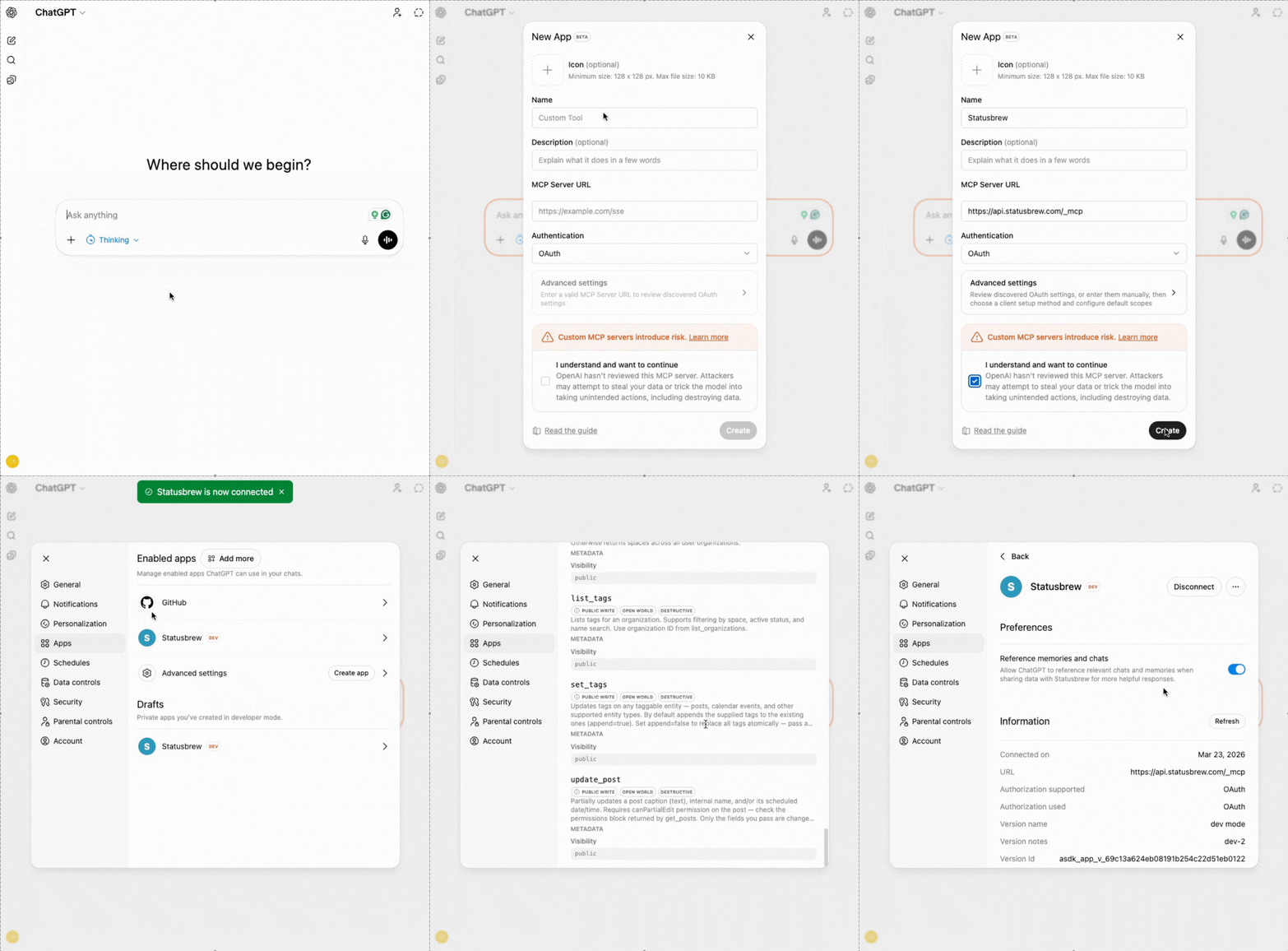
Go to ChatGPT and open Settings.
Click Apps, then click Advanced settings.
Enable Developer Mode.
Click Create App.
Enter the Statusbrew MCP server URL:
https://api.statusbrew.com/_mcpComplete the OAuth authorization flow.
How to Connect Microsoft Copilot Studio and Microsoft 365 Copilot
Microsoft 365 Copilot uses Statusbrew through an agent you build in Copilot Studio. First add Statusbrew's MCP server to a Copilot Studio agent, then make that agent available in Microsoft 365 Copilot.
Statusbrew's Copilot MCP integration is a $100 paid add-on on the Premium plan and is included in the Enterprise plan. On either plan, contact your Account Manager to get it activated on your account. You also need a Microsoft Copilot Studio subscription.
Copilot Studio has two types of agents: GitHub Copilot (the default) and Standard. The steps to add Statusbrew are different for each. You pick the type when you create the agent, and you can't change it later.
Step 1 (GitHub Copilot Agent): Add Statusbrew to Your Agent
Microsoft bills GitHub Copilot agents by usage, separately from your Statusbrew subscription.
In Copilot Studio, click Agent on the home page to create a GitHub Copilot agent. Or open an existing one.
On the Build tab, click + next to Tools in the right panel.
In the Add a tool dialog, click Add next to the search bar, then select Model Context Protocol (MCP).
Enter the server details:
Server name: Statusbrew
Server description: Manage Statusbrew posts, approvals, calendar, Engage inbox and reports
Server URL:
https://api.statusbrew.com/_mcp
Under Authentication, select OAuth 2.0. Leave Configuration type set to Dynamic (with discovery), then click Add.
In the Connection dropdown, click Create new connection, then click Create.
In the Statusbrew window that opens, sign in and click Authorize.
When the Statusbrew tool list appears, leave every tool turned on and click Save.
On the Preview tab, ask "Show me my Statusbrew spaces" to check that the connection works.
Step 1 (Standard Agent): Add Statusbrew to Your Agent
In Copilot Studio, click Other ways to build on the home page, then click Agent (Standard). Or go to Agents > New agent dropdown > Agent (Standard). Name the agent and click Create. Or open an existing standard agent.
Click Settings > Generative AI and make sure Orchestration is set to Yes. It's on by default for new agents.
Go to the Tools tab, click Add a tool, then click Add new MCP.
Enter the server details:
Server name: Statusbrew
Server description: Manage Statusbrew posts, approvals, calendar, Engage inbox and reports
Server URL:
https://api.statusbrew.com/_mcp
Under Authentication, select OAuth 2.0. Leave Type set to Dynamic discovery, then click Create.
In the Connection dropdown, click Create new connection, then click Create.
In the Statusbrew window that opens, sign in and click Authorize.
Click Add to agent (or Add and configure).
Leave every Statusbrew tool turned on. Turning some off can cause actions to fail later.
Step 2: Make the Agent Available in Microsoft 365 Copilot
These steps are the same for both agent types.
In your agent, click Publish.
Go to Channels and select Teams and Microsoft 365 Copilot.
Make sure Make agent available in Microsoft Copilot is selected, then click Add channel.
To share the agent with your whole organization, go to Availability options > Show to everyone in my org > Submit for admin approval. Once your Microsoft 365 admin approves it, the agent appears under Built by your org in the Microsoft 365 Agent Store.
Each person who uses the agent connects their own Statusbrew account the first time they use it. The agent can only see what that person can see in Statusbrew.
How to Connect Any Other MCP-Compatible Tool
Statusbrew's MCP server works with any tool that supports the MCP standard. In your AI tool's MCP settings, add the following server URL and complete the OAuth authorization flow: https://api.statusbrew.com/_mcp
Refer to your AI tool's documentation for the exact steps to add a custom MCP server.
FAQs
Is My Statusbrew Password Shared With the AI Tool?
No. The connection uses OAuth 2.0. The AI tool receives only a scoped access token. Your password is never shared with the AI tool.
Can the AI Publish Posts Without My Confirmation?
No. The AI can't publish or schedule posts. Every post it creates is saved as a Draft, and someone on your team can schedule or publish it in Statusbrew.
The one exception is approvals. If you ask the AI to approve a post that's waiting for your approval, that post moves to Scheduled and publishes at its scheduled time. Most AI tools ask you to confirm before taking any action like this.
Can I Schedule or Publish Posts Directly Through MCP?
No. Your AI tool creates every post as a Draft, even if you give it a date and time. The time is saved on the draft, but nothing has gone out yet.
To schedule it:
Go to Publish > Drafts in Statusbrew.
Open the post and click Edit post.
Click Remove as draft, then click Schedule.
Can I Approve or Reject Posts Through MCP?
Yes. Ask your AI tool to show posts waiting for your approval, then approve or reject them. When you reject a post, you can add a reason and a note so the author knows what to fix.
You can only approve posts where you're an approver. Approved posts move to Scheduled. If their scheduled time has already passed, they publish right away.
The AI can't send a draft for approval. Add reviewers or a workflow when you create the post in Statusbrew.
Which Statusbrew Plan Do I Need?
MCP connectivity is included on the Enterprise plan. Premium plan users can access it as an add-on. It is not available on Lite or Standard plans.
Can I Connect Multiple AI Tools to the Same Statusbrew Account?
Yes. Because MCP is an open standard, you can connect Claude, ChatGPT, Copilot, and other AI tools simultaneously to the same Statusbrew account.
How Do I Disconnect an AI Tool From Statusbrew?
To disconnect, remove the Statusbrew connector from within your AI tool's settings. For example, in Claude, go to Settings, find Statusbrew under Connectors, and remove it. If a team member has left your organization, archiving their Statusbrew user seat also immediately removes their MCP access.
What Can the AI Access Through MCP?
Only what your own Statusbrew account can access. The AI sees the same spaces, profiles, posts, and Engage conversations you can see, and can only take the actions your role allows. If you can't see a profile in Statusbrew, the AI can't see it either. Connecting through MCP never adds permissions.
Can the AI Read My Engage Inbox?
Yes. Ask for conversations in a space, like "show unread DMs from this week" or "find negative comments assigned to me," and the AI can open any conversation and read the full thread. This covers comments, DMs, mentions, and reviews from your connected profiles, as well as results for your listening keywords.
Can the AI Reply To, Close, or Assign Engage Conversations?
No. Through MCP, the AI can read conversations and add internal notes, but it can't reply to, close, snooze, or assign them. Do that in Engage in Statusbrew.
Can the AI Tag Engage Conversations?
No. Through MCP, you can tag posts and calendar events, but not Engage conversations. Tag conversations in Engage in Statusbrew.
Can I Create or Edit Engage Rules Through MCP?
No. You create and edit rules in Rule Engine in Statusbrew.
Can the AI Look Up Contacts From My CRM?
Yes. The AI can find contacts in a space and filter them by contact fields. It can't create or edit contacts.
Is My Social Data Sent to the AI Provider?
When you ask your AI a question about Statusbrew data, that data is included in the request sent to the AI provider. Review your AI provider's privacy policy for details on how they handle data.
Can I Use This for Agency Workflows With Multiple Clients?
Yes. Statusbrew's spaces and organization structure are accessible through the MCP connection. Your AI tool can navigate across client workspaces based on your account permissions.
What's the Difference Between Statusbrew's Built-In AI Features and MCP?
Statusbrew's built-in AI (Brew AI for caption generation and AI Assistant in Engage) runs within the Statusbrew product. MCP is a connection layer that lets an external AI tool you already use, such as Claude or ChatGPT, operate Statusbrew on your behalf from within that tool's interface.
Are There Any Additional Costs for Using Statusbrew via MCP?
Statusbrew charges for MCP access only ($100/month on Premium, included on Enterprise). Your AI tool's own pricing and usage limits apply separately. For example, if you use Claude or ChatGPT, your usage is billed by Anthropic or OpenAI under your existing plan with them. Check your AI provider's pricing page for details on API costs and rate limits.
What Happens if the Connection Stops Working?
Disconnect and reconnect Statusbrew from your AI tool's connector settings to refresh the OAuth token. If the issue persists, check that your Statusbrew plan includes MCP access.
Can I Connect Statusbrew to Claude or ChatGPT Directly From Inside Statusbrew?
No. There is no direct option inside the Statusbrew product to connect with Claude, ChatGPT, or other MCP-supported AI tools.
The connection is set up on the AI tool side, not in Statusbrew.
Can I Add Statusbrew Directly in Microsoft 365 Copilot?
No. Microsoft 365 Copilot doesn't let you add an MCP server URL directly. Create an agent in Copilot Studio, add Statusbrew's MCP server to it, then publish the agent to Microsoft 365 Copilot. The personal Microsoft Copilot app doesn't support MCP servers at all.
What's the Difference Between GitHub Copilot and Standard Agents?
A Standard agent follows the rules, topics and flows you design. A GitHub Copilot agent takes a goal, works out the steps on its own and carries them out, which suits multi-step tasks. Both can use Statusbrew. Pick the type before you start, because you can't switch an agent from one to the other.
Why Does Statusbrew Say "Credential Manager" Is Requesting Access?
Credential Manager is the name Copilot Studio uses when it connects to Statusbrew. Click Authorize to let your agent use your Statusbrew account.
Why Does Copilot Studio Say "Dataverse Isn't Set Up in This Environment"?
You can't create agents in an environment without Microsoft Dataverse. Switch to another environment using the environment switcher at the bottom left of Copilot Studio, or ask your Microsoft admin to set up Dataverse.
Can I Bulk Schedule Posts to Statusbrew Using MCP-Supported AI Tools?
You can bulk-create drafts. Ask your AI tool to create several posts at once, with their dates and times, and save each one as a Draft with that time filled in. Then schedule them from Statusbrew.
We recommend creating 5 to 7 posts at a time for the best experience. Statusbrew does not impose a strict limit, but your AI tool may have its own limits on context length or on how much it can process in a single request. For a larger batch, split the content into smaller groups and run them one at a time.
How Do I Add Images or Videos to Posts Through MCP?
Give your AI tool a public, direct link to the file. A direct link opens the image or video on its own, like https://example.com/launch-video.mp4.
Supported formats are JPG, PNG, GIF, WEBP, and MP4, with up to 10 files per post. Files you attach to your AI chat can't be uploaded, so always share a link.
Regular share links from Google Drive, Dropbox or OneDrive don't work. They open a preview page, not the file.
To use a Google Drive file:
Set the file's sharing to Anyone with the link.
Copy the file ID from the share link. It's the part between
/d/and/view.Give your AI tool this link instead:
https://drive.google.com/uc?export=download&id=FILE_ID
Videos work the same way as images. The AI attaches them to the draft, and you schedule or publish the post from Statusbrew.
Why Did My AI Tool Miss Some Details While Creating Content Or Reports?
AI tools work best when your request is specific.
For publishing tasks, include details like Space, profile, date, time, campaign tag, post status, and approval requirement.
For reporting tasks, include the report period, profiles, networks, metrics, tags, the campaign name, and the summary type you want. For example, say whether you want a top-performing posts summary, engagement breakdown, cross-network comparison, or campaign-level analysis.
For larger tasks, break the request into smaller steps and review the result before confirming any action. This helps avoid missing details, wrong filters, or incomplete reporting summaries.
My Engage Inbox Shows 999+. How Do I See the Exact Number of Conversations?
Once a view has more than 999 conversations, Engage shows 999+. To get the exact total, ask your AI tool through Statusbrew MCP, for example, "How many open conversations are there in [Space name]?" or "How many conversations did we close in [Space name] last month?" You can filter by state (open, closed, snoozed, or spam), date range, unread status, or filters such as network, sentiment, and assignee.