How to Update Your Billing Address and Tax ID in Statusbrew?
Statusbrew collects VAT, GST, or applicable sales tax in regions where we're legally required to do so. This article explains why tax appears on your invoice and how to update your billing address and tax ID.
Who can do this?
Only the Primary Owner and Owner of an organization can view and update billing details.
Why is Statusbrew charging tax?
Depending on your location, applicable taxes such as VAT, GST, or sales tax may be added to your subscription. These are calculated based on your billing address and are required by law in the jurisdictions where Statusbrew operates.
Tax is shown as a separate line item on your invoice and is determined by your business's registered location.
Which regions are affected?
Tax collection currently applies to customers in the European Union, the United Kingdom, and other jurisdictions where digital services are taxable, including countries with GST obligations.
If your region isn't affected, you won't see tax on your invoices. As Statusbrew registers in additional jurisdictions, this will expand.
How to update your billing address and tax ID?
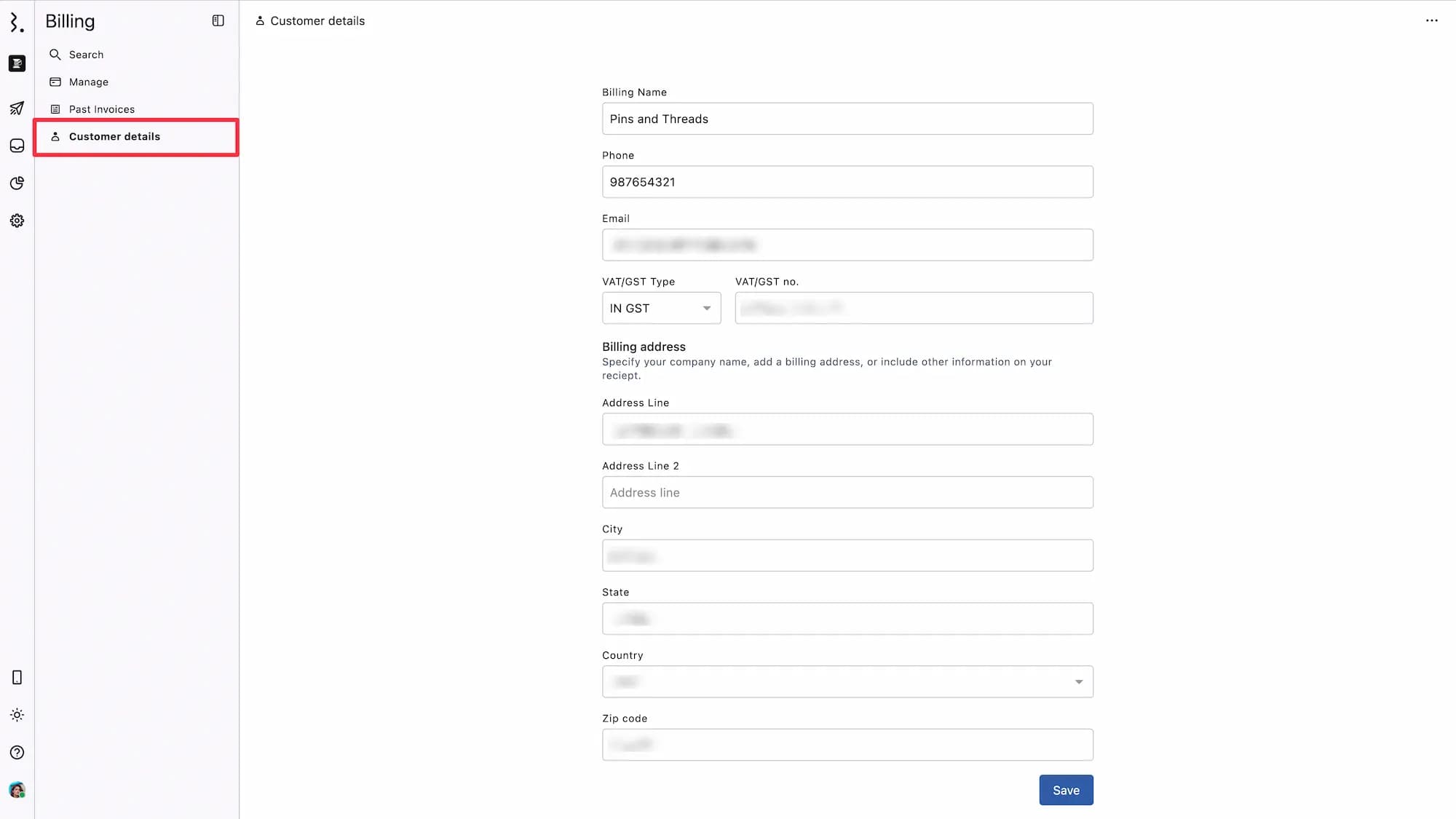
Your billing address and tax ID are managed from the same screen.
From the Statusbrew welcome dashboard, click Billing. Or Go to Settings > Billing.
Select Customer details from the left sidebar.
To add your tax ID, select your tax type from the VAT/GST Type dropdown, then enter your registration number in the VAT/GST no. field.
To add your billing address, fill in your details under the Billing address section.
Click Save.
Your billing address determines which tax rate applies to your invoices. Make sure it matches your business's registered address.
If your business is VAT-registered, adding a valid tax ID can remove VAT from future invoices through the reverse charge mechanism. Check with your accountant if you're unsure whether this applies to your business.
Will my past invoices be updated?
No. Tax only applies to invoices generated after Statusbrew began collecting tax in your region. Existing invoices are not affected.
I'm a VAT-registered business. Will I still be charged tax?
If you're VAT-registered in an eligible country and have added your tax ID, the reverse charge mechanism typically applies, and Statusbrew won't charge you VAT.
If you're unsure, check with your accountant.
How to access your invoices?
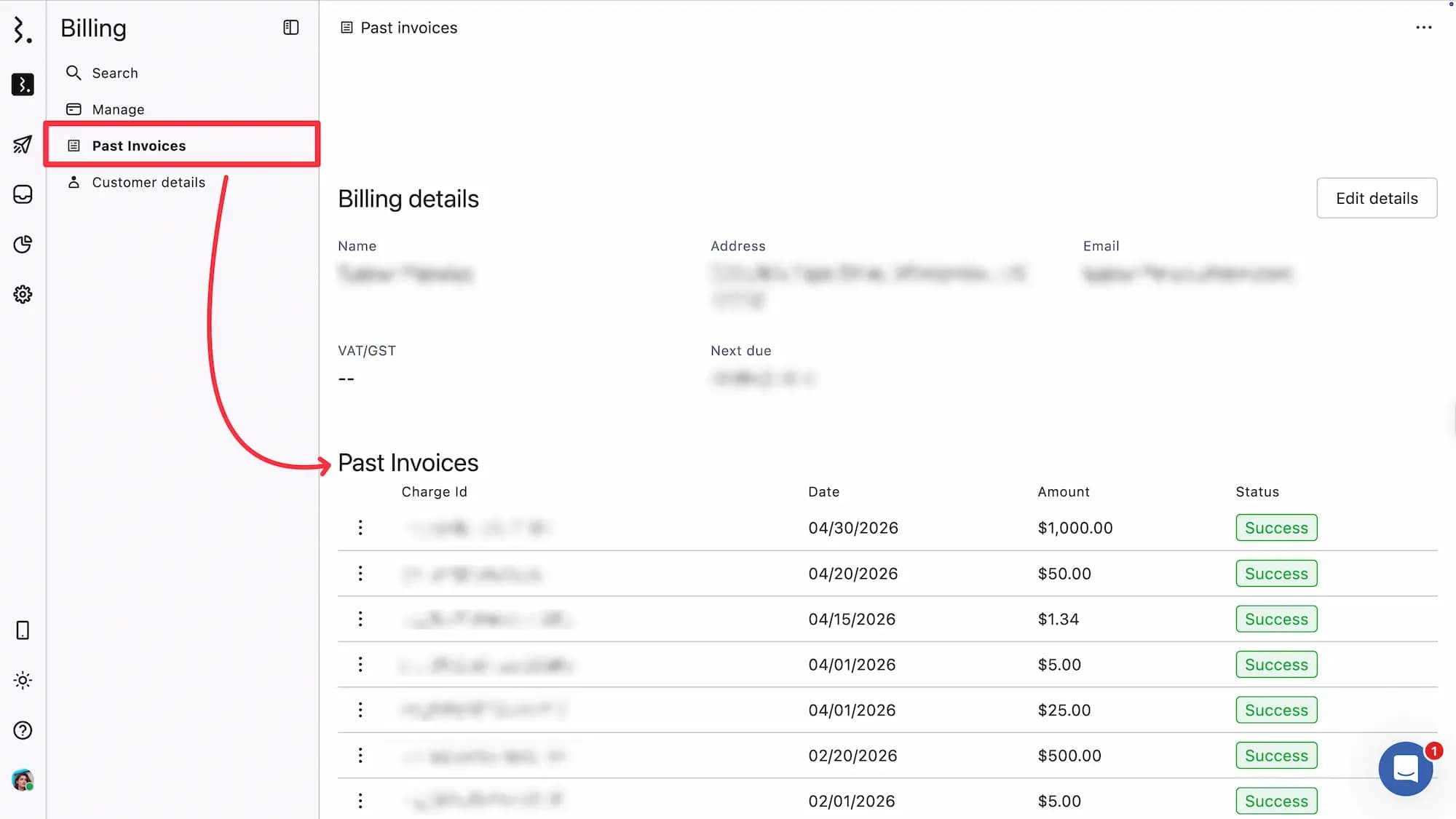
Statusbrew keeps a complete record of your purchase history. To view all invoices, including any tax amounts charged:
From the welcome dashboard, click the Billing
Select Past Invoices from the left sidebar.
What if the tax rate on my invoice looks wrong?
Check that your billing address is correct under Billing → Customer details. Tax rates are calculated based on this address.
If everything looks correct and you still believe the rate is wrong, contact billing@statusbrew.com.
Can I update my company name or other invoice details?
Yes. You can update your company name and other billing details by going to Billing → Past Invoices → click "Edit details" → enter your company name & other details → Save.