Google Analytics Integration
Connect your Google Analytics account to Statusbrew to measure the real impact of your social media activity. Once connected, your website traffic and campaign data become available as a data source in Statusbrew Reports, so you can see social performance and website results side by side.
Google Analytics integration is available on Premium and above plans. See full pricing details.
Who Can Do This
Any Statusbrew user can connect a Google Analytics account. Only Primary Owners, Owners, and Admins can remove a connected account.
Prerequisites
Before you connect, make sure:
You have an active Google Analytics property set up for your website
You are signed in to the Google account that has access to that property
Any Google Analytics user role can connect a property to Statusbrew; no minimum permission level is required on the Google Analytics side.
For the integration to produce the most useful data, make sure your social post links have UTM parameters applied. This lets Google Analytics attribute website traffic back to specific social campaigns. You can add UTM parameters directly from Statusbrew Compose.
See also: Adding UTM Parameters To URLs
How To Connect Google Analytics
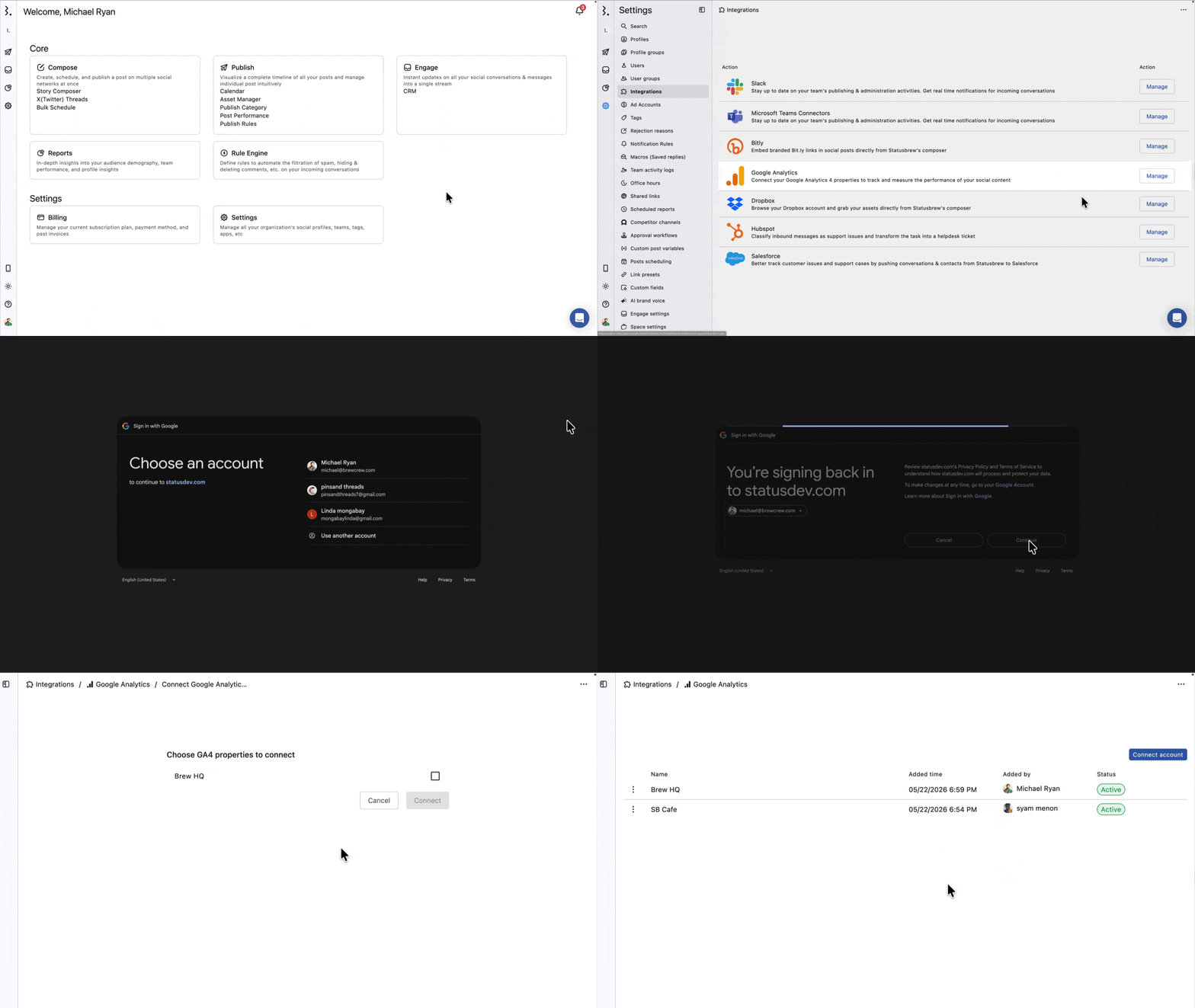
Go to Settings.
Select Integrations → Google Analytics.
Click Connect Account.
You will be redirected to Google for authorization. Sign in with the Google account that has access to your Google Analytics property.
Review and accept the requested permissions.
You will be shown a list of Google Analytics properties accessible from that Google account. Select the property you want to connect.
Click Confirm to complete the connection.
Your connected property will appear in the Analytics list with an Active status.
You can connect multiple Google Analytics properties, including properties from different Google accounts. Repeat the steps above for each property you want to add.
How To Use Google Analytics Data in Reports
Once connected, your Google Analytics property is available as a data source when building report widgets.
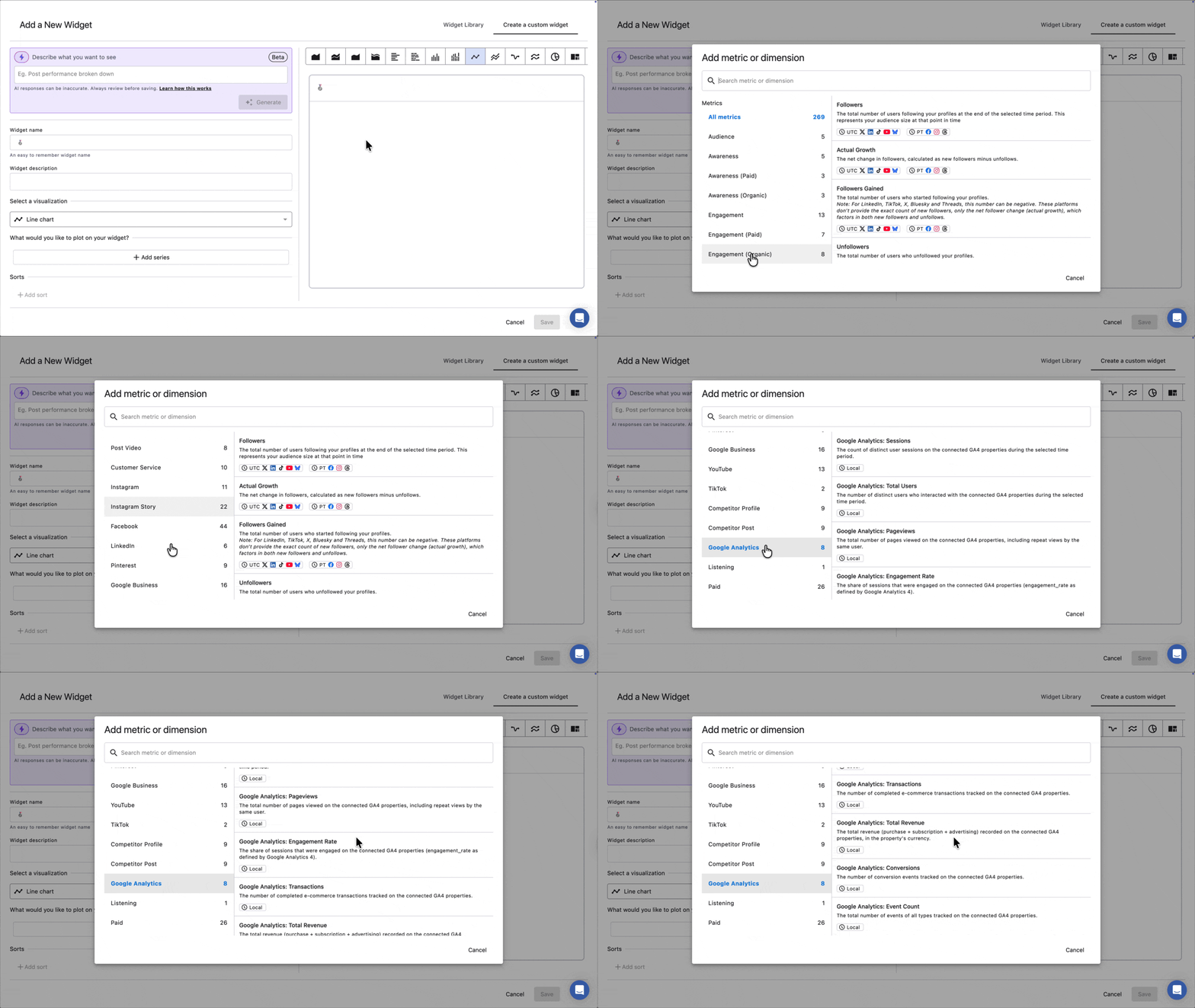
Go to Reports and open or create a report.
Click Add widget.
In the Add metric or dimension panel, select Google Analytics from the left category list.
Choose the metric you want to add.
Choose the dimensions you want to display.
Click Save.
The following 8 metrics are available under the Google Analytics category:
Sessions: The count of distinct user sessions on your connected Google Analytics properties during the selected time period.
Total Users: The number of distinct users who interacted with your connected Google Analytics properties during the selected time period.
Pageviews: The total number of pages viewed, including repeat views by the same user.
Engagement Rate:
The share of sessions that were engaged (as defined by Google Analytics).
Transactions: The number of completed e-commerce transactions tracked on your connected Google Analytics properties.
Total Revenue: The total revenue (purchase + subscription + advertising) recorded, in the property's currency.
Conversions: The number of conversion events tracked on your connected Google Analytics properties.
Event Count: The total number of events of all types tracked on your connected Google Analytics properties.
All Google Analytics metrics use your local timezone.
More metrics will be added over time based on feedback. The list above reflects what is available at launch.
The following 10 dimensions are available for Google Analytics metrics:
Data Sources: Breakdown by your connected Google Analytics properties.
Date: Breakdown of data by specific date.
Week: Breakdown of data by week of the year.
Month: Monthly data breakdown.
Country: Breakdown by countries where your audience is located.
Device Type: Breakdown by device used (Desktop, Mobile, etc).
UTM Source: Breakdown by the UTM source tagged on your links.
UTM Medium: Breakdown by the UTM medium tagged on your links.
UTM Campaign: Breakdown by the UTM campaign tagged on your links.
UTM Content: Breakdown by the UTM content tagged on your links.
How To Remove a Google Analytics Connection
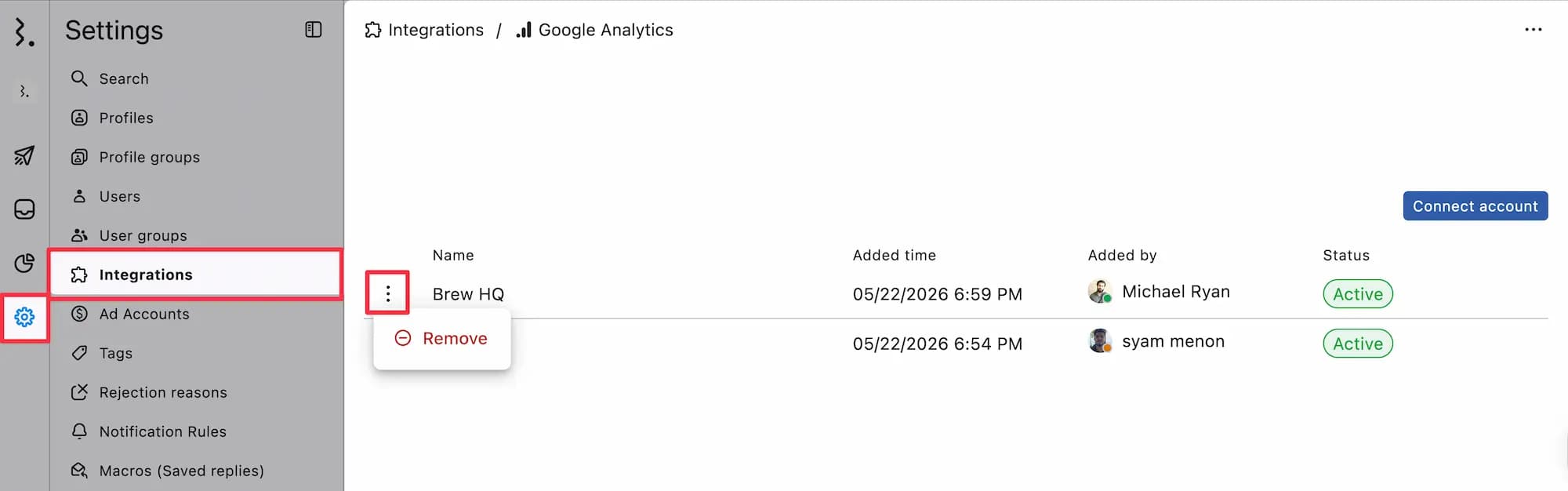
Go to Settings → Integrations → Google Analytics.
Click (:) beside the property you want to remove.
Select Remove.
Removing a connected property stops Google Analytics data from being pulled into Statusbrew. Existing widgets that use that property will stop displaying data.
This action cannot be undone. You will need to reconnect the property if you want to restore the data.
FAQs
Can I Connect Multiple Google Analytics Accounts and Properties?
Yes. You can connect multiple Google Analytics accounts and properties to Statusbrew. Each connected property appears as a separate entry in the Analytics list under Settings → Integrations, regardless of which Google account it belongs to. To add another account or property, go to Settings → Integrations → Analytics and click Connect Account again.
Which Plans Include the Google Analytics Integration?
Google Analytics integration is available on Premium and Enterprise plans.
Do I Need UTM Parameters For This Integration To Work?
UTM parameters are not required to connect to Google Analytics, but they make your data significantly more useful. Without UTM parameters, Google Analytics can broadly show website traffic from social channels, but cannot attribute visits to specific posts or campaigns. By applying UTM parameters in Statusbrew Compose, Google Analytics can tie traffic directly back to individual posts.
See also: Adding UTM Parameters To URLs
Can I View Google Analytics Data Alongside My Social Metrics in the Same Report?
Yes. You can combine Google Analytics and social metrics in a single widget. Two different series of metrics render together, so you can view website and social data side by side in a single chart.
Can I Share a Report Containing Google Analytics Data?
Yes. Reports with Google Analytics widgets can be shared using Statusbrew's Shared Links feature the same way as any other report. Google Analytics data is visible to external recipients on the shared link. They do not need a Statusbrew or Google Analytics account to view it.
How Often Does Google Analytics Data Refresh in Statusbrew?
Google Analytics data is fetched on demand in real time each time you view a report. Unlike social network metrics, there is no scheduled refresh. You always see the latest data from your connected Google Analytics properties when you open a report.