What to do If a Report is slow or crashes your browser?
If your Statusbrew report is loading slowly, freezing, or crashing your browser, a few common causes are easy to fix on your end.
Things to Try
Shorten the reporting period
Large date ranges pull significantly more data. If your report spans 90 days or more, try switching to a shorter period, such as the last 30 days, to see if performance improves.
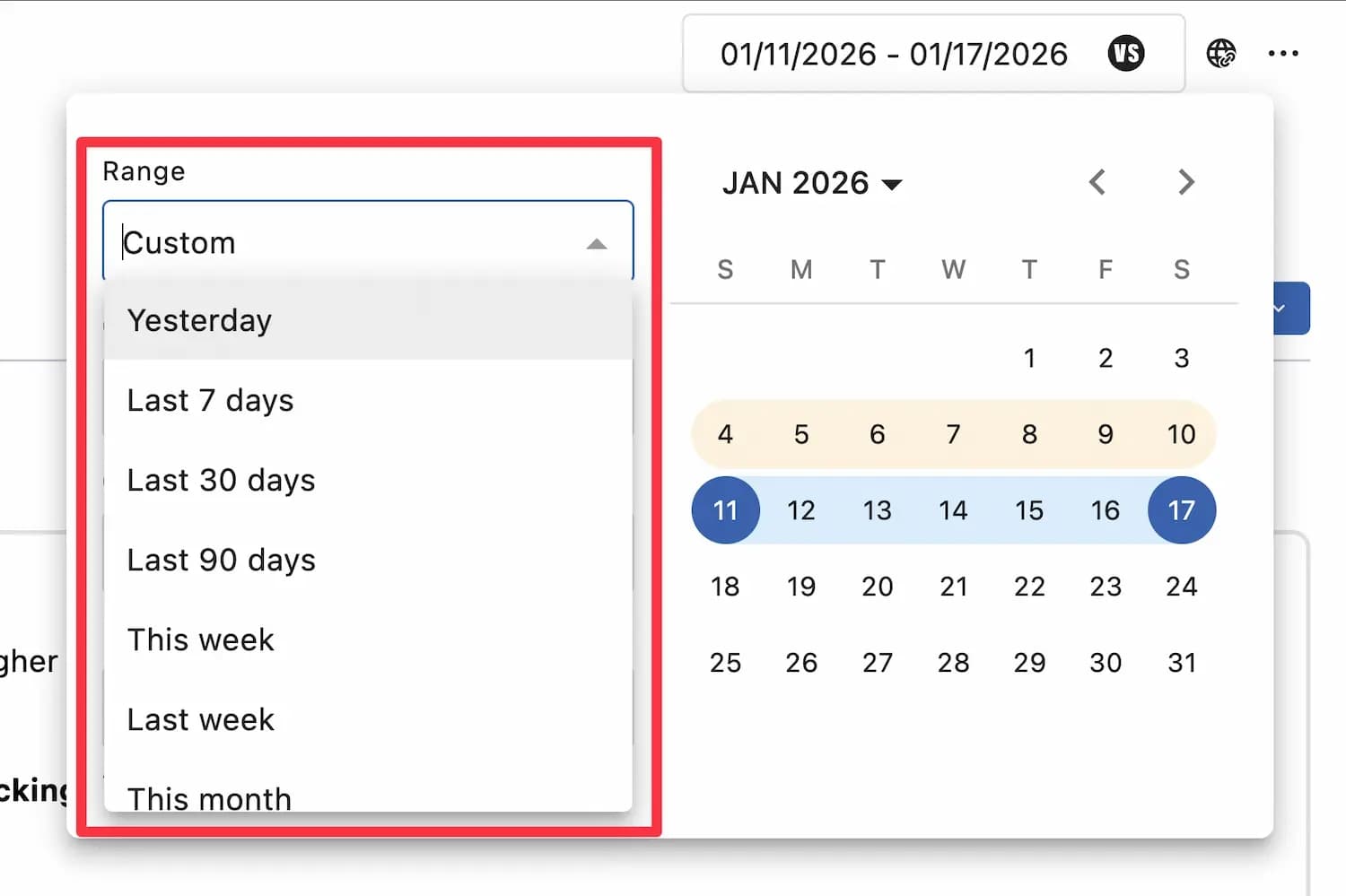
Open your report from Reports
Click the date range selector in the filter bar
Select a shorter preset period or set a custom range
Reduce the number of data sources
Reports with many connected profiles load more data per widget. Deselect profiles you don't need for this report.
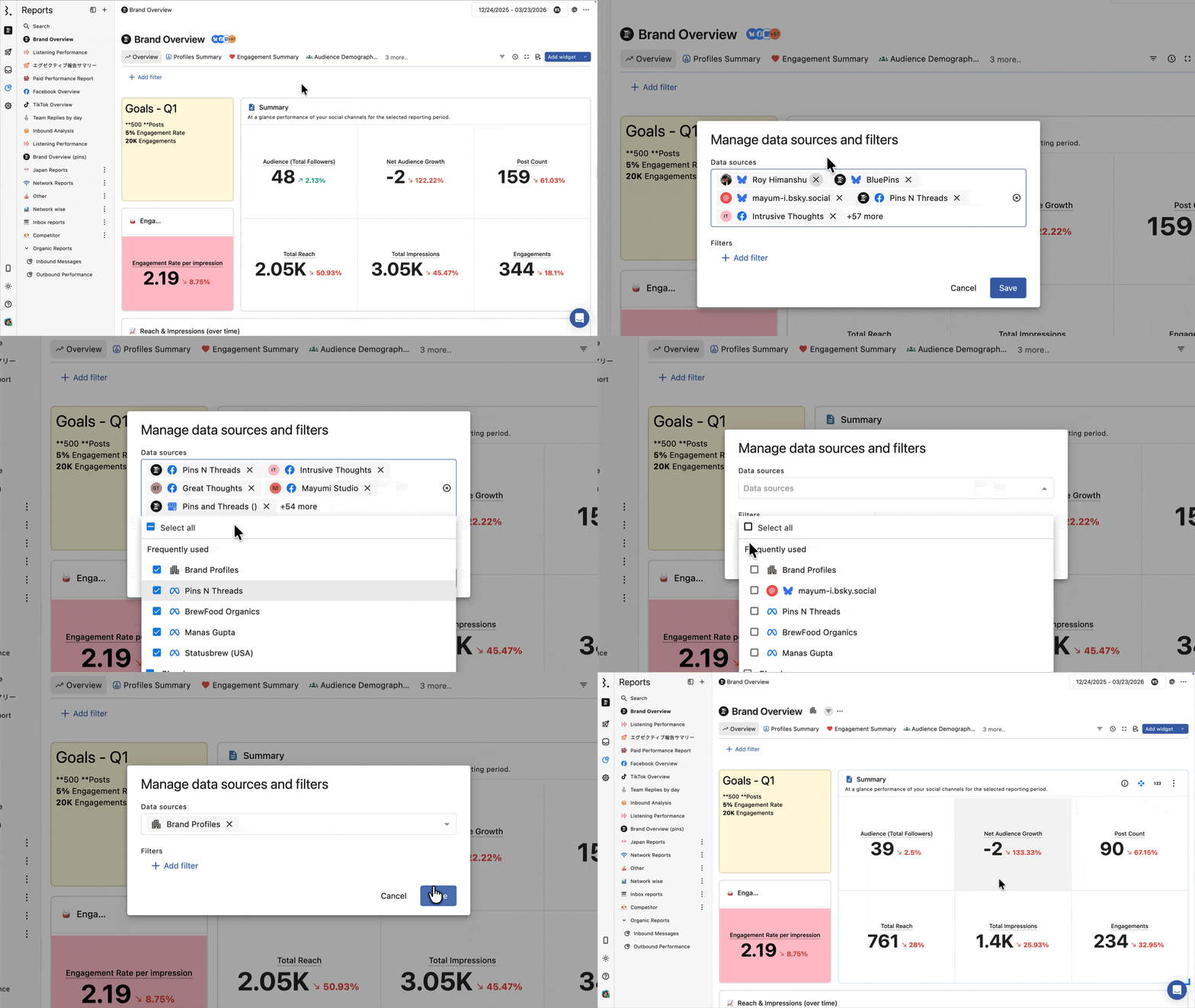
From the filter bar, click the data source selector
Deselect profiles or networks you don't need
The report will reload with fewer data sources
Remove unused widgets
Each widget is a separate data query. A report with 30+ widgets is much heavier than one with 10. Remove widgets you're not actively using.
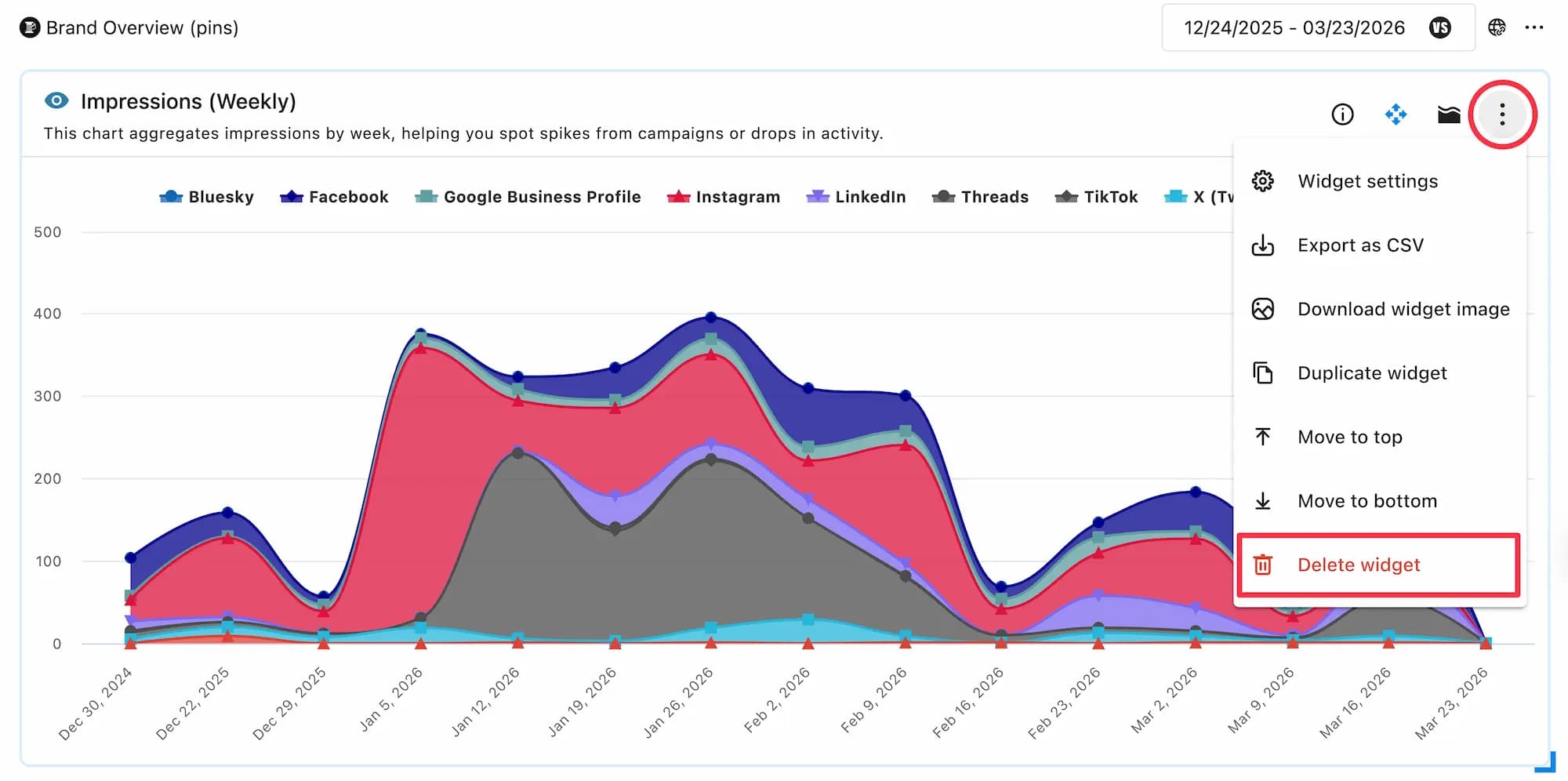
Hover over a widget and click the three-dot menu
Select Delete widget
For tabular or card widgets, you can also limit the number of rows displayed instead of deleting the widget entirely. Edit the widget and set a row limit to reduce the amount of data it loads.
Clear your browser cache and cookies
Stale cached data in your browser can cause reports to behave unpredictably. Clear your browser's cache and cookies, then reload the report.
The steps vary by browser. Search "clear cache [your browser name]" for instructions.
Reset Statusbrew local storage
If clearing your browser cache doesn't help, resetting Statusbrew's local storage removes cached UI data specific to the app without affecting your account or reports.
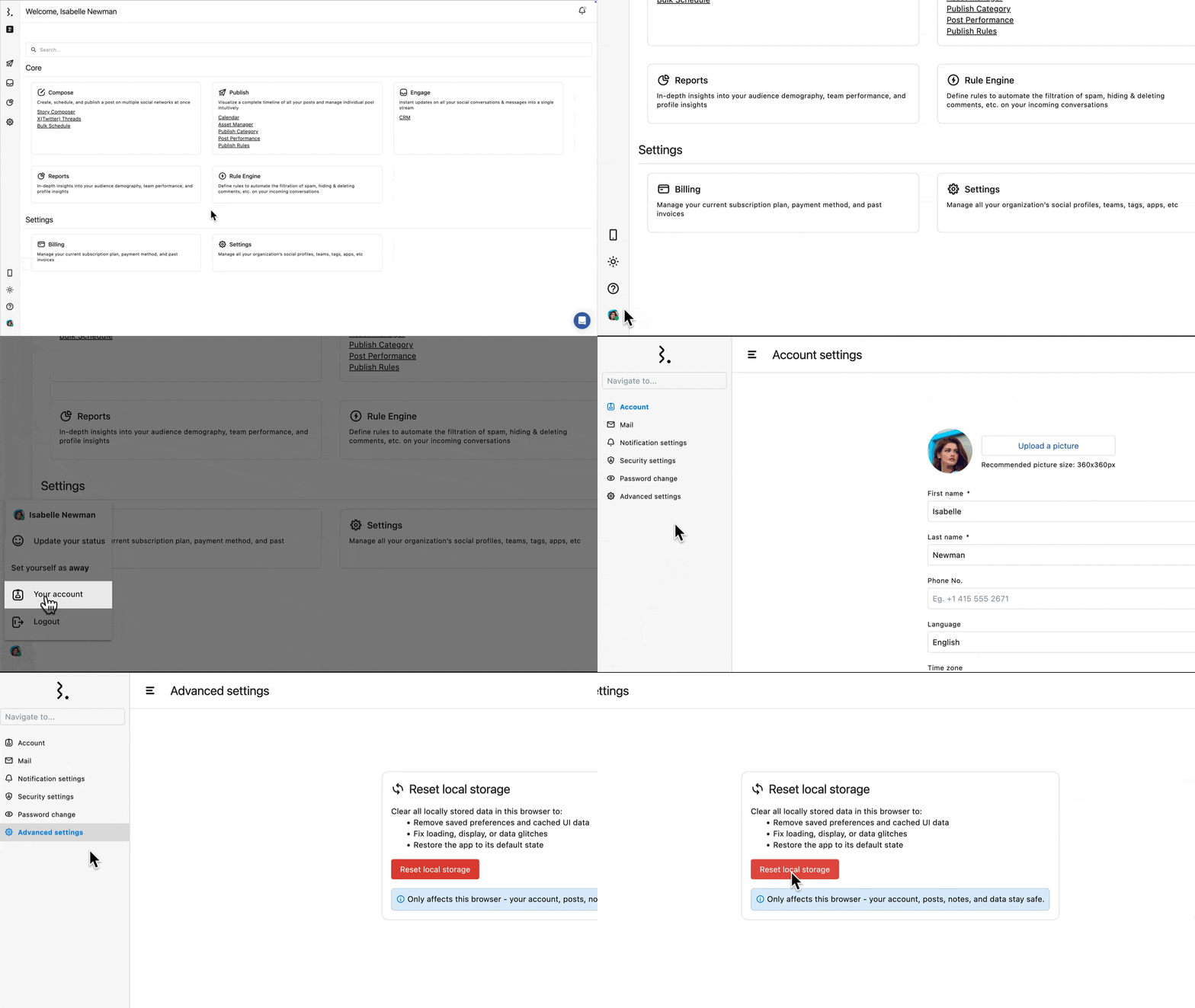
Click your profile avatar from the bottom left of your Statusbrew dashboard
Select Your account
Select Advanced settings from the left nav
Under Reset local storage, click Reset local storage
You may need to log back in to your space after resetting local storage. Your account, reports, and data are not affected.
Update your browser
Reports use modern web technologies that require an up-to-date browser. If your browser is outdated, update it to the latest version. Statusbrew supports the latest versions of Chrome, Firefox, Safari, and Edge. See Supported Browsers.
Close unused browser tabs
Browser tabs share memory. If you have many tabs open alongside a data-heavy report, closing unused tabs frees up resources and can noticeably improve report performance.
FAQs
Why does my report only slow down for certain date ranges?
Larger date ranges return more data points per widget. A 6-month range with daily granularity can return hundreds of data rows per widget. When multiplied across 20+ widgets, this places a significant load on your browser. Switching to monthly granularity or a shorter period helps.
Does the number of widgets in a report affect performance?
Yes. Every widget fires a separate data request when the report loads. Reports with many widgets, especially large template-based reports, take longer to render. Remove widgets you don't need regularly.
Will resetting local storage delete my reports or data?
No. Resetting local storage only clears cached preferences and UI state in your current browser. Your reports, widgets, data sources, and account data are completely unaffected.
My report is still slow after trying everything above. What should I do?
Try opening the report in a different browser to rule out a browser-specific issue. If the problem persists across browsers, it may be a bug. Report it to the Statusbrew team via the chat icon in your dashboard or email support@statusbrew.com.